
Introduction
Thank you for choosing the VENTION Wireless HDMI Extender. This device allows you to wirelessly transmit HDMI video and audio signals up to 656 feet (200 meters) with minimal latency. Featuring 2.4G and 5G dual-band support, 4K decoding, and a plug-and-play design, it is ideal for various applications including home entertainment, business presentations, and gaming. This manual provides detailed instructions for setup, operation, and troubleshooting to ensure optimal performance and longevity of your device.
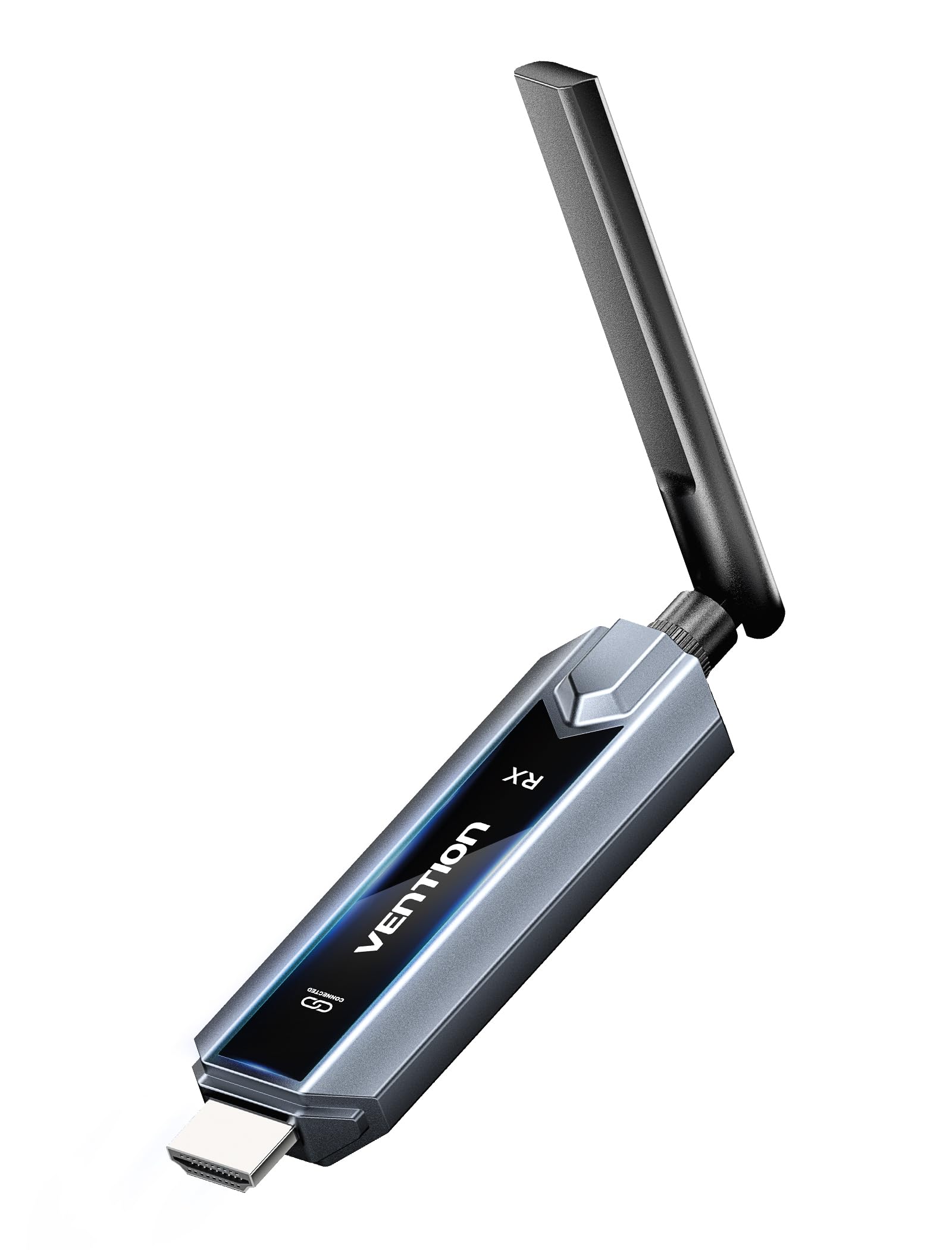
Image: The VENTION Wireless HDMI Transmitter and Receiver units, showcasing their compact design and antennas.
Package Contents
Please verify that all items are present in your package:
- Wireless HDMI Transmitter (TX unit)
- Wireless HDMI Receiver (RX unit)
- USB-C to HDMI Adapter
- Mini HDMI Adapter
- Micro HDMI Adapter
- USB-C Power Cord (for power supply)
- HDMI Extension Cable
- User Manual (this document)
Product Features
The VENTION Wireless HDMI Extender offers a range of features designed for convenience and high performance:
- Plug & Play Operation: No drivers or software installation required. Simply connect and use.
- Extended Range: Transmit signals up to 656 feet (200 meters) in an open environment.
- 4K Decoding & 1080P@60Hz Output: Supports 4K Ultra HD decoding for high-quality video, with output at 1080P resolution at 60Hz for smooth playback.
- Dual-Band Wireless: Utilizes both 2.4G and 5G frequencies for stable and fast transmission.
- Multi-Screen Synchronization: One transmitter can connect to up to four receivers (additional receivers sold separately) to synchronize content across multiple displays.
- Mirror/Extend Mode: Supports both mirroring your display and extending it for multi-tasking (ensure your computer supports extended mode).
- Wide Compatibility: Compatible with various HDMI source devices (laptops, PCs, gaming consoles, TV boxes, cameras) and display devices (TVs, monitors, projectors).
- Engineered Antenna: Designed for enhanced signal stability and faster transmission speeds.
- 5GHz Powerful Chipset: Ensures stable performance in diverse environments.

Image: Diagram illustrating one transmitter (TX) connecting wirelessly to four receivers (RXs) for multi-screen synchronization, highlighting no Wi-Fi, Bluetooth, app, or settings required.

Image: Illustration of the engineered antenna design, emphasizing a transmission distance of 656 feet (200 meters) for faster speeds and greater stability.
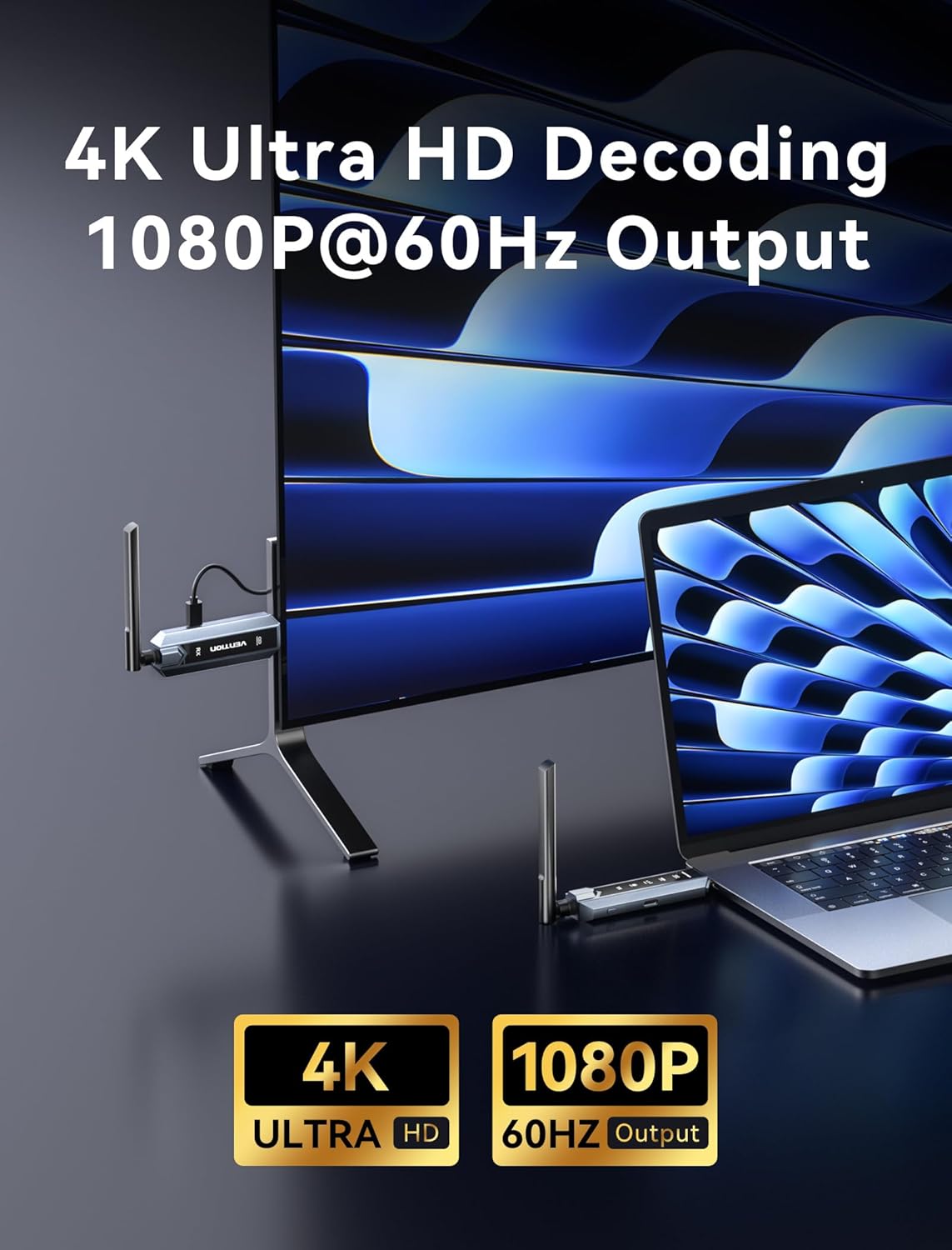
Image: Visual representation of 4K Ultra HD decoding capability with 1080P at 60Hz output, showing a laptop connected to a display.

Image: Close-up of a chipset labeled '5G', indicating a powerful 5GHz chipset for stable performance.

Image: Comparison of 'Mirror mode' (displaying the same picture on laptop and external monitor) and 'Extend mode' (displaying different pictures), with a note about computer support for extended mode.
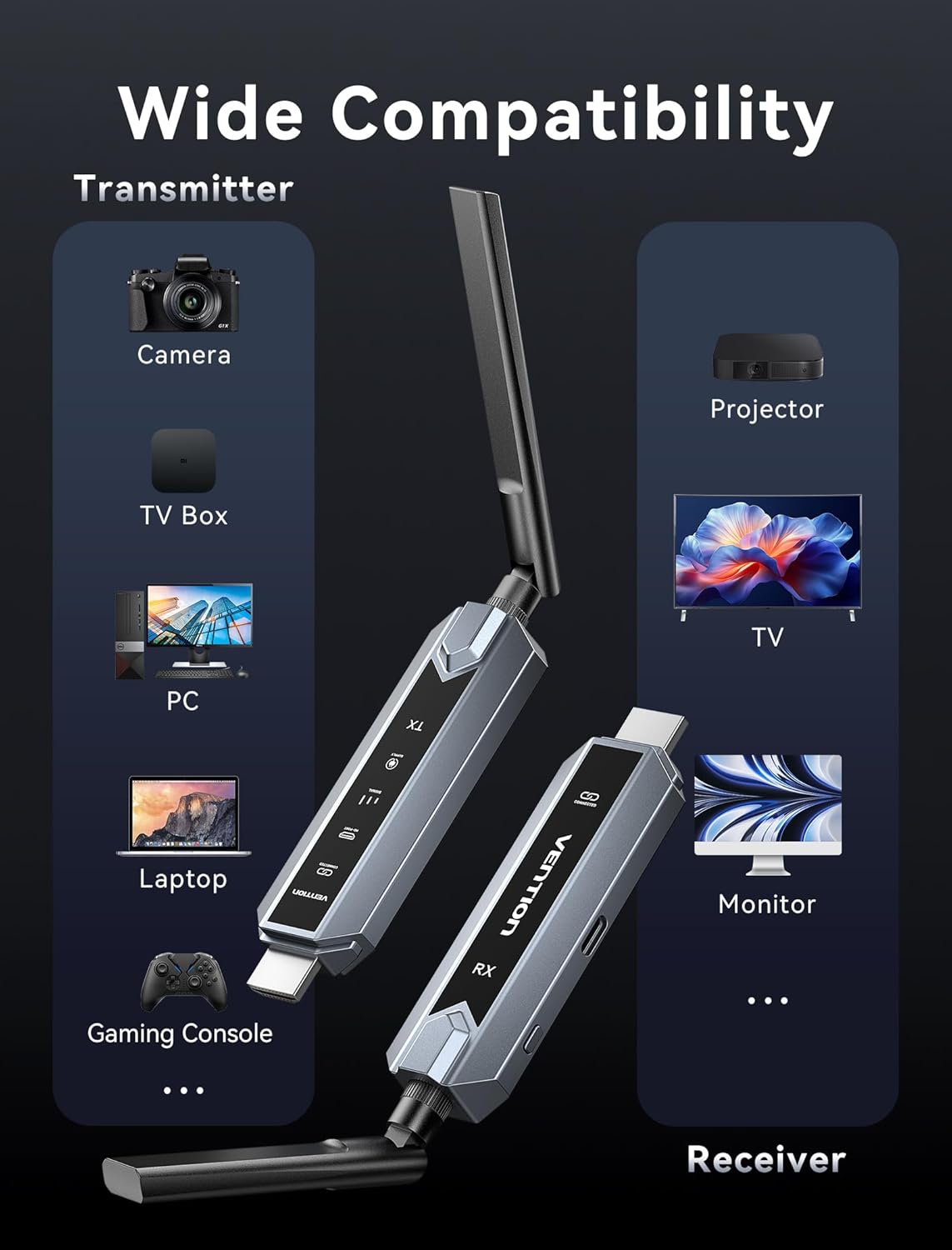
Image: Infographic showing wide compatibility for the transmitter (Camera, TV Box, PC, Laptop, Gaming Console) and receiver (Projector, TV, Monitor).

Image: Four panels depicting various usage scenarios: Business Meetings, Home Entertainment, Teaching Presentation, and Gaming Entertainment.
Setup Instructions
Follow these steps to set up your VENTION Wireless HDMI Extender:
- Connect the Transmitter (TX):
- Connect the TX unit to the HDMI output port of your source device (e.g., laptop, PC, gaming console).
- If your source device has a Mini HDMI or Micro HDMI port, use the provided Mini HDMI Adapter or Micro HDMI Adapter.
- If your source device has a USB-C port that supports video output, use the provided USB-C to HDMI Adapter.
- For devices that require additional power, connect the USB-C Power Cord to the TX unit and a USB power source (e.g., a wall adapter, computer USB port).
- Connect the Receiver (RX):
- Connect the RX unit to the HDMI input port of your display device (e.g., TV, monitor, projector).
- Connect the USB-C Power Cord to the RX unit and a USB power source. The RX unit requires external power to function.
- Power On Devices:
- Ensure both your source device and display device are powered on.
- The TX and RX units will automatically attempt to establish a connection. The digital display screen on the units will indicate connection status.
- Select Input on Display:
- On your display device, select the correct HDMI input source to which the RX unit is connected.
The system is designed for plug-and-play operation, and the video and audio should appear on your display automatically once connected and powered.
Operating Instructions
Once the setup is complete, operating the VENTION Wireless HDMI Extender is straightforward:
- Automatic Connection: The TX and RX units are pre-paired and will automatically connect when powered on and within range.
- Signal Transmission: The extender will transmit the HDMI signal from your source device to your display. The digital display on the units may show signal strength or connection status.
- Mirror/Extend Mode: If your source device (e.g., laptop) supports it, you can configure your display settings to either mirror your primary screen or extend it. This setting is managed through your computer's operating system display preferences, not directly on the extender units.
- Multi-Receiver Setup: If you are using multiple RX units, ensure each RX unit is powered and connected to its respective display. The TX unit will broadcast to all paired RX units simultaneously.
Troubleshooting
If you encounter issues, please refer to the following troubleshooting steps:
- No Signal on Display:
- Ensure both TX and RX units are properly powered via the USB-C power cords.
- Verify that the HDMI cables are securely connected to both the source and display devices.
- Check that your display is set to the correct HDMI input source.
- Ensure the TX and RX units are within the effective transmission range (656ft/200m line of sight) and that there are no significant obstructions.
- Try restarting both the source device and the display device.
- Poor Video/Audio Quality or Intermittent Signal:
- Reduce the distance between the TX and RX units.
- Minimize obstructions (walls, furniture, other electronic devices) between the units.
- Ensure there are no strong sources of wireless interference (e.g., Wi-Fi routers, microwave ovens) nearby.
- Check if the source device's resolution is compatible with the extender's output (1080P@60Hz).
- Units Not Pairing:
- Power cycle both the TX and RX units by unplugging and re-plugging their power cords.
- Ensure both units are from the same VENTION Wireless HDMI Extender kit.
- No Video, but Audio is Present (or vice versa):
- Verify the HDMI cable connections are secure.
- Test with a different HDMI cable if possible.
- Ensure your source device's audio/video output settings are correct.
Specifications
| Feature | Specification |
|---|---|
| Brand | VENTION |
| Model | Wireless HDMI Extender 1RX |
| Connectivity Technology | HDMI, HEVC, LDS, SBC |
| Wireless Technology | HEVC, LDS, SBC (2.4G + 5G Dual Band) |
| Transmission Distance | Up to 656 feet (200 meters) |
| Video Encoding | HEVC Main 10 |
| Video Decoding | 4K Ultra HD |
| Output Resolution | 1080P@60Hz |
| Compatible Devices | Personal Computer, Television, Projector, Gaming Consoles, Cameras, TV Boxes |
| Connector Type | HDMI, USB Type-C |
| Control Method | Touch (for certain features, if applicable) |
| Special Features | Digital Display Screen, Heat-Control, Multi-Screen Streaming Extender |
| Color | Grey |
| Product Dimensions (D x W x H) | 6.53" x 5.12" x 1.18" |
| Power Input | USB-C (5V/2A recommended) |
Maintenance
To ensure the longevity and optimal performance of your VENTION Wireless HDMI Extender, follow these maintenance guidelines:
- Cleaning: Use a soft, dry cloth to clean the units. Do not use liquid cleaners or aerosols, as they may damage the device.
- Storage: When not in use for extended periods, store the units in a cool, dry place away from direct sunlight and extreme temperatures.
- Handling: Handle the units with care. Avoid dropping them or subjecting them to strong impacts.
- Ventilation: Ensure the units have adequate ventilation to prevent overheating, especially during prolonged use. Do not cover the ventilation holes.
- Power Supply: Always use the provided USB-C power cord or a compatible 5V/2A power adapter to prevent damage.
Warranty and Support
VENTION products are designed for reliability and performance. For warranty information, technical support, or service inquiries, please refer to the warranty card included in your package or visit the official VENTION website. Please retain your proof of purchase for warranty claims.
For further assistance, you may contact VENTION customer support through the contact information provided on their official website or through the retailer where you purchased the product.


