
boAt Rockerz Trinity Gen 2
boAt Rockerz Trinity Gen 2 Bluetooth Neckband Earphones User Manual
Model: Rockerz Trinity Gen 2
Introduction
Thank you for choosing the boAt Rockerz Trinity Gen 2 Bluetooth Neckband Earphones. This manual provides essential information for setting up, operating, and maintaining your earphones. Please read it carefully to ensure proper use and to maximize your listening experience. These earphones are designed for extended audio playback, high-resolution sound, and clear communication.
What's in the Box
- boAt Rockerz Trinity Gen 2 Earphones
- Charging Cable
- User Manual
The package includes the boAt Rockerz Trinity Gen 2 Earphones, a charging cable, and this user manual.
Product Overview
The boAt Rockerz Trinity Gen 2 features a flexible neckband design with in-ear earbuds. It includes integrated controls for media playback, call management, and voice assistant activation. The neckband houses the battery and main electronics.
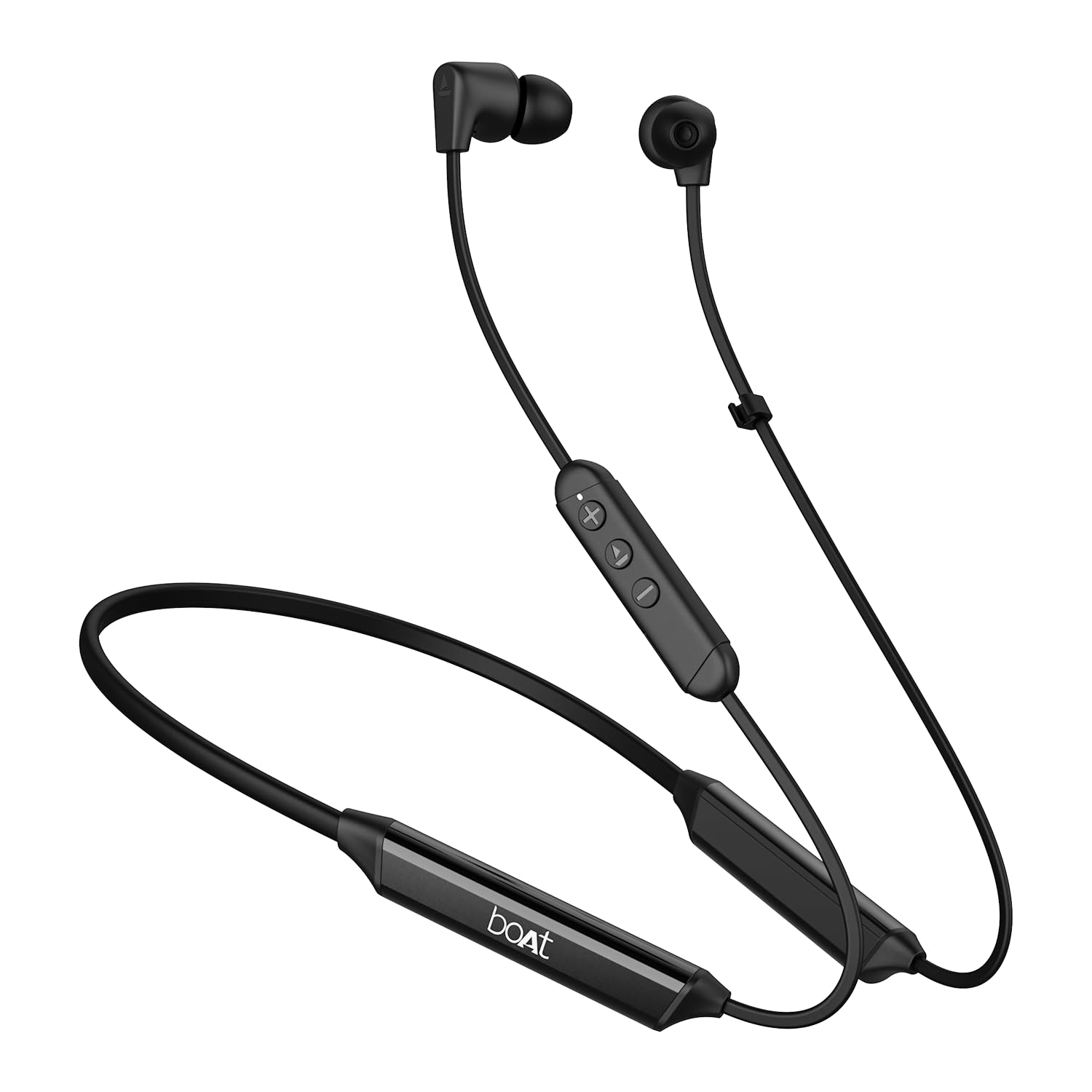
Image: The boAt Rockerz Trinity Gen 2 neckband earphones, highlighting the flexible neckband and in-ear design.

Image: A detailed view of the boAt Rockerz Trinity Gen 2 earbuds and the inline control panel, showing buttons for volume and playback.
Setup
1. Charging the Earphones
Before first use, fully charge your earphones. Connect the provided charging cable to the charging port on the neckband and to a USB power source. The LED indicator will show charging status. A full charge provides up to 150 hours of playback. With ASAP Charge, 10 minutes of charging provides up to 24 hours of playback.
Image: The boAt Rockerz Trinity Gen 2 neckband, illustrating its long battery life with "150 HOURS PLAYBACK" text.
2. Powering On/Off
- To Power On: Press and hold the Multi-function button (usually the center button on the inline control) for approximately 3 seconds until the LED indicator flashes blue and you hear a power-on prompt.
- To Power Off: Press and hold the Multi-function button for approximately 5 seconds until the LED indicator flashes red and you hear a power-off prompt.
3. Bluetooth Pairing
- Ensure the earphones are powered off.
- Press and hold the Multi-function button for about 5-7 seconds until the LED indicator flashes red and blue alternately, indicating pairing mode.
- On your device (smartphone, laptop), enable Bluetooth and search for available devices.
- Select "boAt Rockerz Trinity Gen 2" from the list of found devices.
- Once connected, the LED indicator will flash blue slowly, and you will hear a confirmation tone.

Image: The boAt Rockerz Trinity Gen 2 earphones connected to both a smartphone and a tablet, illustrating the dual pairing feature.
4. Dual Pairing (Multipoint)
The Rockerz Trinity Gen 2 supports dual pairing, allowing connection to two devices simultaneously. After pairing with the first device, disable Bluetooth on that device. Put the earphones back into pairing mode and connect to the second device. Once connected to the second device, re-enable Bluetooth on the first device. The earphones will automatically connect to both devices, allowing seamless switching between them for calls and media.
Operating Instructions
Basic Controls
- Play/Pause: Press the Multi-function button once.
- Volume Up: Press the '+' button.
- Volume Down: Press the '-' button.
- Next Track: Press and hold the '+' button.
- Previous Track: Press and hold the '-' button.
- Answer/End Call: Press the Multi-function button once.
- Reject Call: Press and hold the Multi-function button for 2 seconds.
- Activate Voice Assistant: Double-press the Multi-function button.
Hi-Res Audio with LDAC
The Rockerz Trinity Gen 2 supports Hi-Res Audio with LDAC codec, providing superior sound quality. Ensure your connected device also supports LDAC for the best audio experience. This feature allows for high-resolution audio transmission over Bluetooth, preserving more detail from your music.

Image: The boAt Rockerz Trinity Gen 2 earphones displaying the "Hi-Res Audio Wireless" and "LDAC" logos, indicating high-resolution audio support.
Dual EQ Modes
Switch between different equalizer modes to customize your audio experience. Refer to the product's quick start guide or experiment with button combinations (often a triple-press of the Multi-function button or a combination with volume buttons) to cycle through available EQ presets. This allows you to adjust the sound profile to your preference.

Image: A close-up of the boAt Rockerz Trinity Gen 2 earbuds, highlighting the availability of dual EQ modes for sound customization.
AI-ENx™ Technology for Clear Calls
The earphones feature AI-ENx™ technology, which enhances call clarity by eliminating background noise. This ensures your voice is heard clearly during calls, even in noisy environments.

Image: A close-up of a boAt Rockerz Trinity Gen 2 earbud, emphasizing the AI-ENx™ technology for clear voice calls.
BEAST™ Mode (Low Latency)
Activate BEAST™ Mode for a low-latency gaming experience (65ms). This mode synchronizes audio with visuals, providing a more immersive gaming session. To activate/deactivate BEAST™ Mode, refer to the specific instructions in your quick start guide, usually involving a dedicated button press or a combination.

Image: The boAt Rockerz Trinity Gen 2 earphones with "BEAST™ MODE 65ms Low Latency" text, depicted alongside gaming characters to illustrate its use for gaming.
Maintenance
Cleaning
- Wipe the earphones with a soft, dry, lint-free cloth.
- Do not use harsh chemicals, cleaning solvents, or strong detergents.
- Regularly clean the ear tips to prevent wax buildup, which can affect sound quality.
Water Resistance (IPX5)
The earphones are IPX5 rated, meaning they are resistant to sweat and light splashes of water. They are not designed for submersion in water. Avoid exposing them to heavy rain or direct water jets. Ensure the charging port cover is securely closed when not charging to maintain water resistance.

Image: The boAt Rockerz Trinity Gen 2 earbuds with water droplets on them, illustrating their IPX5 water resistance rating.
Storage
Store the earphones in a cool, dry place away from direct sunlight and extreme temperatures. Avoid storing them with sharp objects that could damage the cables or earbuds.
Troubleshooting
No Power
- Ensure the earphones are fully charged.
- Press and hold the Multi-function button for 3-5 seconds to power on.
Cannot Pair with Device
- Ensure the earphones are in pairing mode (LED flashing red and blue alternately).
- Make sure Bluetooth is enabled on your device and it is within range (typically 10 meters).
- Forget "boAt Rockerz Trinity Gen 2" from your device's Bluetooth list and try pairing again.
- Restart both your device and the earphones.
Low or Distorted Sound
- Adjust the volume on both the earphones and your connected device.
- Ensure the ear tips are clean and properly seated in your ears.
- Try different sized ear tips for a better seal.
- Move closer to your connected device to avoid interference.
Microphone Not Working
- Ensure the earphones are properly connected to your device.
- Check your device's audio settings to ensure the earphones are selected as the input device.
- Clean the microphone opening if it appears obstructed.
Specifications
| Brand | boAt |
| Model Name | Rockerz Trinity Gen 2 |
| Ear Placement | In Ear |
| Form Factor | In Ear |
| Noise Control | AI-ENx™ Technology (for calls) |
| Connectivity Technology | Bluetooth |
| Battery Average Life | 150 Hours |
| Battery Charge Time | 10 Minutes (for 24 hours playback via ASAP Charge) |
| Audio Driver Type | Dynamic Driver (10mm, inferred from description) |
| Frequency Range | 20 Hz - 40,000 Hz |
| Water Resistance | IPX5 |
| Special Features | Hi-Res Audio with LDAC, Dual EQ Modes, AI-ENx™ Technology, Dual Pairing, BEAST™ Mode (65ms Low Latency), ASAP Charge |
| Control Method | Voice, Button |
| Item Weight | 60 Grams |
Warranty and Support
Warranty Information
The boAt Rockerz Trinity Gen 2 earphones come with a 1-year warranty from the date of purchase. This warranty covers manufacturing defects. Please retain your purchase receipt for warranty claims. The warranty does not cover damage caused by misuse, accidents, unauthorized modifications, or normal wear and tear.
Customer Support
For technical assistance, warranty claims, or any other inquiries, please contact boAt customer support:
- Email: info@imaginemarketingindia.com
- Manufacturer: Imagine Marketing Ltd
Please visit the official boAt website for the most up-to-date support information and contact details.
Related documentsRockerz Trinity Gen 2


Ask a question about this manual
Ask about setup, troubleshooting, compatibility, parts, safety, or missing instructions. Manuals+ will review the question and use this page’s manual context to help answer it.