1. Introduction
This manual provides essential information for the safe and efficient operation of your INNOCN MiniLED 4K Gaming Monitor GA32V1M. Please read this manual thoroughly before using the product and retain it for future reference. This 32-inch monitor features advanced MiniLED technology, offering a versatile display experience with switchable resolutions and refresh rates, including 4K at 160Hz and Full HD at 320Hz.
2. Safety Information
Observe the following safety precautions to prevent damage to the monitor and ensure your personal safety:
- Do not expose the monitor to rain or moisture to avoid fire or electric shock hazards.
- Do not open the monitor casing. There are no user-serviceable parts inside. Refer all servicing to qualified personnel.
- Place the monitor on a stable, flat surface to prevent it from falling.
- Ensure proper ventilation around the monitor. Do not block ventilation openings.
- Use only the power adapter and cables provided with the monitor.
- Disconnect the power plug from the wall outlet if the monitor will not be used for an extended period.
- Avoid placing heavy objects on the power cord or other cables.
- If any abnormal operation occurs, immediately unplug the monitor and contact customer support.
3. Package Contents
Verify that all items are present in your package:
- INNOCN GA32V1M Monitor Unit
- Stand Base
- Stand Arm
- HDMI Cable (x1)
- DisplayPort (DP) Cable (x1)
- USB-C Cable (x1)
- USB-B Cable (x1)
- Power Cable
- Power Adapter
- Instruction Manual / Quick Start Guide

Image: The monitor unit, stand components, and various cables (HDMI, DP, USB-C, USB-B, power) along with the power adapter and documentation are shown. Dimensions of the monitor are also indicated.
4. Setup
4.1 Assembling the Stand
- Carefully remove the monitor from its packaging, placing it face down on a soft, clean surface to prevent scratches.
- Attach the stand arm to the back of the monitor using the provided screws.
- Connect the stand base to the stand arm and secure it with the designated screw.
- Ensure all connections are firm and stable.
The monitor also supports VESA mounting (100x100mm) for alternative installation options. When VESA mounting, ensure proper support for the monitor's weight.
4.2 Connecting Cables
Refer to the port diagram for correct connections:

Image: Rear view of the monitor showing various input/output ports labeled A through G. These include USB-A 3.0, USB-B 3.0, HDMI 2.1, USB-C 90W, DisplayPort 1.4, Audio Out, and DC Power In.
- Power Connection: Connect the power adapter to the DC Power In port (G) on the monitor and then plug the power cable into a wall outlet.
- Video Input:
- HDMI: Connect an HDMI cable to one of the HDMI 2.1 ports (C) and to your computer or gaming console.
- DisplayPort (DP): Connect a DisplayPort cable to one of the DP 1.4 ports (E) and to your computer.
- USB-C: For compatible devices, connect a USB-C cable to the USB-C 90W port (D). This port supports video, data, and power delivery (up to 90W).
- USB Hub: Connect the USB-B 3.0 upstream cable (B) from your computer to the monitor to enable the USB-A 3.0 downstream ports (A) for connecting peripherals.
- Audio Output: Connect external speakers or headphones to the Audio Out port (F) if desired.
5. Operating Instructions
5.1 Power On/Off
Press the power button, typically located near the joystick control on the back of the monitor, to turn the monitor on or off.
5.2 On-Screen Display (OSD) Menu Navigation
The monitor features a joystick control for navigating the OSD menu. Push the joystick in to open the menu, then move it up, down, left, or right to select and adjust settings.
- Picture Settings: Adjust brightness, contrast, sharpness, and color temperature.
- Color Space: Select from various color profiles such as sRGB, DCI-P3, and Adobe RGB.
- Input Source: Manually select the input source (HDMI, DP, USB-C).
- System Settings: Access language, OSD timeout, and other general monitor settings.
5.3 Dual Mode Resolution and Refresh Rate Switching
The monitor supports a unique dual mode feature, allowing you to switch between high resolution and high refresh rate settings based on your needs:
- 4K (3840x2160) @ 160Hz: Ideal for detailed visuals in 3A games, video editing, and general productivity where high resolution is prioritized.
- Full HD (1920x1080) @ 320Hz: Optimized for competitive gaming (FPS, racing) where response speed and ultra-high refresh rates are critical.
This mode can typically be switched via a dedicated button or through the OSD menu. Refer to the on-screen prompts for specific instructions.

Image: Illustrates the monitor's ability to switch between 4K resolution at 160Hz and Full HD resolution at 320Hz, catering to different usage scenarios like high-fidelity graphics or competitive gaming.
5.4 MPCS Technology (Motion Picture Clarity System)
The monitor incorporates INNOCN's proprietary MPCS technology to reduce motion blur and ghosting, enhancing clarity in fast-moving scenes. Two modes are available:
- MPCS/ULL (Ultra Low Latency): Optimized for games requiring quick reflexes, such as FPS titles. This mode minimizes input lag, ensuring immediate on-screen reflection of player actions.
- MPCS/LD (Local Dimming): Best suited for games like MOBA or 3A titles that emphasize graphics and immersion. This mode enhances detail in dark areas and highlights bright effects, increasing immersion.

Image: A comparison showing the visual difference with MPCS technology enabled versus a conventional display, demonstrating reduced motion blur and improved clarity in a gaming scene.
5.5 HDR1000 and MiniLED Backlight
The monitor features a 2304-zone MiniLED backlight and HDR1000 support, delivering exceptional contrast and brightness. This technology allows for precise control of light, achieving deep blacks and vibrant highlights up to 1200 nits peak brightness. This results in a highly immersive visual experience for HDR content.

Image: An astronaut in space, illustrating the deep blacks and bright highlights achieved with HDR1000 and MiniLED technology, showcasing a contrast ratio of 2,500,000:1 and 1200 nits peak brightness.
5.6 Color Accuracy and Quantum Dot Technology
Utilizing Quantum Dot technology, the monitor achieves a wide color gamut, covering 99% of DCI-P3, Adobe RGB, and sRGB color spaces. Each unit is factory-calibrated to ensure accurate color reproduction with a Delta E (ΔE) less than 2, providing vivid and true-to-life colors.
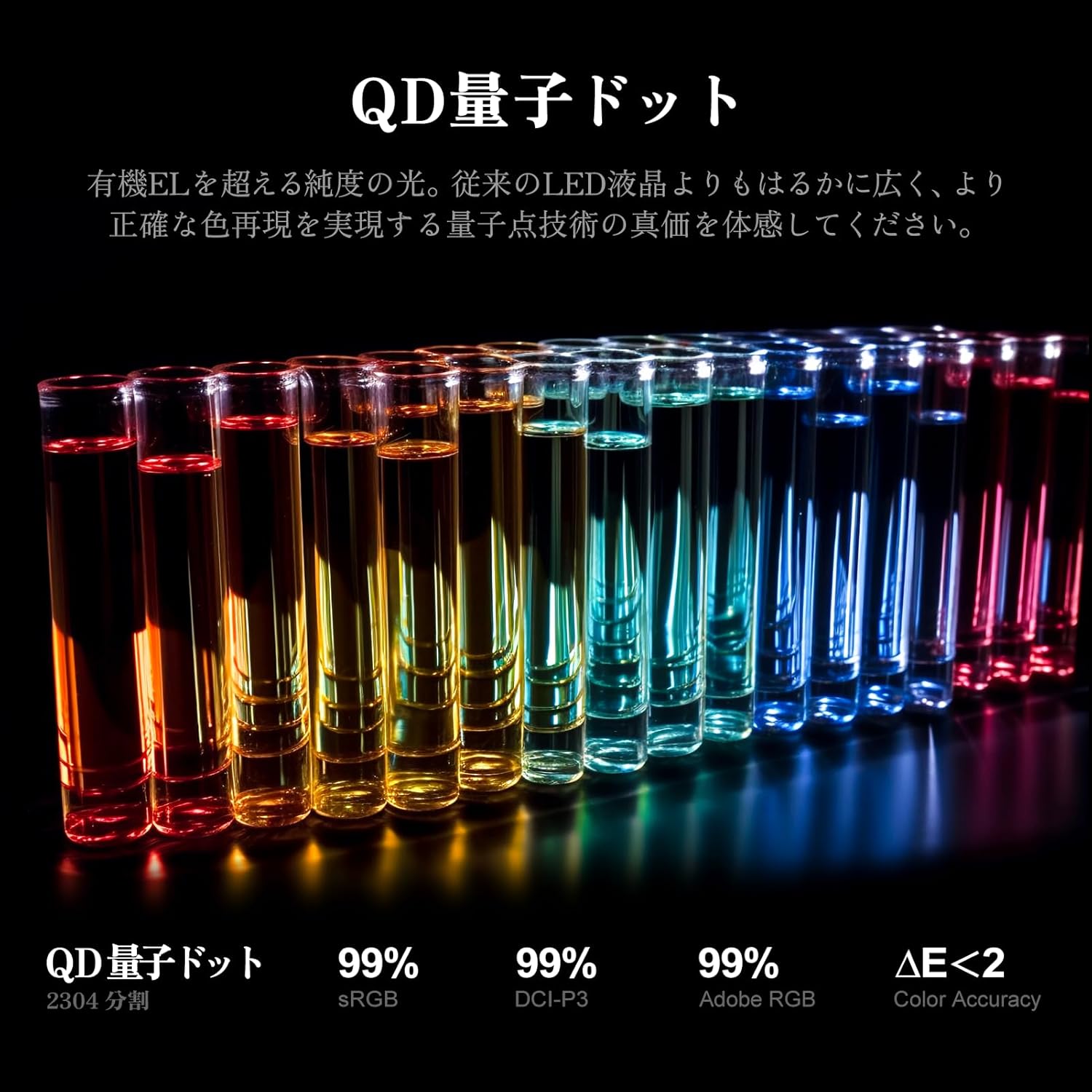
Image: A visual representation of vibrant colors in test tubes, indicating the monitor's wide color gamut coverage (99% sRGB, DCI-P3, Adobe RGB) and high color accuracy (ΔE<2) due to Quantum Dot technology.
5.7 Flicker-Free and Low Blue Light
The monitor incorporates flicker-free technology and a low blue light mode to reduce eye strain during extended use, enhancing viewing comfort.

Image: A split screen showing the difference between flicker-free ON and OFF, demonstrating how the technology reduces screen flickering for eye comfort.
5.8 KVM Switch Functionality
The monitor includes a KVM switch function, allowing you to control multiple computers with a single keyboard and mouse connected to the monitor's USB hub. This feature is particularly useful for users with multiple systems, simplifying cable management and workspace setup.
6. Maintenance
6.1 Cleaning the Monitor
- Always unplug the monitor before cleaning.
- Use a soft, lint-free cloth slightly dampened with water or a mild, non-abrasive screen cleaner.
- Do not spray cleaner directly onto the screen. Apply it to the cloth first.
- Avoid using benzene, thinner, or any volatile solvents, as they may damage the monitor's surface.
6.2 General Care
- Keep the monitor away from direct sunlight, excessive heat, or cold.
- Avoid placing the monitor in dusty environments.
- Do not place heavy objects on the monitor or its cables.
7. Troubleshooting
If you encounter issues with your monitor, refer to the following common solutions:
| Problem | Possible Solution |
|---|---|
| No image on screen |
|
| Image is blurry or distorted |
|
| No sound from speakers/headphones |
|
| USB ports not working |
|
If the problem persists after trying these solutions, please contact customer support.
8. Specifications
| Feature | Detail |
|---|---|
| Model Number | GA32V1M |
| Screen Size | 32 inches |
| Display Type | MiniLED LCD |
| Resolution | 3840x2160 (4K UHD) |
| Refresh Rate | 160 Hz (4K), 320 Hz (FHD) |
| Response Time | 0.5 ms |
| Aspect Ratio | 16:9 |
| Viewing Angle | 178 degrees |
| HDR Support | HDR1000 |
| Color Gamut | 99% DCI-P3, 99% Adobe RGB, 99% sRGB |
| Connectivity | 2x HDMI 2.1, 2x DisplayPort 1.4, 1x USB-C (90W PD), USB Hub (USB-B upstream, USB-A downstream), Audio Out |
| Features | Adaptive Sync, Height Adjustment, MPCS Technology, Flicker-Free, Low Blue Light, Built-in Speakers, KVM Switch |
| VESA Compatibility | Yes (100x100mm) |
| Product Dimensions (W x H x D) | 71.4 cm x 55.9 cm x 24 cm |
| Product Weight | 4.5 kg |
9. Warranty and Support
INNOCN products are designed and manufactured to the highest quality standards. This product is covered by a limited warranty from the date of purchase. Please refer to the warranty card included in your package or visit the official INNOCN website for detailed warranty terms and conditions.
For technical support, troubleshooting assistance, or warranty claims, please contact INNOCN customer service. Contact information can typically be found on the official website or in the documentation provided with your product.
Zero Bright Dot Warranty: This monitor includes a zero bright dot warranty, ensuring a premium display experience free from bright pixel defects.


