
1. Introduction
The EPOMAKER Galaxy100 Lite is a high-performance 1800-layout mechanical keyboard designed for gaming and productivity. It features a durable aluminum chassis, QMK/VIA compatibility for extensive customization, tri-mode connectivity (USB-C, Bluetooth, 2.4GHz), hot-swappable switches, vibrant RGB backlighting, and a long-lasting 8000mAh battery. This manual provides detailed instructions to help you get the most out of your keyboard.
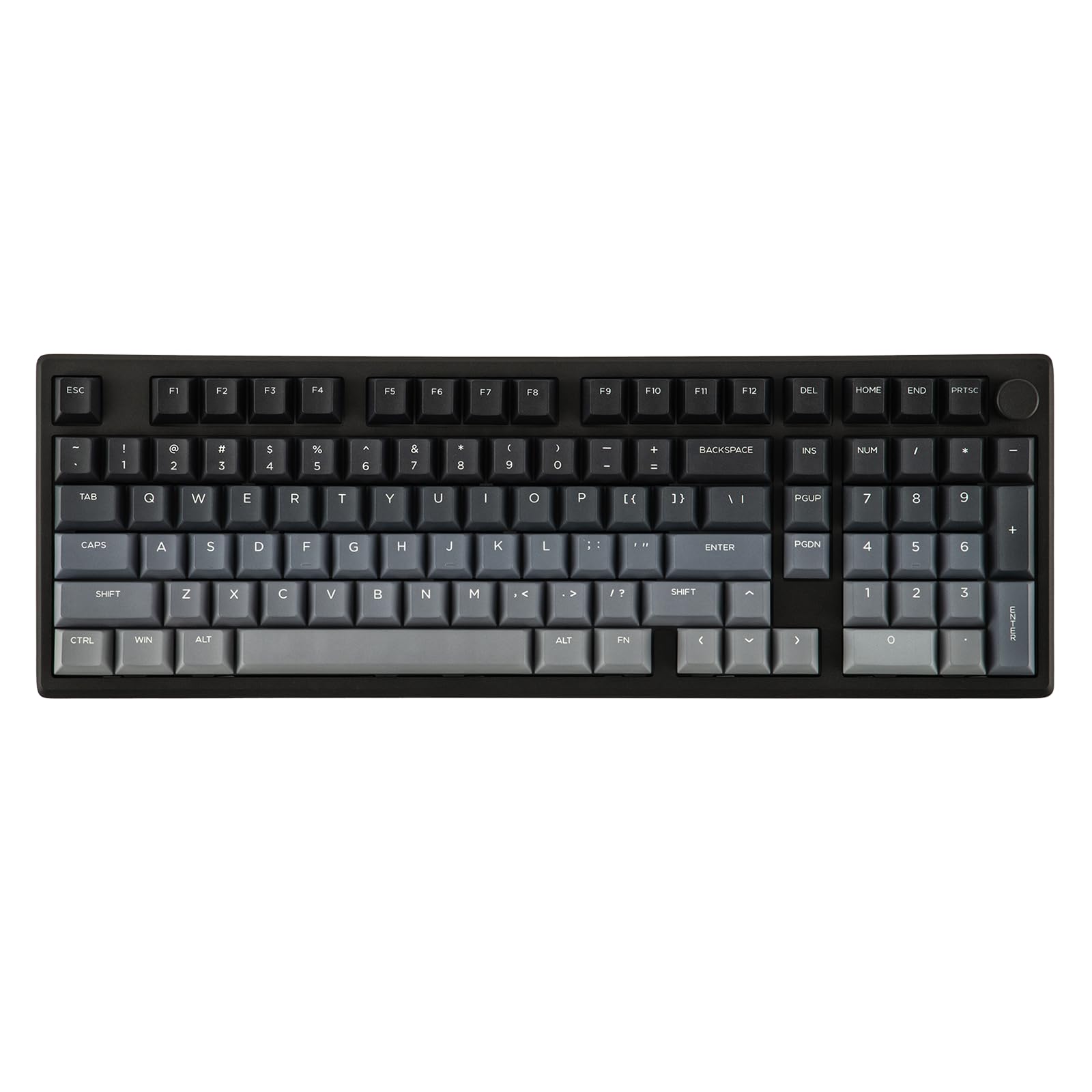
Figure 1: EPOMAKER Galaxy100 Lite Gaming Keyboard (Black version) showcasing its full layout and RGB lighting.
Video 1: A product overview of the EPOMAKER Galaxy100 Lite, highlighting its design and features.
2. Package Contents
Before you begin, please ensure all items are present in your package:
- EPOMAKER Galaxy100 Lite Keyboard
- Detachable USB A-to-C Cable
- 2-in-1 Keycap-and-Switch Puller
- Multilingual Manual (English, German, Spanish, French, Italian, Korean, Japanese, Chinese)

Figure 2: Image showing the EPOMAKER Galaxy100 Lite keyboard along with its accessories: USB-C cable, keycap/switch puller, and user manual.
Video 2: An unboxing video of the EPOMAKER Galaxy100 Lite, showing the keyboard and its included accessories.
3. Setup
3.1 Connectivity Modes
The Galaxy100 Lite supports three connectivity modes:
- USB-C Wired: For a stable, low-latency connection.
- 2.4GHz Wireless: Utilizes a USB dongle for fast wireless performance.
- Bluetooth (BT 5.0): For versatile wireless connection across multiple devices.
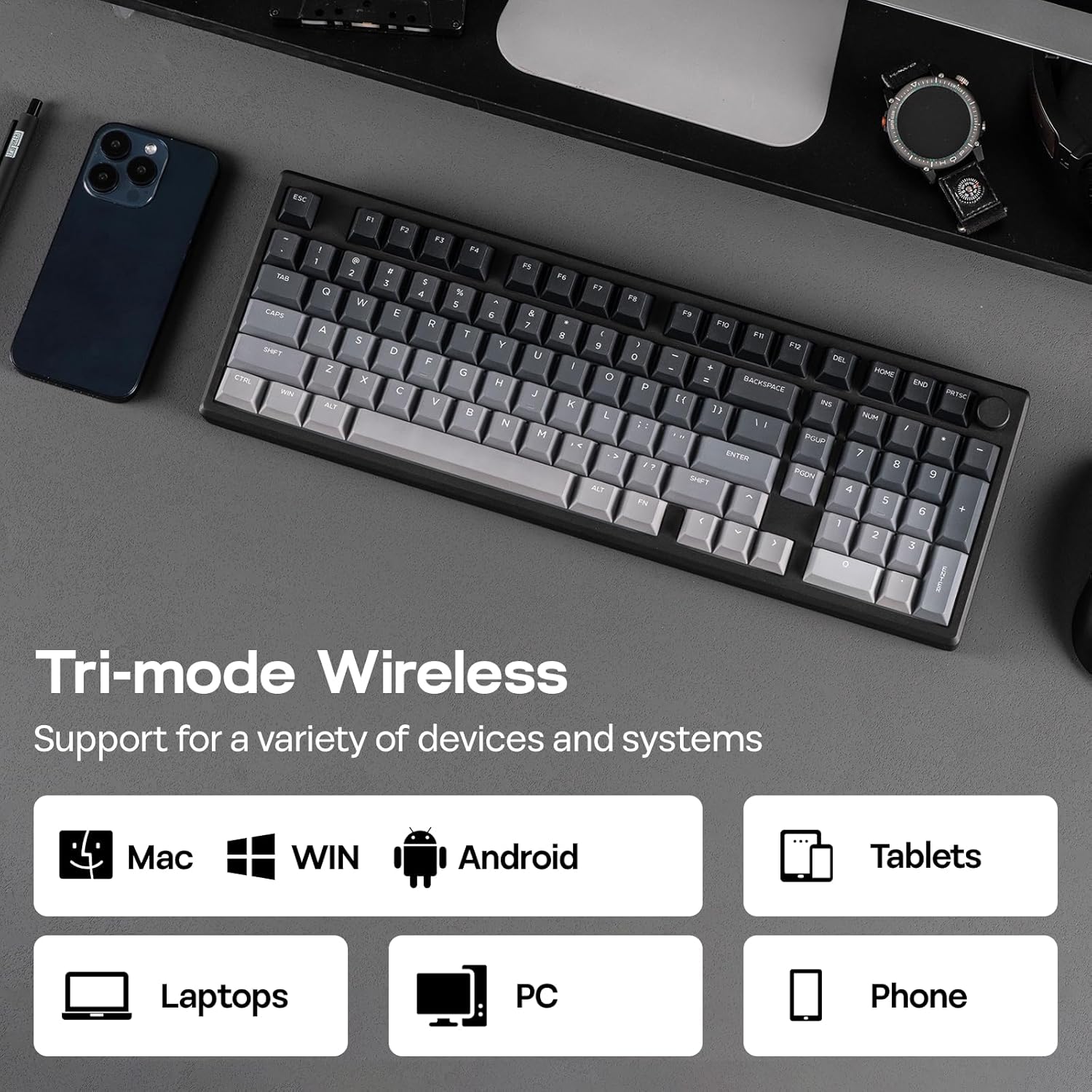
Figure 3: The side of the keyboard showing the switch for connectivity modes (wired, Bluetooth, 2.4GHz) and the USB-C port.

Figure 4: Close-up of the keyboard's connectivity hub, illustrating the USB-C port, Bluetooth, and 2.4GHz wireless options.
3.2 Connecting Your Keyboard
To connect your keyboard:
- Wired: Connect the provided USB A-to-C cable to the keyboard's USB-C port and your computer's USB port.
- 2.4GHz Wireless: Switch the mode selector on the keyboard to 2.4GHz. Plug the 2.4GHz USB dongle into your computer. The keyboard should connect automatically.
- Bluetooth: Switch the mode selector on the keyboard to Bluetooth. On your device, search for Bluetooth devices and select "EPOMAKER Galaxy100 Lite" to pair.
The keyboard is compatible with Windows, Mac, and Android operating systems.

Figure 5: The keyboard's side view showing the switch for selecting between wired, Bluetooth, and 2.4GHz wireless modes.
4. Operating Instructions
4.1 Basic Functions
The Galaxy100 Lite features a standard 1800 layout with a numpad and a rotary knob. The knob typically controls volume by default (rotate) and mute/unmute (press).
4.2 QMK/VIA Customization
The keyboard supports QMK/VIA software for advanced customization of key assignments, macros, and lighting effects. To use VIA:
- Connect the keyboard via USB-C.
- Visit the official VIA website (www.usevia.app) and authorize the device.
- Upload the keyboard's JSON file (remember to unzip it first).
- Customize keymaps, macros, layers, and lighting settings as desired.

Figure 6: Screenshot of the VIA software interface, demonstrating options for key remapping, macro recording, and lighting adjustments.
Video 3: A tutorial on how to use the EPOMAKER Galaxy100 Lite with VIA software for customization.
4.3 RGB Backlighting
The keyboard features vibrant south-facing RGB backlighting. You can customize brightness, colors, and lighting effects using the VIA software or convenient hotkeys. Refer to the VIA software for a full list of lighting effects and customization options.

Figure 7: The keyboard displaying its dynamic RGB backlighting, with individual keys illuminated in various colors.
4.4 Battery Management
The keyboard is equipped with an 8000mAh battery. Battery life is approximately 39 hours with RGB on and up to 512 hours with RGB off. To check the battery level, press Fn + Space. The indicator lights will show the current power status.

Figure 8: Graphic illustrating the battery life of the keyboard: 39 hours with RGB on and 512 hours with RGB off.
5. Maintenance
5.1 Cleaning
To clean your keyboard:
- Disconnect the keyboard from your device.
- Use a soft, lint-free cloth dampened with a small amount of water or isopropyl alcohol to wipe down the keycaps and chassis.
- For deeper cleaning, use the provided keycap puller to remove keycaps and clean underneath with compressed air or a soft brush.
5.2 Hot-Swappable Switches
The Galaxy100 Lite features a hot-swappable PCB, allowing you to change switches without soldering. Use the included 2-in-1 keycap-and-switch puller to carefully remove switches. Ensure new switches are 3-pin or 5-pin compatible and align correctly before pressing them into place.

Figure 9: Close-up view of the keyboard with several keycaps and switches removed, demonstrating the hot-swappable feature.

Figure 10: An image illustrating the hot-swappable nature of the keyboard, with switches being easily removed and inserted.
Video 4: A typing sound test of the EPOMAKER Galaxy100 Lite with Marble White switches, demonstrating the creamy sound profile.
6. Troubleshooting
- Keyboard not responding: Ensure the keyboard is properly connected (wired, 2.4GHz dongle, or Bluetooth paired). Check the battery level.
- Wireless connection issues: Try reconnecting the 2.4GHz dongle or re-pairing via Bluetooth. Ensure no strong interference sources are nearby.
- Keys not registering: If individual keys are not working, try reseating the switch using the switch puller. If the issue persists, the switch may need replacement.
- Sleep Timer Issue (Wireless Mode): If the keyboard enters sleep mode too quickly, you can adjust the sleep time. Long press Fn + Y for 3 seconds.
- Y key flashes 3 times in red: 1 minute sleep.
- Y key flashes 3 times in green: 3 minutes sleep (default).
- Y key flashes 3 times in blue: 10 minutes sleep.
- Y key flashes 3 times in white: 30 minutes sleep.
7. Specifications
| Feature | Detail |
|---|---|
| Model | Galaxy100 Lite |
| Dimensions (L x W x H) | 15.94 x 5.43 x 1.27 inches (40.5 x 13.78 x 3.2 cm) |
| Weight | 4.38 pounds (1.6 kg) |
| Connectivity | USB-C Wired, 2.4GHz Wireless, Bluetooth 5.0 |
| Battery Capacity | 8000mAh |
| Battery Life | ~39 hours (RGB on), ~512 hours (RGB off) |
| Switches | Hot-swappable, Pre-lubed Linear (Marble White or Wisteria Linear V2) |
| Keycaps | Thick PBT, Cherry Profile |
| Backlighting | South-facing RGB |
| Customization | QMK/VIA compatible |
| Compatible OS | Windows, macOS, Android |

Figure 11: Diagram illustrating the dimensions and weight of the EPOMAKER Galaxy100 Lite keyboard.
8. Warranty and Support
For warranty information and technical support, please refer to the official EPOMAKER website or contact their customer service. Details can typically be found in the included multilingual manual or on the product's Amazon listing page.
Official EPOMAKER Store: EPOMAKER Amazon Store


