
1. Introduction
This manual provides essential instructions for setting up, operating, maintaining, and troubleshooting your MIRO A1 Unlocked 4G Cell Phone. Please read this guide thoroughly to ensure proper use and to maximize the device's performance.

Figure 1: MIRO A1 Smartphone
2. Package Contents
Verify that all items are present in the package:
- MIRO A1 Smartphone (1 unit)
- Battery (1 unit)
- Charger (1 unit)
- USB Cable (1 unit)
- User Manual (1 unit)

Figure 2: Included Accessories
3. Setup
3.1. Battery Installation
- Carefully remove the back cover of the phone.
- Align the battery contacts with the terminals inside the phone.
- Gently press the battery into place until it is secure.
- Replace the back cover, ensuring it clicks into position.

Figure 3: Battery Installation
3.2. SIM Card and MicroSD Card Installation
The MIRO A1 supports Dual SIM cards and a MicroSD card for expandable storage.
- With the back cover removed, locate the SIM card slots and the MicroSD card slot.
- Insert your Nano SIM card(s) into the designated SIM slots with the gold contacts facing down.
- If using a MicroSD card for additional storage (up to 256GB), insert it into the MicroSD card slot.
- Ensure all cards are seated correctly.
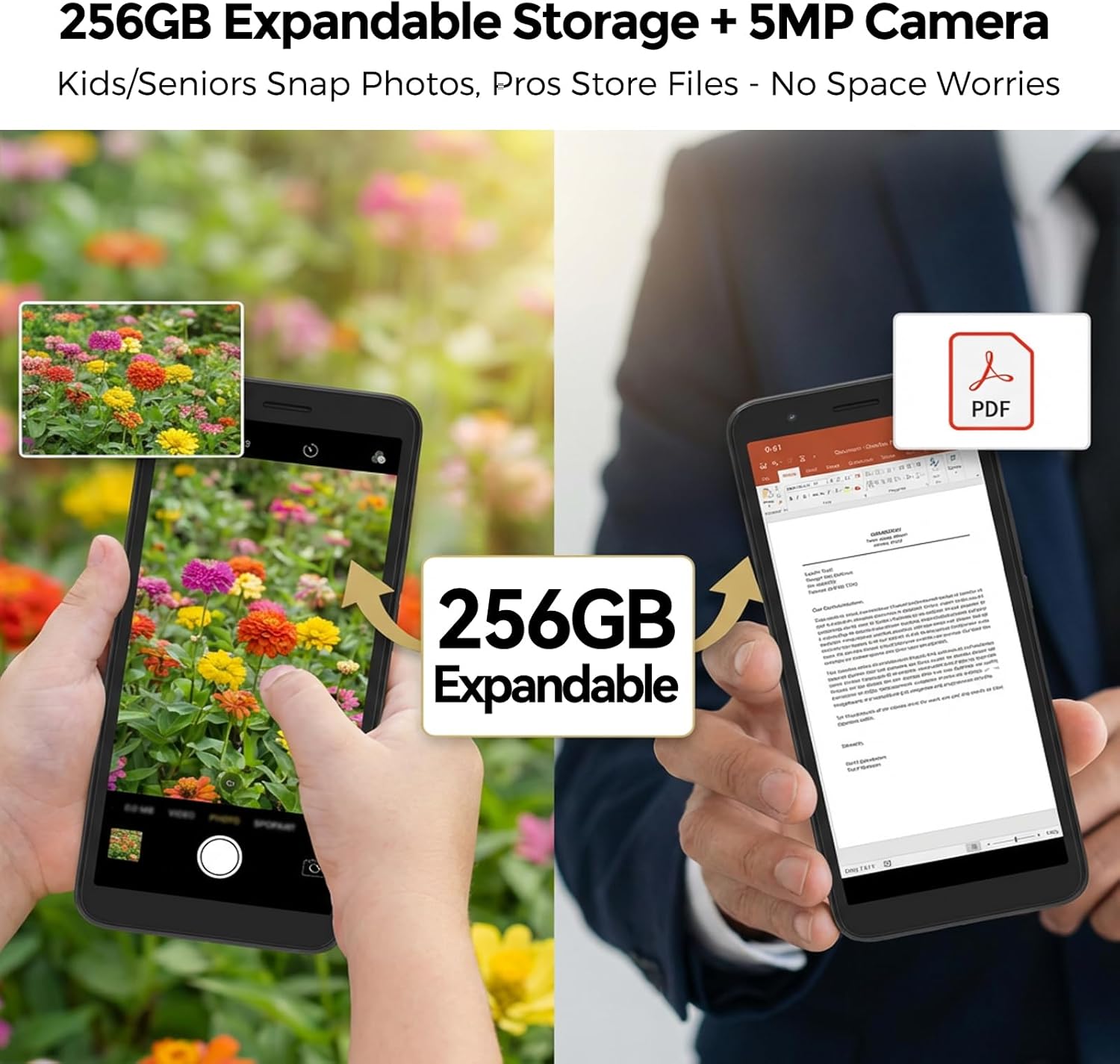
Figure 4: SIM Card Installation
3.3. Initial Charging and Power On
- Connect the USB cable to the phone's USB Type C port and the charger.
- Plug the charger into a power outlet. Allow the phone to charge for at least 30 minutes before first use.
- Press and hold the Power button (usually on the side) until the MIRO logo appears.
- Follow the on-screen prompts to complete the initial setup of the Android 14 Go Edition operating system.
4. Operating Instructions
4.1. Basic Navigation
The MIRO A1 runs on Android 14 Go Edition, designed for efficient performance. Use touch gestures to navigate:
- Tap: Select an item or open an app.
- Swipe: Scroll through screens or lists.
- Pinch: Zoom in or out on photos and web pages.
- Long Press: Access contextual menus or move app icons.
4.2. Making Calls and Sending Messages
- Open the 'Phone' app to dial numbers or access contacts.
- Open the 'Messages' app to send and receive SMS/MMS.
- For Dual SIM users, you can select which SIM to use for calls or messages before initiating them.
4.3. Camera Usage
The MIRO A1 features a 5MP rear camera and a 2MP front camera.
- Open the 'Camera' app from the home screen or app drawer.
- Tap the shutter button to take a photo.
- Switch between front and rear cameras using the camera toggle icon.

Figure 5: Camera Module
4.4. Storage Management
Your MIRO A1 comes with 32GB of internal storage, expandable up to 256GB via a MicroSD card.
- To check storage usage, go to Settings > Storage.
- Move photos, videos, and other files to the MicroSD card to free up internal space.

Figure 6: Expandable Storage
4.5. Wi-Fi Connectivity
- Go to Settings > Network & internet > Wi-Fi.
- Toggle Wi-Fi on.
- Select your desired network from the list and enter the password if prompted.
5. Maintenance
5.1. Battery Care
- Avoid extreme temperatures, which can degrade battery life.
- Do not leave the phone charging for extended periods after it reaches 100%.
- If the battery is removable, ensure it is properly seated.
5.2. Cleaning the Device
- Use a soft, lint-free cloth to clean the screen and body of the phone.
- Avoid using harsh chemicals or abrasive materials.
- Keep ports free of dust and debris.
5.3. Software Updates
Periodically check for system updates to ensure your phone has the latest features and security patches. Go to Settings > System > System update.
6. Troubleshooting
6.1. Phone Not Turning On
- Ensure the battery is correctly installed and charged.
- Connect the phone to the charger and wait a few minutes before attempting to power on again.
- If the battery is removable, try removing and reinserting it.
6.2. Network Issues
- Check if the SIM card is properly inserted.
- Verify that your mobile data is enabled in Settings > Network & internet > Mobile network.
- Restart the phone.
- Confirm with your carrier that your plan is active and compatible with an unlocked 4G device.
6.3. Storage Full
- Delete unnecessary apps, photos, and videos.
- Move files to a MicroSD card if one is installed.
- Clear cache data for apps in Settings > Apps & notifications > [App Name] > Storage & cache.
6.4. Factory Reset
If persistent issues occur, a factory reset may be necessary. This will erase all data on your phone. Back up important data before proceeding.
- Go to Settings > System > Reset options.
- Select Erase all data (factory reset).
- Confirm your decision.
7. Specifications
| Feature | Specification |
|---|---|
| Brand | MIRO |
| Model Name | MIRO A1 |
| Operating System | Android 14 Go Edition |
| RAM Memory | 2 GB |
| Internal Storage | 32 GB |
| Expandable Storage | Up to 256 GB (MicroSD) |
| Screen Size | 5.99 Inches |
| Resolution | 576 x 1152 |
| Rear Camera | 5 MP |
| Front Camera | 2 MP |
| Battery Capacity | 3000 mAh |
| SIM Card Slot Count | Dual SIM (Nano) |
| Connectivity | 4G, Wi-Fi, Bluetooth, 3.5mm Headphone Jack, USB Type C |
| Biometric Security | Fingerprint Recognition |
| Weight | 182g (6.42oz) |
8. Warranty and Support
8.1. Warranty Information
The MIRO A1 smartphone comes with a 1-Year Limited Warranty from the date of purchase. This warranty covers manufacturing defects. It does not cover damage caused by misuse, accidents, unauthorized modifications, or normal wear and tear.
8.2. Customer Support
For technical assistance, warranty claims, or further inquiries, please contact MIRO customer support through the retailer where you purchased the device or refer to the official MIRO website for contact information.


