
Introduction
This manual provides detailed instructions for the Redragon K671KS Wireless Mechanical Gaming Keyboard. It covers setup, operation, maintenance, and troubleshooting to ensure optimal performance and user experience. Please read this manual thoroughly before using the product.
Setup
Package Contents
- Redragon K671KS Wireless Mechanical Gaming Keyboard
- USB-C Cable
- Keycap Puller
- Switch Puller
- Spare Switches (8 pieces)
- Red Keycaps (2 pieces)
- User Manual
Connecting the Keyboard
The Redragon K671KS supports three connection modes: USB-C wired, Bluetooth (BT 3.0/5.0), and 2.4GHz wireless. A physical switch on the back of the keyboard allows you to select your preferred mode.

Image: The Redragon K671KS keyboard showcasing its full layout, RGB backlighting, and included spare switches and keycaps.
1. USB-C Wired Mode
- Locate the USB-C port on the keyboard.
- Connect the provided USB-C cable to the keyboard and your computer.
- Ensure the mode switch on the back of the keyboard is set to 'USB'.
- The keyboard will be automatically recognized by your system.
2. 2.4GHz Wireless Mode
- Locate the 2.4GHz USB receiver.
- Plug the USB receiver into an available USB port on your computer.
- Set the mode switch on the back of the keyboard to '2.4G'.
- The keyboard should connect automatically. If not, press Fn + 4 to initiate pairing.
3. Bluetooth Wireless Mode (BT 3.0/5.0)
- Set the mode switch on the back of the keyboard to 'BT'.
- On your device (PC, tablet, MAC), enable Bluetooth and search for new devices.
- Press and hold Fn + 1, Fn + 2, or Fn + 3 for 3 seconds to enter pairing mode for BT1, BT2, or BT3 respectively. The corresponding key's backlight will flash rapidly.
- Select 'Redragon K671KS' from the list of available Bluetooth devices on your system.
- Once paired, the key's backlight will stop flashing and remain steadily lit.
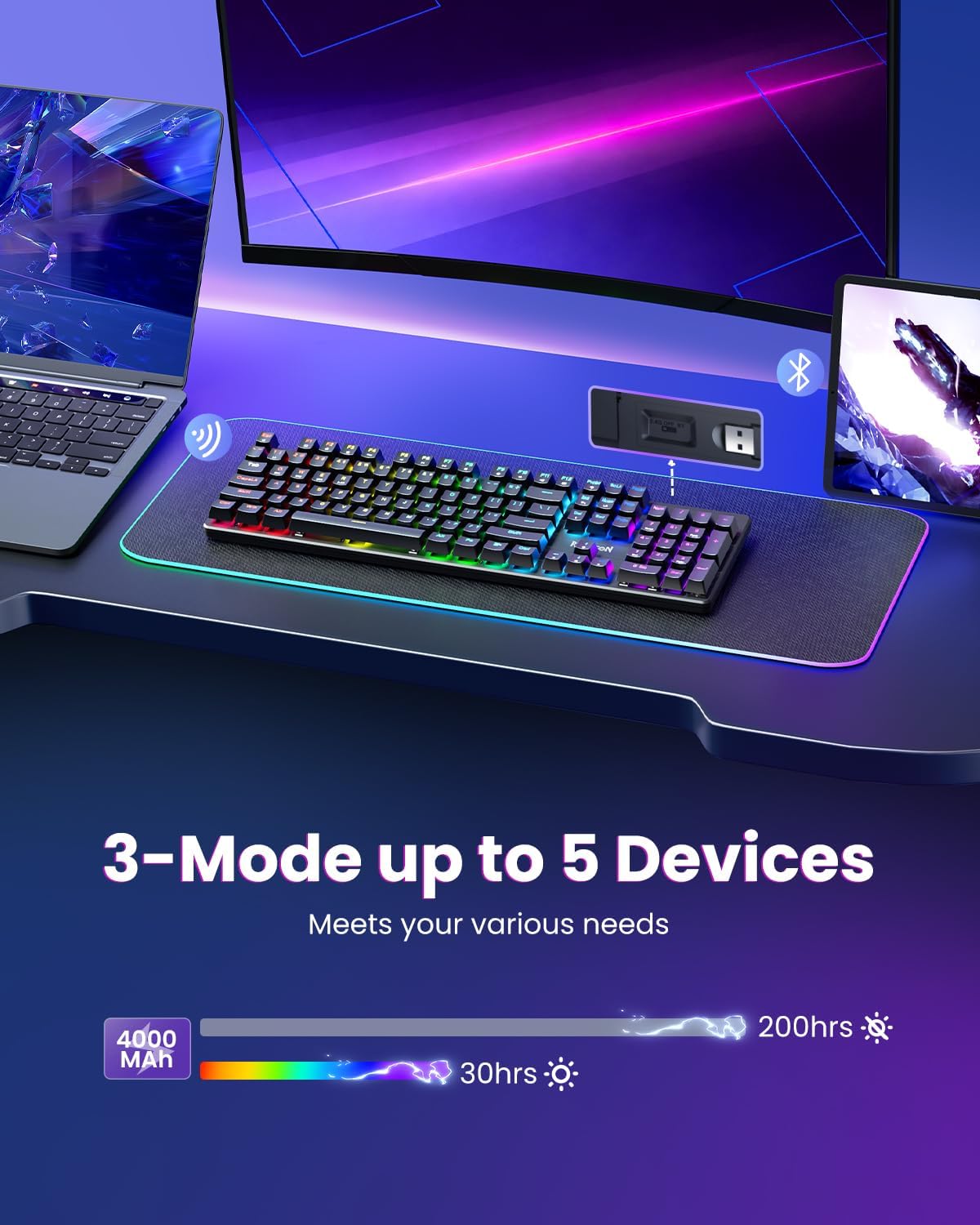
Image: The Redragon K671KS keyboard demonstrating its ability to connect to up to 5 devices using USB-C, 2.4GHz, and Bluetooth modes.
Operating Instructions
RGB Illumination
The K671KS features 16 preset RGB backlight modes. You can adjust the speed and brightness to suit your environment.
- Changing Modes: Press Fn + Insert to cycle through different backlight effects.
- Adjusting Brightness: Press Fn + Up Arrow to increase brightness (5 levels) and Fn + Down Arrow to decrease brightness.
- Adjusting Speed: Press Fn + Left Arrow to decrease effect speed and Fn + Right Arrow to increase effect speed.

Image: The Redragon K671KS keyboard displaying its brilliant RGB backlighting, enhancing the visual experience.
Hot-Swappable Custom Switches
The K671KS allows for easy replacement of switches without soldering. This feature enables customization of typing feel and extends the keyboard's lifespan.
- Use the provided keycap puller to carefully remove the desired keycap.
- Use the provided switch puller to gently grip and pull out the switch.
- Align the pins of the new switch with the holes on the PCB and press firmly until it clicks into place.
- Replace the keycap.
Note: This keyboard supports 3-pin switches. Ensure replacement switches are compatible.

Image: A detailed view of the Redragon K671KS hot-swappable switches, illustrating the ease of switch replacement with included tools and spare switches.
Macro Editing and Custom Software
The K671KS supports macro editing, allowing you to remap key functions, set shortcuts, or combine multiple key functions into one. RGB backlight effects can also be adjusted individually for each key using the dedicated software.
- Software Download: Visit the official Redragon website to download the K671KS custom software.
- Macro Recording: Refer to the software interface for detailed instructions on recording and assigning macros to specific keys.
- Individual Key Backlight Customization: The software allows for granular control over each key's RGB lighting.

Image: A screenshot of the Redragon K671KS custom software, demonstrating options for macro editing and individual key RGB backlight customization.
Gaming Mode Backlights
The keyboard offers specific backlight configurations optimized for different gaming genres:
- FPS Game Mode: Press Fn + 1 for FPS-optimized lighting.
- CF Game Mode: Press Fn + 2 for CF-optimized lighting.
- Racing Game Mode: Press Fn + 3 for Racing-optimized lighting.

Image: The Redragon K671KS keyboard illustrating various gaming mode backlight patterns, highlighting keys commonly used in FPS, CF, and Racing games.
Maintenance
Cleaning the Keyboard
Regular cleaning helps maintain the keyboard's performance and appearance.
- Disconnect the keyboard from your device before cleaning.
- Use a soft, lint-free cloth dampened with a small amount of water or a mild cleaning solution to wipe the keycaps and chassis.
- For dust and debris between keys, use compressed air or a soft brush.
- Avoid using harsh chemicals or abrasive materials, as these can damage the keyboard's finish or keycap legends.
Spill-Resistant Design
The Redragon K671KS features a spill-resistant design to protect against accidental liquid spills. While it offers protection, it is not fully waterproof. In case of a spill, immediately disconnect the keyboard and allow it to dry completely before reconnecting.
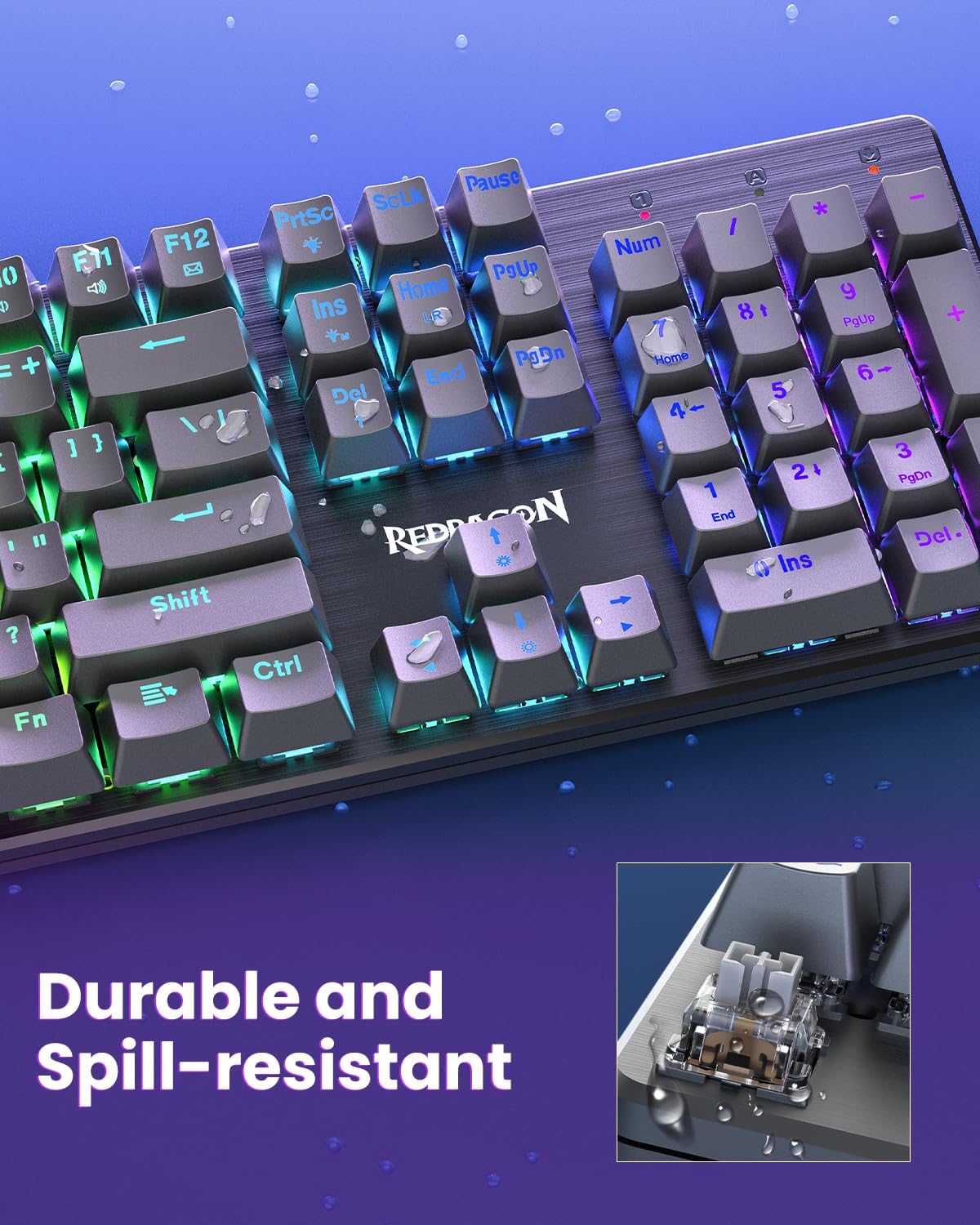
Image: The Redragon K671KS keyboard shown with water droplets on its surface, highlighting its durable and spill-resistant construction.
Troubleshooting
Keyboard Not Responding
- Check Connection: Ensure the USB-C cable is securely connected, the 2.4GHz receiver is properly inserted, or Bluetooth is correctly paired.
- Mode Switch: Verify the mode switch on the back of the keyboard is set to the correct connection type (USB, 2.4G, or BT).
- Battery Level: If in wireless mode, ensure the keyboard has sufficient battery charge. Connect via USB-C to charge.
- Restart Device: Try restarting your computer or device.
RGB Backlight Issues
- Brightness Adjustment: Use Fn + Up/Down Arrow to adjust brightness. Ensure it's not set to the lowest level.
- Mode Selection: Cycle through backlight modes using Fn + Insert to see if the issue persists across different effects.
- Software Check: If using custom settings, open the Redragon software to verify configurations.
Keys Not Registering or Double-Typing
- Clean Key/Switch: Remove the keycap and switch (if hot-swappable) and clean any debris.
- Replace Switch: If the issue persists, replace the faulty switch with one of the provided spare switches.
- Software/Driver Update: Ensure keyboard drivers and software are up to date.
Specifications
| Feature | Detail |
|---|---|
| Brand | Redragon |
| Model | K671KS |
| Connectivity Technology | Bluetooth, USB-C, 2.4GHz Wireless |
| Keyboard Description | Wireless Mechanical Keyboard |
| Compatible Devices | Laptop, PC, Smartphone, Tablet |
| Special Features | Backlit, Hot-Swappable, Rechargeable, Spill Proof |
| Keyboard Backlighting | RGB |
| Item Weight | 2.29 pounds |
| Power Source | Battery Powered |
Warranty and Support
Warranty Information
Redragon products typically come with a manufacturer's warranty. Please refer to the warranty card included in your product packaging or visit the official Redragon website for specific warranty terms and conditions. Keep your proof of purchase for warranty claims.
Customer Support
For further assistance, technical support, or inquiries regarding your Redragon K671KS keyboard, please contact Redragon customer support through their official website or the contact information provided in your product documentation.


