
1. Product Overview
The UPERFECT 24.5" Portable Monitor (Model MT03) is designed to enhance your visual experience, whether for work, gaming, or entertainment. Featuring a 24.5-inch IPS matte screen with 1080P Full HD resolution and 100% sRGB color gamut, it offers a broad and vivid display. With a 240Hz refresh rate, FreeSync technology, and a 0.1ms response time, it delivers smooth and tear-free visuals, particularly beneficial for fast-paced gaming. Its portable design includes a built-in 180° adjustable stand and VESA compatibility, providing flexible placement options. Connectivity is simplified with two USB Type-C ports and one Mini HDMI port, ensuring wide compatibility with various devices.
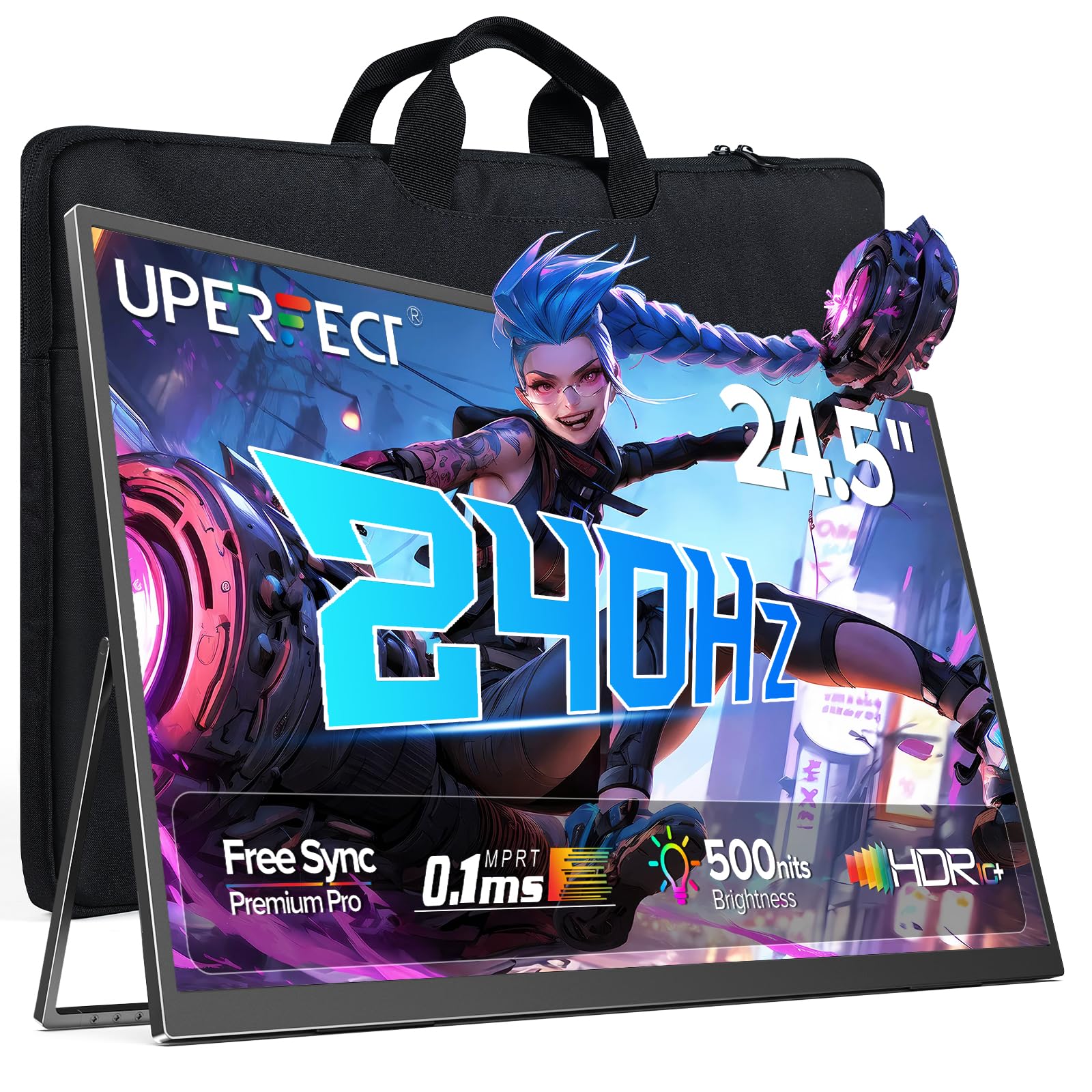
Figure 1: UPERFECT 24.5" Portable Monitor (Model MT03)
2. Package Contents
Please verify that all items are present in the package before proceeding with setup.
- UPERFECT 24.5" Portable Monitor (Model MT03)
- USB Type-C to Type-C Cable (for power and video signal)
- Mini HDMI to HDMI Cable (for video signal)
- Power Adapter
- Storage Bag
- User Manual (this document)
Video 1: Unboxing and initial setup of the UPERFECT Portable Monitor, showing included accessories.
3. Setup Instructions
3.1. Physical Setup
- Unpack the Monitor: Carefully remove the monitor and all accessories from the packaging.
- Adjust the Stand: The monitor features a built-in 180° adjustable stand. Gently pull out the stand from the back of the monitor and adjust it to your desired viewing angle.

Figure 2: Adjusting the built-in 180° kickstand for optimal viewing.
- VESA Mounting (Optional): For alternative mounting solutions, the monitor supports VESA standard wall mounting (75x75 mm, M4x5 mm screws). Ensure the stand is folded back before mounting.

Figure 3: UPERFECT monitor mounted on a VESA-compatible arm.
3.2. Connecting to Devices
The monitor offers versatile connectivity options. Always ensure the monitor is powered via the provided adapter for optimal performance, especially when connecting to devices that do not supply sufficient power.

Figure 4: Overview of the monitor's input/output ports.
- USB Type-C Connection: Use the included USB Type-C to Type-C cable to connect to compatible laptops, smartphones, or game consoles (e.g., Nintendo Switch). This single cable can transmit both power and video signal if your device supports it. If your device does not provide enough power, connect the monitor to the power adapter.
- Mini HDMI Connection: Use the included Mini HDMI to HDMI cable to connect to devices such as PCs, Xbox, PlayStation 4/5, or other HDMI-enabled devices. An additional USB Type-C cable connected to the power adapter will be required for power.
- Audio Output: Connect headphones or external speakers to the 3.5mm audio jack for private listening or enhanced sound.

Figure 5: Examples of widely compatible devices and their connection methods.
4. Operating the Monitor
4.1. Basic Controls
The monitor's controls are typically located on the side or back panel.
- Power Button: Press and hold to turn the monitor On or Off. A short press may activate/deactivate the OSD menu or confirm selections.
- Menu/Confirm Button: Accesses the On-Screen Display (OSD) menu. Also used to confirm selections within the menu.
- Volume +/-: Adjusts the audio output volume.
- Brightness +/-: Adjusts screen brightness.
- Return/Signal Source: Used to go back in the OSD menu or to switch between input sources (USB-C 1, USB-C 2, Mini HDMI).
4.2. On-Screen Display (OSD) Menu
The OSD menu allows you to customize various display settings.
- Press the Menu/Confirm button to open the OSD menu.
- Use the Volume +/- or Brightness +/- buttons to navigate through menu options.
- Press the Menu/Confirm button to select an option or enter a sub-menu.
- Use the navigation buttons to adjust settings.
- Press the Return/Signal Source button to exit a sub-menu or the main OSD menu.
Key OSD Settings:
- Picture Settings: Adjust brightness, contrast, sharpness, and color temperature.
- Color Settings: Fine-tune color balance, gamma, and saturation.
- Input Source: Manually select between USB-C 1, USB-C 2, and Mini HDMI inputs.
- Audio Settings: Adjust volume and mute.
- System Settings: Language, OSD timeout, reset to factory defaults.
- FreeSync: Enable or disable FreeSync for adaptive synchronization with compatible graphics cards.

Figure 6: FreeSync technology ensures a seamless gaming experience by eliminating screen tearing and stuttering.
5. Maintenance
5.1. Cleaning the Monitor
- Always power off and unplug the monitor before cleaning.
- Use a soft, lint-free cloth lightly dampened with water or a non-abrasive screen cleaner.
- Do not spray cleaner directly onto the screen.
- Avoid using alcohol, ammonia, or abrasive cleaners, as these can damage the screen surface.
5.2. Storage and Handling
- When not in use, store the monitor in its provided storage bag to protect it from dust and scratches.
- Avoid placing heavy objects on the monitor.
- Do not expose the monitor to extreme temperatures or humidity.
- Handle the monitor by its edges to avoid touching the screen directly.

Figure 7: The monitor is designed for easy portability and comes with a storage bag for protection.
6. Troubleshooting
If you encounter issues with your UPERFECT portable monitor, refer to the following common problems and solutions.
| Problem | Possible Cause | Solution |
|---|---|---|
| No display/No signal |
|
|
| Screen flickering or unstable image |
|
|
| No sound |
|
|
| Monitor does not power on |
|
|
7. Specifications
Detailed technical specifications for the UPERFECT 24.5" Portable Monitor (Model MT03).
| Feature | Detail |
|---|---|
| Model Number | MT03 |
| Screen Size | 24.5 Inches |
| Panel Type | IPS |
| Resolution | 1920 x 1080 Pixels (FHD 1080p) |
| Refresh Rate | 240Hz |
| Response Time | 0.1ms |
| Contrast Ratio | 2000:1 |
| Color Gamut | 100% sRGB |
| Screen Surface | Matte |
| Aspect Ratio | 16:9 |
| Connectivity | 2 x USB Type-C, 1 x Mini HDMI, 1 x 3.5mm Audio Jack |
| Product Dimensions | 21.65 x 11.81 x 0.31 inches |
| Item Weight | 5.4 pounds |
| VESA Compatibility | 75x75 mm |
8. Warranty and Support
UPERFECT is committed to providing quality products and customer satisfaction.
- Extended Warranty: Information regarding extended warranty options and screen break replacement can be found on the warranty card included with your product.
- Points Program: Participate in the UPERFECT Points Program to earn rewards. Details are available on the warranty card or UPERFECT's official website.
- Earth-Care Plan: UPERFECT supports environmental sustainability through its Earth-Care Plan, encouraging reduction, reuse, and recycling.
- Customer Support: For any inquiries, technical assistance, or warranty claims, please refer to the contact information provided on your warranty card or visit the official UPERFECT website for 24/7 support.


