
Blackview ZENO1
Blackview ZENO 1 8-Inch Tablet User Manual
Model: ZENO1
1. Introduction
This manual provides detailed instructions for the Blackview ZENO 1 8-inch tablet. It covers essential information regarding product setup, operation, maintenance, and troubleshooting to ensure optimal performance and user experience. Please read this manual thoroughly before using your device.

Image: Front and back view of the Blackview ZENO 1 tablet, showcasing its compact design and key specifications like the 8-inch LCD, 90Hz display, Android 15 operating system, 18GB RAM, 256GB ROM, 6000mAh battery, and connectivity features.
2. Package Contents
Verify that all items listed below are included in your product package:
- Blackview ZENO 1 Tablet
- Detachable Stand
- Screen Protector
- Clear Case
- USB-C Cable
- Charger
- Instructions Manual (this document)
- Card Removal Tool

Image: An exploded view diagram illustrating all components included in the Blackview ZENO 1 retail package, such as the tablet, detachable stand, screen protector, clear case, USB-C cable, charger, and card removal tool.
3. Product Overview
3.1 Physical Components
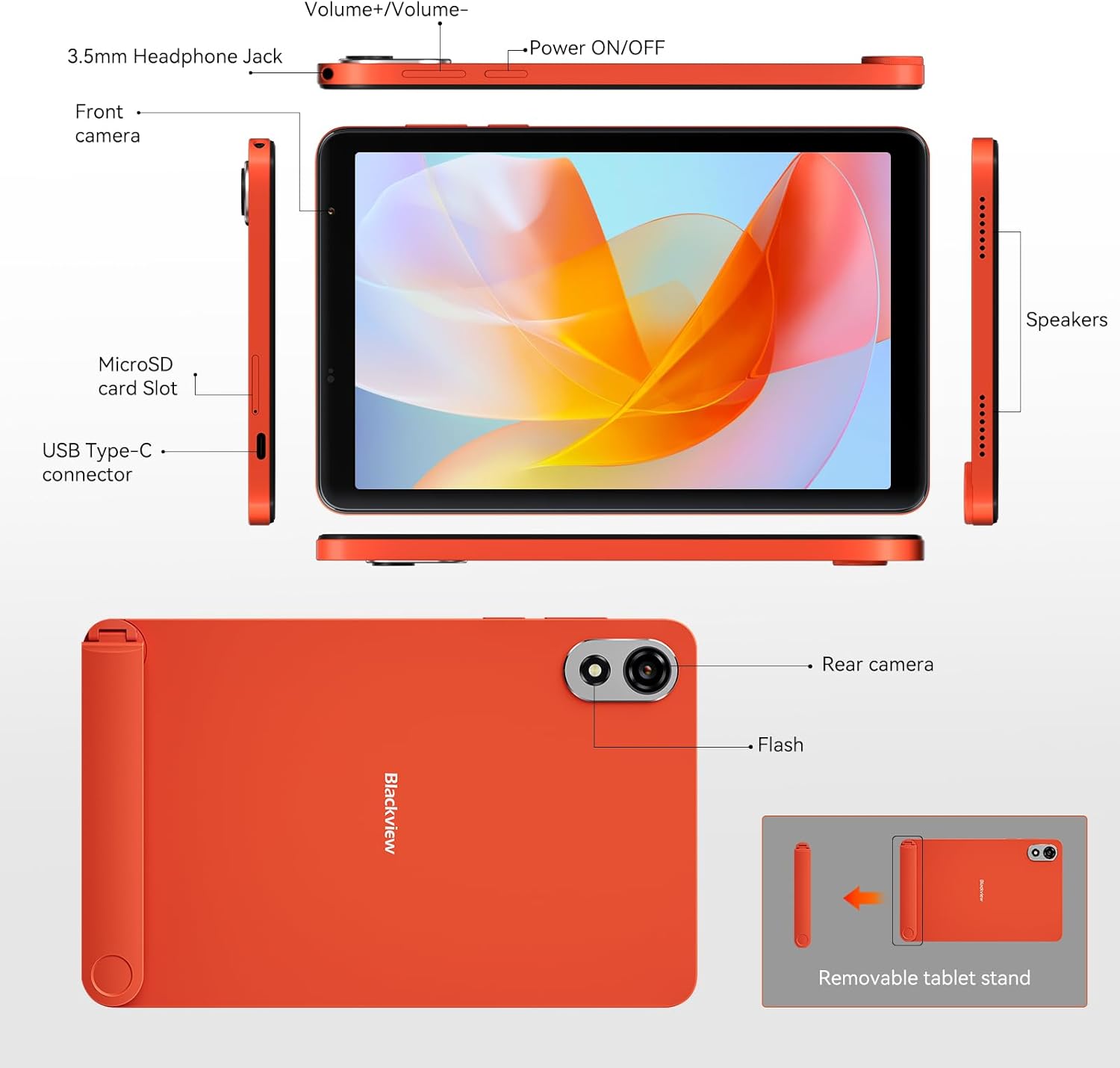
Image: A detailed diagram of the Blackview ZENO 1 tablet, labeling all external components including the headphone jack, volume controls, power button, cameras, microSD slot, USB-C port, speakers, and the removable stand.
3.2 Key Features
- Display: 8-inch LCD with 800x1280 resolution and 90Hz refresh rate.
- Processor: Unisoc T615 Octa-Core Chip (1.8 GHz).
- Memory & Storage: 18GB RAM (6GB + 12GB expansion) and 256GB ROM, expandable up to 2TB via TF card.
- Operating System: Android 15 with Gemini AI integration.
- Cameras: 8MP Front Camera and 8MP Rear Camera with flash.
- Battery: 6000mAh long-lasting battery with Type-C charging.
- Connectivity: 4G LTE, 5G WiFi, Bluetooth 5.2, GPS, Dual SIM Card Slot.
- Audio: Dual stereo speakers.
- Security: Face Unlock.
- Accessories: Detachable stand included.
4. Setup Guide
4.1 Initial Power On
- Press and hold the Power ON/OFF button located on the side of the tablet until the Blackview logo appears.
- Follow the on-screen prompts to select your language, region, and complete the initial Android setup.
4.2 SIM Card & TF Card Installation
The Blackview ZENO 1 supports dual SIM cards and TF card expansion.
- Locate the SIM card slot on the side of the tablet (refer to the Product Overview diagram).
- Use the provided card removal tool to gently eject the SIM tray.
- Place your Nano-SIM card(s) and/or TF (microSD) card into the designated slots on the tray. Ensure the gold contacts face downwards.
- Carefully reinsert the tray into the tablet until it clicks into place.
Image: A close-up view demonstrating the correct insertion of dual SIM cards and a TF card into the tablet's tray.
4.3 Connecting to Wi-Fi
- Go to Settings > Network & internet > Wi-Fi.
- Toggle Wi-Fi On.
- Select your desired Wi-Fi network from the list.
- Enter the password if prompted and tap Connect.
4.4 Attaching the Detachable Stand
The included detachable stand provides flexible viewing angles.
- Align the stand with the designated attachment points on the back of the tablet.
- Gently press until it securely snaps into place.
- To remove, gently pull the stand away from the tablet.

Image: The Blackview ZENO 1 tablet positioned with its detachable stand, illustrating its use for hands-free viewing.
5. Operating Instructions
5.1 Basic Navigation (Android 15)
- Home Screen: Swipe left or right to access different home screens.
- App Drawer: Swipe up from the bottom of the screen to view all installed applications.
- Notifications & Quick Settings: Swipe down from the top of the screen to access notifications and quick settings toggles.
- Multitasking: Swipe up and hold from the bottom of the screen to view recent apps.
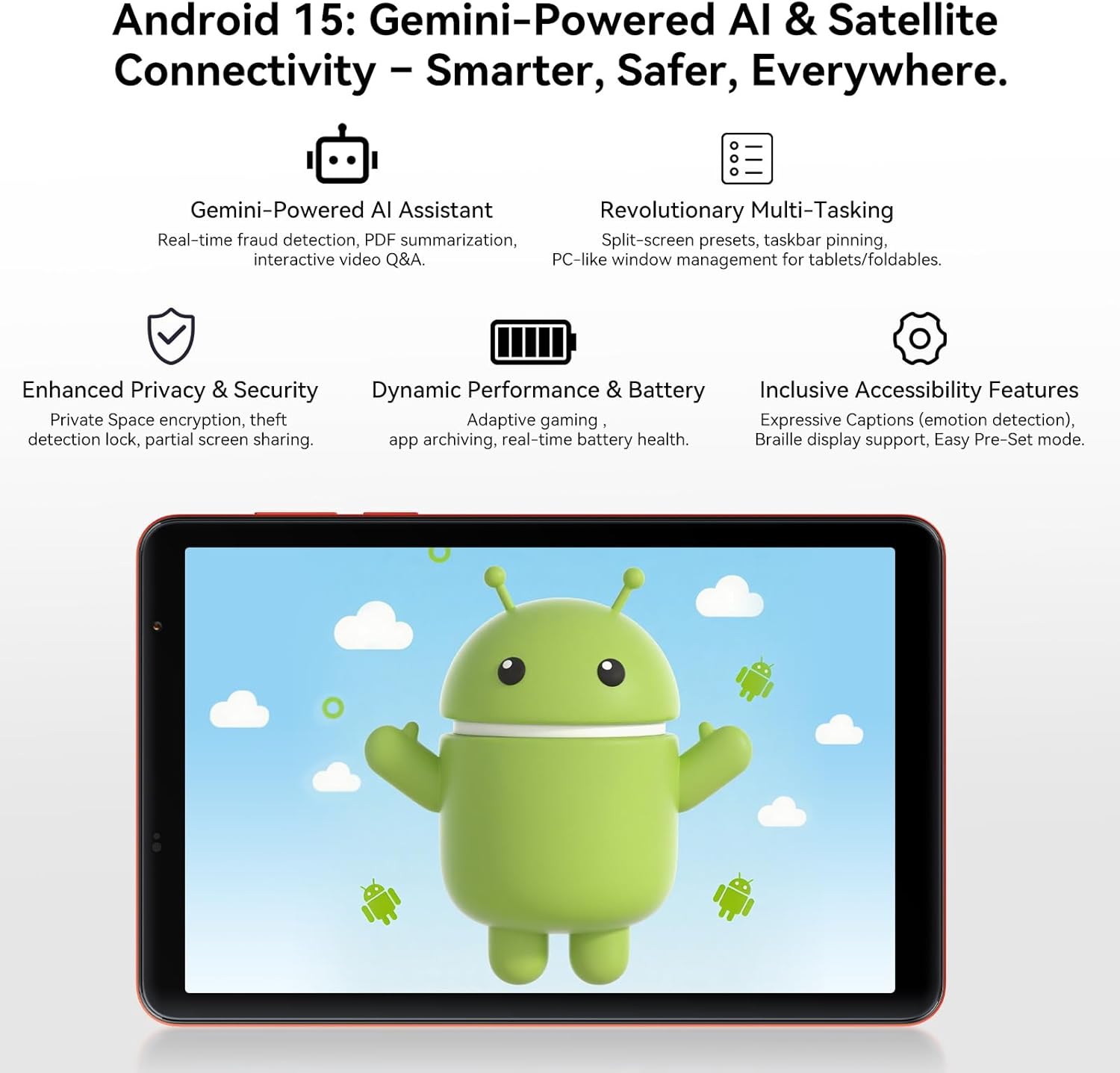
Image: The Blackview ZENO 1 tablet screen showing the Android 15 operating system, highlighting features like Gemini AI, advanced multitasking, privacy controls, and performance optimizations.
5.2 Display and Visuals
- The 8-inch LCD with 800x1280 resolution provides clear visuals.
- The 90Hz refresh rate ensures smoother scrolling and a more fluid visual experience. Adjust refresh rate in Settings > Display.
- Widevine L1 support enables streaming of high-definition content (1080P) from platforms like Netflix and Prime Video.

Image: The Blackview ZENO 1 tablet displaying a game, demonstrating the smooth visuals provided by its 90Hz high refresh rate screen.

Image: A visual comparison on the Blackview ZENO 1 screen, illustrating the superior 1080P streaming quality achieved with Widevine L1 support compared to 720P (L3).
5.3 Performance and Multitasking
The Unisoc T615 Octa-Core processor and 18GB RAM (with dynamic expansion) enable smooth multitasking and efficient app performance. Android 15 offers features like split-screen presets and taskbar pinning for enhanced productivity.
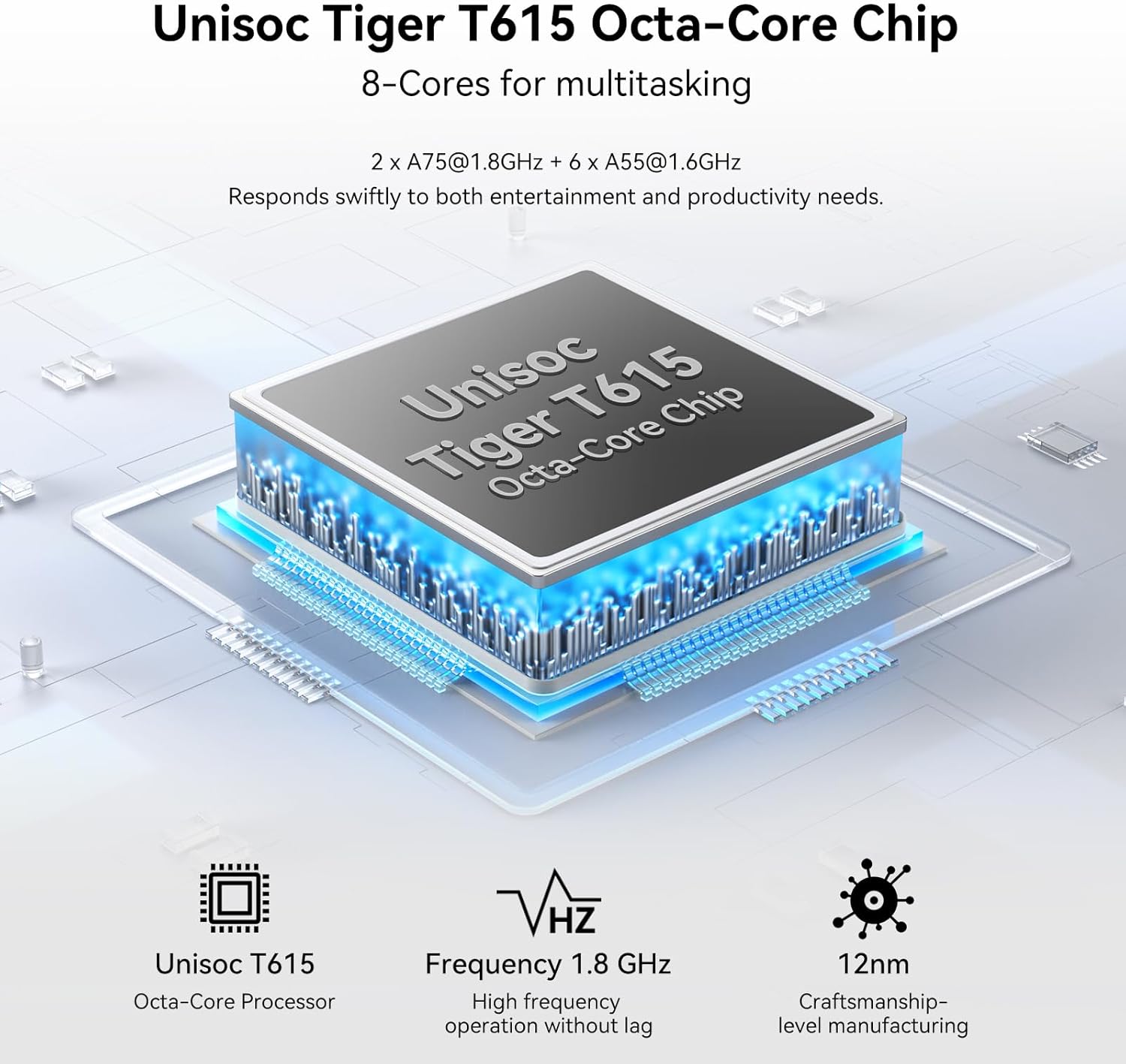
Image: A diagram illustrating the Unisoc Tiger T615 Octa-Core Chip, detailing its architecture and 1.8 GHz frequency for efficient performance.
5.4 Storage Management
The tablet comes with 256GB of internal storage, expandable up to 2TB using a TF card. To manage storage, go to Settings > Storage. You can view storage usage, free up space, and manage files.

Image: The Blackview ZENO 1 tablet displaying a collection of digital content, emphasizing its 18GB RAM, 256GB ROM, and the capability to expand storage up to 2TB with a TF card.
5.5 Camera Usage
The tablet features an 8MP front camera and an 8MP rear camera with flash. Open the Camera app to capture photos and videos.
- Tap the shutter button to take a photo.
- Switch between photo and video modes.
- Use the front/rear camera toggle for selfies or main shots.
Image: The Blackview ZENO 1 tablet highlighting its 8MP front and rear cameras, along with visual examples of image quality and the Face Unlock feature.
5.6 Connectivity
- 4G LTE: Insert a SIM card to enable cellular data and calling. Manage cellular settings in Settings > Network & internet > Mobile network.
- 5G WiFi: Connect to high-speed Wi-Fi networks (see Section 4.3).
- Bluetooth 5.2: Pair with Bluetooth devices like headphones or speakers. Go to Settings > Connected devices > Bluetooth.
- GPS: The tablet includes GPS for navigation and location services. Ensure location services are enabled in Settings > Location.
Image: An illustration depicting the Blackview ZENO 1 tablet's comprehensive connectivity options, including 5G WiFi, 4G LTE, and GPS for reliable network access and navigation.
5.7 Battery Management
The 6000mAh battery provides extended usage. To optimize battery life:
- Adjust screen brightness.
- Close unused apps running in the background.
- Enable battery saver mode in Settings > Battery.
- Charge using the provided USB-C cable and charger.
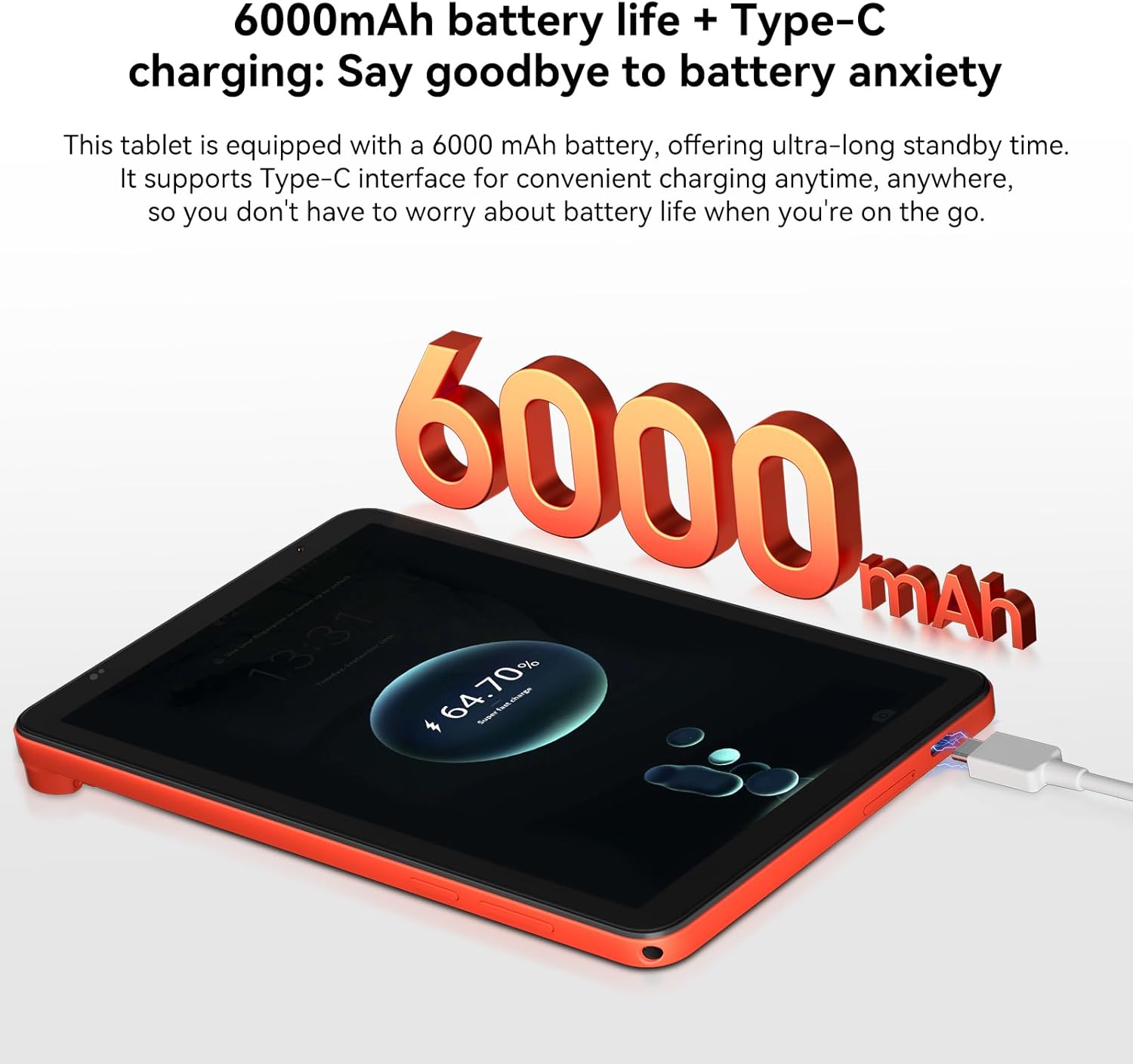
Image: The Blackview ZENO 1 tablet connected to a charger, visually representing its 6000mAh battery capacity and Type-C charging capability.
5.8 Face Unlock
Set up Face Unlock for convenient and secure access to your tablet.
- Go to Settings > Security & privacy > Face unlock.
- Follow the on-screen instructions to register your face.
- Ensure adequate lighting when using Face Unlock.
Image: A user demonstrating the Face Unlock feature on the Blackview ZENO 1 tablet, highlighting its ease of use for secure access.
5.9 Audio Experience
The tablet is equipped with dual stereo speakers for an immersive audio experience. You can also connect headphones via the 3.5mm headphone jack or Bluetooth.
Image: The Blackview ZENO 1 tablet displaying a music application, emphasizing its stereo sound capabilities through dual speakers.
5.10 Gemini AI Features
Leverage the integrated Gemini AI for enhanced functionality:
- AI-powered chats: Interact with AI for information and assistance.
- Instant image generation: Create images using AI prompts.
- Voice-activated Q&A: Ask questions and receive answers verbally.
- Intuitive controls: AI assists in optimizing user interface interactions.
6. Maintenance
6.1 Cleaning
- Use a soft, lint-free cloth to clean the screen and body of the tablet.
- Avoid using harsh chemicals, abrasive cleaners, or aerosol sprays.
- For stubborn smudges, slightly dampen the cloth with water or a screen-specific cleaning solution.
6.2 Software Updates
Regularly check for and install software updates to ensure your tablet has the latest features, security patches, and performance improvements.
- Go to Settings > System > System update.
- Follow the on-screen instructions to download and install any available updates.
6.3 Storage Optimization
To maintain optimal performance, periodically manage your tablet's storage:
- Delete unnecessary files, photos, and videos.
- Uninstall unused applications.
- Clear cache data for apps in Settings > Apps > [App Name] > Storage & cache.
- Utilize the TF card slot for additional storage of media files.
7. Troubleshooting
This section addresses common issues you might encounter with your Blackview ZENO 1 tablet.
7.1 Common Issues and Solutions
- Tablet not turning on: Ensure the battery is charged. Connect the charger and wait a few minutes before attempting to power on again. If unresponsive, press and hold the Power button for 10-15 seconds for a forced restart.
- Apps crashing or freezing: Close the problematic app and reopen it. If the issue persists, clear the app's cache (Settings > Apps > [App Name] > Storage & cache) or uninstall and reinstall the app. Ensure your tablet's software is up to date.
- Wi-Fi connectivity issues: Restart your tablet and Wi-Fi router. Forget the network in Wi-Fi settings and reconnect. Ensure you are within range of the Wi-Fi signal.
- Slow performance: Close background applications. Clear cache and temporary files. Check for available storage space and free up if necessary. Restarting the tablet can also improve performance.
- Battery draining quickly: Reduce screen brightness. Disable unused features like Bluetooth, GPS, or Wi-Fi when not needed. Identify power-consuming apps in Battery settings and restrict their background activity.
7.2 Contact Support
If you encounter issues not covered in this section or require further assistance, please refer to the Warranty and Support section for contact information.
8. Technical Specifications
| Feature | Specification |
|---|---|
| Brand | Blackview |
| Model Name | ZENO1 |
| Operating System | Android 15 |
| Screen Size | 8 Inches |
| Screen Resolution | 800x1280 Pixels |
| Processor | Unisoc T615 Octa-Core (1.8 GHz) |
| Graphics Coprocessor | Mali - G57 MP1 |
| RAM | 18GB (6GB + 12GB Expansion) |
| Internal Storage | 256 GB |
| Expandable Storage | Up to 2TB via TF Card |
| Rear Camera Resolution | 8 MP |
| Front Camera Resolution | 8 MP |
| Wireless Type | 802.11ac (5G WiFi), 4G LTE |
| Bluetooth | Bluetooth 5.2 |
| Battery Capacity | 6000mAh |
| Average Battery Life | 24 Hours (usage dependent) |
| Item Weight | 11.9 ounces (336.5g) |
| Product Dimensions | 7.83 x 4.96 x 0.3 inches (19.9 x 12.6 x 0.82 cm) |
| Color | Orange |
9. Warranty and Support
9.1 Warranty Information
Blackview products are subject to strict quality control standards. The Blackview ZENO 1 tablet comes with a 2-Year Repair Warranty Support. This warranty covers manufacturing defects and malfunctions under normal use conditions. Please retain your proof of purchase for warranty claims.
9.2 Customer Support
For technical assistance, warranty claims, or any product-related inquiries, please contact Blackview customer support. Lifetime technician support is available.
- Online Support: Visit the official Blackview website for FAQs, support resources, and contact options.
- Email Support: Refer to your product packaging or the official website for the customer service email address.
- Phone Support: Check the official Blackview website for regional contact numbers.
Image: Customer service representatives ready to provide 24/7 online call support and assist with the 2-year repair warranty for Blackview products.
Related documentsZENO1


Ask a question about this manual
Ask about setup, troubleshooting, compatibility, parts, safety, or missing instructions. Manuals+ will review the question and use this page’s manual context to help answer it.