
1. Introduction
This manual provides essential information for the proper setup, operation, and maintenance of your MINIX NUC150 Mini PC. Please read this guide thoroughly before using the device to ensure optimal performance and longevity.
Package Contents
Verify that all items listed below are included in your package:
- 1 x MINIX NUC150 Mini PC
- 1 x 19V/3.42A Power Adapter with US/EU/UK Plug
- 1 x HDMI Cable
- 1 x VESA Mount
- 1 x User Manual (this document)

Image: Contents of the MINIX NUC150 Mini PC package, including the mini PC, power adapter, HDMI cable, VESA mount, and user manual.
2. Product Overview
The MINIX NUC150 is a compact and powerful mini PC designed for various applications, from business and remote work to education and home entertainment. Its small form factor allows for flexible placement.
Physical Dimensions and Weight
- Dimensions (LxWxH): 4.61 x 4.37 x 1.42 inches (117 x 111 x 36 mm)
- Weight: 13 ounces (approximately 0.37 kg)
Port Layout
The MINIX NUC150 features a comprehensive set of ports for connectivity. Familiarize yourself with the port locations for easy setup.
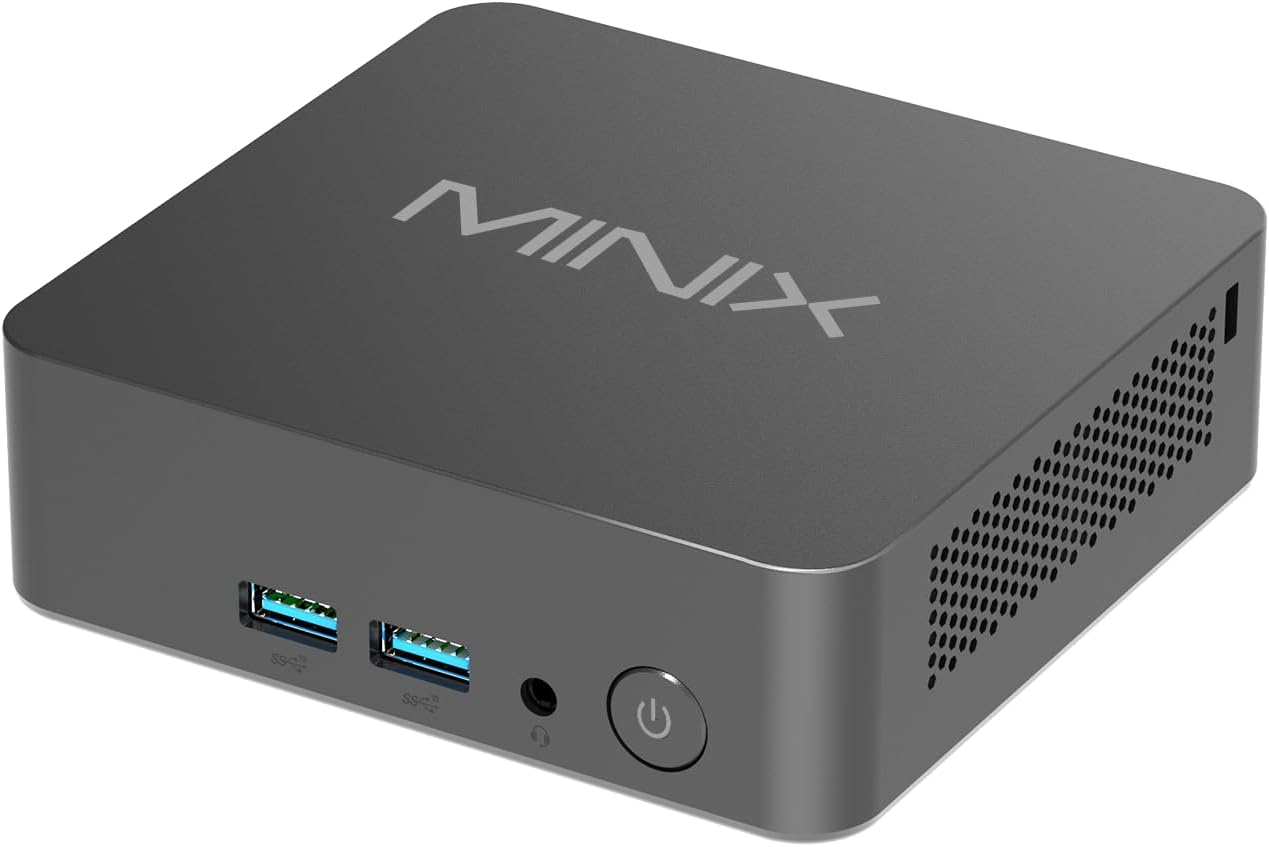
Image: Front view of the MINIX NUC150 Mini PC, showing two USB 3.0 ports, an audio jack, and the power button.

Image: Diagram illustrating all ports on the MINIX NUC150 Mini PC, including USB-A 2.0, USB-A 3.2, HDMI, DC Jack, Type-C (DP/PD/USB-C 3.2), RJ45 LAN, Kensington Lock, and Audio Jack.
3. Setup
Follow these steps to set up your MINIX NUC150 Mini PC.
Step 1: Connect Peripherals
- Connect your monitor(s) to the HDMI ports or the USB-C port using appropriate cables. The device supports up to three 4K@60Hz displays.
- Connect your keyboard and mouse to the available USB-A ports.
- If using a wired network, connect an Ethernet cable to one of the 2.5G Ethernet ports.
- Connect any other desired peripherals (e.g., external storage, speakers) to the appropriate ports.

Image: The MINIX NUC150 Mini PC connected to three 4K monitors, demonstrating its triple display capability.
Step 2: Power Connection
- Connect the power adapter to the DC Jack on the mini PC.
- Plug the power adapter into a wall outlet.
Step 3: Power On
- Press the power button located on the front of the mini PC. The power LED will illuminate.
- The system will boot into Windows 11 Pro. Follow the on-screen instructions for initial setup, including language, region, network connection, and user account creation.
4. Operating Instructions
The MINIX NUC150 Mini PC comes pre-installed with Windows 11 Pro and is ready for immediate use after initial setup. Below are key operational features.
Processor and Performance
The device is powered by an Intel N150 Processor, featuring 4 cores and 4 threads, with a max boost frequency of 3.6 GHz and 6MB total cache. This processor is designed for efficient daily tasks, video playback, and general productivity.

Image: A diagram highlighting the Intel N150 Processor with its specifications: 4 Cores, 4 Threads, 6M Total Cache, and Max Boost Frequency of 3.6 GHz.
Memory and Storage
The NUC150 includes 16GB of DDR5-4800MHz RAM and a 512GB M.2 PCIe SSD. The system supports memory expansion up to 32GB and storage expansion up to 4TB via additional M.2 slots.

Image: Internal view of the MINIX NUC150 Mini PC, showing the 16GB DDR5 RAM module and the 512GB M.2 PCIe 3.0 NVMe SSD.
Display Output
The mini PC supports up to three 4K@60Hz displays simultaneously through its dual HDMI 2.1 ports and one USB-C port (DisplayPort 1.4 compatible). This configuration is suitable for multitasking and high-definition visual applications.
Network and Wireless Connectivity
The device offers robust connectivity options:
- Wi-Fi 6 (802.11ax): For high-speed wireless internet access.
- 2.5G Ethernet: For fast and stable wired network connections.
- Bluetooth 5.2: For connecting wireless peripherals such as keyboards, mice, and audio devices.

Image: The MINIX NUC150 Mini PC connected via an Ethernet cable, with icons indicating Wi-Fi 6 and Bluetooth 5.2 capabilities.
USB-C Port Functionality
The USB-C port on the MINIX NUC150 supports multiple functions:
- Data Transfer: USB 3.2 Gen2 speeds.
- Display Output: DisplayPort 1.4, supporting 4K@60Hz.
- Power Delivery: Up to 15W output.

Image: Close-up of the MINIX NUC150 Mini PC's rear, highlighting the two USB-C 3.2 Gen2 ports and their data, display, and power output capabilities.
5. Maintenance
Regular maintenance helps ensure the longevity and optimal performance of your MINIX NUC150 Mini PC.
Cleaning
- Gently wipe the exterior of the mini PC with a soft, dry, lint-free cloth.
- Avoid using liquid cleaners or abrasive materials, as these can damage the finish or internal components.
- Ensure ventilation openings are clear of dust and debris to prevent overheating. Use compressed air if necessary, holding the can upright to prevent liquid discharge.
Software Updates
Keep your Windows 11 Pro operating system and drivers updated. Regular updates provide security enhancements, bug fixes, and performance improvements.
- Go to Settings > Windows Update to check for and install available updates.
- Allow the system to restart as required after updates.
Storage Expansion
The MINIX NUC150 offers flexible storage expansion options:
- It includes one M.2 2280 PCIe SSD slot (occupied by the pre-installed 512GB SSD).
- An additional M.2 2242 PCIe SSD slot is available, which also supports SATA 3.0 SSDs, allowing for up to 4TB of total storage.
- Consult a qualified technician for hardware upgrades to avoid damaging the device.
6. Troubleshooting
If you encounter issues with your MINIX NUC150 Mini PC, refer to the following common troubleshooting steps. If the problem persists, contact customer support.
No Power / System Not Starting
- Ensure the power adapter is securely connected to both the mini PC and a working power outlet.
- Verify that the power outlet is functional by testing it with another device.
- Press the power button firmly. If the power LED does not light up, there may be an issue with the power supply or the unit itself.
No Display Output
- Check that the HDMI or USB-C cables are securely connected to both the mini PC and the monitor(s).
- Ensure the monitor is powered on and set to the correct input source (e.g., HDMI 1, DisplayPort).
- Try connecting to a different monitor or using a different cable to rule out external display issues.
Network Connectivity Issues
- Wired (Ethernet): Check if the Ethernet cable is properly connected to both the mini PC and your router/modem. Verify that your router/modem is working correctly.
- Wireless (Wi-Fi): Ensure Wi-Fi is enabled in Windows settings. Check if you are connected to the correct network and that the password is entered correctly. Restart your router/modem.
System Performance Issues
- Close unnecessary applications running in the background.
- Ensure Windows and drivers are up to date.
- Check for malware or viruses using reputable antivirus software.
- Monitor system temperatures to ensure the device is not overheating.
7. Specifications
Detailed technical specifications for the MINIX NUC150 Mini PC.
| Feature | Specification |
|---|---|
| Brand | MINIX |
| Model Number | NUC150 |
| Operating System | Windows 11 Pro |
| Processor | Intel N150 (3.6 GHz Celeron, 4 Cores, 4 Threads, 6MB Cache) |
| RAM | 16GB DDR5 (4800 MHz), expandable up to 32GB |
| Hard Drive | 512GB M.2 PCIe x4 SSD, expandable up to 4TB (via M.2 2280 PCIe and M.2 2242 PCIe/SATA slots) |
| Graphics Coprocessor | Intel Graphics (Integrated) |
| Max Screen Resolution | 4K Pixels (3840 x 2160) |
| Display Output | 2x HDMI 2.1, 1x USB-C (DP 1.4) - Triple 4K@60Hz support |
| Wireless Type | Wi-Fi 6 (802.11ax), Bluetooth 5.2 |
| Ethernet | 2.5G Ethernet |
| USB Ports | 3x USB 3.0, 1x USB 2.0, 1x USB-C (Data/DP 1.4/PD 15W) |
| Audio | Audio Jack |
| Item Weight | 13 ounces (0.37 kg) |
| Product Dimensions (LxWxH) | 4.61 x 4.37 x 1.42 inches (117 x 111 x 36 mm) |
8. Warranty and Support
MINIX is committed to providing reliable products and customer satisfaction.
Warranty Information
For specific warranty terms and conditions, please refer to the warranty card included with your product or visit the official MINIX website. Generally, MINIX products come with a limited warranty covering manufacturing defects.
Customer Support
If you require technical assistance or have questions regarding your MINIX NUC150 Mini PC, please use the following methods:
- Online Support: Visit the official MINIX website for FAQs, driver downloads, and support resources.
- Amazon Customer Service: If purchased via Amazon, you can contact support through your Amazon account:
"Login Amazon" > "Your Account" > "Your orders" > "Ask Product Question"


