
1. Introduction
The TOPPING DX5 II is a high-performance Digital-to-Analog Converter (DAC) and Headphone Amplifier combo unit designed for audiophiles. It integrates advanced audio technologies to deliver exceptional sound quality for various audio setups. This manual provides detailed instructions for setting up, operating, and maintaining your DX5 II.
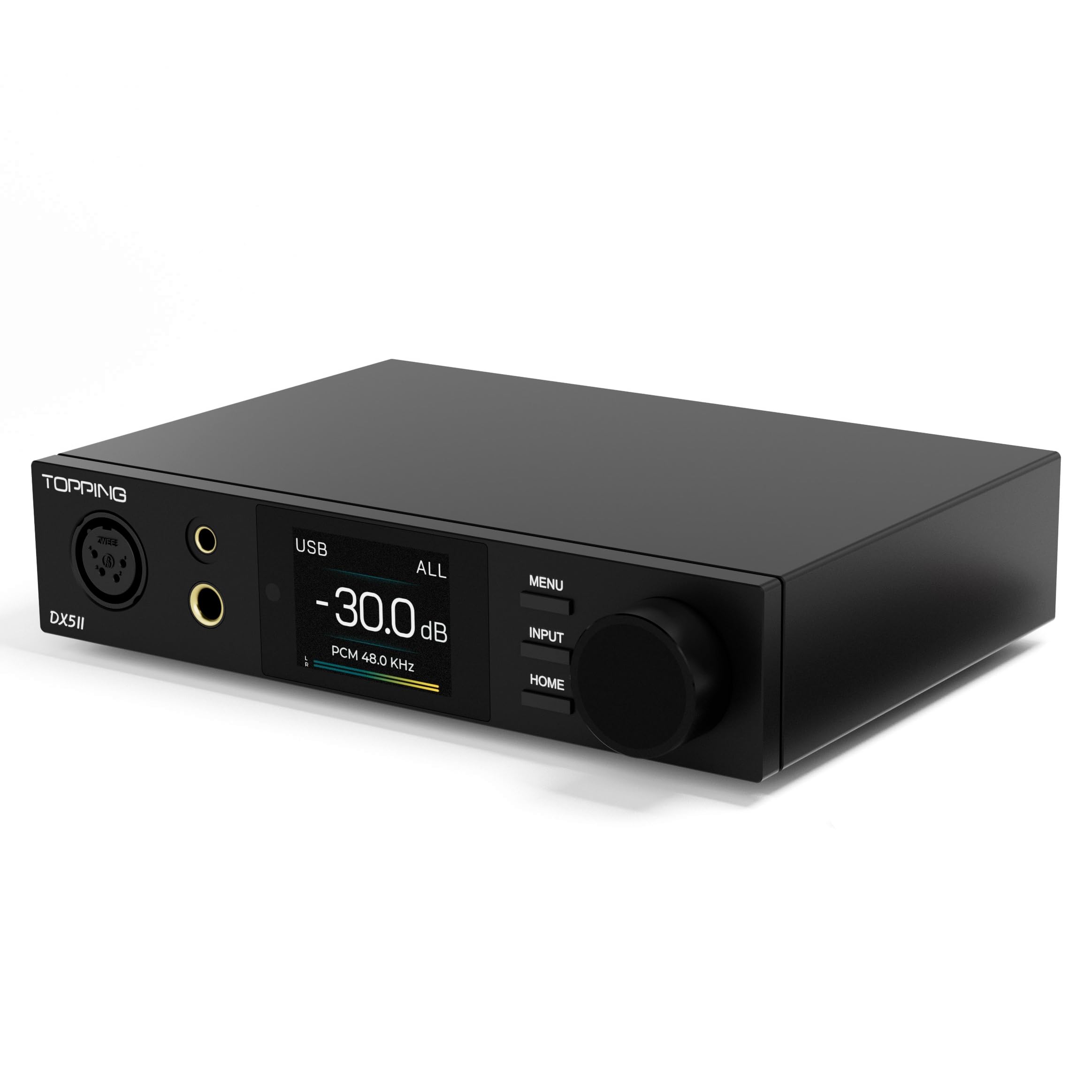
Image: The TOPPING DX5 II unit, a compact black device with a display screen and control knob.
Video: An overview of the TOPPING DX5 II DAC AMP Combo, showcasing its features and design.
2. Package Contents
Before proceeding with setup, please verify that all items are present in the package:
- TOPPING DX5 II Unit
- Remote Control
- USB Cable
- 6.35mm to 3.5mm Adaptor
- AC Cable
- Bluetooth Antenna
- Product Information Card (Quick Start Guide)

Image: Diagram showing the DX5 II unit, remote control, USB cable, 6.35mm to 3.5mm adapter, AC cable, Bluetooth antenna, and product information card.
3. Setup
3.1 Connecting Power
- Connect the provided AC cable to the power input on the rear panel of the DX5 II.
- Plug the other end of the AC cable into a suitable power outlet.
- Ensure the power switch on the rear panel is in the 'OFF' position before connecting.
3.2 Connecting Inputs and Outputs
The DX5 II offers various input and output options:

Image: Rear panel of the DX5 II showing USB, Coaxial, Optical, Bluetooth antenna port, 12V Trigger, and AC power input.
- USB Input: Connect your computer (Windows, Mac, Linux) or mobile device (iOS, Android) using the USB cable.
- Coaxial/Optical SPDIF Input: Connect digital audio sources such as CD players, game consoles, or TVs.
- Bluetooth Input: Attach the Bluetooth antenna to the designated port for wireless audio streaming.
- Headphone Outputs: Use the 4.4mm balanced or 6.35mm single-ended headphone jacks on the front panel.
- Line Outputs: Connect to active speakers or a power amplifier via the balanced XLR or unbalanced RCA outputs on the rear.

Image: Front panel of the DX5 II showing the 4.4mm balanced and 6.35mm single-ended headphone outputs, display, and control knob.
3.3 Driver Installation (Windows Only)
For Windows operating systems, a specific driver may be required for optimal USB audio performance (ASIO applications). Mac, Linux, iOS, and Android platforms typically operate plug-and-play without additional drivers.
- Download the latest Thesycon USB driver from the official TOPPING website.
- Install the driver following the on-screen instructions.
- Restart your computer if prompted.

Image: Screenshots illustrating the audio device selection for the DX5 II in Windows and macOS settings, highlighting its plug-and-play compatibility.
4. Operating Instructions
4.1 Power On/Off
- To power on, flip the power switch on the rear panel to 'ON'.
- To power off, flip the power switch on the rear panel to 'OFF'.
4.2 Basic Controls
The DX5 II features a multi-function knob and several buttons on the front panel:
- Knob: Rotate to adjust volume. Press to enter menu or confirm selection.
- MENU Button: Access the main menu for settings.
- INPUT Button: Cycle through available input sources (USB, Bluetooth, Coaxial, Optical).
- HOME Button: Return to the main display screen.
4.3 Bluetooth Pairing
- Select Bluetooth as the input source using the INPUT button.
- The display will show "BT" and indicate pairing mode.
- On your mobile device, search for "TOPPING DX5 II" in the Bluetooth settings and connect.
- Once connected, the display will show the active Bluetooth codec (e.g., LDAC, aptX HD).

Image: A smartphone displaying Bluetooth settings, connected to the DX5 II, which shows 'BT' on its screen.
4.4 Preamp Mode
The DX5 II can operate in a preamp mode, allowing it to directly control the volume when connected to active speakers or a pure power amplifier. This mode retains the last set volume when switching outputs.
- Access the menu using the MENU button.
- Navigate to the "Output Mode" or similar setting.
- Select "Preamp" mode.

Image: The DX5 II unit connected to a pair of active speakers, demonstrating its use in preamp mode.
4.5 10-Band PEQ Adjustment
The DX5 II features a 10-band high-precision Parametric Equalizer (PEQ) for fine-tuning your audio. This allows adjustment of frequency, gain, and bandwidth for each band.
- Access the menu and navigate to the "PEQ" settings.
- Adjust the parameters for each of the 10 bands as desired.
- The PEQ function supports PCM up to 192kHz/32bit.
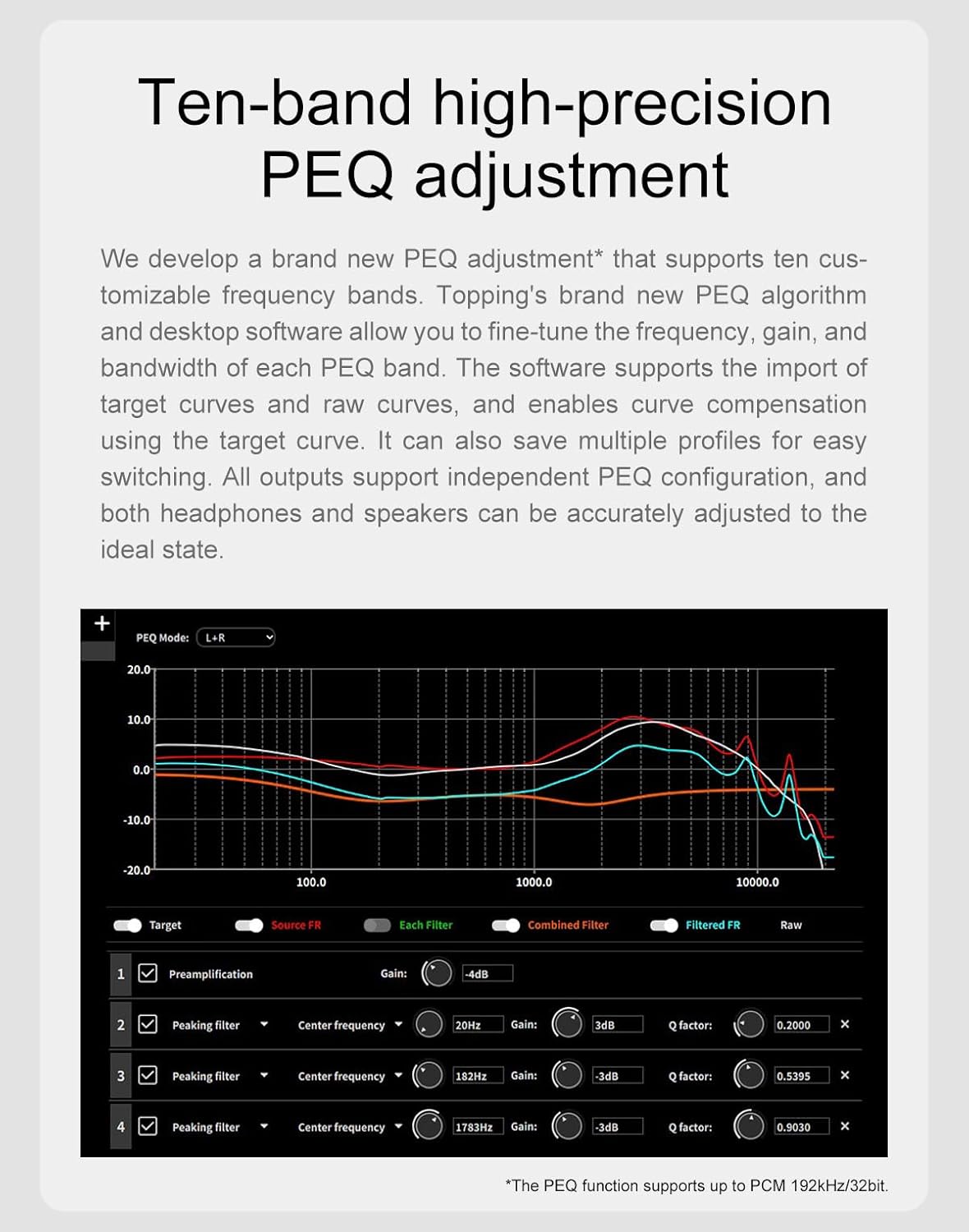
Image: A graphical representation of the 10-band PEQ adjustment interface, showing frequency response curves and adjustable parameters.
4.6 Aurora UI and Display Themes
The DX5 II features a 2.0" full-color Aurora UI screen with 9 customizable themes. You can change the display theme and brightness through the menu settings.
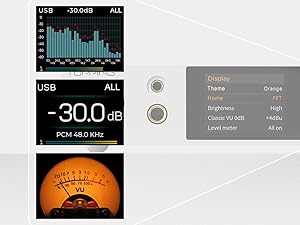
Image: Various display options and themes available on the DX5 II's Aurora UI screen, including different visualizers and information layouts.
5. Maintenance
5.1 Cleaning
- Wipe the unit with a soft, dry cloth.
- Do not use liquid cleaners or abrasive materials, as they may damage the finish.
5.2 Firmware Updates
Periodically check the official TOPPING website for firmware updates to ensure optimal performance and access to new features.
- Download the latest firmware package from the TOPPING website.
- Follow the specific instructions provided with the firmware package for installation. This typically involves connecting the DX5 II to a computer via USB and using a dedicated update tool or copying files to a specific drive.
Video: A step-by-step guide on how to perform a firmware update for the TOPPING DX5 II.
6. Troubleshooting
- No Sound:
- Check all cable connections (power, input, output).
- Ensure the correct input source is selected on the DX5 II.
- Verify the volume level is not set to minimum or muted.
- If using USB, confirm the correct audio output device is selected on your computer/device and drivers are installed (Windows).
- Bluetooth Connection Issues:
- Ensure the Bluetooth antenna is securely attached.
- Make sure the DX5 II is in Bluetooth input mode and discoverable.
- Forget the device on your source device and re-pair.
- Reduce distance between devices and remove obstructions.
- Distorted Sound:
- Check for loose cable connections.
- Ensure the source audio is not over-driven or clipping.
- Try a different audio source or cable.
7. Specifications
| Feature | Detail |
|---|---|
| DAC Chips | Dual ESS9039Q2M |
| PCM Decoding | Up to 768kHz/32bit |
| DSD Decoding | DSD512 Native |
| Headphone Amp | X-Hybrid, Fully Balanced Quad-Channel |
| Headphone Output Power | 7600mW x2 @ 16Ω, 6400mW x2 @ 32Ω, 4300mW x2 @ 64Ω, 990mW x2 @ 300Ω, 490mW x2 @ 600Ω (THD+N <1%) |
| PEQ Adjustment | 10-Band High Precision |
| Bluetooth Version | 5.1 |
| Bluetooth Codecs | LDAC, aptX Adaptive, aptX HD, AAC, SBC |
| Display | 2.0" Full-Color Aurora UI (9 customizable themes) |
| Inputs | USB, Bluetooth, Coaxial SPDIF, Optical SPDIF |
| Outputs | 4.4mm Balanced Headphone, 6.35mm Single-Ended Headphone, XLR Balanced Line Out, RCA Unbalanced Line Out |
| Compatibility | Windows, Mac, Linux, iOS, Android |
| 12V Trigger | Supported (In/Out) |
| Material | Metal, Plastic |
| Dimensions (approx.) | 19.0 cm (W) x 15.5 cm (D) x 4.4 cm (H) |

Image: A table comparing the specifications and features of the DX5 II with its predecessor, the DX5.
8. Warranty and Support
The TOPPING DX5 II comes with a 2-Year Manufacturer Warranty. For warranty claims, technical support, or further inquiries, please contact TOPPING customer service or visit their official website.
You can find more information and support resources on the official TOPPING store page: TOPPING Store


