
1. Introduction
Thank you for choosing the LIGE EF13-E Smartwatch. This device is designed to enhance your daily life with its advanced features, including fitness tracking, health monitoring, and smart notifications. Please read this manual carefully to ensure proper use and optimal performance of your smartwatch.
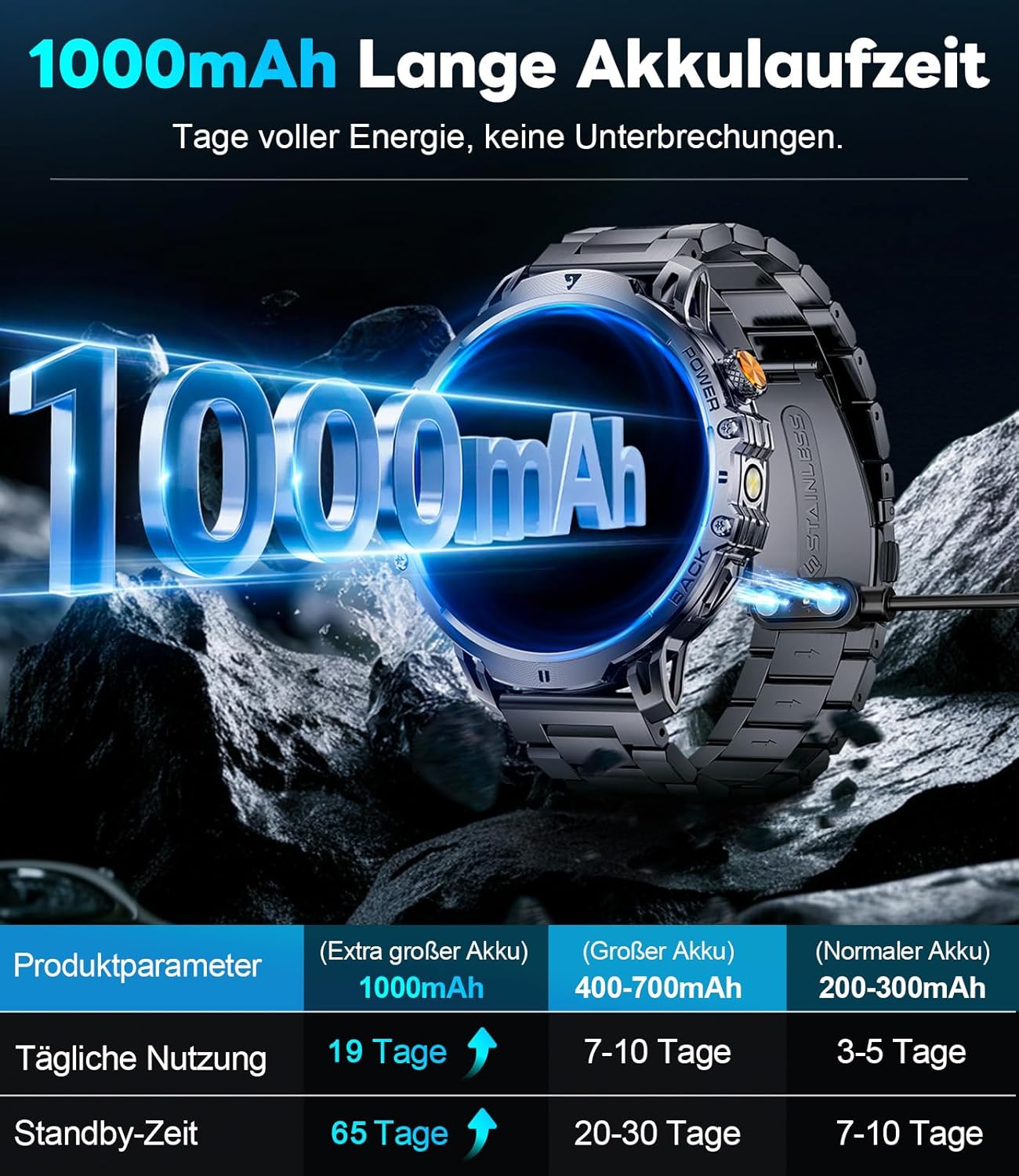
Image 1.1: LIGE EF13-E Smartwatch, showcasing its robust design and display.
2. Package Contents
- LIGE EF13-E Smartwatch
- Charging Cable
- User Manual
- Additional Strap (if included in your package)
3. Setup Guide
3.1 Charging the Smartwatch
Before first use, fully charge your smartwatch. Connect the magnetic charging cable to the charging contacts on the back of the watch and plug the USB end into a power adapter (5V/1A recommended) or a computer's USB port.

Image 3.1: The smartwatch connected to its magnetic charging cable.
The watch features a 1000mAh battery. A full charge typically takes approximately 2-3 hours. The battery indicator on the screen will show charging status.

Image 3.2: Illustration of the smartwatch's extended battery life with its 1000mAh capacity.
3.2 App Installation and Pairing
- Scan the QR code in the manual or on the watch screen, or search for the companion app (e.g., 'Da Fit' or similar, refer to packaging for exact app name) in your smartphone's app store (compatible with Android 4.4+ and iOS 8.0+).
- Download and install the app.
- Open the app and follow the on-screen instructions to create an account and set up your profile.
- Enable Bluetooth on your smartphone.
- In the app, navigate to 'Device' or 'Add Device' and select your smartwatch from the list of available devices. The watch's Bluetooth name will typically be 'EF13-E' or similar.
- Confirm the pairing request on both your phone and the smartwatch.
4. Operating Instructions
4.1 Basic Navigation
- Power On/Off: Press and hold the side button to power on or off.
- Wake Screen: Raise your wrist or press the side button.
- Touch Screen: Swipe left/right/up/down to navigate through menus and functions. Tap to select.
- Return: Press the side button or swipe right from the left edge to go back to the previous screen.

Image 4.1: The 1.85-inch HD display of the smartwatch, showing clear visuals and information.
4.2 Watch Faces
Customize your watch face by long-pressing the home screen or selecting 'Watch Faces' in the settings menu. You can choose from pre-installed faces or download more via the companion app.

Image 4.2: The smartwatch showcasing a selection of customizable watch faces.
4.3 Bluetooth Calling
Once paired with your smartphone, you can make and receive calls directly from your smartwatch. Ensure the Bluetooth call function is enabled in the app and on the watch.
- Making a Call: Access the dial pad or contacts list on the watch.
- Receiving a Call: Tap the green icon on the watch screen to answer, or the red icon to reject.

Image 4.3: The smartwatch displaying an incoming call notification.
4.4 Notifications
Receive notifications for calls, SMS, and social media apps directly on your watch. Enable app notifications in the companion app settings.
4.5 Health Monitoring
The smartwatch tracks various health metrics:
- Heart Rate: Monitor your heart rate 24/7. Access the heart rate function on the watch to take a measurement.
- Blood Oxygen (SpO2): Measure your blood oxygen levels.
- Sleep Tracking: Automatically monitors your sleep patterns, including deep sleep, light sleep, and wake times.

Image 4.4: The smartwatch interface showing real-time heart rate and other health data.
4.6 Sport Modes
The watch supports over 110 sport modes. Select your desired activity from the 'Sport' menu to track your workout data, including steps, distance, calories burned, and heart rate.

Image 4.5: The smartwatch showing icons for different sport modes, such as running, climbing, surfing, and weightlifting.
4.7 Other Features
- LED Flashlight: Activate the built-in LED flashlight from the quick settings or app menu.
- Music Control: Control music playback on your smartphone.
- Voice Assistant: Use the integrated voice assistant for quick commands.
- Pedometer: Tracks your daily steps.
- Reminders: Set alarms, sedentary reminders, and other custom alerts.
- Weather: View current weather conditions.
- Find Phone: Locate your paired smartphone.

Image 4.6: The smartwatch's powerful LED flashlight in use.
5. Maintenance
5.1 Cleaning
Wipe the watch and straps regularly with a soft, dry cloth. For stubborn dirt, use a slightly damp cloth and then dry thoroughly. Avoid using harsh chemicals or abrasive materials.
5.2 Water Resistance (IP68)
The smartwatch is IP68 waterproof, meaning it is resistant to dust and can withstand immersion in water up to 1.5 meters for 30 minutes. It is suitable for daily use, such as hand washing, rain, and swimming. However, it is not recommended for hot showers, saunas, or diving, as steam and high water pressure can compromise the seal.

Image 5.1: The smartwatch demonstrating its IP68 water resistance during swimming.
6. Troubleshooting
- Watch not turning on: Ensure the watch is fully charged. Connect it to the charger for at least 30 minutes.
- Cannot pair with phone:
- Ensure Bluetooth is enabled on your phone and the watch.
- Make sure the watch is within range of your phone.
- Restart both the watch and your phone.
- Check if the app has necessary permissions (location, Bluetooth).
- Inaccurate health data: Ensure the watch is worn snugly on your wrist, not too tight or too loose. Avoid excessive movement during measurements.
- Notifications not received:
- Check app notification settings on your phone and in the companion app.
- Ensure the watch is connected via Bluetooth.
- Disable any power-saving modes on your phone that might restrict app background activity.
- Screen unresponsive: Try restarting the watch by pressing and holding the side button. If unresponsive, allow the battery to drain completely and then recharge.
7. Specifications
| Feature | Specification |
|---|---|
| Model Number | EF13-E |
| Display Size | 1.85 inches |
| Display Type | HD AMOLED |
| Battery Capacity | 1000 mAh Lithium-polymer |
| Water Resistance | IP68 |
| Connectivity | Bluetooth |
| Compatible OS | Android 4.4+ and iOS 8.0+ |
| Memory Storage | 256 MB |
| Special Features | LED Light, Pedometer, Fitness Tracker, Heart Rate Monitor, SpO2, Sleep Tracking, Bluetooth Call, Music Player, Voice Assistant, Reminders, Alarm, Notifications, Sedentary Reminder, Cycle Tracking, GPS via smartphone |
8. Warranty and Support
This LIGE smartwatch comes with a standard manufacturer's warranty. Please refer to the warranty card included in your package for specific terms and conditions. For technical support or further assistance, please contact LIGE customer service through the contact information provided on the product packaging or the official LIGE website.


