
ScanSnap PA03860-B005
ScanSnap iX2500 Wireless Document Scanner User Manual
Model: PA03860-B005 | Brand: ScanSnap
1. Introduction
The ScanSnap iX2500 is a high-speed, cloud-enabled document, photo, and receipt scanner designed for both Mac and PC environments. Featuring a large 5-inch touchscreen and a 100-page automatic document feeder, it offers efficient and versatile scanning capabilities. This manual provides essential information for setting up, operating, maintaining, and troubleshooting your ScanSnap iX2500.

Figure 1.1: ScanSnap iX2500 Wireless Document Scanner in operation, scanning a document and a receipt.
The iX2500 is built with premium materials, offering a sleek design that complements any workspace. Its advanced features include USB-C and Wi-Fi connectivity for flexible placement, and ScanSnap Cloud for direct scanning to your preferred cloud services without needing a computer. It automatically optimizes, names, and sorts documents, making text searchable and managing various file types with ease.
2. Safety Information
Please read all safety instructions carefully before using the ScanSnap iX2500 to ensure safe and proper operation. Keep this manual for future reference.
- Do not expose the scanner to water or excessive humidity.
- Use only the power adapter supplied with the scanner.
- Ensure proper ventilation around the scanner to prevent overheating.
- Avoid placing the scanner on unstable surfaces.
- Do not attempt to disassemble or repair the scanner yourself. Refer to qualified service personnel.
- Keep hands and loose clothing away from the paper feed area during operation.
3. Package Contents
Verify that all items listed below are included in your ScanSnap iX2500 package:
- ScanSnap iX2500 Scanner Unit
- Power Cable and Adapter
- USB 3.2 Cable (for optional wired connection)
- Receipt Guide Accessory
- Software License for Kofax Power PDF™ Standard (Windows and Mac)
- Setup Guide / Safety Precautions

Figure 3.1: Contents included with the ScanSnap iX2500 package.
4. Setup
4.1 Physical Setup
- Unpack the Scanner: Carefully remove the scanner and all accessories from the packaging.
- Choose a Location: Place the scanner on a stable, flat surface with adequate space for document feeding and output.
- Connect Power: Connect the power adapter to the scanner's power port and then plug it into a wall outlet.
- Open Covers: Open the top cover and the paper output tray.
4.2 Software Installation
The ScanSnap iX2500 utilizes ScanSnap Home software for comprehensive document management and scanning control. Kofax Power PDF Standard is also included for advanced PDF functionalities.
- Download ScanSnap Home: Visit the official ScanSnap website to download the latest version of ScanSnap Home for your operating system (Windows or macOS).
- Install ScanSnap Home: Follow the on-screen instructions to complete the installation.
- Install Kofax Power PDF: Use the provided license key and installation media/download link for Kofax Power PDF Standard.
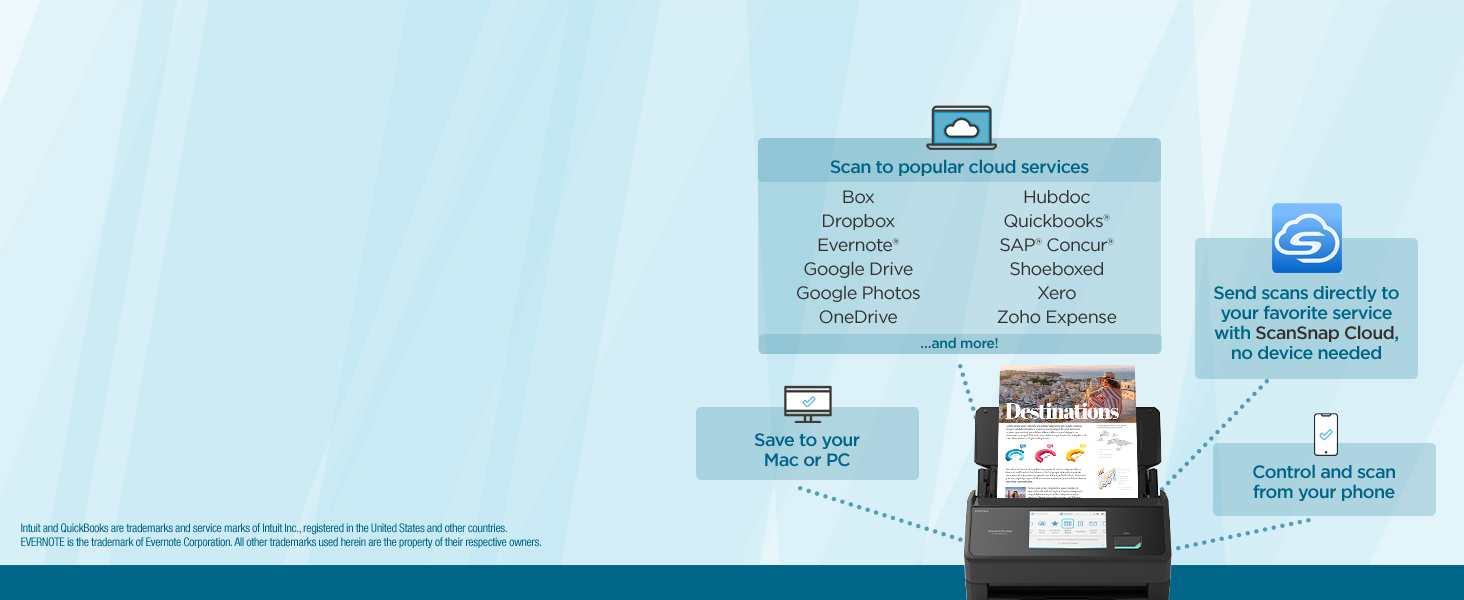
Figure 4.1: ScanSnap Home software for macOS, Windows, iOS, and Android.
4.3 Connectivity
The iX2500 supports both wireless (Wi-Fi) and wired (USB) connections.
- Wi-Fi Connection:
- Power on the scanner.
- On the scanner's touchscreen, navigate to the Wi-Fi settings.
- Select your Wi-Fi network and enter the password.
- Ensure your computer or mobile device is connected to the same network.
- ScanSnap Home will detect the scanner on the network.
- USB Connection:
- Connect the supplied USB 3.2 cable from the scanner to an available USB port on your computer.
- The scanner will be recognized by your computer and ScanSnap Home.
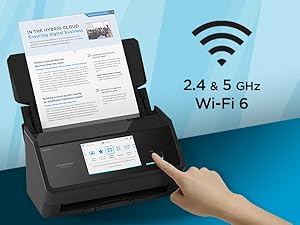
Figure 4.2: Wi-Fi 6 connectivity for flexible placement.
5. Operating Instructions
5.1 Basic Scanning
The ScanSnap iX2500 can scan various document types efficiently.
- Load Documents: Place documents face-down in the automatic document feeder (ADF). Adjust the paper guides to fit the width of your documents. For receipts, use the included receipt guide accessory.
- Select Scan Profile: On the 5-inch touchscreen, select a pre-configured scan profile (e.g., Documents, Photos, Receipts, Business Cards). You can also customize profiles.
- Initiate Scan: Press the "Scan" button on the scanner or initiate the scan from the ScanSnap Home software on your connected device.
- Review and Save: After scanning, review the scanned images in ScanSnap Home. You can then save them to your desired destination.
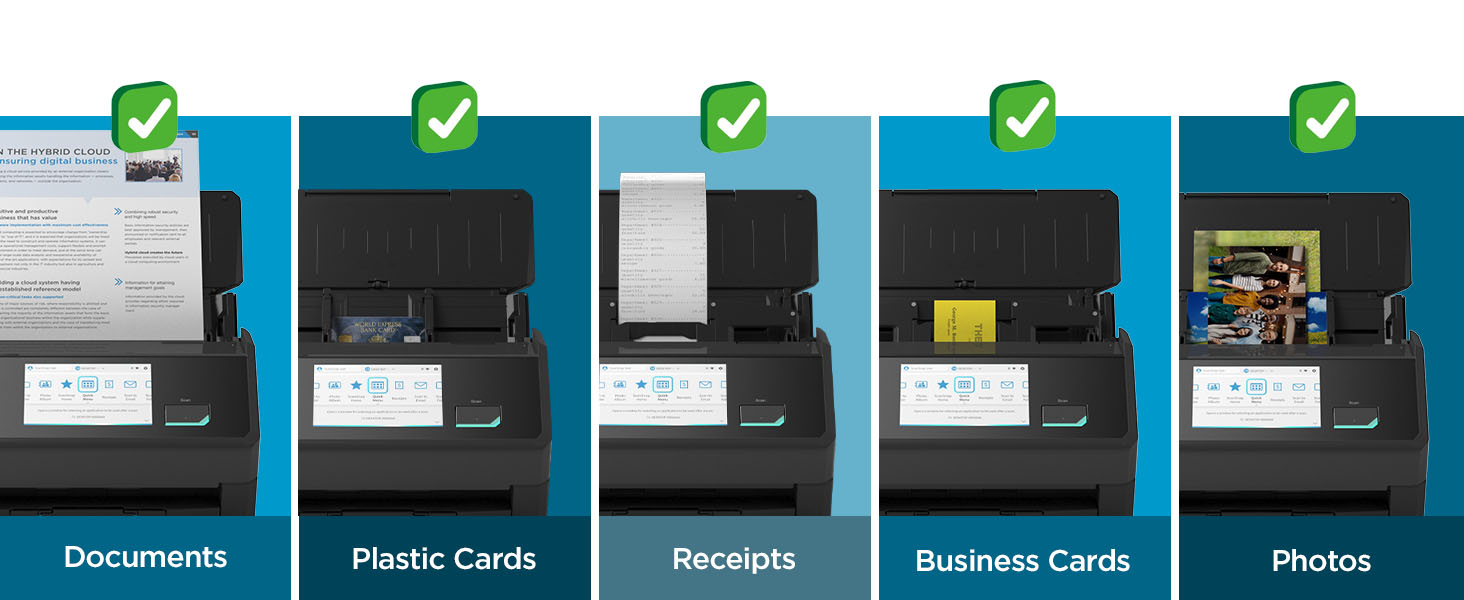
Figure 5.1: The ScanSnap iX2500 supports scanning a wide range of documents.
5.2 Using the Touchscreen
The 5-inch touchscreen provides intuitive control over your scanning tasks.
- Profile Selection: Tap on icons to select different scanning profiles.
- Settings: Access scanner settings, network configuration, and maintenance options.
- Quick Menu: The Quick Menu allows you to quickly drag-and-drop scanned files to your favorite applications or cloud services.
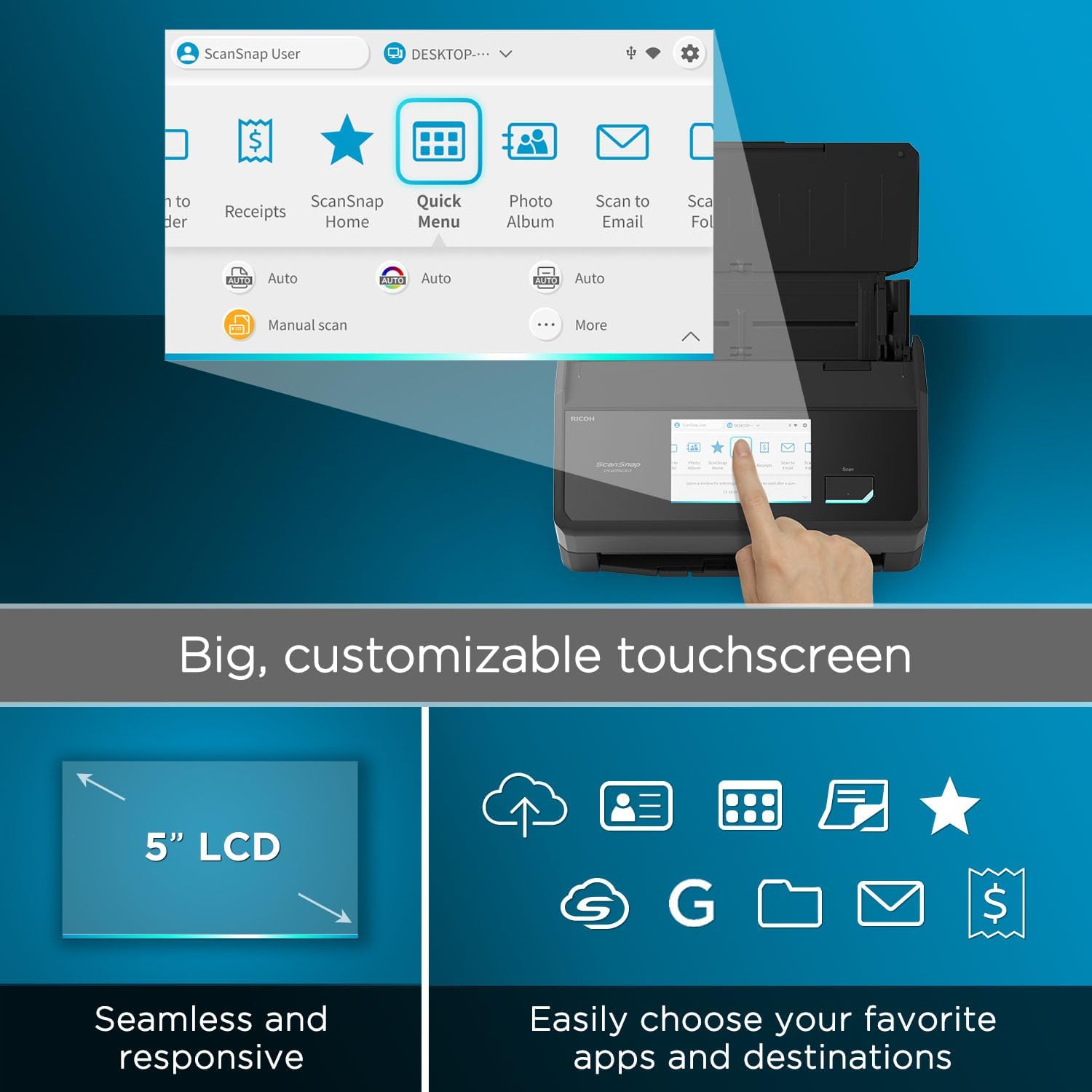
Figure 5.2: The large, customizable touchscreen for easy operation.

Figure 5.3: Drag-and-Drop functionality with the Quick Menu.
5.3 Scan Destinations and Cloud Services
The ScanSnap iX2500 offers versatile options for saving your scanned data:
- Local Storage: Save directly to your Mac or PC.
- Mobile Devices: Control and scan from your phone or tablet using the ScanSnap Home mobile app.
- Cloud Services (ScanSnap Cloud): Scan directly to popular cloud services without a computer, including:
- Box
- Dropbox
- Evernote
- Google Drive
- Google Photos
- OneDrive
- Hubdoc
- QuickBooks
- SAP Concur
- Shoeboxed
- Xero
- Zoho Expense
5.4 Automatic Optimizations
The iX2500 automatically enhances your scans for optimal quality and organization:
- Automatic Color Detection: Detects and applies full color, grayscale, or black & white scanning as appropriate.
- Automatic Size and Type Detection: Identifies document type (e.g., business card, receipt, photo, document) and adjusts scan size accordingly.
- Automatic Blank Page Removal: Skips blank pages to reduce file size and clutter.
- Automatic Rotation: Corrects document orientation for readability.
- Automatic Naming and Sorting: Organizes files into folders and clouds based on content.
- Searchable Text: Automatically makes text searchable (OCR).
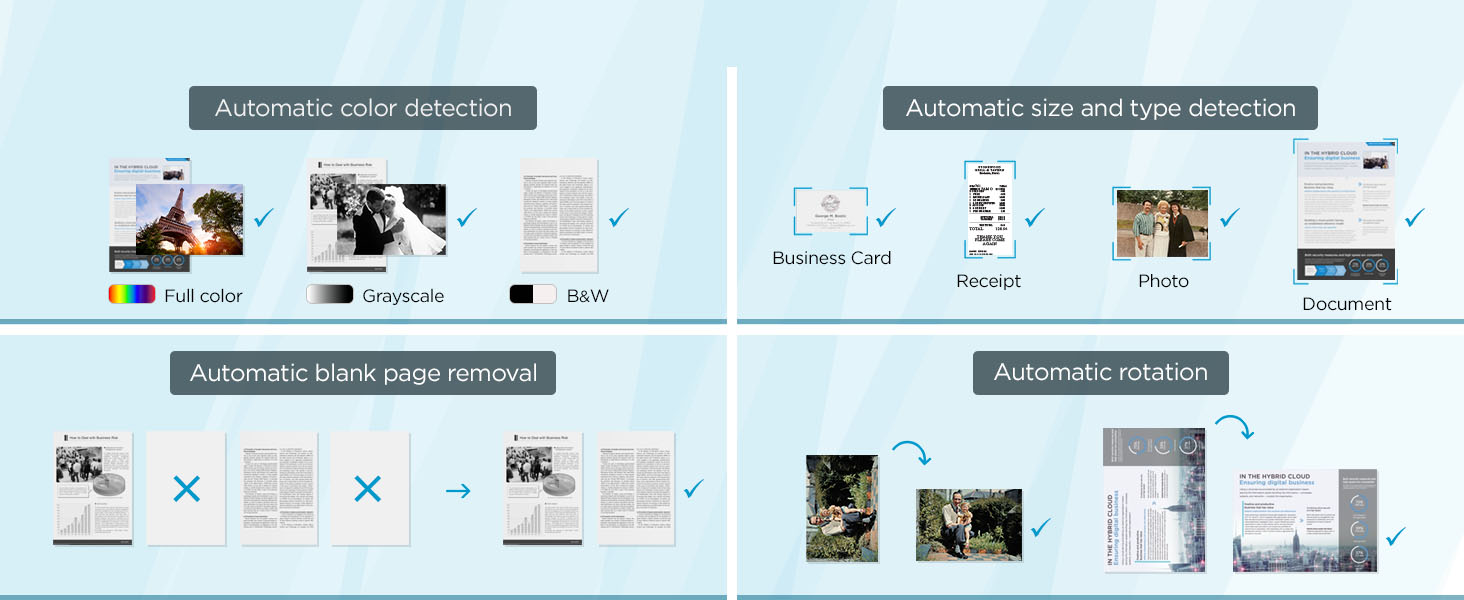
Figure 5.4: Automatic image processing features.
6. Maintenance
6.1 Cleaning the Scanner
Regular cleaning ensures optimal performance and extends the life of your scanner.
- Power Off: Always turn off and unplug the scanner before cleaning.
- Exterior: Wipe the exterior with a soft, dry, lint-free cloth. For stubborn marks, slightly dampen the cloth with water.
- Glass and Rollers: Refer to the ScanSnap Home software for detailed instructions on cleaning the glass scanning surface and feed rollers. Use a cleaning kit specifically designed for document scanners, such as the Fujitsu drum cleaner, to maintain roller grip and prevent paper jams.
- Dust: Use a can of compressed air to gently remove dust from hard-to-reach areas.
6.2 Avoiding Paper Jams and Damage
The iX2500 features a brake roller system and multi-feed sensor to minimize jams. Follow these guidelines to prevent issues:
- Load Properly: Ensure documents are aligned and within the paper guides. Do not overload the ADF (maximum 100 sheets).
- Check Document Condition: Avoid scanning wrinkled, torn, or stapled documents. Remove all staples and paper clips.
- Mixed Media: When scanning mixed media (e.g., thick and thin papers), consider scanning them separately or using manual feed mode for delicate items.
- Clean Rollers: Regularly clean the feed rollers as per the cleaning instructions to maintain proper paper feeding.
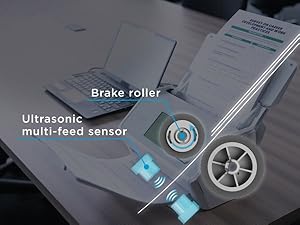
Figure 6.1: Internal mechanisms for smooth paper feeding and jam prevention.
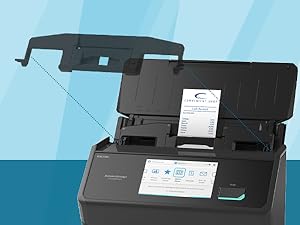
Figure 6.2: The receipt guide accessory helps stabilize small documents.
7. Troubleshooting
This section addresses common issues you might encounter with your ScanSnap iX2500.
| Problem | Possible Cause | Solution |
|---|---|---|
| Scanner not connecting to computer/network. | Loose cable, Wi-Fi issue, software glitch. |
|
| Paper jams frequently. | Improper loading, worn rollers, damaged documents. |
|
| Scanned images are poor quality (streaks, blurry). | Dirty scanning glass, incorrect settings. |
|
| Scanner does not power on. | Power cable issue, power outlet issue. |
|
For more detailed troubleshooting, refer to the help section within the ScanSnap Home software or visit the official ScanSnap support website.
8. Specifications
| Feature | Specification |
|---|---|
| Model Name | ScanSnap iX2500 |
| Item Model Number | PA03860-B005 |
| Scanner Type | Business Card, Document |
| Connectivity Technology | USB, Wi-Fi (Wi-Fi 6, 2.4 & 5 GHz) |
| Product Dimensions (D x W x H) | 6.26" x 11.5" x 6.34" (15.9 cm x 29.2 cm x 16.1 cm) |
| Item Weight | 7.7 pounds (3.5 kg) |
| Resolution | 600 dpi |
| Standard Sheet Capacity | 100 sheets |
| Scanning Speed | 45 pages per minute (double-sided) |
| Wattage | 17 watts |
| Optical Sensor Technology | CIS (Contact Image Sensor) |
| Manufacturer | PFU Limited |
| Date First Available | June 24, 2025 |

Figure 8.1: Compact and stylish design of the ScanSnap iX2500.

Figure 8.2: Key performance specifications of the ScanSnap iX2500.
9. Warranty and Support
For warranty information, please refer to the warranty card included with your product or visit the official ScanSnap website. ScanSnap provides customer support for technical assistance, driver downloads, and service inquiries.
- Online Support: Visit the ScanSnap support page for FAQs, troubleshooting guides, and software updates.
- Contact Support: Contact information for technical support can be found on the official ScanSnap website.
The ScanSnap iX2500 is designed with sustainability in mind, made with 25% recycled plastic.
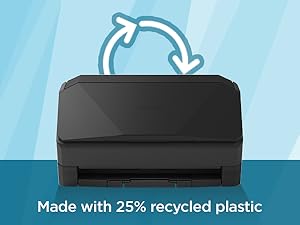
Figure 9.1: Environmental consideration in product manufacturing.
Related documentsPA03860-B005


Ask a question about this manual
Ask about setup, troubleshooting, compatibility, parts, safety, or missing instructions. Manuals+ will review the question and use this page’s manual context to help answer it.