
1. Introduction
This manual provides detailed instructions for the Redragon K734W Wireless Mechanical Keyboard. It covers setup, operation, maintenance, and troubleshooting to ensure optimal performance and longevity of your device. The K734W is a versatile 75% TKL keyboard featuring Tri-Mode connectivity (Wired, 2.4GHz, Bluetooth), hot-swappable switches, and customizable RGB backlighting.

Image: Overview of the Redragon K734WCG Custom Mechanical Keyboard, showcasing its 3 modes, 75% TKL layout, pre-lubed linear switches, gasket structure, full RGB, and hot-swappable design.
2. What's in the Box
Please check the contents of your package to ensure all items are present:
- Redragon K734W Mechanical Keyboard
- User Manual
- Keycap Puller
- USB-C Cable
- 4 x Replacement Switches

Image: The Redragon K734W keyboard and its included accessories: user manual, USB-C cable, keycap puller, and four spare switches.
3. Setup
3.1 Unpacking and Initial Inspection
Carefully remove the keyboard and all accessories from the packaging. Inspect for any visible damage. If any components are missing or damaged, please contact customer support.
3.2 Charging the Keyboard
Before first use, it is recommended to fully charge the keyboard. Connect the provided USB-C cable to the keyboard's USB-C port and the other end to a powered USB port (e.g., computer, wall adapter). The charging indicator will show the charging status.
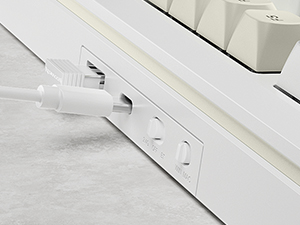
Image: Detail of the keyboard's side, showing the USB-C port for charging and wired connection, along with the mode selection switches.
3.3 Connection Modes
The Redragon K734W supports three connection modes: Wired (USB-C), 2.4GHz Wireless, and Bluetooth (BT 3.0/5.0).
3.3.1 Wired Connection
- Connect the USB-C cable to the keyboard and your computer.
- Ensure the mode switch on the keyboard is set to 'Wired' or 'USB-C'.
- The keyboard will be automatically recognized by your system.
3.3.2 2.4GHz Wireless Connection
- Locate the 2.4GHz USB dongle (usually stored in a compartment on the keyboard).
- Plug the USB dongle into an available USB port on your computer.
- Set the mode switch on the keyboard to '2.4G'.
- The keyboard should connect automatically.
3.3.3 Bluetooth Connection
- Set the mode switch on the keyboard to 'BT'.
- Press FN + 1, FN + 2, or FN + 3 to select a Bluetooth channel. The indicator light for the selected channel will flash rapidly, indicating pairing mode.
- On your device (PC, Mac, Smartphone, Tablet), open Bluetooth settings and search for new devices.
- Select 'Redragon K734W' from the list of available devices.
- Once paired, the indicator light will stop flashing and remain solid.
- To switch between paired Bluetooth devices, press FN + 1/2/3.

Image: The Redragon K734W keyboard connected via Type-C, 2.4GHz wireless dongle, and Bluetooth, illustrating its versatile connectivity options.
3.4 Software Installation
For advanced customization, including macro programming, key redefinition, and detailed RGB lighting effects, download the professional software from the official Redragon website. The software currently supports Windows operating systems and functions in 2.4G/wired mode.
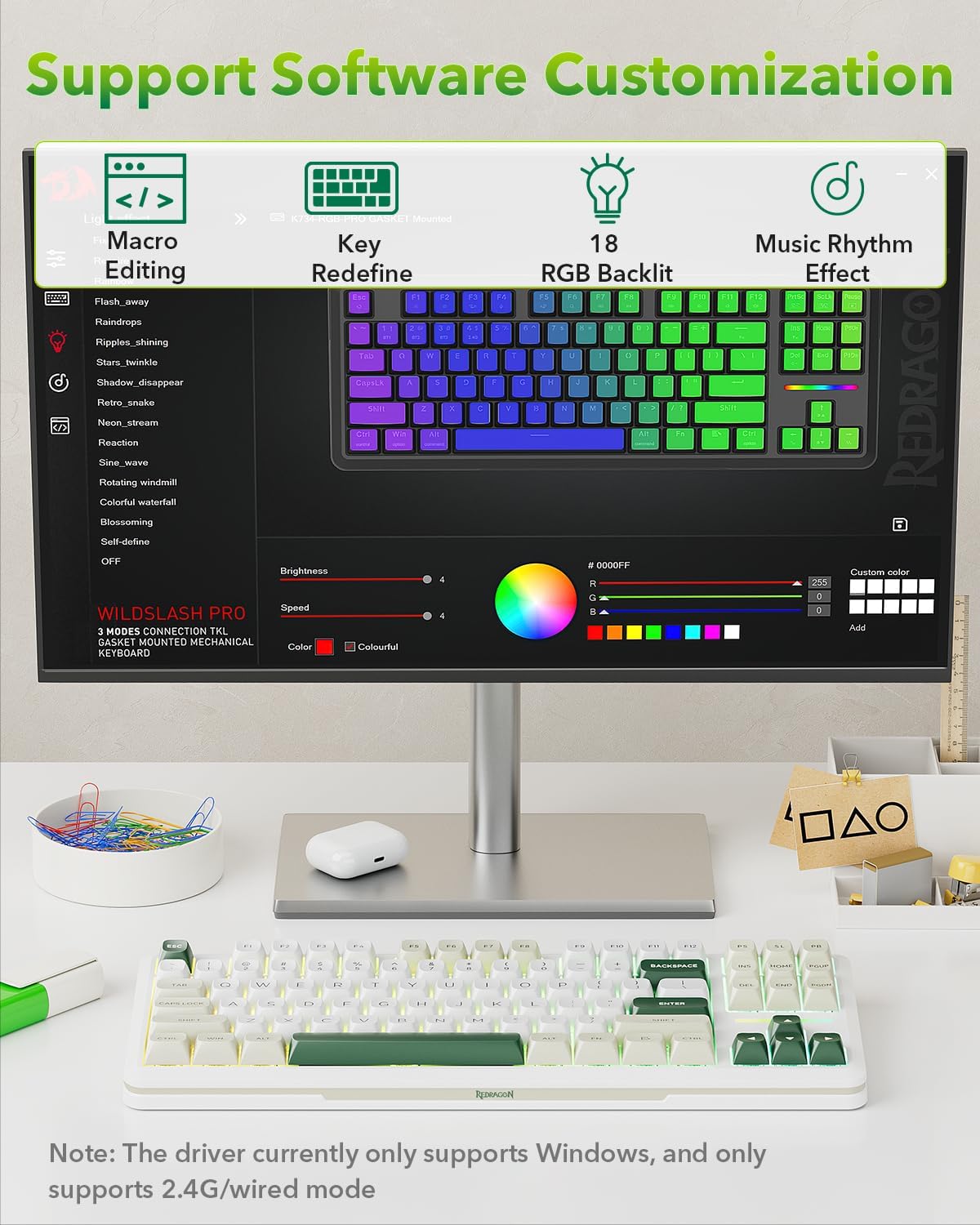
Image: A display showing the Redragon software interface, which allows for macro editing, key redefinition, and customization of 18 RGB backlight modes and music rhythm effects.
4. Operating Instructions
4.1 Power On/Off
Use the power switch located on the side of the keyboard to turn the device on or off.
4.2 FN Key Combinations
The FN key provides access to various multimedia and function controls. Press and hold the FN key, then press the corresponding key:
| Combination | Function |
|---|---|
| FN + F1-F12 | Multimedia controls (e.g., Play/Pause, Volume Up/Down, Mute) |
| FN + INS | Change RGB lighting mode |
| FN + HOME | Adjust RGB lighting color |
| FN + PGUP/PGDN | Adjust RGB lighting brightness |
| FN + Arrow Keys | Adjust RGB lighting speed/direction |
| FN + E | Check battery level (lights indicate percentage) |
4.3 RGB Backlight Control
The keyboard features programmable RGB backlighting with 16 RGB modes, 7 single light colors, and 6 brightness levels. Use the FN key combinations mentioned above to cycle through modes, colors, and adjust brightness. Further customization is available through the dedicated software.

Image: The Redragon K734W keyboard displaying its programmable RGB backlight, showing different lighting modes and colors.
4.4 Battery Level Check
To check the current battery level, press FN + E. The indicator lights on the keyboard will illuminate to show the approximate battery percentage (e.g., green for high, red for low).

Image: The Redragon K734W keyboard illustrating how to check battery level using FN + E, with visual indicators for 100% and 30% charge.
5. Maintenance
5.1 Cleaning the Keyboard
To maintain the keyboard's appearance and functionality, regularly clean it. Use a soft, dry cloth to wipe down the keycaps and chassis. For deeper cleaning, you may use a slightly damp cloth with mild soap, ensuring no liquid enters the keyboard. A can of compressed air can be used to remove dust and debris from between the keycaps.
5.2 Switch Replacement (Hot-Swappable)
The Redragon K734W features hot-swappable switches, allowing you to easily replace them without soldering. Use the provided switch puller for this process.
- Gently pull off the keycap of the switch you wish to replace using the keycap puller.
- Insert the switch puller onto the top and bottom clips of the switch.
- Squeeze the clips and gently pull the switch straight up to remove it from the PCB.
- Align the pins of the new switch with the holes on the PCB. Ensure the pins are straight to avoid bending.
- Press the new switch firmly into place until it clicks.
- Re-attach the keycap.

Image: An exploded view of a custom cream switch, detailing its components and specifications such as total travel (3.6mm), conduction stroke (2.0±0.6mm), operating force (40±10gf), and a lifespan of 50 million clicks.
6. Troubleshooting
If you encounter issues with your Redragon K734W keyboard, please refer to the following common problems and solutions:
- Keyboard not responding:
- Ensure the keyboard is powered on.
- Check the connection mode switch (Wired, 2.4G, BT) matches your connection type.
- For wired connection, try a different USB port or cable.
- For 2.4GHz, ensure the dongle is securely plugged in and try a different USB port.
- For Bluetooth, ensure it's paired correctly and try re-pairing. Check if the keyboard battery is charged.
- Keys not registering or double-typing:
- This could indicate a faulty switch. Use the provided switch puller to replace the problematic switch.
- Ensure the keycap is properly seated on the switch.
- RGB lighting not working or incorrect:
- Ensure the keyboard battery is sufficiently charged.
- Try cycling through lighting modes and brightness levels using FN key combinations.
- If using the software, ensure it's updated and correctly configured.
- Bluetooth connection unstable:
- Ensure the keyboard is within the 10-meter range of your device.
- Minimize interference from other wireless devices.
- Try re-pairing the keyboard with your device.
- Software not detecting keyboard:
- Ensure the keyboard is connected via wired USB-C or 2.4GHz wireless mode, as the software currently supports only these modes.
- Restart the software and/or your computer.
- Ensure you have the latest version of the software from the Redragon website.
7. Specifications
| Feature | Detail |
|---|---|
| Product Dimensions | 10 x 7.4 x 2.56 inches |
| Item Weight | 2.83 pounds |
| Manufacturer | Redragon |
| Model Number | K734wcg-rgb-pro |
| Connectivity Technology | Bluetooth (3.0/5.0), USB-C, 2.4GHz Wireless |
| Compatible Devices | Laptop, PC, Smart TV, Smartphone, Tablet |
| Keyboard Description | Mechanical |
| Recommended Uses | Gaming, Home Use, Office Work, Programming |
| Special Features | Backlit, Hot-Swappable, Programmable, Rechargeable |
| Color | GlowArc (RGB) |
| Number of Keys | 81 |
| Keyboard Backlighting | RGB |
| Battery Capacity | 4000mAh |

Image: Diagram illustrating the compact 75% TKL layout of the Redragon K734W keyboard, showing its dimensions (14.69 inches wide, 5.51 inches deep) and total of 87 keys.
8. Warranty and Support
Redragon products are designed for durability and performance. This product comes with a standard manufacturer's warranty. For detailed warranty information, please refer to the warranty card included in your package or visit the official Redragon website.
If you require technical assistance or have questions not covered in this manual, please contact Redragon customer support through their official website or the contact information provided with your product.
For more information and software downloads, visit the Redragon Official Website.


