
TP-Link TL-MR110-Outdoor
TP-Link TL-MR110-Outdoor 4G LTE Router User Manual
Model: TL-MR110-Outdoor
1. Introduction
The TP-Link TL-MR110-Outdoor is a robust 4G LTE Wi-Fi router specifically designed for outdoor use. It provides reliable internet connectivity in various environments, from gardens to construction sites or remote areas. This manual provides essential information for the proper installation, configuration, and operation of your device.
Key features include:
- IP65 Certified: Weather-resistant casing, protected against dust and water.
- 4G LTE Cat 4: Download speeds up to 150 Mbps for stable internet.
- 300 Mbps Wi-Fi (2.4 GHz): Fast wireless connection for up to 32 devices simultaneously.
- Wide Temperature Range: Operates reliably from -30 ℃ to +60 ℃.
- Enhanced Protection: 6 kV lightning protection and 15 kV electrostatic discharge (ESD) protection.
- Flexible Power Supply: Supports 12 V DC, passive PoE (48 V), and 802.3af PoE (44-57 V).
- Easy Mounting: Can be installed on a pole, wall, or window.
- Tether App: Convenient management via smartphone (iOS/Android).
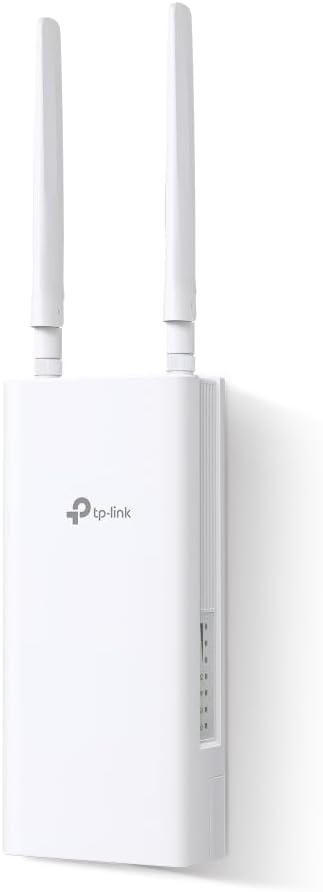
Image 1.1: TP-Link TL-MR110-Outdoor 4G LTE Router, front view with antennas.
2. Package Contents
Verify that your package contains the following items:
- 1 x TL-MR110-Outdoor Unit
- 1 x 10m RJ45 Ethernet Cable
- 1 x PoE Adapter
- 1 x Power Cable
- 1 x Quick Installation Guide
- Mounting Kits (for Window/Pole/Wall)
3. Physical Overview
The TL-MR110-Outdoor features a durable, weather-resistant casing designed for outdoor deployment. It includes external antennas for optimal signal reception and transmission. The device typically has a SIM card slot, an Ethernet port (for PoE and data), and a power input port.

Image 3.1: TL-MR110-Outdoor router mounted outdoors, illustrating fast 4G Wi-Fi and stable connection.
4. Setup
4.1 SIM Card Installation
- Ensure the device is powered off.
- Locate the SIM card slot cover on the device.
- Open the cover and insert your 4G SIM card into the slot until it clicks into place.
- Close the SIM card slot cover securely to maintain IP65 protection.
4.2 Mounting Options
The TL-MR110-Outdoor offers versatile mounting options:
- Pole Mounting: Use the provided pole mounting kit to attach the device to a pole.
- Wall Mounting: Use the provided wall mounting kit to secure the device to a wall.
- Window Mounting: Use the provided window mounting kit for installation on a window.
Choose a location that provides optimal 4G signal reception and Wi-Fi coverage.

Image 4.1: Versatile mounting options for the TL-MR110-Outdoor.
4.3 Powering the Device
The router supports flexible power options:
- PoE (Power over Ethernet): Connect the router to the PoE adapter using the Ethernet cable. The PoE adapter then connects to a power outlet. This is the recommended method for outdoor installations as it simplifies cabling.
- DC Power: Connect the provided power cable to the DC input port on the router and then to a power outlet.

Image 4.2: Flexible power options: PoE, DC, and solar compatibility.
4.4 Initial Configuration
The TL-MR110-Outdoor is designed for quick Plug & Play setup with a SIM card, often requiring no complex configuration. However, for advanced settings, you can use the Tether app or the web management interface.
5. Operating the Router
5.1 Connecting Devices
Once powered on and connected to the 4G network, the router will broadcast a Wi-Fi signal. You can connect devices via:
- Wi-Fi: Search for the router's Wi-Fi network name (SSID) on your devices and enter the password (found on the product label).
- Ethernet: Connect devices directly to the router's Ethernet port using an RJ45 cable.
The router supports up to 32 simultaneous wireless connections.
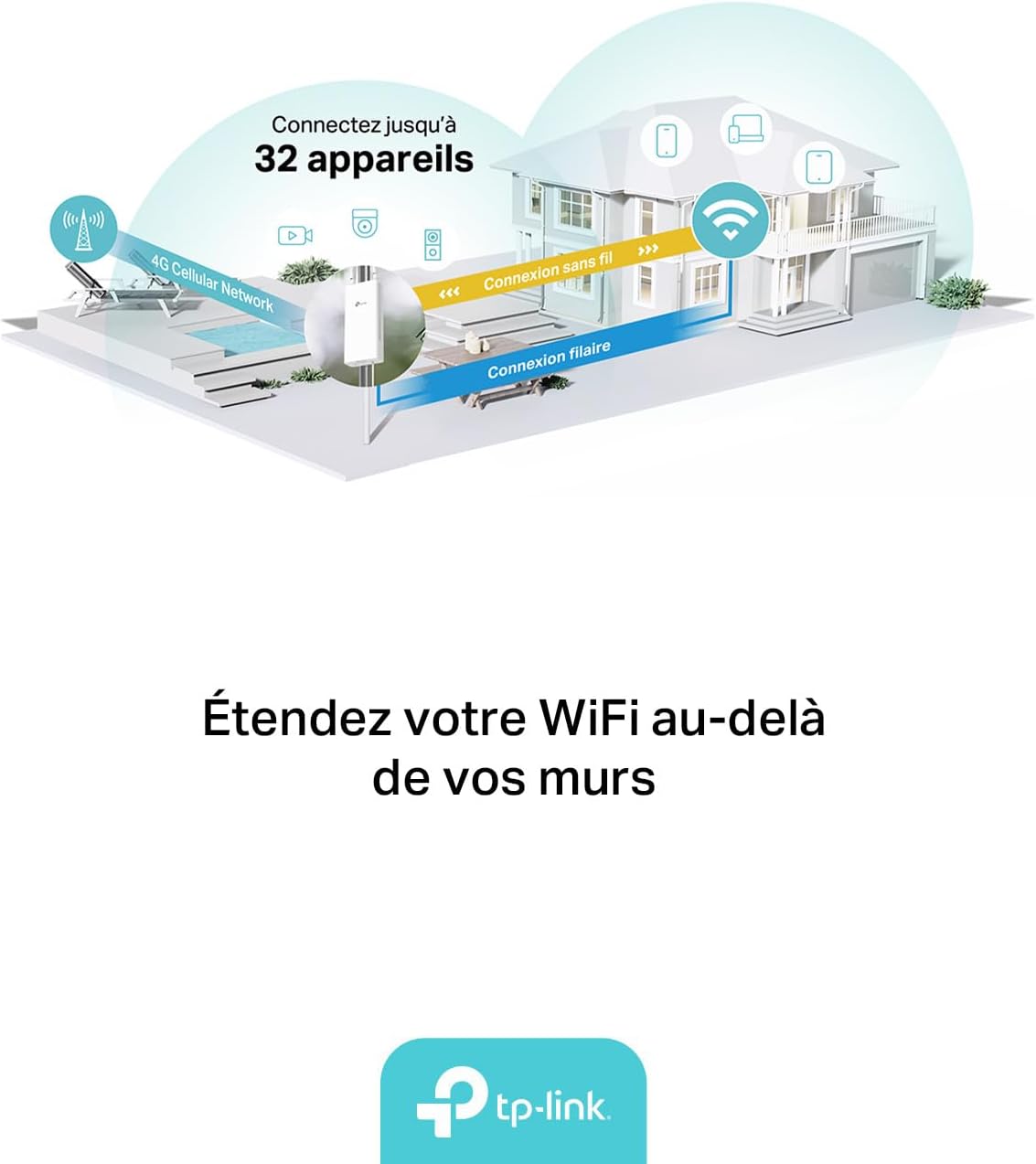
Image 5.1: Router distributing Wi-Fi and wired internet to multiple devices.
5.2 Managing the Router
You can manage your TL-MR110-Outdoor using the TP-Link Tether app or a web browser.
- Tether App: Download the TP-Link Tether app from the App Store (iOS) or Google Play Store (Android). The app allows for easy setup, network management, parental controls, and more.
- Web Management Interface: Connect a device to the router's Wi-Fi or Ethernet. Open a web browser and enter the default IP address (usually
192.168.0.1ortplinkwifi.net) to access the management page.

Image 5.2: TP-Link Tether app for smartphone management.
For more information on the Tether app, visit: TP-Link Tether App
6. Maintenance
6.1 Environmental Considerations
The TL-MR110-Outdoor is designed for harsh outdoor conditions:
- IP65 Rating: Ensures protection against dust ingress and low-pressure water jets from any direction.
- Temperature Range: Operates effectively between -30 ℃ and +60 ℃.
- Lightning and ESD Protection: Built-in 6 kV lightning protection and 15 kV ESD protection safeguard the device from electrical surges.

Image 6.1: Robust outdoor design features.
6.2 Cleaning
Periodically inspect the device for any dirt or debris accumulation. Clean the exterior with a soft, dry cloth. Do not use liquid cleaners or aerosols.
6.3 Firmware Updates
Regularly check the TP-Link website or the Tether app for available firmware updates to ensure optimal performance and security.
7. Troubleshooting
7.1 No Internet Connection
- Ensure the SIM card is correctly inserted and active.
- Check the signal strength indicators on the device or via the Tether app.
- Verify that the router is powered on and all cables are securely connected.
- Restart the router and your connected devices.
- Confirm your SIM card has an active data plan.
7.2 Wi-Fi Not Visible or Connectable
- Ensure the Wi-Fi function is enabled (check via Tether app or web interface).
- Verify the Wi-Fi network name (SSID) and password.
- Move closer to the router to improve signal strength.
- Reset the router to factory defaults if issues persist (refer to the Quick Installation Guide for instructions).
8. Specifications
| Feature | Detail |
|---|---|
| Brand | TP-Link |
| Model Name | TL-MR110-Outdoor |
| Operating System | TP-Link Firmware |
| Connectivity Technology | Ethernet, Wi-Fi 2.4 GHz |
| Wireless Communication Standard | 802.11n |
| Frequency Band Class | Single-band |
| 4G LTE Speed | Up to 150 Mbps (Cat 4) |
| Wi-Fi Speed | Up to 300 Mbps (2.4 GHz) |
| Compatible Devices | Personal Computer, Laptop, Smartphone, Tablet |
| Special Features | IP65 Casing, PoE/DC Power, Operating Temperature -30 ℃ to +60 ℃, 6 kV Lightning Protection, 15 kV ESD Protection |
| Power Supply | 12 V DC, Passive PoE (48 V), 802.3af PoE (44-57 V) |
| Recommended Uses | Outdoor |
| Included Components | TL-MR110 Outdoor Unit, 10m RJ45 Ethernet Cable, PoE Adapter, Power Cable, Quick Installation Guide, Mounting Kits |

Image 8.1: Key features summary of the TL-MR110-Outdoor.
9. Warranty and Support
For warranty information, technical support, and additional resources, please visit the official TP-Link website or contact their customer support. Details regarding warranty periods and service procedures are typically provided with your product documentation or on the manufacturer's website.
Manufacturer: TP-Link
Country of Origin: China
Ask a question about this manual
Ask about setup, troubleshooting, compatibility, parts, safety, or missing instructions. Manuals+ will review the question and use this page’s manual context to help answer it.