
Introduction
The Blackview W40 Smartwatch is a versatile fitness tracker designed for both men and women, featuring a vibrant 1.43-inch AMOLED touchscreen. This manual provides essential information for setting up, operating, and maintaining your device, ensuring you get the most out of its extensive features, including call functionality, comprehensive health monitoring, and over 100 sports modes.
What's in the Box
- Smart Watch (1 unit)
- Silicon Strap (1 unit)
- Nylon Strap (1 unit)
- Charging Cable (1 unit)
- Product Manual (1 unit)
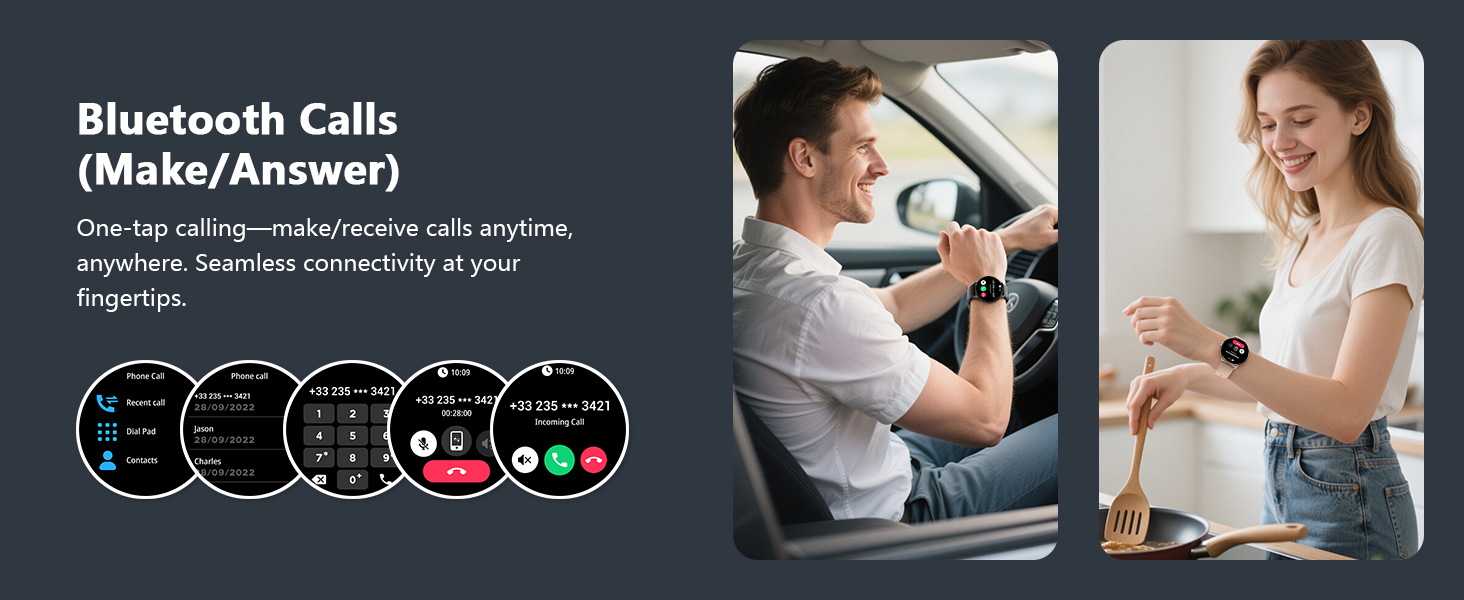
Image: A clear view of the Blackview W40 Smartwatch, its two interchangeable straps (silicone and nylon), magnetic charging cable, and the user manual, neatly arranged in the product packaging.
Setup
1. Initial Charging
Before first use, fully charge your Blackview W40 Smartwatch. Connect the magnetic charging cable to the charging points on the back of the watch and plug the USB end into a compatible power source. A full charge typically takes approximately 2.5 hours.
2. App Installation
Download the "Da Fit" app from your smartphone's app store (compatible with iOS 9.0 and above, and Android 6.0 and above). This app is essential for full functionality and data synchronization.
3. Pairing with Phone
- Ensure Bluetooth is enabled on your smartphone.
- Open the "Da Fit" app and follow the on-screen instructions to add a new device.
- Select "W40" from the list of available devices.
- Confirm the pairing request on both your phone and the smartwatch.
- Grant necessary permissions for notifications and calls within the app.

Image: A visual guide demonstrating the process of downloading the Da Fit app, enabling Bluetooth, adding the device, pairing, and opening notification permissions to connect the smartwatch and enable phone calls.
4. Strap Installation/Replacement
The Blackview W40 comes with two interchangeable straps (silicone and nylon). To change a strap, locate the small pin on the underside of the strap where it connects to the watch body. Slide the pin to release the strap. Align the new strap with the watch body and slide the pin back into place until it clicks securely.
Operating Your Smartwatch
1. Basic Navigation
- Swipe Up/Down: Scroll through notifications or quick settings.
- Swipe Left/Right: Navigate between different feature screens (e.g., activity data, heart rate, weather).
- Tap: Select an item or open an application.
- Side Button: Press to wake the screen, return to the home screen, or access the app menu.
2. Customizing Watch Faces
Choose from a vast selection of watch faces directly on the device or through the "Da Fit" app. You can also customize watch faces with your own photos as backgrounds to personalize your device.
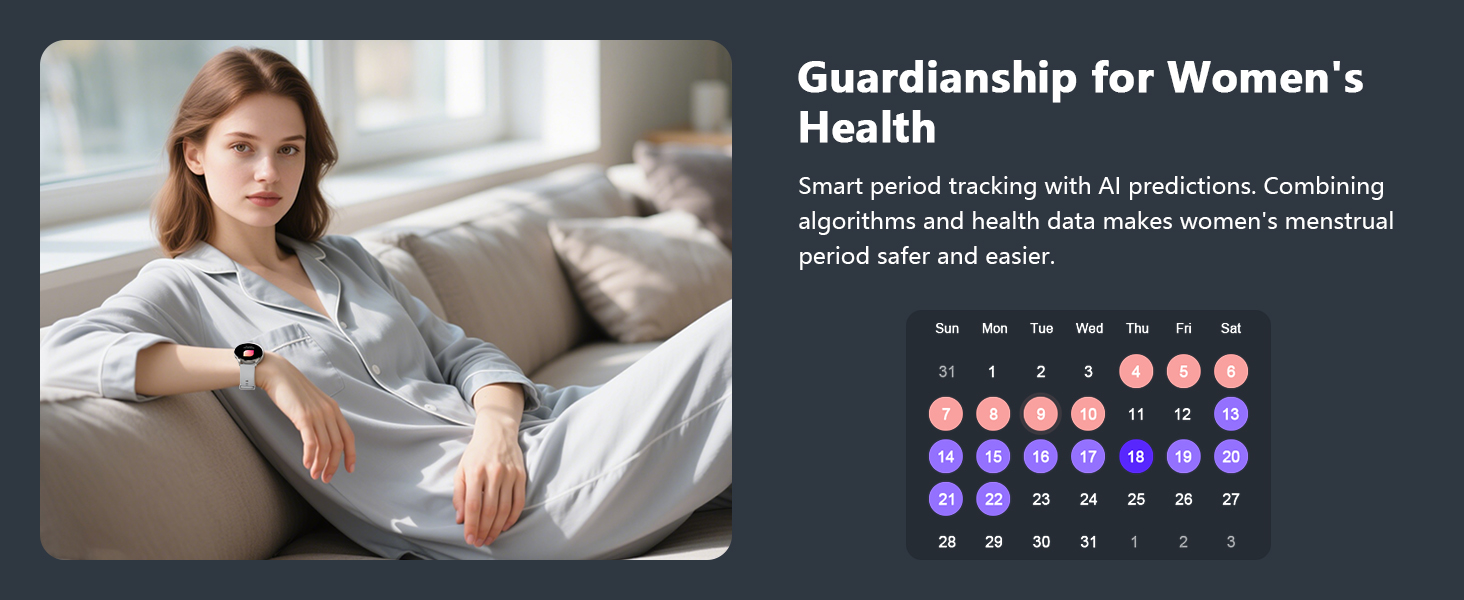
Image: A collection of diverse watch faces, including digital and analog styles, some with fitness data, demonstrating the customization options available via the Da Fit app.
3. Making/Receiving Calls
Once paired via Bluetooth, you can make and receive calls directly from your smartwatch. Use the on-screen dial pad, access your favorite contacts, or view call history. The watch features a built-in microphone and speaker for clear communication.

Image: The smartwatch screen showing an incoming call from "Betty" with options to answer or decline, alongside message notifications and an icon for the AI Voice Assistant.
4. Notifications
Receive real-time notifications from various apps on your smartphone directly on your watch. This includes messages, social media alerts, and other app notifications, keeping you informed without needing to check your phone constantly.
5. AI Voice Assistant
Activate the AI Voice Assistant with a simple command to set alarms, check the weather, or perform other tasks, enhancing efficiency and convenience.
6. Music Control
Control music playback on your smartphone directly from your smartwatch. Play, pause, skip tracks, and adjust volume without taking out your phone.
7. Other Tools
The smartwatch includes several practical tools such as a calculator, flashlight, stopwatch, world clock, and alarm clock to assist with your daily needs.
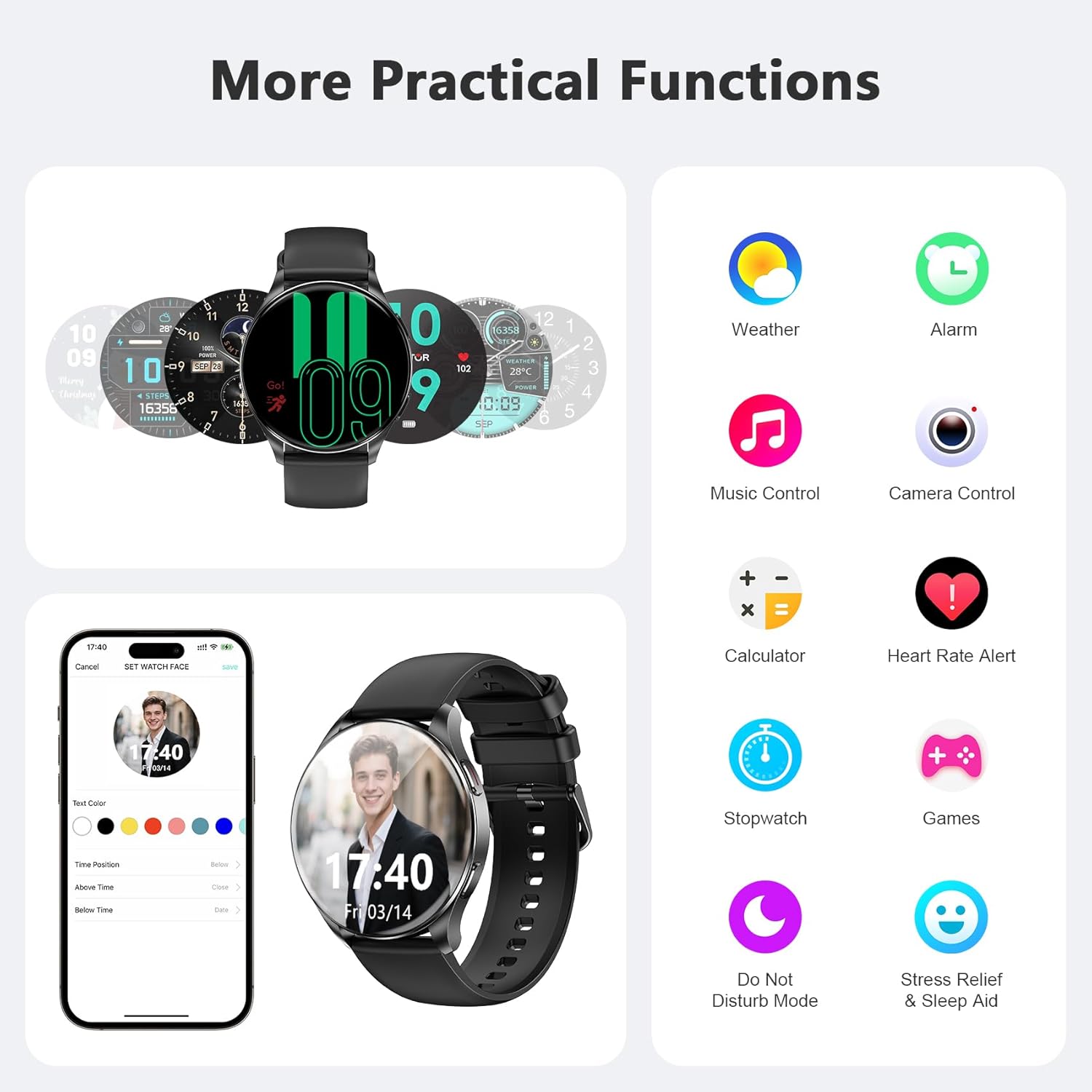
Image: A visual representation of the smartwatch's multi-tool capabilities, showing icons for weather, alarm, music, camera, calculator, heart rate, stopwatch, games, and other utility features.
Health Monitoring
The Blackview W40 Smartwatch offers comprehensive health monitoring features to help you stay informed about your well-being. Note: This product is not a medical device. Test data and results are for reference only.
1. Heart Rate Monitoring
The optical bio-sensors provide 24/7 real-time heart rate monitoring, allowing you to track your heart rate throughout the day and during workouts.
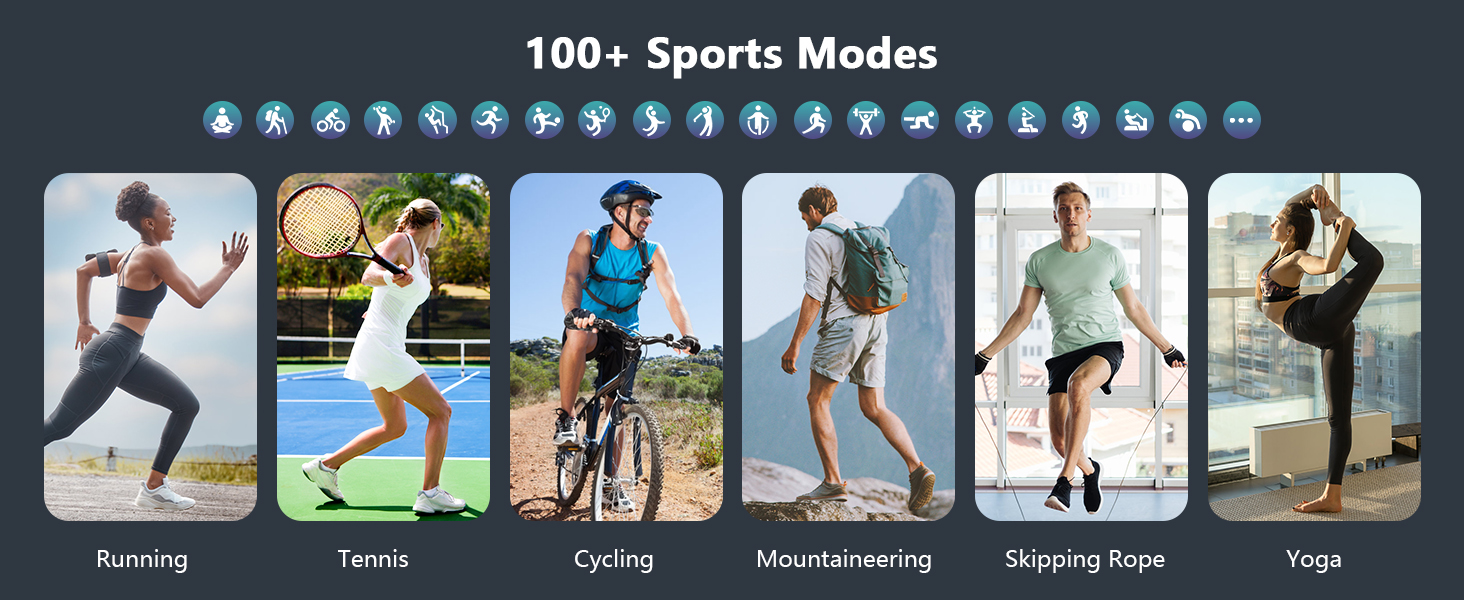
Image: A person on a bicycle, wearing the smartwatch, with an overlay showing a heart rate graph on the watch face, indicating continuous heart rate monitoring during activity.
2. Blood Oxygen (SpO2) Monitoring
Track your blood oxygen saturation levels with a single tap. This feature helps you monitor your oxygen levels anytime for proactive wellness management.
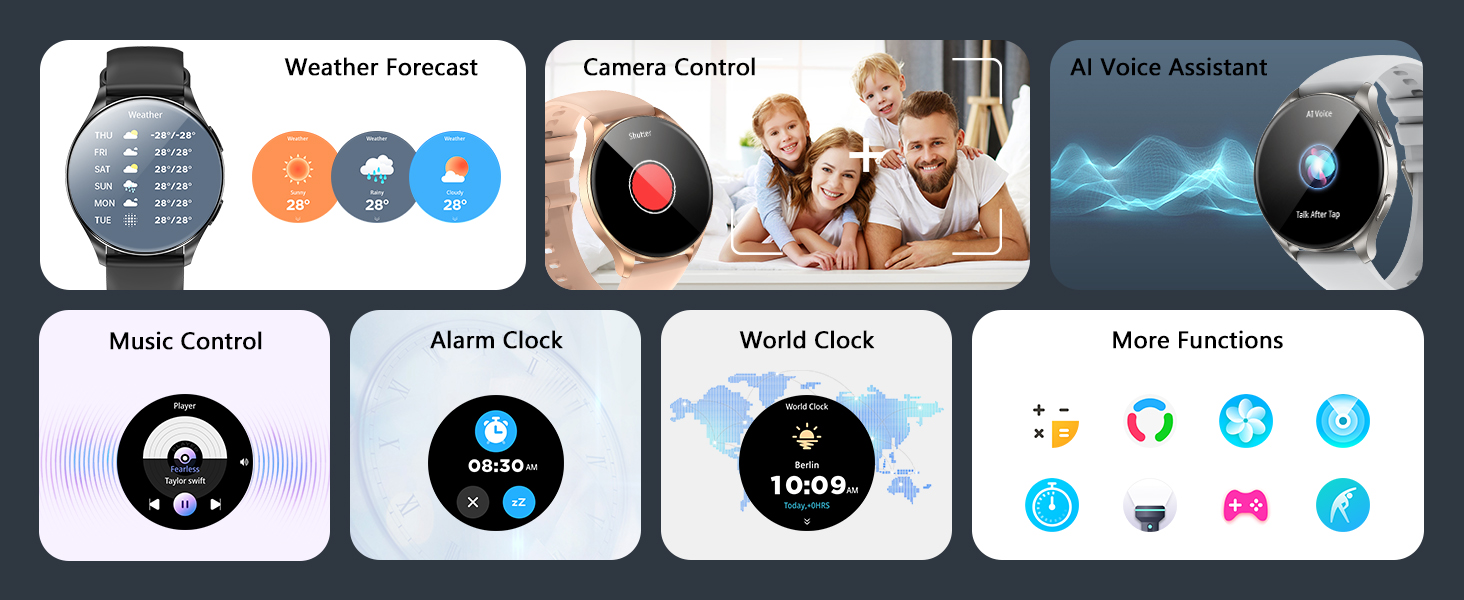
Image: A woman in athletic wear, wearing the smartwatch, with an overlay showing a blood oxygen saturation graph on the watch face, illustrating SpO2 tracking.
3. Sleep Monitoring
The "Da Fit" app intelligently analyzes sleep data, categorizing it into deep sleep, light sleep, wakefulness, and REM. It provides professional interpretations of sleep characteristics and quality analysis.
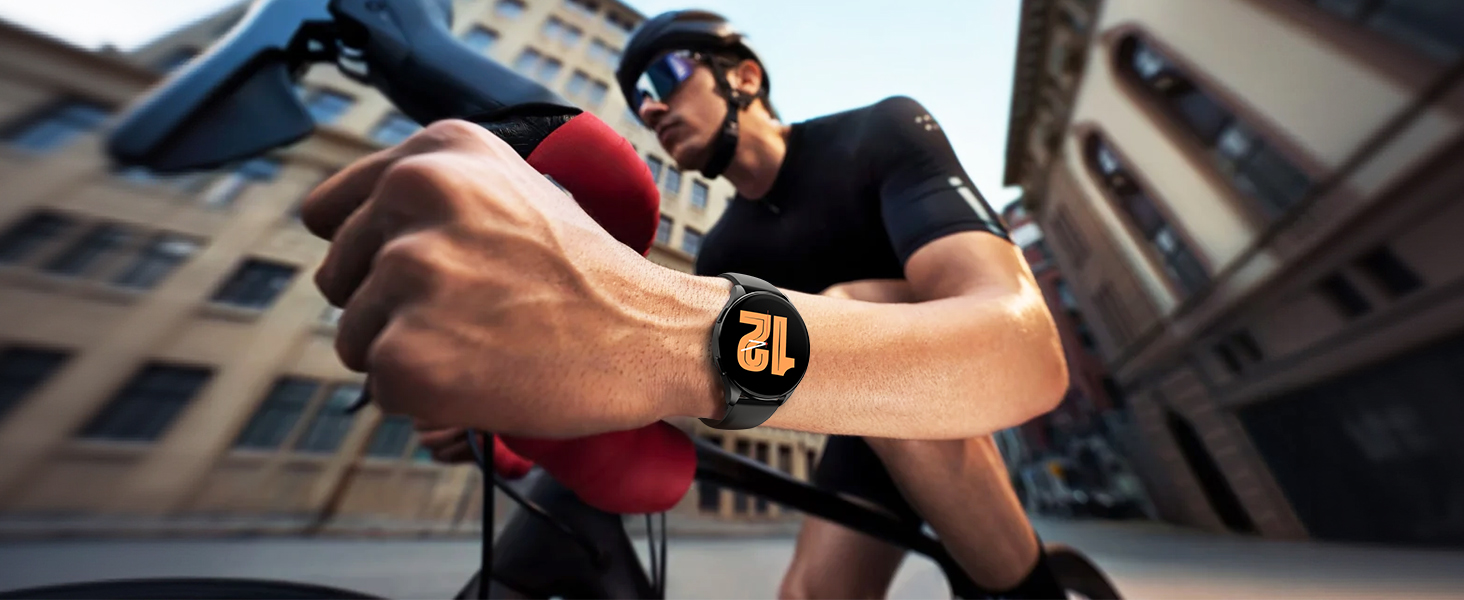
Image: A man asleep, wearing the smartwatch, with an overlay showing a sleep tracking graph on the watch face, detailing sleep stages and duration.
4. Stress Monitoring
The smartwatch provides real-time stress status monitoring, helping you understand and manage your stress levels throughout the day.
5. Menstrual Cycle Tracking
For women, the smartwatch offers smart period tracking with AI predictions, combining algorithms and health data to make menstrual period tracking safer and easier.
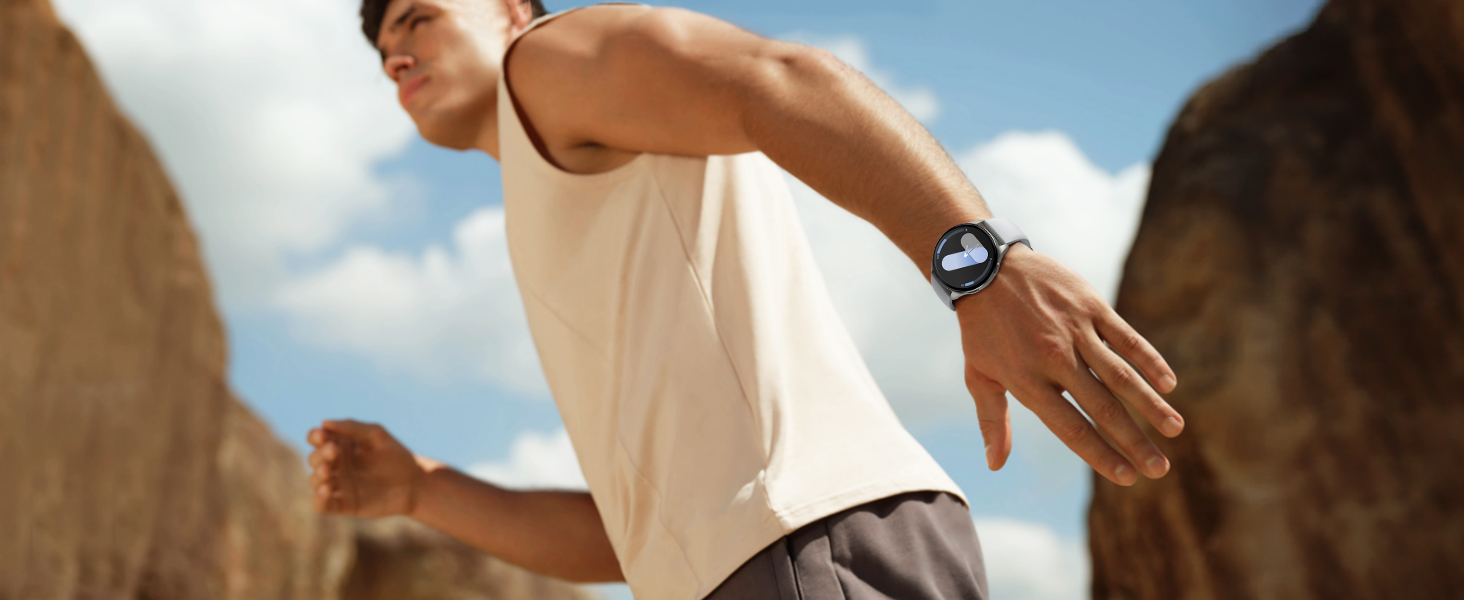
Image: A woman relaxing, wearing the smartwatch, with an overlay showing a menstrual cycle tracking calendar on the watch face, highlighting period prediction.
Sports Modes
The Blackview W40 Smartwatch supports over 100 sports modes to cater to all your fitness needs. Connect to GPS via the "Da Fit" app to accurately track steps, calories burned, exercise duration, and more. This helps you monitor your workouts, achieve your fitness goals, and maintain a healthy lifestyle.

Image: A person snowboarding, wearing the smartwatch, with the watch face showing steps, calories, and exercise time. Above the image are icons representing various sports like running, cycling, yoga, and more.
Battery Life & Charging
The smartwatch is equipped with a built-in 380mAh high-capacity battery. It provides up to 7 days of typical use and approximately 20-25 days of standby time on a single 2.5-hour charge. Use the provided magnetic charging cable for optimal charging performance.

Image: The smartwatch connected to its magnetic charging cable, with visual indicators for charging status and text detailing battery specifications: 2.5 hours charging time, 5-7 days working time, and 20-25 days standby time.
Water Resistance
The Blackview W40 Smartwatch has an IP68 waterproof rating, meaning it is resistant to dust and can withstand immersion in water up to 10 meters deep. This makes it suitable for daily use, including washing hands, showering, and swimming in shallow water. Avoid hot water or prolonged immersion in deep water.
Maintenance
To ensure the longevity and optimal performance of your Blackview W40 Smartwatch, follow these maintenance guidelines:
- Cleaning: Regularly wipe the watch screen and straps with a soft, dry cloth. If necessary, use a slightly damp cloth with mild soap, then dry thoroughly.
- Avoid Chemicals: Do not use harsh chemicals, cleaning solvents, or strong detergents, as these may damage the watch's finish or internal components.
- Storage: Store the watch in a cool, dry place when not in use. Avoid extreme temperatures.
- Charging: Use only the original magnetic charging cable provided with the device.
Troubleshooting
- Watch not turning on: Ensure the watch is fully charged. Connect it to the charger for at least 10-15 minutes.
- Cannot pair with phone: Make sure Bluetooth is enabled on your phone and the watch is within range. Restart both your phone and the watch, then try pairing again through the "Da Fit" app.
- Notifications not received: Check app permissions in your phone's settings and within the "Da Fit" app to ensure notifications are enabled for the desired applications.
- Inaccurate health data: Ensure the watch is worn snugly on your wrist, not too tight or too loose. Clean the sensors regularly.
- Short battery life: Reduce screen brightness, disable unnecessary features like continuous heart rate monitoring if not needed, and ensure the watch is fully charged.
Specifications
| Feature | Specification |
|---|---|
| Model Name | W40 |
| Display Type | AMOLED |
| Screen Size | 1.43 Inches |
| Resolution | 341 x 341 |
| Battery Capacity | 380 Milliamp Hours |
| Battery Charge Time | 2.5 Hours |
| Typical Use Battery Life | Up to 7 days |
| Standby Time | 20-25 days |
| Operating System | iOS, Android |
| Compatible Phone Models | iOS 9.0 and above, Android 6.0 and above |
| Connectivity Technology | Bluetooth |
| Water Resistance Level | IP68 (Waterproof) |
| Water Resistance Depth | 10 Meters |
| Band Material Type | Silicone, Nylon |
| Item Weight | 0.12 Kilograms |
| Item Dimensions | 7.17 x 3.39 x 0.71 inches |
Warranty & Support
The Blackview W40 Smartwatch comes with a 2-year limited warranty from the manufacturer, Blackview. For technical support, troubleshooting assistance, or warranty claims, please refer to the contact information provided in the product packaging or visit the official Blackview website.
Official Product Videos
Blackview W40 Smartwatch Overview
Video: A concise overview of the Blackview W40 Smartwatch, highlighting its key features and design. This video provides a quick introduction to the device's capabilities and aesthetic.


