
Introduction
The Blackview W50Pro Military Smart Watch is designed for durability and comprehensive functionality, suitable for various environments and activities. This manual provides essential information for setting up, operating, and maintaining your device to ensure optimal performance.
What's in the Box
- Smart Watch x1
- Silicone Strap x1
- Nylon Braided Strap x1
- Magnetic Charging Cable x1
- User Manual x1
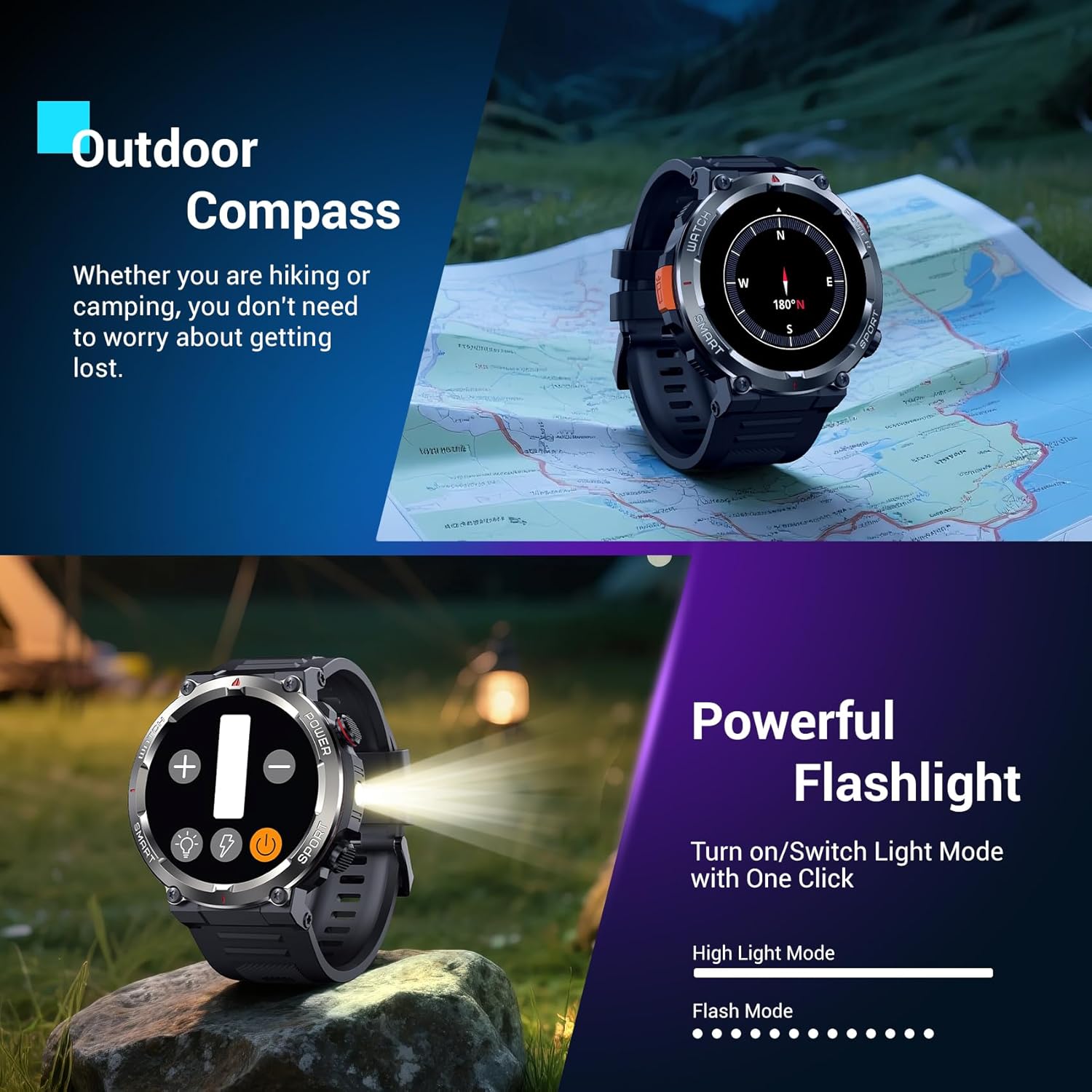
Image: The Blackview W50Pro Smart Watch and its accessories, including two interchangeable straps, a magnetic charging cable, and the user manual.
Setup
1. Charging the Smart Watch
Before initial use, fully charge your Blackview W50Pro Smart Watch. Connect the magnetic charging cable to the charging points on the back of the watch and plug the USB end into a compatible power source (e.g., computer USB port, USB wall adapter). The watch features a 960mAh battery, offering over 100 days of standby time and over 30 days of daily use.
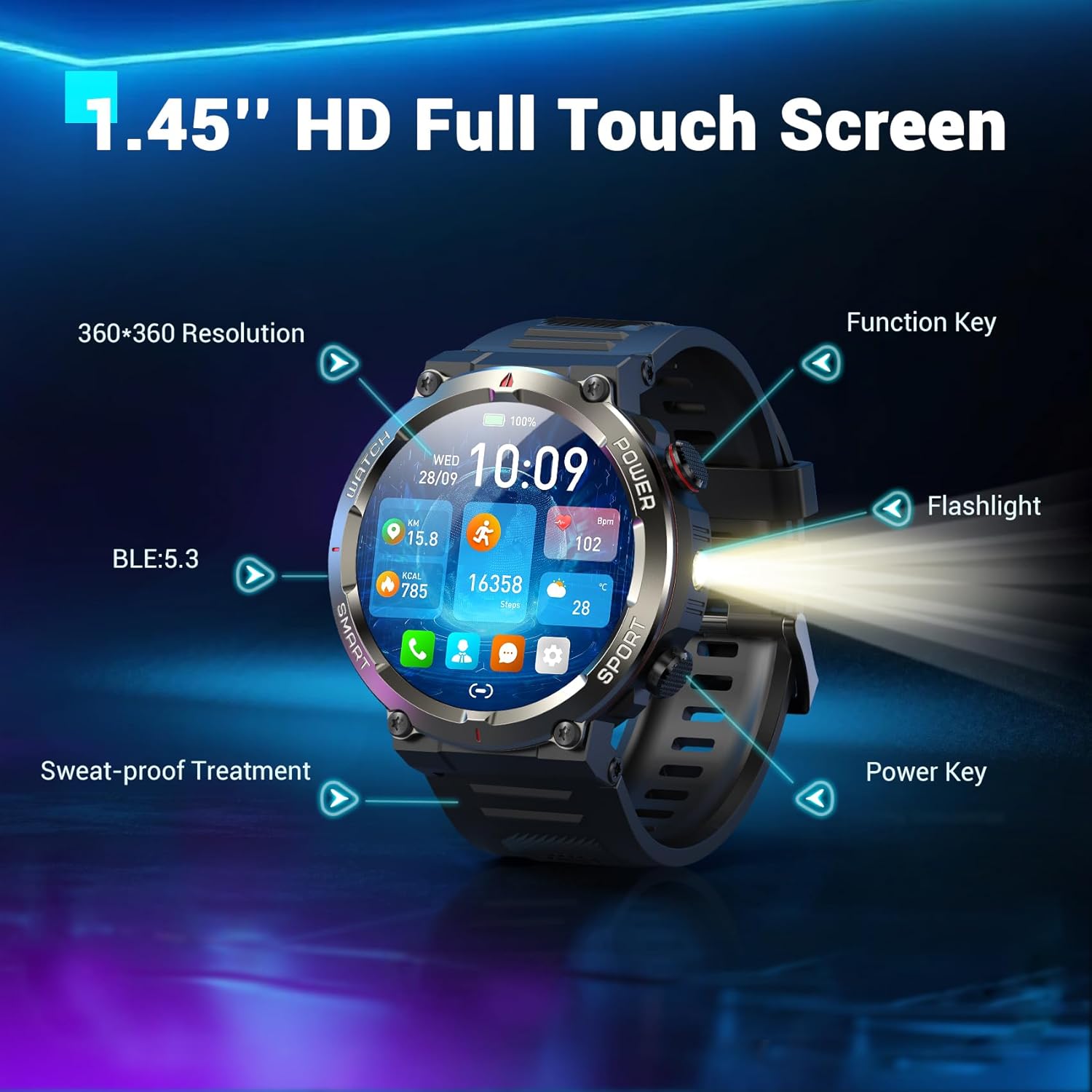
Image: The Blackview W50Pro Smart Watch connected to its magnetic charging cable, illustrating the charging process.
2. App Download and Pairing
To unlock the full potential of your smartwatch, download the "Da Fit" app on your smartphone. Scan the QR code provided in the user manual or search for "Da Fit" in your phone's app store (compatible with Android 6.0+ and iOS 9.0+).
Once the app is installed:
- Enable Bluetooth on your smartphone.
- Open the "Da Fit" app and follow the on-screen instructions to add a new device.
- Select your Blackview W50Pro (model W50Pro) from the list of available devices.
- Confirm pairing on both your phone and the smartwatch.
- Grant necessary permissions for notifications and health data tracking.
Video: A demonstration of connecting the KPEP K67A Military Smart Watch (similar model) to a smartphone via Bluetooth and the Da Fit app, showing the pairing process and initial setup steps.
3. Strap Installation
The watch comes with two straps: a silicone strap and a nylon braided strap. To attach a strap, align the pins on the strap with the holes on the watch casing and slide the pin into place. Ensure both sides are securely fastened.
Operating Instructions
Navigation
- Touchscreen: Swipe left, right, up, or down to navigate through menus and features. Tap to select.
- Function Key: Typically used to return to the previous screen or activate specific features.
- Power Key: Long press to power on/off. Short press to wake/sleep the screen.
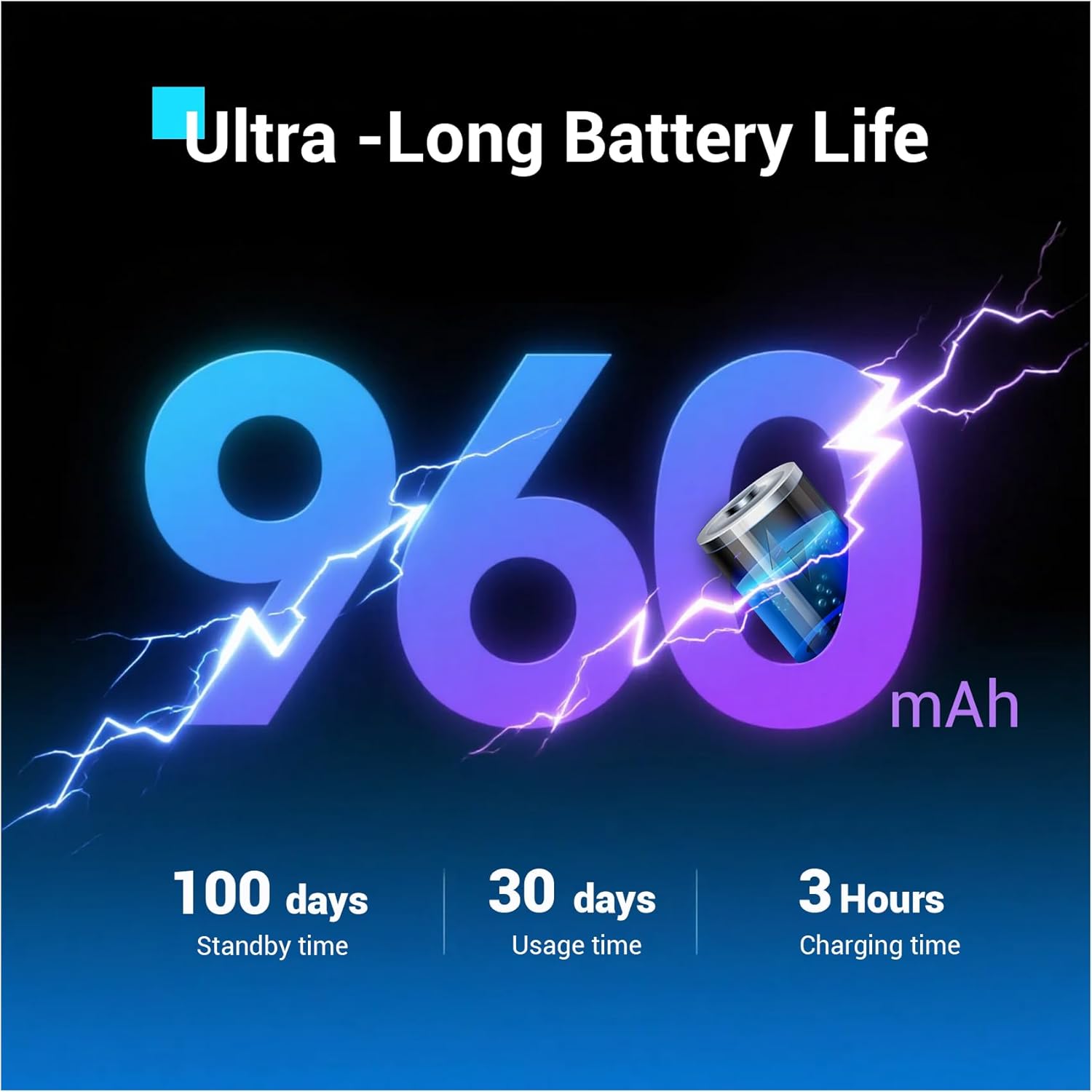
Image: Close-up of the Blackview W50Pro Smart Watch highlighting its 1.45-inch HD full touch screen, function key, flashlight, and power key.
Customizable Watch Faces
Personalize your watch face by long-pressing the screen or selecting from the "Da Fit" app. Choose from a vast online library or set personal photos as backgrounds.
Answering/Making Calls
Once paired via Bluetooth, you can answer and make calls directly from your watch. The "Da Fit" app allows you to store contacts for quick dialing. The watch also displays real-time notifications for calls and messages from various apps.
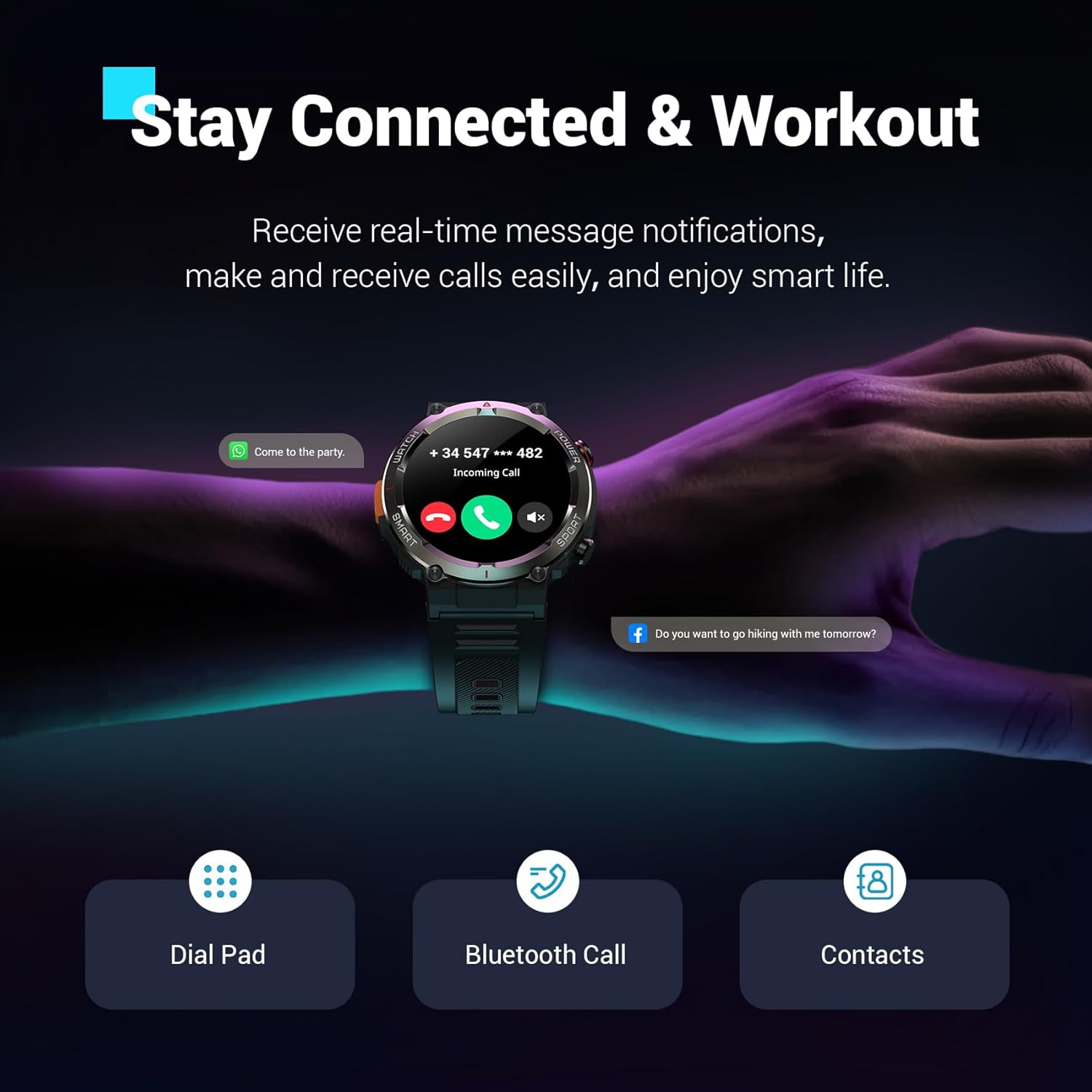
Image: The Blackview W50Pro Smart Watch showing an incoming call notification and message alerts, demonstrating its communication features.
Health Monitoring
The Blackview W50Pro offers comprehensive health monitoring features:
- Heart Rate Monitoring: 24/7 real-time heart rate tracking.
- Blood Oxygen (SpO2) Monitoring: Real-time blood oxygen level checks.
- Stress Monitoring: Track your stress levels throughout the day.
- Sleep Monitoring: Records sleep time and identifies deep sleep, light sleep, and REM sleep patterns.
Note: This product is not a medical device. Test data is for reference only and should not be used to diagnose or monitor any medical conditions.
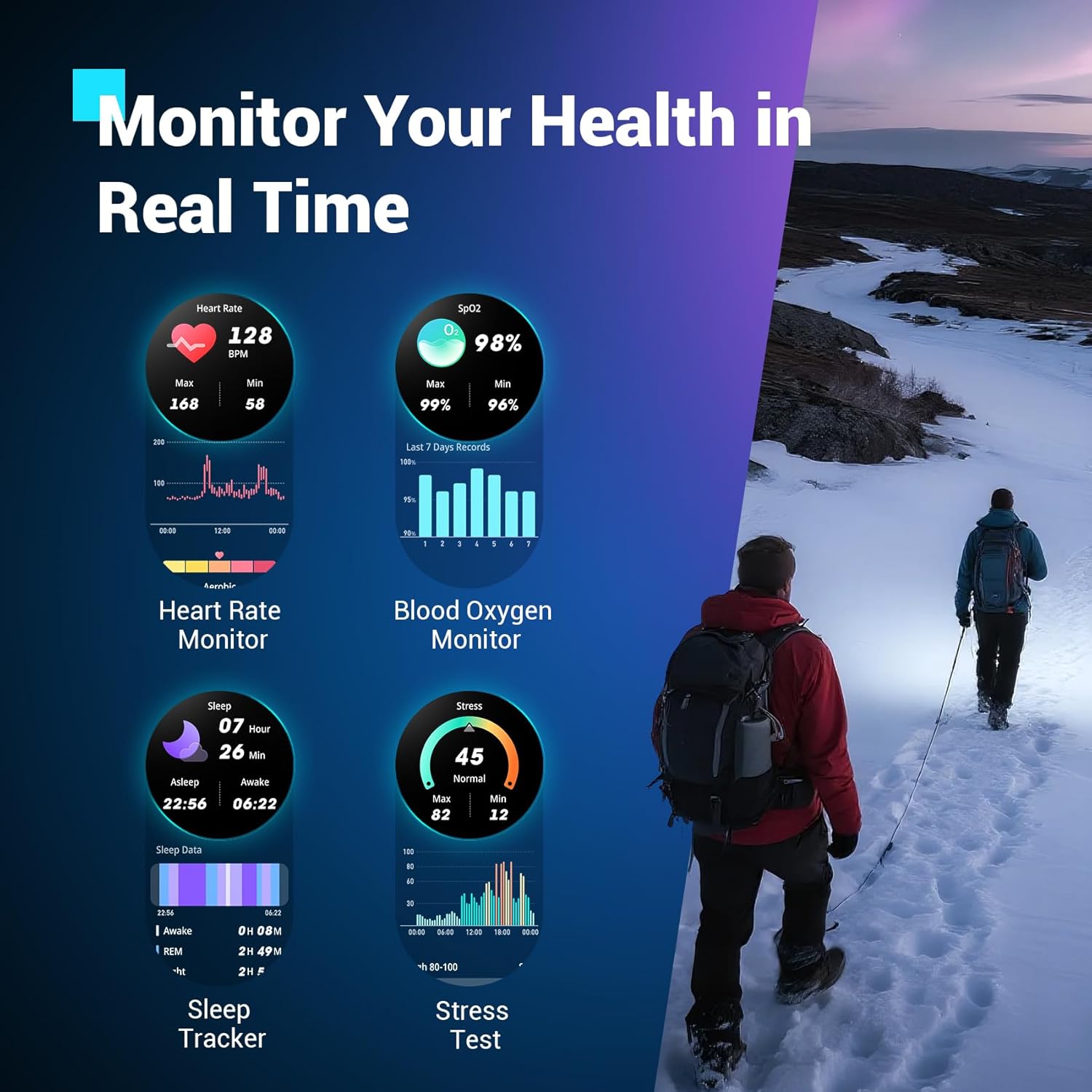
Image: The Blackview W50Pro Smart Watch interface showing various health metrics including heart rate, blood oxygen, sleep data, and stress test results.
Sports Modes and GPS
The smartwatch supports over 100 sports modes, including cycling, running, basketball, rugby, skiing, and more. Connect to the "Da Fit" app via Bluetooth to track daily stats like steps, time, distance, and calories. Utilize your phone's GPS through the app to record all your training routes and fitness data.
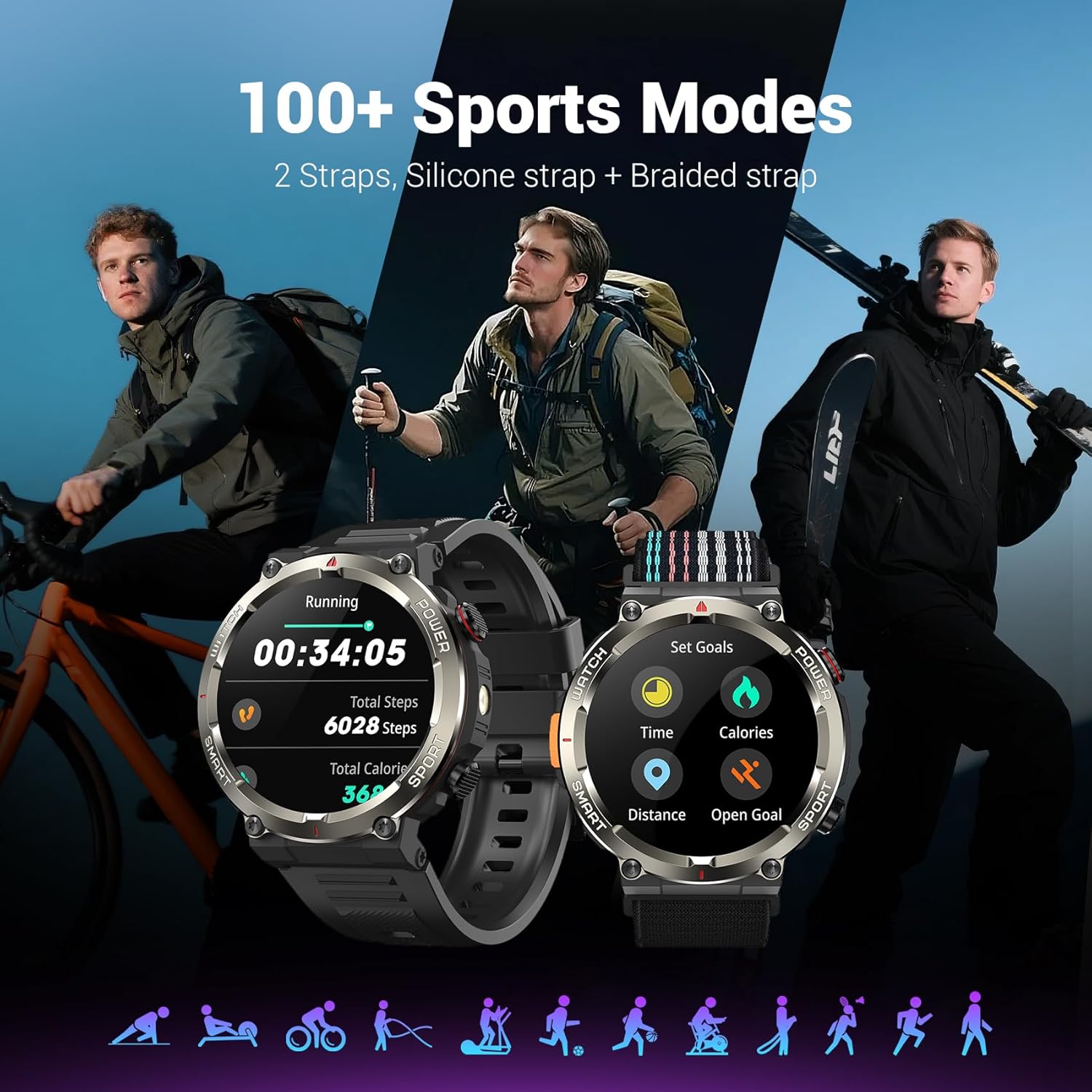
Image: The Blackview W50Pro Smart Watch showcasing its 100+ sports modes, with examples of activity tracking for running and goal setting.
Outdoor Features
- LED Flashlight: Activate the high-brightness LED flashlight with a single button for nighttime visibility or emergencies.
- Precision Compass: Navigate quickly when lost or without signal, providing essential direction for outdoor adventures.
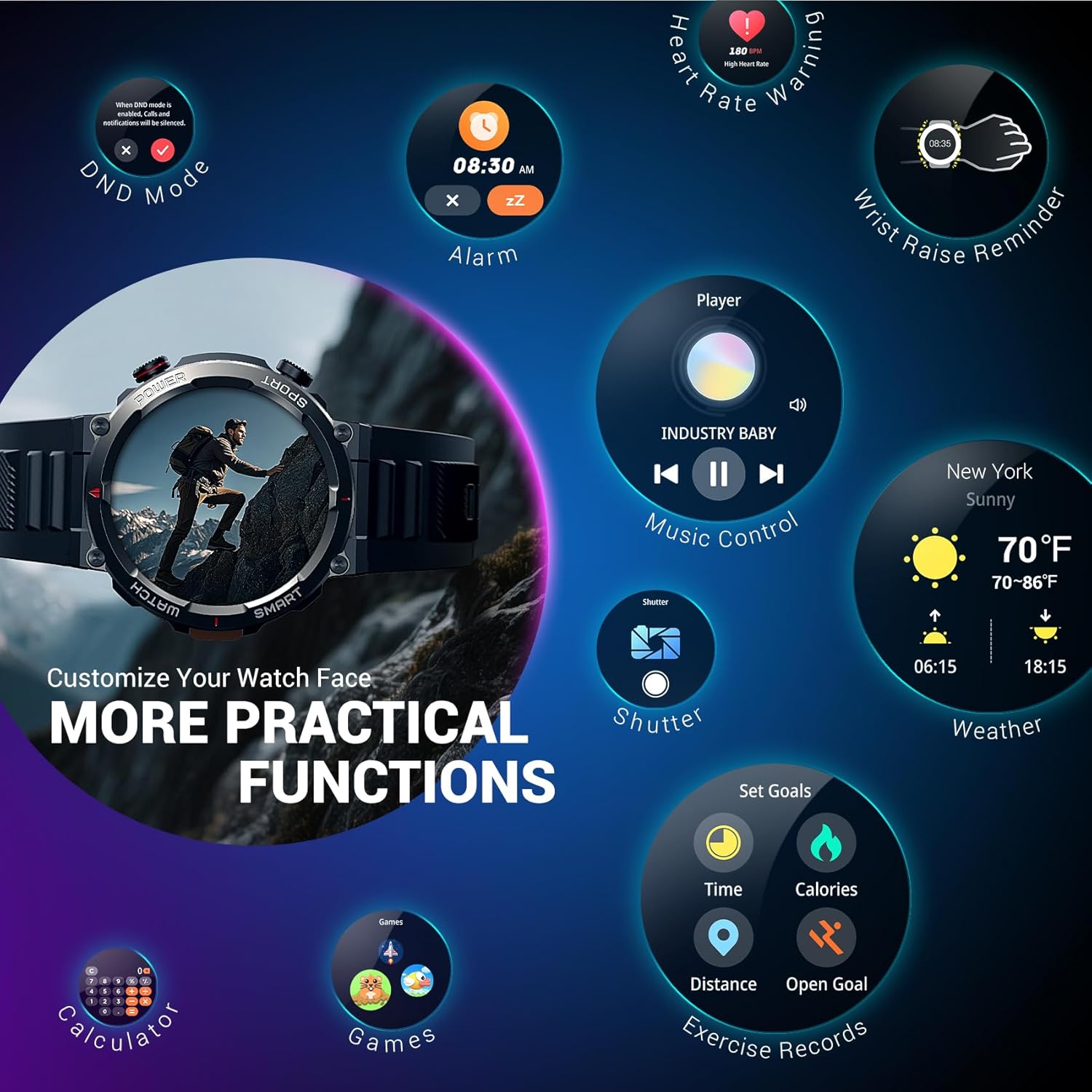
Image: The Blackview W50Pro Smart Watch highlighting its outdoor compass feature on the display and demonstrating its powerful LED flashlight in a dark environment.
More Useful Tools
The Blackview W50Pro includes additional practical functions:
- Music Control
- Camera Control
- Weather Forecast
- Alarm Clock
- Stopwatch
- Timer
- Calculator
- Find Phone
- Do Not Disturb (DND) Mode
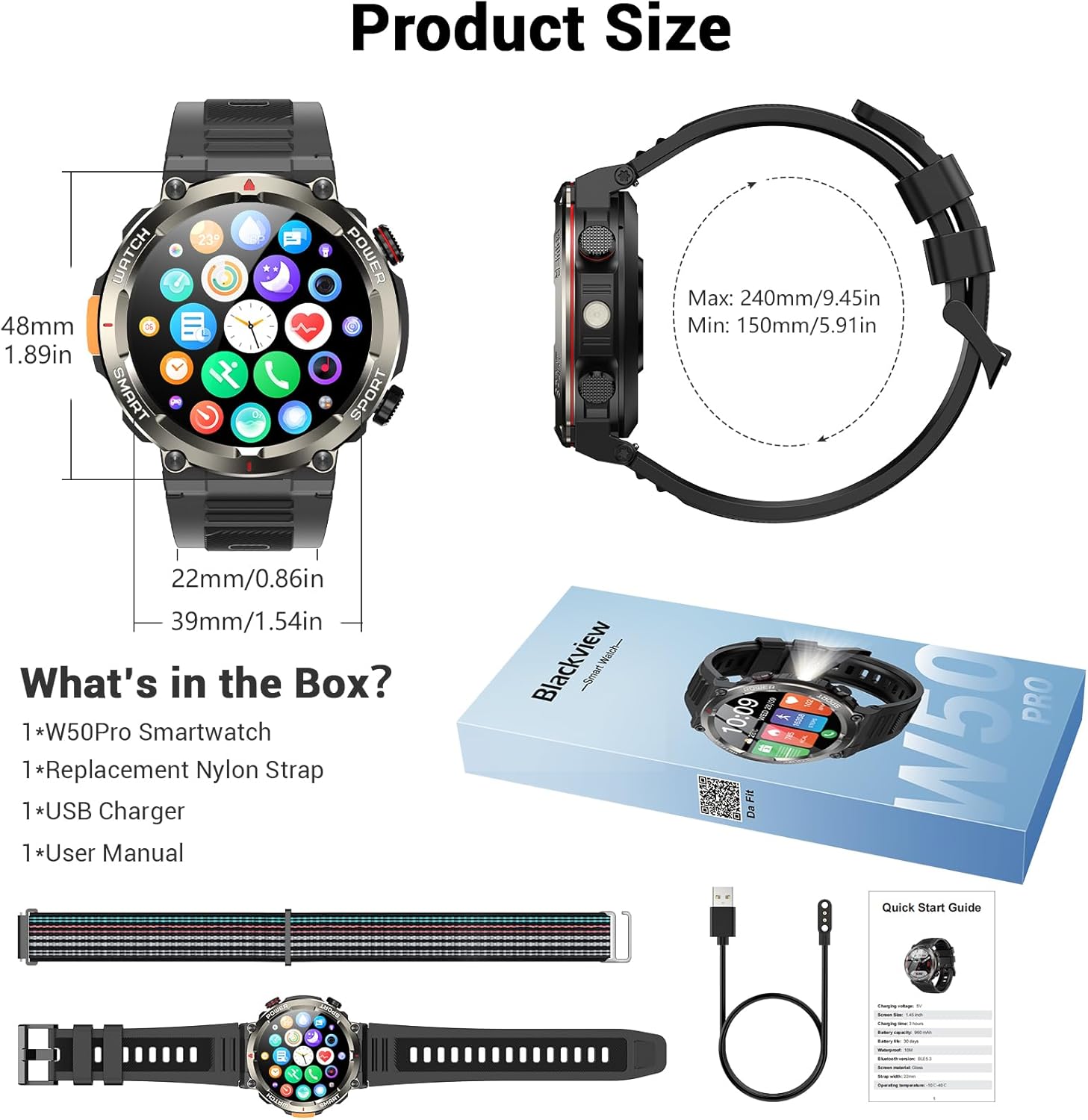
Image: The Blackview W50Pro Smart Watch screen showing icons for various practical functions such as music control, weather, calculator, and exercise records.
Durability and Waterproofing
The watch features a durable plastic case and zinc alloy housing, designed to withstand outdoor bumps, dust, and sand. It has an IP68 waterproof rating, making it safe for everyday use like hand washing or rain. However, it is not suitable for saunas, hot tubs, swimming, or diving.
Video: A short preview video demonstrating the IP68 waterproof rating of a KPEP smartwatch (similar model), showing it being submerged in water.
Specifications
| Product Dimensions | 7.19 x 3.5 x 0.79 inches |
| Item Weight | 5.6 ounces (0.16 Kilograms) |
| Item Model Number | W50Pro |
| Batteries | 1 A batteries required (included) |
| Standing Screen Display Size | 1.45 Inches |
| Memory Storage Capacity | 1 GB |
| RAM Memory Installed Size | 128 MB |
| Operating System | Android & iOS |
| Battery Capacity | 960 Milliamp Hours |
| Connectivity Technology | Bluetooth |
| Wireless Communication Standard | Bluetooth |
| GPS | GPS Via Smartphone |
| Shape | Round |
Maintenance
To ensure the longevity and optimal performance of your Blackview W50Pro Smart Watch, follow these maintenance guidelines:
- Cleaning: Regularly wipe the watch screen and straps with a soft, dry cloth. For stubborn dirt, use a slightly damp cloth and mild soap, then rinse and dry thoroughly.
- Avoid Harsh Chemicals: Do not expose the watch to strong chemicals, solvents, or detergents, as these can damage the materials.
- Charging: Use only the provided magnetic charging cable. Avoid exposing the charging contacts to water or corrosive substances.
- Storage: Store the watch in a cool, dry place away from direct sunlight and extreme temperatures.
- Water Exposure: While IP68 waterproof, avoid prolonged submersion or exposure to high-pressure water jets. Dry the watch completely after contact with water.
Troubleshooting
If you encounter issues with your Blackview W50Pro Smart Watch, try the following solutions:
- Watch not turning on: Ensure the watch is fully charged. Connect it to the charger for at least 30 minutes.
- Cannot pair with phone: Make sure Bluetooth is enabled on your phone and the watch is within range. Restart both devices and try pairing again. Ensure the "Da Fit" app has necessary permissions.
- Notifications not received: Check app permissions on your phone and ensure notifications are enabled within the "Da Fit" app settings for specific applications.
- Inaccurate health data: Ensure the watch is worn snugly on your wrist, not too tight or too loose. Clean the sensor on the back of the watch.
- Screen unresponsive: Restart the watch by long-pressing the power key. If unresponsive, allow the battery to drain completely and then recharge.
Warranty and Support
For warranty information or further support, please refer to the documentation included in your product packaging or contact Blackview customer service. Protection plans are available for purchase separately.


