
Introduction
Thank you for choosing the Redragon BK7367 2.4G Wireless Keyboard. This full-sized ergonomic keyboard is designed for comfort and efficiency, featuring dedicated multimedia keys, spill resistance, and broad compatibility. This manual will guide you through the setup, operation, and maintenance of your new keyboard.
Product Features
- 2.4G Wireless Connection: Easy plug-and-play setup with any USB device.
- Multi-functional Design: Features a numeric keypad, 10 individual shortcut buttons, and 12 combined multimedia keys for enhanced workflow.
- Splashproof Design: Sealed membrane circuitry protects against accidental spills.
- Silent Keys: Noise-canceling design ensures a quiet typing experience.
- Adjustable Feet: Reversible feet allow for an ergonomic typing position, reducing fatigue.
- Powerful Compatibility: No drivers required; compatible with Windows 11/10/8/7/XP, Mac OS, and Windows VISTA.
Package Contents
Upon unpacking, please ensure all items are present:
- 1x Redragon BK7367 Full-size Computer Keyboard
- 1x 2.4Ghz USB Receiver
- 1x Instruction Manual (this document)

Image: Redragon BK7367 Wireless Keyboard with its 2.4G USB receiver, highlighting its full-size layout and plug-and-play functionality.
Setup Instructions
- Insert Battery: Locate the battery compartment on the underside of the keyboard. Insert the required battery (not specified in JSON, but typically AA or AAA for wireless keyboards, assuming it's included or user-provided).
- Connect USB Receiver: Take the 2.4G USB receiver from its storage slot (usually on the underside of the keyboard or in the battery compartment).
- Plug into Computer: Insert the USB receiver into an available USB port on your computer (PC, laptop, or all-in-one device).
- Power On: Locate the ON/OFF switch on the keyboard (usually on the top right or underside) and slide it to the "ON" position.
- Automatic Connection: The keyboard should automatically connect to your computer. No additional drivers or software installation is typically required.

Image: A close-up of the Redragon BK7367 keyboard and its 2.4G USB receiver plugged into a laptop, illustrating the plug-and-play setup.
Operating Instructions
General Use
The Redragon BK7367 keyboard offers a standard full-size layout for comfortable and familiar typing. Its silent membrane keys provide a soft and quiet typing experience, suitable for various environments.
Adjustable Typing Angle
For enhanced comfort, the keyboard features adjustable feet on its underside. Flip these feet out to raise the back of the keyboard, providing an inclined angle that can help reduce wrist strain during prolonged use.

Image: A side view of the Redragon BK7367 keyboard with its foldable stands extended, illustrating the adjustable typing position for ergonomic comfort.
Smart LED Indicators
The keyboard includes three LED indicators located above the numeric keypad:
- Num Lock Indicator: Lights up when the Numeric Lock is active.
- Caps Lock Indicator: Lights up when Caps Lock is active.
- Power Indicator: Indicates the keyboard's power status.

Image: A close-up of the top right section of the Redragon BK7367 keyboard, highlighting the three LED indicators for Num Lock, Caps Lock, and Power status.
Multimedia Keys
The Redragon BK7367 keyboard is equipped with 10 individual shortcut buttons and 12 combined multimedia keys to streamline your computer usage.
Dedicated Shortcut Buttons
Located above the function keys, these buttons provide quick access to common functions such as:
- Search
- Home
- Calculator
- Media Playback Controls (Play/Pause, Stop, Previous, Next)

Image: The Redragon BK7367 keyboard with its 10 independent shortcut buttons clearly labeled above the function keys, along with the numeric keypad.
Combined Multimedia Keys (Fn + F-keys)
Press and hold the Fn key, then press the corresponding F-key for the following functions:
| Key Combination | Function |
|---|---|
| Fn + F1 | Music Player |
| Fn + F2 | Volume Down |
| Fn + F3 | Volume Up |
| Fn + F4 | Mute |
| Fn + F5 | Previous Track |
| Fn + F6 | Next Track |
| Fn + F7 | Play/Pause |
| Fn + F8 | Stop |
| Fn + F9 | Internet Explorer |
| Fn + F10 | Mailbox |
| Fn + F11 | Homepage |
| Fn + F12 | My Computer |

Image: The Redragon BK7367 keyboard illustrating the various multimedia functions accessible by pressing the Fn key in combination with the F1-F12 keys.
Maintenance
Spill-Resistant Design
The Redragon BK7367 features a splashproof design with sealed membrane circuitry and multiple drainage holes on the back. This helps prevent damage from accidental liquid spills. In case of a spill, gently wipe the keyboard dry and allow it to air out.
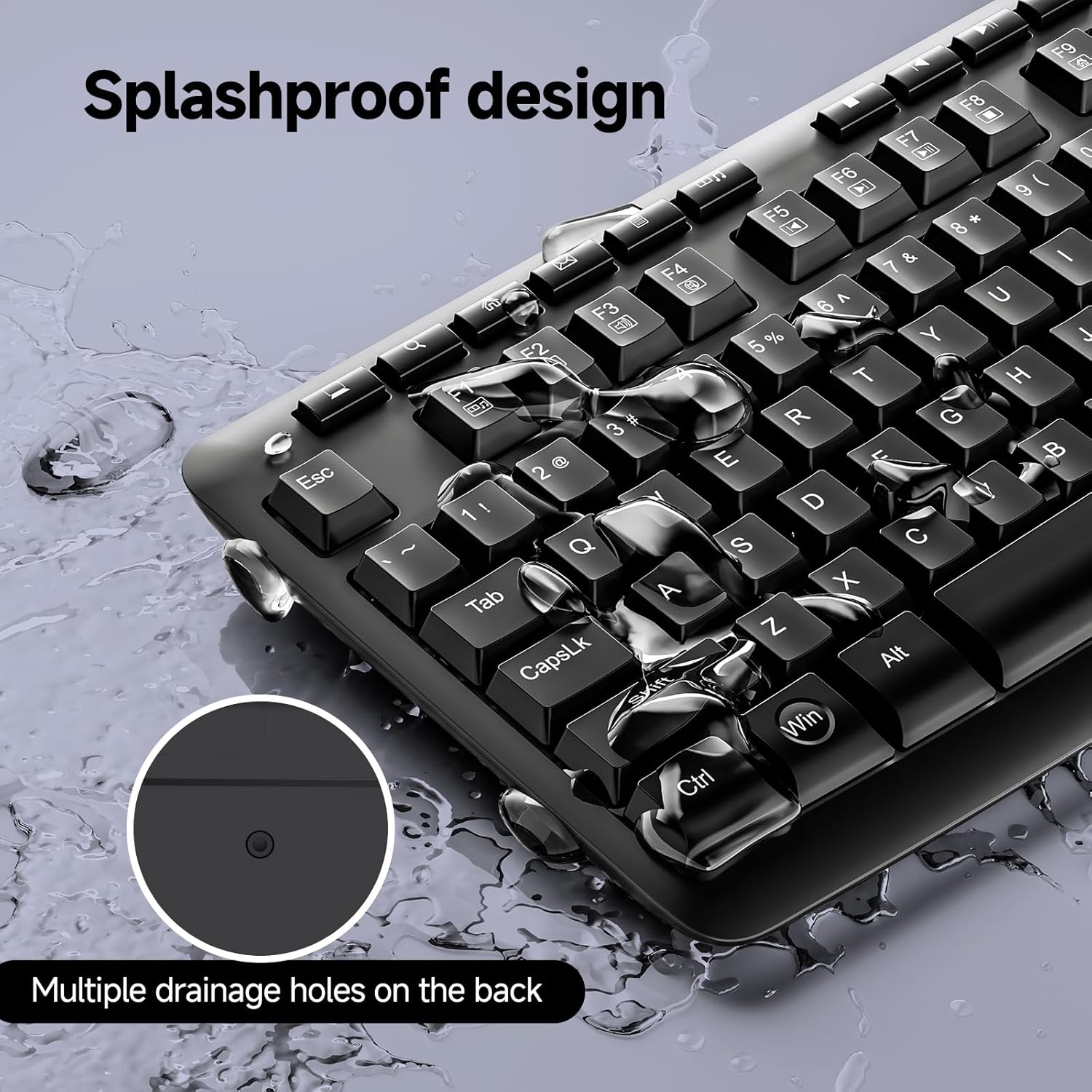
Image: The Redragon BK7367 keyboard with water droplets on its surface, showcasing its splashproof design and drainage holes on the underside.
Cleaning
To clean your keyboard, use a soft, damp cloth. Avoid using harsh chemicals or abrasive materials that could damage the surface or keycaps. Ensure the keyboard is powered off before cleaning.
Troubleshooting
- Keyboard not responding:
- Ensure the USB receiver is securely plugged into a working USB port on your computer.
- Check if the keyboard's ON/OFF switch is in the "ON" position.
- Replace the battery if the power indicator is off or blinking.
- Try plugging the USB receiver into a different USB port.
- Intermittent connection:
- Ensure the keyboard is within the 10m/33ft wireless range of the USB receiver.
- Avoid placing the keyboard near strong electromagnetic interference sources.
- Keys not functioning correctly:
- Ensure the keyboard is clean and free of debris.
- If specific keys are not working, contact customer support.
Specifications
| Feature | Detail |
|---|---|
| Brand | Redragon |
| Model Number | BK-7367 |
| Connectivity Technology | 2.4G Wireless |
| Keyboard Description | Membrane |
| Special Features | Ergonomic, Hotkeys and Media Keys, Waterproof (Splashproof) |
| Compatible Devices | PC (Windows 11/10/8/7/XP, Mac OS, Windows VISTA) |
| Color | Black |
| Material | Plastic |
| Item Weight | 1.3 pounds |
| Package Dimensions | 17.48 x 6.61 x 1.26 inches |
Warranty and Support
For warranty information or technical support, please refer to the documentation included with your purchase or visit the official Redragon website. Keep your purchase receipt for any warranty claims.


