1. Introduction
The CallToU Wi-Fi Wireless Caregiver Pager system is designed to provide reliable emergency alerts for individuals requiring assistance, such as seniors, patients, and the disabled. This system utilizes 433MHz wireless technology for a wide range and connects to your home's 2.4G Wi-Fi network for smart global access via a mobile application. This manual will guide you through the setup, operation, and maintenance of your device.
2. What's Included
Your CallToU Caregiver Pager system includes the following components:
- 1x Wireless Receiver (plugs into a standard wall outlet)
- 1x Wearable SOS Wrist Button (orange band)
- 1x Wall-mountable Call Button (blue bell icon)
- User Manual
- Mounting accessories (adhesives, small screwdriver for battery access)

Image: The main components of the CallToU Caregiver Pager system, including the wireless receiver, the orange SOS wrist button, and the white call button with a blue bell icon.
3. Setup Instructions
3.1. Connecting the Receiver to the App
- Download the App: Download the "Tuya Smart" or "Smart Life" app from your smartphone's app store.
- Power On Receiver: Plug the wireless receiver into a standard wall outlet.
- Enable Wi-Fi and Bluetooth: On your smartphone, ensure Wi-Fi is enabled and connected to a 2.4G network (5G networks are not supported). Also, enable Bluetooth.
- Add Device in App: Open the app, tap the "+" icon in the upper right corner, and select "Add Device."
- Enter Pairing Mode: Press and hold the "Forward" key on the receiver for 5-10 seconds until the indicator light flashes, indicating pairing mode.
- Confirm Device: The app should detect the device. Confirm to add it.
- Enter Wi-Fi Credentials: Enter your 2.4G Wi-Fi network name and password when prompted.
- Complete Connection: Follow the on-screen instructions to complete the connection. The receiver's indicator light will become solid when successfully connected.
Video: Demonstrates the process of connecting the CallToU Caregiver Pager receiver to the Tuya Smart app, including enabling Wi-Fi and Bluetooth, adding the device, and entering Wi-Fi credentials.

Image: Visual guide showing the six steps to connect the receiver to the mobile application, emphasizing 2.4GHz Wi-Fi and Bluetooth activation.
3.2. Connecting Transmitters (Call Buttons) to the App
- Access Receiver Page: On the app's home screen, tap on your connected receiver.
- Add Button: Tap the bell icon at the bottom of the screen to add a new button.
- Trigger Transmitter: When prompted by the app, press the call button (SOS wrist button or wall-mountable call button). The transmitter's indicator light will flash.
- Confirmation: The app will confirm successful pairing.
Video: Demonstrates the process of adding additional call buttons (transmitters) to the mobile application.

Image: Visual guide showing how to add transmitters to the app by pressing the call button when prompted.
4. Operating Instructions
4.1. Triggering an Alert
To trigger an alert, simply press the SOS button on the wristband or the CALL button on the wall-mountable unit. The receiver will emit a loud alarm with flashing lights, and an instant notification will be sent to your paired mobile application.
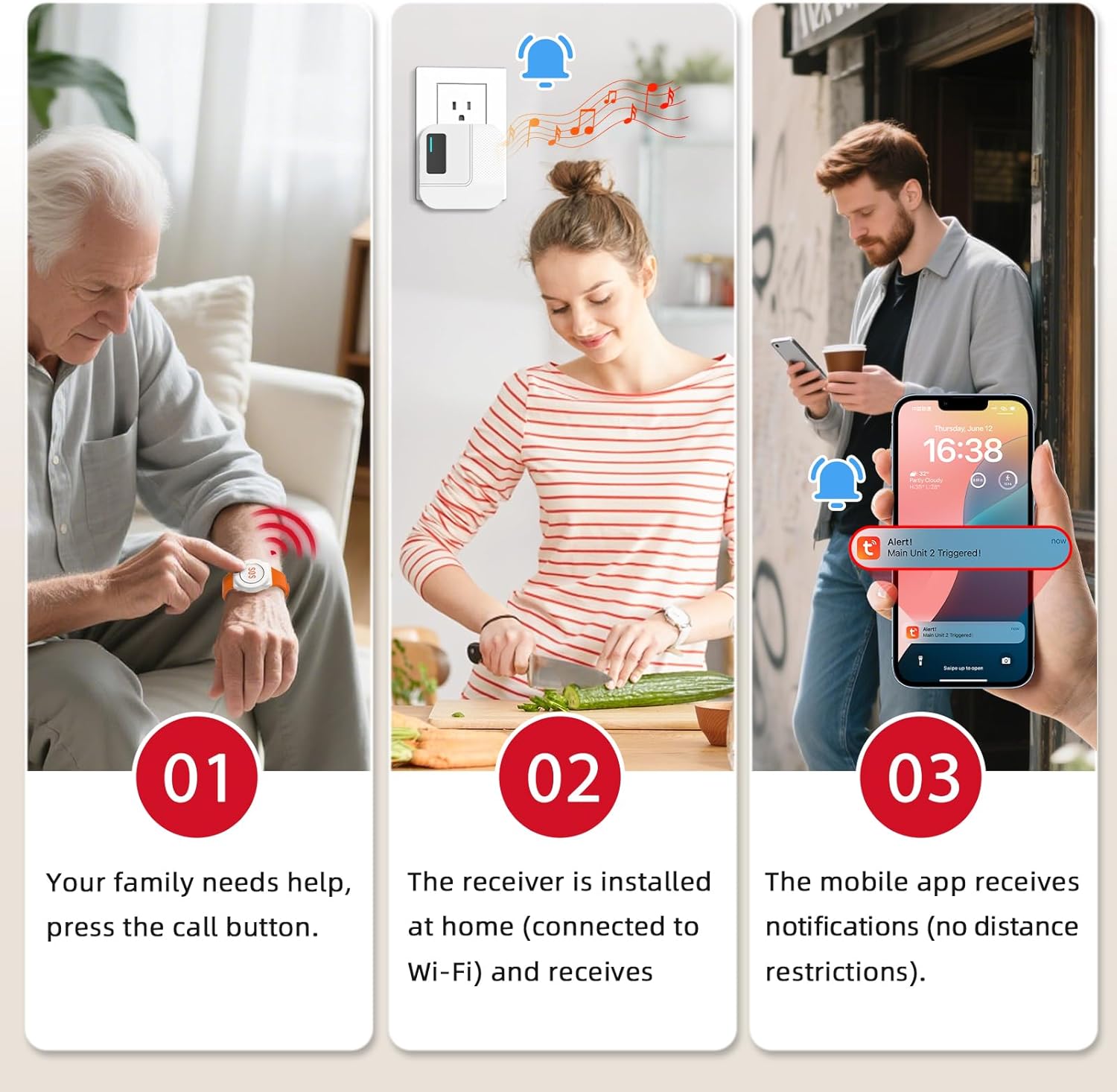
Image: Depicts a user pressing the SOS button on the wrist, with the receiver plugged into a wall outlet and a mobile phone displaying an alert notification.
4.2. Customizing Ringtones, Volume, and Button Names
You can personalize your alert system through the mobile app:
- Change Ringtones: Select from 20 available ringtones for each emergency button. This helps identify which button was pressed.
- Adjust Volume: The receiver has 5 volume levels (0-110dB) and a mute mode. Adjust the volume to suit your environment.
- Custom Button Names: Rename each emergency button in the app (e.g., "Bathroom," "Bedroom," "Hall") to quickly identify the location of the alert.
Video: Demonstrates how to change ringtones, adjust volume, and customize button names via the mobile application.

Image: A hand holding a smartphone displaying the app interface for customizing transmitter settings, including renaming buttons and setting different ringtones.
4.3. Sharing Notifications with Multiple Caregivers
The Tuya app allows you to share device notifications with other family members or caregivers. This ensures that multiple individuals receive alerts when the panic button is pressed.
- Access Device Settings: In the app, navigate to the device settings for your receiver.
- Select "Share Device": Tap on the "Share Device" option.
- Add Caregivers: You can add caregivers by entering their Tuya account details or by sharing a link.
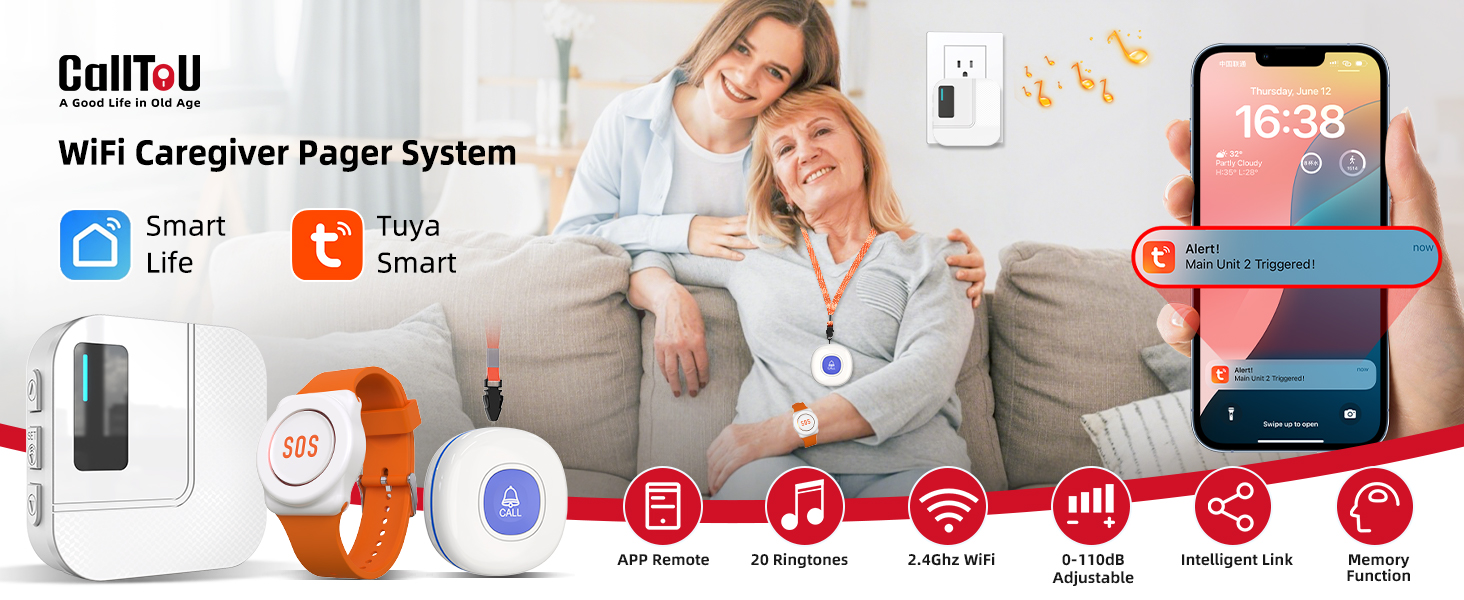
Image: A visual representation of the app's sharing function, allowing multiple caregivers to receive alert messages.
5. Maintenance
- Battery Replacement: The SOS wrist button and wall-mountable call button use coin cell batteries. Use the provided small screwdriver to open the casing and replace the battery when needed. (Battery type: CR2032 for buttons, AAA for receiver if applicable, though receiver is plug-in).
- Cleaning: Wipe the devices with a soft, dry cloth. Avoid using harsh chemicals or abrasive cleaners.
- Water Resistance: The call buttons are IP55 rated, meaning they are protected against dust and low-pressure water jets. They are suitable for use in bathrooms but should not be submerged in water.

Image: Illustrates the IP55 water resistance of the call buttons, showing them near a shower and worn by users, highlighting their versatility.
6. Troubleshooting
- No App Notifications:
- Ensure the receiver is connected to a 2.4G Wi-Fi network (not 5G).
- Verify that your smartphone has an active internet connection.
- Check app notification settings on your phone and within the Tuya Smart app to ensure they are enabled.
- Confirm the receiver and buttons are paired correctly.
- Delayed Alerts:
- Check the "Delay time" setting for each transmitter in the app. Set it to "0" for immediate alerts.
- Ensure a stable Wi-Fi connection for the receiver.
- Buttons Not Triggering Receiver:
- Ensure buttons are within the 328ft/100m wireless range of the receiver.
- Check the battery level of the call buttons and replace if necessary.
- Re-pair the buttons with the receiver via the app.
Video: Explains how to adjust the receiver's delay alert setting within the mobile application to ensure immediate notifications.
7. Specifications
| Feature | Detail |
|---|---|
| Model Number | TY01WH-US 2-1 |
| Brand | CallToU |
| Connectivity | 433MHz Wireless, 2.4G Wi-Fi (not 5G) |
| Wireless Range | 328ft / 100m |
| Control Method | App, Touch |
| Ringtones | 20 options |
| Volume Levels | 5 (0-110dB) |
| Water Resistance | IP55 (for call buttons) |
| Power Source | Battery Powered (buttons), Plug-in (receiver) |
| Battery Type (Buttons) | Coin cell (CR2032, included) |
| Product Dimensions | 2.3"L x 0.5"W x 2.36"H |
| Item Weight | 8.1 ounces |
8. Warranty & Support
The CallToU Caregiver Pager system comes with a 1-Year Manufacturer Warranty. For any questions or support regarding your CallToU caregiver pager, please contact us via Amazon's messaging system.


