1. Introduction
Thank you for choosing the ZUMIMALL Dual Lens 2K Wireless Outdoor Security Camera. This manual provides detailed instructions for setting up, operating, and maintaining your camera to ensure optimal performance and security for your home or property. Please read this manual thoroughly before use and retain it for future reference.
2. Safety Information
- Ensure the camera is installed in a location where it is protected from extreme weather conditions beyond its IP65 rating.
- Use only the specified power adapter or solar panel for charging.
- Do not disassemble or attempt to repair the device yourself. Contact customer support for assistance.
- Keep the camera and its accessories out of reach of children.
- Avoid placing the camera near strong magnetic fields or sources of interference.
- Dispose of the product and battery responsibly according to local regulations.
3. Package Contents
Please check that all components are present and in good condition:
- ZUMIMALL Dual Lens 2K Wireless Outdoor Security Camera
- 5W Solar Panel
- Mounting Bracket and Screws
- USB Charging Cable
- User Manual
4. Product Overview
The ZUMIMALL Dual Lens 2K Wireless Outdoor Security Camera offers advanced surveillance features with a focus on wide-area coverage and intelligent detection.

Image: The ZUMIMALL Dual Lens 2K Wireless Outdoor Security Camera, featuring a main PTZ camera unit, a separate smaller camera, and a solar panel for continuous power.
Key Features:
- Dual Lens System: Combines a fixed lens and a rotating lens for simultaneous viewing of two different areas.
- 2K HD Resolution: Provides clear and detailed images and videos (3MP+3MP for a total of 6MP effective resolution).
- Wide Angle & PTZ: Offers a 220° ultra-wide-angle view from the fixed lens and 360° pan/tilt/zoom (PTZ) capabilities for comprehensive coverage.
- Full Color Night Vision: Equipped with white and infrared lamps, offering full-color, infrared, or smart night vision modes.
- Solar Powered: Includes a 5W solar panel and a built-in 10000mAh battery for continuous, uninterrupted operation.
- Smart AI Detection: Advanced AI can identify people, vehicles, pets, and packages, reducing false alerts.
- Two-Way Talk: Built-in microphone and speaker allow for real-time communication.
- 2.4GHz WiFi Connectivity: Ensures a stable and reliable wireless connection.
- IP65 Weather Resistance: Designed to withstand various outdoor weather conditions.
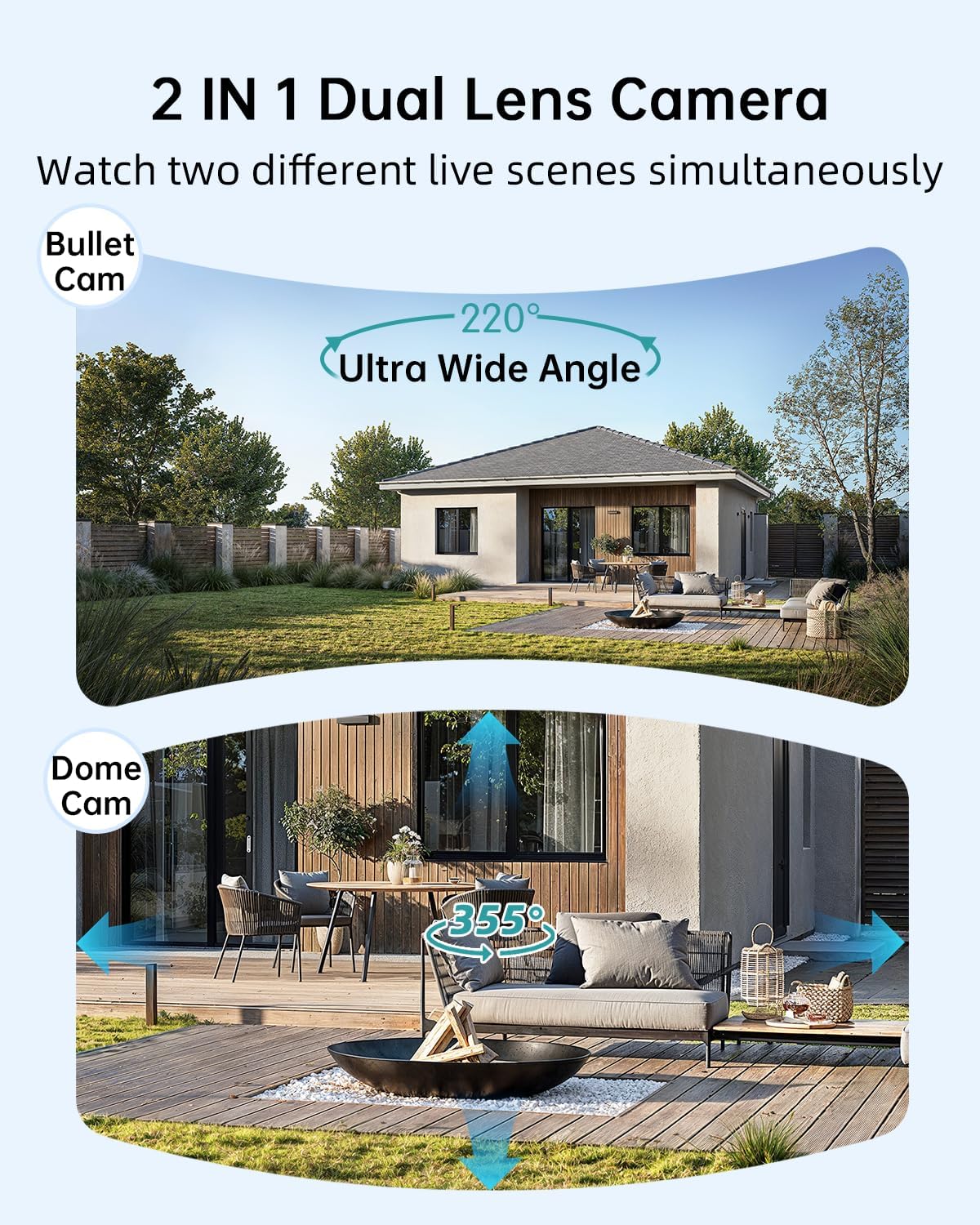
Image: Illustration of the dual-lens functionality, displaying a wide-angle 'Bullet Cam' view and a pan-tilt-zoom 'Dome Cam' view simultaneously.

Image: The ZUMIMALL camera connected to its 5W solar panel, highlighting its non-stop solar power capability and IP66 water resistance (note: product specification is IP65).

Image: A demonstration of the 2K ultra-colorful image quality, showing a clear view of a car's license plate at night, with indicators for 3MP FHD Image, 4X Digital Zoom, and 55FT Night Vision Range.

Image: The ZUMIMALL camera shown enduring heavy rain and snow, illustrating its IP65 waterproof rating and suitability for outdoor use in various weather conditions.
5. Setup
5.1 Initial Charging
Before first use, fully charge the camera's built-in 10000mAh battery using the provided USB cable and a 5V/2A power adapter (not included). A full charge typically takes several hours.
5.2 App Download and Account Registration
- Scan the QR code on the packaging or search for 'ZUMIMALL' in your mobile app store (iOS or Android).
- Download and install the ZUMIMALL app.
- Open the app and register a new account or log in if you already have one.
5.3 Connecting to Wi-Fi
- Ensure your smartphone is connected to a 2.4GHz Wi-Fi network. The camera does not support 5GHz Wi-Fi.
- In the ZUMIMALL app, tap '+' to add a new device.
- Follow the on-screen instructions to power on the camera and enter Wi-Fi configuration mode.
- Scan the QR code displayed on your phone screen with the camera lens.
- Wait for the camera to connect to your Wi-Fi network. Once connected, you will hear a confirmation sound.
5.4 Mounting the Camera and Solar Panel
The camera offers flexible installation options, including magnetic support and bracket support.

Image: Demonstrates two installation methods for the ZUMIMALL camera: a compact magnetic mount for easy placement and a more robust bracket mount for secure, permanent installation.
- Choose a Location: Select a location that provides the desired viewing angle, is within Wi-Fi range, and receives ample direct sunlight for the solar panel.
- Install the Bracket: Use the provided screws to securely attach the mounting bracket to a wall or ceiling.
- Attach the Camera: Secure the camera to the bracket. For magnetic support, simply attach the camera to the magnetic base.
- Position the Solar Panel: Mount the 5W solar panel in a location that receives maximum direct sunlight throughout the day. Connect the solar panel cable to the camera's charging port.
- Adjust Angle: Adjust the camera's angle to cover the desired surveillance area.
6. Operating Instructions
6.1 Live View and Dual Lens Control
Open the ZUMIMALL app and select your camera to access the live view. The app will display two video feeds simultaneously from the fixed and PTZ lenses. You can switch between views or control the PTZ lens by swiping on the screen or using the directional controls within the app.
6.2 Night Vision Modes
The camera offers three night vision modes, configurable in the app settings:
- Full-Color Night Vision: Utilizes the built-in white light to provide color images in low-light conditions.
- Infrared Night Vision: Uses infrared LEDs for black and white images in complete darkness.
- Smart Night Vision: Automatically switches between infrared and full-color based on detected motion or ambient light.

Image: A comparison of night vision modes, showing a scene with a spotlight on (color night vision) and a spotlight off (infrared night vision), demonstrating the camera's ability to capture clear images in various low-light conditions.
6.3 Smart AI Detection
Configure AI detection settings in the app to receive alerts for specific events.

Image: An illustration of the camera's Intelligent AI Analysis feature, highlighting its capability to detect and differentiate between humans, packages, vehicles, and pets within the surveillance area.
- Detection Types: The camera can identify humans, vehicles, pets, and packages.
- Alerts: When motion is detected, an alert notification will be sent to your smartphone.
- Sensitivity: Adjust motion detection sensitivity to minimize false alarms.
6.4 Two-Way Talk
Use the two-way talk feature to communicate with visitors or deter intruders.

Image: Depicts scenarios where the two-way voice intercom is used, showing a user communicating with a delivery person at the door and a parent speaking to a child playing outside.
- In the live view, tap the microphone icon to speak through the camera's speaker.
- Release the icon to listen.
6.5 Recording and Playback
The camera records events triggered by motion detection. Recordings are stored on a local SD card (not included) or in cloud storage (subscription may be required).
- Playback: Access recorded videos through the 'Playback' section in the ZUMIMALL app.
- Download: Download important video clips to your phone.
7. Maintenance
- Cleaning: Periodically clean the camera lens and solar panel with a soft, damp cloth to ensure clear images and efficient solar charging. Do not use harsh chemicals.
- Battery Care: For optimal battery life, avoid prolonged exposure to extreme temperatures. Ensure the solar panel is free from obstructions to maintain consistent charging.
- Firmware Updates: Check the ZUMIMALL app regularly for firmware updates. Keeping your camera's firmware updated ensures the latest features and security enhancements.
8. Troubleshooting
8.1 Camera Not Connecting to Wi-Fi
- Ensure your Wi-Fi network is 2.4GHz.
- Check Wi-Fi signal strength at the camera's location.
- Verify the Wi-Fi password entered is correct.
- Restart your router and the camera.
8.2 Battery Drains Quickly
- Ensure the solar panel is receiving direct sunlight for several hours daily.
- Reduce motion detection sensitivity or frequency of recordings.
- Check for excessive live view streaming, which consumes battery.
8.3 Poor Image Quality
- Clean the camera lens.
- Ensure there are no obstructions in the camera's field of view.
- Check your Wi-Fi connection speed.
8.4 False Motion Alerts
- Adjust motion detection sensitivity in the app.
- Utilize AI detection filters (human, vehicle, pet, package) to ignore irrelevant motion.
- Ensure the camera is not pointing at busy public areas or moving foliage.
9. Specifications
| Feature | Specification |
|---|---|
| Model | B0F189QLFH |
| Resolution | 2K (3MP + 3MP Dual Lens) |
| Field of View | 220° Ultra Wide Angle (fixed lens), 360° PTZ (rotating lens) |
| Battery Capacity | 10000mAh |
| Solar Panel Power | 5W |
| Wi-Fi Connectivity | 2.4GHz (IEEE 802.11b/g/n) |
| Weather Resistance | IP65 |
| Night Vision | Full-Color, Infrared, Smart |
| Detection | Smart AI (Human, Vehicle, Pet, Package) |
| Audio | Two-Way Talk |
| Manufacturer | ZUMIMALL |
| First Available Date | March 12, 2025 |
10. Warranty Information
ZUMIMALL products are covered by a limited warranty from the date of purchase. Please refer to the warranty card included with your product or visit the official ZUMIMALL website for detailed warranty terms and conditions.
11. Customer Support
If you encounter any issues or have questions regarding your ZUMIMALL camera, please contact our customer support team:
- Email: support@zumimall.com (Example)
- Website: ZUMIMALL Official Store
Please have your model number (B0F189QLFH) and purchase information ready when contacting support.


