
Blackview MP60
Blackview MP60 Mini PC User Manual
Model: MP60
1. Introduction
This manual provides comprehensive instructions for the setup, operation, and maintenance of your Blackview MP60 Mini PC. Please read this manual thoroughly before using the device to ensure proper functionality and to prevent damage.
The Blackview MP60 Mini PC is a compact and powerful desktop computer designed for various applications, including home, office, education, and multimedia. It features an Intel N150 processor, ample RAM and storage, and versatile connectivity options.
2. Package Contents
Please verify that all items are present in the package:
- Blackview MP60 Mini PC
- Power Adapter
- HDMI Cable
- User Manual (this document)
- VESA Mount Bracket (optional, may vary by package)
3. Product Overview
Familiarize yourself with the components and ports of your Blackview MP60 Mini PC.

Figure 3.1: Front and side view of the Blackview MP60 Mini PC, showcasing its compact design and various ports including USB, HDMI, LAN, and audio jacks.

Figure 3.2: Diagram illustrating key features of the Blackview MP60 Mini PC, including the Intel N150 processor, 16GB DDR4 RAM, 512GB SSD, multi-port configuration, ultra-compact size, silent operation, dual 4K display support, and efficient heat dissipation system.
3.1 Front Panel
- Power Button: Press to turn on/off the device.
- USB 3.0 Ports (x3): For connecting high-speed USB devices.
- USB 2.0 Port (x1): For connecting standard USB devices.
3.2 Rear Panel
- DC-IN Port: Connect the power adapter here.
- HDMI Ports (x2): For connecting displays, supporting dual 4K output.
- LAN Port (RJ45): For wired network connection (Gigabit Ethernet).
- Audio Jack (Mic/Headphone): For connecting headphones or a microphone.
4. Setup Guide
4.1 Initial Connection
- Connect to Display: Use an HDMI cable to connect the Mini PC to your monitor or TV. The MP60 supports dual 4K displays.
- Connect Peripherals: Plug in your USB keyboard and mouse into the available USB ports.
- Connect to Network: For a wired connection, connect an Ethernet cable to the LAN port. For wireless, ensure your Wi-Fi network is available during initial setup.
- Connect Power: Plug the power adapter into the DC-IN port on the Mini PC, then plug the adapter into a power outlet.
4.2 First Boot and Operating System Setup
- Press the Power Button on the front of the Mini PC.
- The device will boot up. If it's the first time, the pre-installed Windows 11 Pro (or other OS if specified) will guide you through the initial setup process, including language selection, network configuration, and user account creation.
- Follow the on-screen instructions to complete the setup.
5. Operating Instructions
5.1 Power On/Off
- Power On: Press the power button once.
- Power Off: For a clean shutdown, use the operating system's shutdown function (e.g., Start Menu > Power > Shut down in Windows). Alternatively, press and hold the power button for 5-7 seconds to force a shutdown (not recommended for regular use).
- Sleep Mode: Briefly press the power button while the system is on to enter sleep mode. Press again to wake up.
5.2 Network Connectivity
- Wi-Fi: The MP60 supports dual-band Wi-Fi (2.4/5 GHz). To connect, go to your operating system's network settings, select your Wi-Fi network, and enter the password.
- Ethernet: Plug an Ethernet cable into the RJ45 port. The system should automatically detect and connect to the wired network.
5.3 Connecting External Devices
The Blackview MP60 offers a variety of ports for connecting external devices:
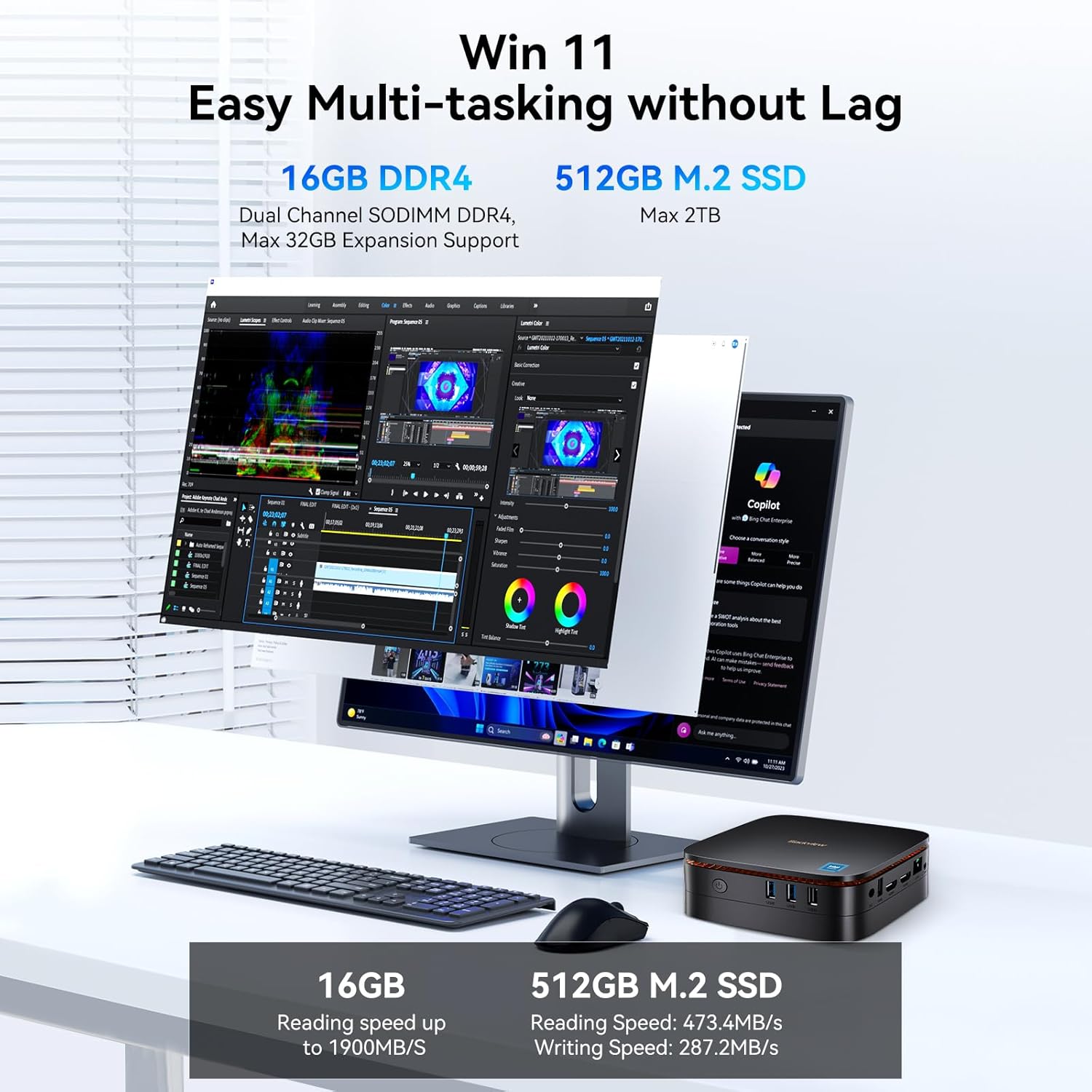
Figure 5.1: The Blackview MP60 Mini PC demonstrating compatibility with multiple devices such as TVs, surveillance cameras, printers, projectors, NAS devices, and audio systems, highlighting its rich interface options.
- USB Devices: Connect USB flash drives, external hard drives, printers, or other USB peripherals to the USB 2.0 or USB 3.0 ports.
- Bluetooth Devices: The MP60 supports Bluetooth for wireless connection of keyboards, mice, headphones, and other compatible devices. Enable Bluetooth in your operating system settings to pair devices.
- Displays: Use the two HDMI ports to connect up to two 4K monitors simultaneously for extended desktop or mirrored display modes.
5.4 Storage Expansion
The Blackview MP60 Mini PC allows for easy storage expansion.

Figure 5.2: Step-by-step guide on how to easily extend the storage of the Blackview MP60 Mini PC by adding an SSD (up to 2TB) into its removable base.
You can upgrade the SSD storage (256GB - 2TB) thanks to its modular design. Refer to Figure 5.2 for visual guidance on how to access the storage bay.
6. Maintenance and Care
6.1 Cleaning
- Use a soft, dry cloth to clean the exterior of the Mini PC.
- For stubborn marks, slightly dampen the cloth with water. Avoid using harsh chemicals or abrasive cleaners.
- Regularly clean dust from the ventilation openings using compressed air to ensure optimal airflow and cooling.
6.2 Software Updates
- Keep your operating system and drivers updated to ensure optimal performance and security.
- For Windows 11 Pro, regularly check for updates via Windows Update settings.
6.3 Heat Dissipation
The MP60 features an optimized cooling system.

Figure 6.1: Illustration of the Blackview MP60 Mini PC's silent and efficient heat dissipation system, showing the internal fan and heat sink design, and comparing its low noise level (30-39dB) to common environments.
- Ensure the Mini PC is placed in a well-ventilated area.
- Do not block the ventilation openings.
- Avoid placing the device on soft surfaces that might obstruct airflow.
7. Troubleshooting
| Problem | Possible Cause | Solution |
|---|---|---|
| No power | Power adapter not connected properly; Power outlet faulty. | Check power cable connections; Try a different power outlet. |
| No display | HDMI cable loose or faulty; Incorrect input selected on monitor. | Ensure HDMI cable is securely connected; Select correct input source on your monitor. |
| Wi-Fi not connecting | Incorrect Wi-Fi password; Router issue; Driver issue. | Verify password; Restart router; Check Wi-Fi drivers in Device Manager. |
| Slow performance | Too many applications running; Low disk space; Overheating. | Close unnecessary applications; Free up disk space; Ensure proper ventilation. |
If the problem persists, please contact Blackview customer support.
8. Technical Specifications
| Feature | Description |
|---|---|
| Model | Blackview MP60 |
| Processor | Intel N150 (4C/4T, 6MB cache, up to 3.6GHz) |
| Operating System | Windows 11 Pro (also compatible with Ubuntu Linux, FydeOS) |
| RAM | 16GB DDR4 (Dual Channel SODIMM DDR4, Max 32GB Expansion Support) |
| Storage | 512GB M.2 SSD (Expandable up to 2TB) |
| Graphics | Intel UHD Graphics |
| Video Output | 2 x HDMI (Supports Dual 4K@60Hz UHD Display) |
| Network | Gigabit Ethernet (RJ45), Wi-Fi 5 (2.4G+5G Dual Band) |
| Bluetooth | Bluetooth 4.2 |
| Ports | 3 x USB 3.0, 1 x USB 2.0, 2 x HDMI, 1 x RJ45 LAN, 1 x Audio Jack (Mic/Headphone), 1 x DC-IN |
| Dimensions | Approx. 4.6" × 4.4" × 1.34" (11.7cm × 11.2cm × 3.4cm) |
| Weight | Approx. 0.85 lbs (390g) |
| Cooling System | Improved heat-conducting materials and optimized fan blades (noise level reduced by 40%) |
9. Warranty and Support
The Blackview MP60 Mini PC comes with a 2-year warranty from the date of purchase, ensuring reliability and peace of mind.
For technical support, troubleshooting assistance, or warranty claims, please contact Blackview customer support through their official website or the retailer where you purchased the product.
Please retain your proof of purchase for warranty validation.
Related documentsMP60


Ask a question about this manual
Ask about setup, troubleshooting, compatibility, parts, safety, or missing instructions. Manuals+ will review the question and use this page’s manual context to help answer it.