
Blackview Tab60Pro
Blackview Tab60 Pro Tablet User Manual
Model: Tab60Pro
Introduction
This manual provides essential information for setting up, operating, maintaining, and troubleshooting your Blackview Tab60 Pro Tablet. Please read this manual thoroughly before using your device to ensure optimal performance and longevity.
The Blackview Tab60 Pro is a versatile 10-inch tablet running on the latest Android 15 operating system, powered by an Octa-core T606 processor. It features 24GB RAM (8GB + 16GB expansion), 128GB internal storage expandable up to 2TB via TF card, and a robust 7700mAh battery. Enjoy high-quality multimedia with Widevine L1 support and stay connected with Dual 4G LTE and 5G Wi-Fi capabilities.
1. Setup
1.1 What's in the Box
Your Blackview Tab60 Pro package includes the following items:
- Blackview Tab60 Pro Tablet
- Keyboard
- Mouse
- Stylus
- Protective Case
- Screen Protector Film
- Charger & Cable
- SIM Ejection Tool
- Headphones
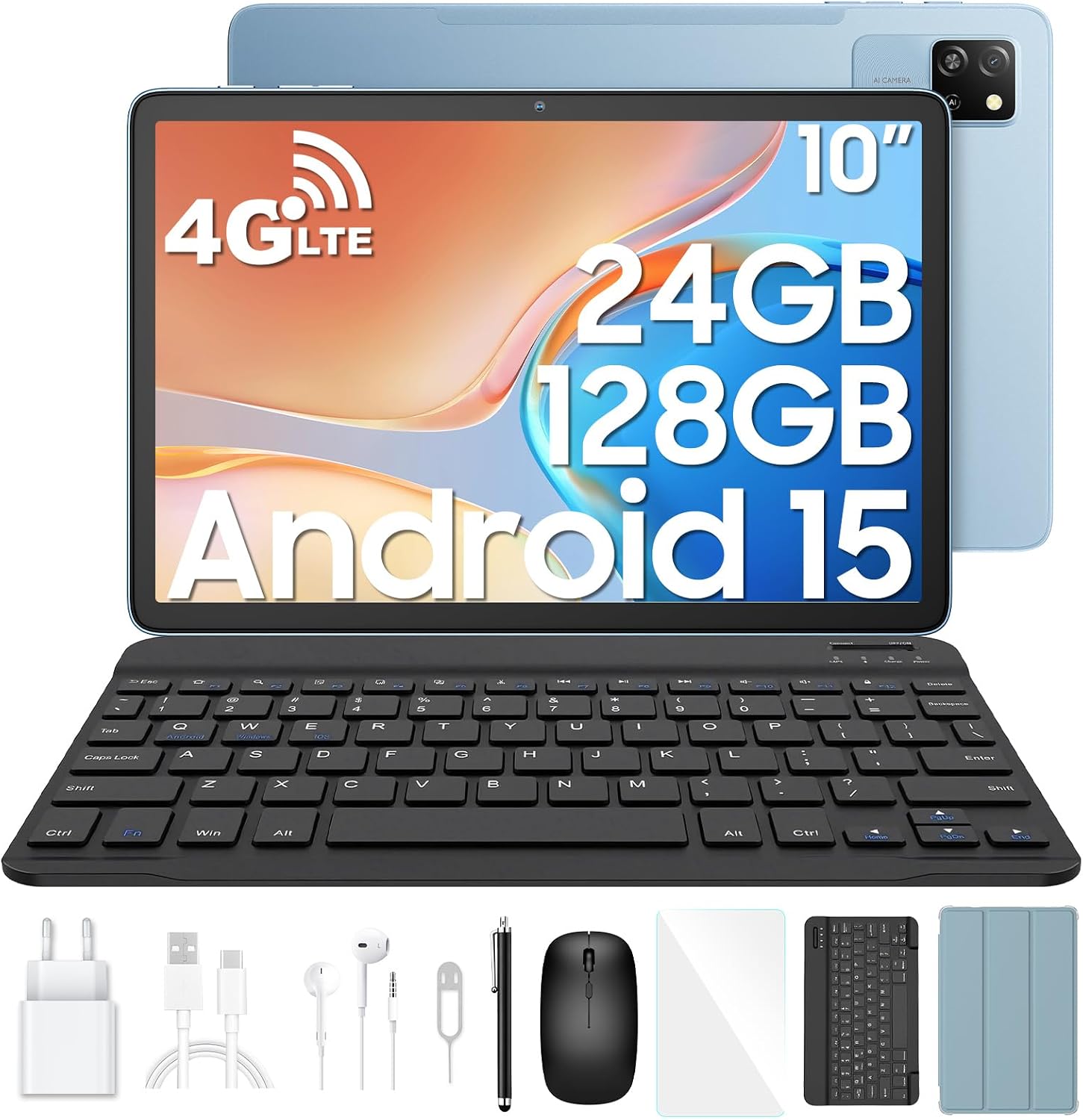
Image: The Blackview Tab60 Pro tablet displayed with its full set of accessories, including the keyboard, mouse, stylus, charger, cables, and headphones.

Image: A visual representation of all items included in the Blackview Tab60 Pro retail package, detailing each accessory.
1.2 Physical Overview
Familiarize yourself with the tablet's buttons, ports, and features:

Image: A diagram illustrating the various physical components of the Blackview Tab60 Pro, including the power button, volume keys, camera, speakers, SIM/TF slot, and USB port.
- Power Button: Located on the top edge (when held horizontally). Press and hold to power on/off or restart.
- Volume Buttons: Located next to the power button. Press to adjust volume.
- Front Camera: Located above the screen.
- Rear Camera: Located on the back panel.
- Speakers: Two speakers for stereo sound.
- SIM/TF Slot: Located on the side for inserting SIM cards and a TF (microSD) card.
- USB Port: For charging and data transfer.
- Headphone Jack: For connecting wired headphones.
1.3 SIM and TF Card Installation
The Blackview Tab60 Pro supports Dual 4G LTE SIM cards and a TF card for expanded storage.
- Locate the SIM/TF card tray on the side of the tablet.
- Insert the SIM ejection tool into the small hole next to the tray to pop it open.
- Carefully pull out the tray.
- Place your Nano-SIM cards and/or TF card into the designated slots on the tray, ensuring correct orientation.
- Gently push the tray back into the tablet until it clicks into place.

Image: A visual demonstrating the dual SIM card slots and the tablet's GPS capabilities, highlighting its connectivity features.
1.4 Initial Power On and Setup
- Press and hold the Power button until the Blackview logo appears.
- Follow the on-screen instructions to complete the initial setup wizard. This includes selecting your language, connecting to Wi-Fi, setting up your Google account, and configuring security options like Face ID.
2. Operating Your Tablet
2.1 Basic Navigation and Gestures
The Blackview Tab60 Pro utilizes standard Android touch gestures for navigation:
- Tap: Select an item or open an app.
- Swipe: Scroll through screens, lists, or content.
- Pinch-to-zoom: Zoom in or out on images or web pages.
- Long press: Access contextual menus or move icons.
- Three-finger screenshot: Swipe down with three fingers to capture the screen.

Image: A display of Android 15 convenience features, including Bluetooth popup, optimized storage visualization, live subtitles, enhanced physical keyboard support, edge-to-edge app display, one-finger access, and three-finger screenshot gesture.
2.2 Android 15 and Doke OS 4.0 Features
Your tablet runs on Android 15 with Blackview's Doke OS 4.0, offering enhanced performance and user experience.
- Customizable Interface: Adjust color contrast, personalize widgets, and simplify volume control.
- Screen Attention: Prevents the screen from turning off if you're looking at it.
- Lower Brightness Mode: For comfortable viewing in dark environments.
- Color Sliders: Fine-tune display colors to your preference.
- Privacy Notification: Hide notification content for personal information protection.
- Intelligent Search: Improved Google Lens for scanning, object search, and content extraction.

Image: Screenshots demonstrating Android 15 customization options, such as new color contrast settings, personalized widget previews, simplified volume control, screen attention, lower brightness mode, and color adjustment sliders.
2.3 Productivity and Multitasking
Leverage Android 15's features for improved productivity:
- App Pair: Save preferred app combinations for quick split-screen access.
- Fixed Application Bar: Keep frequently used apps easily accessible.
- Horizontal Layout for Notifications: Enhanced view and control for notifications and control center.
- Force Stop App: Instantly terminate non-functioning apps.
- App Archiving: Free up storage while keeping app data.
- Split View 2.0: Efficient multitasking by running two apps side-by-side.

Image: Visuals showcasing Android 15 productivity enhancements, including App Pair for split-screen, a fixed application bar, horizontal layout for notifications, options to force stop apps, and app archiving for storage management.

Image: The Split View 2.0 feature demonstrated, showing two applications running simultaneously on the tablet screen for efficient multitasking.
2.4 Connectivity
The Tab60 Pro offers robust connectivity options:
- Wi-Fi: Supports dual-band 2.4G/5GHz Wi-Fi for fast internet access.
- Bluetooth 5.0: For connecting wireless accessories like headphones and keyboards.
- 4G LTE: Dual SIM support for mobile data and calls.
- GPS/BeiDou/GLONASS/Galileo: For precise location determination.

Image: An illustration highlighting the tablet's advanced WiFi 5G and Bluetooth 5.0 capabilities, emphasizing fast streaming and data transfer speeds.
2.5 Camera Usage
The tablet features an 8MP AI rear camera and a 5MP front camera.
- AI Magic Eraser: Remove unwanted objects from photos.
- AI Photo Unblur: Improve clarity of blurry images.
- AI Sky Replacement: Change the sky in your photos.
- AI Portrait Unblur: Enhance portrait photos.
- AI Portrait Light: Adjust lighting in portraits.

Image: Examples of AI camera features such as Magic Eraser, Photo Unblur, Sky Replacement, Portrait Unblur, and Portrait Light, demonstrating their effects on images.
2.6 Multimedia and Display
The 10-inch HD IPS display offers excellent image quality and wide viewing angles. With Widevine L1 support, you can stream 1080P HD content from platforms like Netflix, Amazon Prime Video, and Hulu.
- Eye-friendly Modes: Reading mode, night light, and dark mode for comfortable viewing.
- Dual Speakers: Provide an immersive stereo audio experience.

Image: The tablet's display features, including Widevine L1 support for 1080P streaming on various platforms, and eye-friendly modes like reading mode, night light, and dark mode.
2.7 Keyboard and Stylus Usage
The Blackview Tab60 Pro comes with a dedicated keyboard and stylus to enhance your productivity.
- Keyboard: Connect via Bluetooth for a laptop-like typing experience. Android 15 offers improved support for physical keyboards.
- Stylus: Use the included stylus for precise input, drawing, and note-taking.

Image: The Blackview Stylus, highlighting its lightweight and flexible design, and its role in enhancing productivity on the tablet.
3. Maintenance
3.1 Battery Care
To maximize battery life and longevity:
- Avoid extreme temperatures.
- Do not let the battery completely drain frequently.
- Use the original charger and cable provided.
- The 7700mAh battery provides extended usage, with up to 7 hours of web browsing, 6.5 hours of video playback, and 36 hours of music.

Image: An internal view of the Blackview Tab60 Pro highlighting its 7700mAh battery and estimated usage times for various activities like web browsing, video playback, gaming, music, and standby.
3.2 Cleaning Your Tablet
Use a soft, lint-free cloth to clean the screen and body of the tablet. Avoid using harsh chemicals or abrasive materials.
3.3 Software Updates
Regularly check for and install software updates to ensure your tablet has the latest features, security patches, and performance improvements. Go to Settings > System > System update to check for updates.
3.4 Storage Management
With 128GB of internal storage and support for up to 2TB TF card expansion, you have ample space. Manage your storage by:
- Deleting unnecessary files and apps.
- Moving large files to the TF card.
- Utilizing app archiving features in Android 15.

Image: A diagram illustrating the tablet's expansive memory, including 24GB RAM (8GB + 16GB expansion) and 128GB ROM with support for up to 2TB TF card expansion, emphasizing faster response times.
4. Troubleshooting
4.1 Common Issues and Solutions
| Issue | Solution |
|---|---|
| Device not powering on | Ensure the battery is charged. Press and hold the power button for at least 10-15 seconds. |
| Wi-Fi connectivity problems | Restart your Wi-Fi router. Forget the network on your tablet and reconnect. Ensure Wi-Fi is enabled. |
| Apps crashing or freezing | Force stop the app (Settings > Apps > [App Name] > Force Stop). Clear app cache/data. Update the app. |
| Slow performance | Close unused apps. Clear cache. Check for software updates. Free up storage space. |
| Tablet not charging | Check the charger and cable for damage. Try a different power outlet. Ensure the USB port is clean. |
4.2 Factory Reset
If issues persist, a factory reset can resolve many software-related problems. Warning: This will erase all data on your tablet. Back up important data before proceeding.
- Go to Settings > System > Reset options.
- Select Erase all data (factory reset).
- Confirm your decision and follow the on-screen prompts.
5. Specifications
Key technical specifications for the Blackview Tab60 Pro:
| Feature | Detail |
|---|---|
| Model | Tab60Pro |
| Operating System | Android 15 (Doke OS 4.0) |
| Processor | Unisoc T606 Octa-core (2x A75@1.6GHz + 6x A55@1.6GHz) |
| RAM | 24GB (8GB physical + 16GB expansion) |
| Internal Storage | 128GB |
| Expandable Storage | Up to 2TB via TF card |
| Display Size | 10 inches |
| Display Resolution | 1920 x 1200 pixels (HD IPS) |
| Battery Capacity | 7700mAh |
| Charging | 10W |
| Rear Camera | 8MP AI Camera |
| Front Camera | 5MP |
| Connectivity | Dual 4G LTE SIM, 5G Wi-Fi (802.11ax), Bluetooth 5.0, GPS/BeiDou/GLONASS/Galileo |
| Dimensions | 25 x 16 x 1 cm |
| Weight | 50 g |

Image: A detailed view of the Octa-core Unisoc T606 processor and its architecture, along with a representation of the 24GB RAM and 128GB ROM, highlighting performance and storage capabilities.

Image: An illustration showcasing the elegant and lightweight design of the Blackview Tab60 Pro, emphasizing its slim profile (8.5mm) and light weight (543g), making it highly portable.
6. Warranty and Support
Blackview imposes strict examination on each procedure from design to production. All Blackview products are subject to strict standards and high-quality testing processes to ensure that every user has a great user experience.
- Warranty: For Blackview tablets, users can enjoy a 24-month free repair warranty.
- Technical Support: Lifetime technician support is provided.
- Software Updates: 3 years of OTA Android updates are guaranteed.

Image: An icon representing Blackview's two-year warranty and support commitment, detailing their quality control and customer service.
For any product issues, please contact Blackview customer support through your Amazon purchase history or visit the official Blackview website for further assistance.
Related documentsTab60Pro


Ask a question about this manual
Ask about setup, troubleshooting, compatibility, parts, safety, or missing instructions. Manuals+ will review the question and use this page’s manual context to help answer it.