1. Introduction
Thank you for choosing the Roborock Q10 VF Robot Vacuum and Mop. This device is designed to provide efficient and thorough cleaning of your home, combining powerful vacuuming with advanced mopping capabilities. This manual will guide you through the setup, operation, maintenance, and troubleshooting of your new robot cleaner to ensure optimal performance and longevity.
2. Safety Information
Please read all safety instructions carefully before using this product. Failure to follow these instructions may result in electric shock, fire, or serious injury.
- This appliance can be used by children aged 8 years and above and persons with reduced physical, sensory or mental capabilities or lack of experience and knowledge if they have been given supervision or instruction concerning use of the appliance in a safe way and understand the hazards involved.
- Children should be supervised to ensure that they do not play with the appliance.
- Cleaning and user maintenance shall not be made by children without supervision.
- Use only the original power adapter and charging dock provided by the manufacturer.
- Do not use the robot in environments with open flames or flammable materials.
- Keep hair, loose clothing, fingers, and all parts of the body away from openings and moving parts.
- Do not immerse the robot or its charging dock in water or other liquids.
- Ensure the robot is placed on a stable surface to prevent falls.
3. Setup
3.1 Unboxing and Placement
Carefully remove all components from the packaging. Place the charging dock against a wall on a hard, level surface, ensuring there is adequate space around it for the robot to maneuver. Connect the power adapter to the charging dock and plug it into a power outlet.

Image: The Roborock Q10 VF robot vacuum and mop with its charging dock, ready for initial setup.
3.2 Initial Charge
Place the robot on the charging dock. Ensure the charging contacts on the robot align with those on the dock. The robot will begin charging automatically. For first-time use, it is recommended to fully charge the robot before operation.
3.3 App Download and Connection
Download the Roborock app from your mobile device's app store. Follow the in-app instructions to connect your robot to your home Wi-Fi network. Note: The robot supports only 2.4GHz Wi-Fi networks.
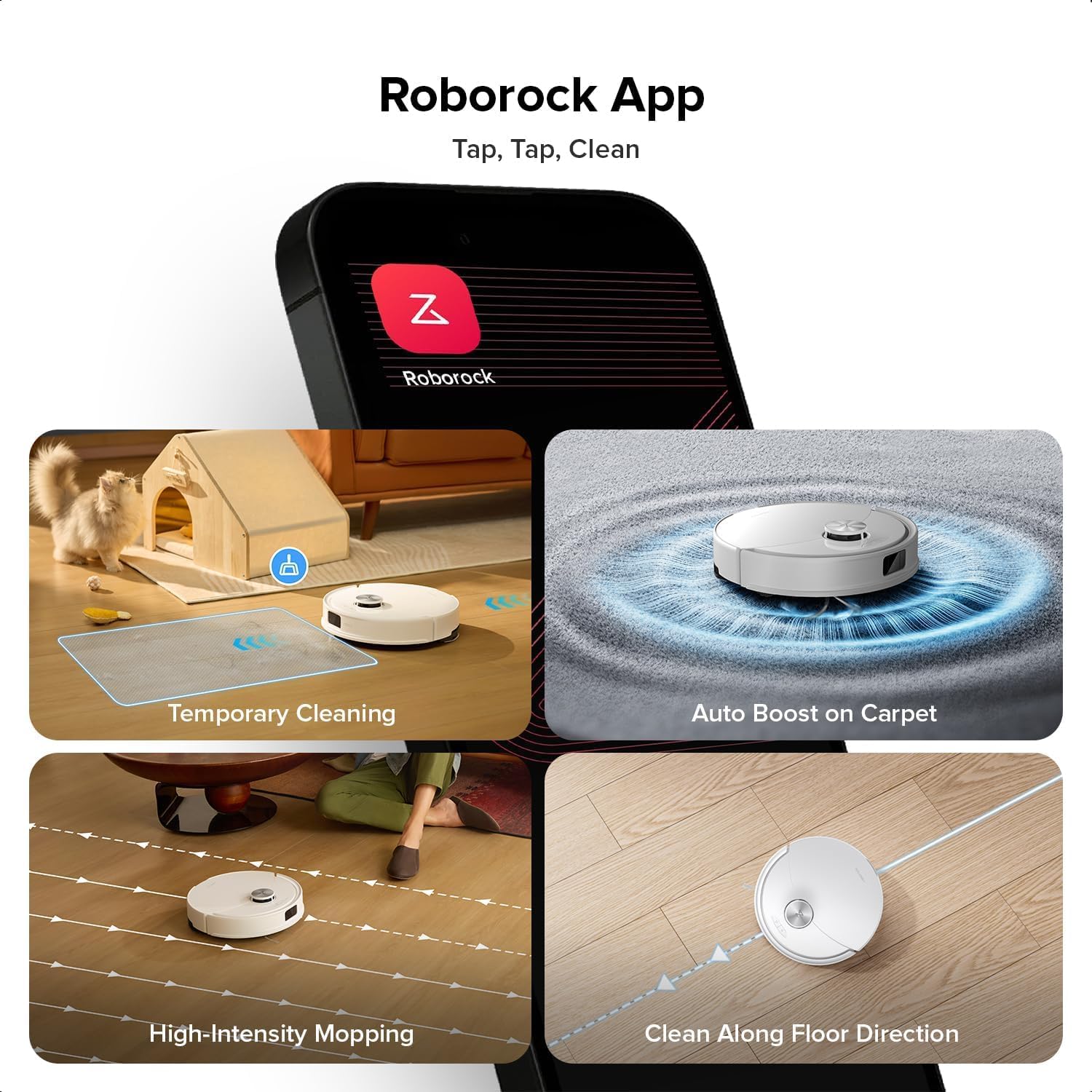
Image: A smartphone displaying the Roborock app interface, showing various cleaning options and controls.
3.4 Initial Mapping
Once connected, initiate a full cleaning cycle from the app. The robot will use its PreciSense LiDAR Navigation system to create a detailed map of your home. This map is crucial for efficient cleaning and allows for advanced features like zone cleaning and no-go zones.

Image: The Roborock Q10 VF robot vacuum using its LiDAR sensor to scan and map the surrounding environment for navigation.
4. Operating Instructions
4.1 Starting and Stopping Cleaning
Press the power button on the robot or use the Roborock app to start a cleaning cycle. Press the button again or use the app to pause or stop cleaning. The robot will automatically return to its charging dock when cleaning is complete or when its battery is low.
4.2 Cleaning Modes
The Roborock Q10 VF offers various cleaning modes accessible via the app:
- Vacuum Only: For dry debris removal.
- Mop Only: For wet cleaning of hard floors.
- Vacuum & Mop: Simultaneous vacuuming and mopping.
- Custom Cleaning: Select specific rooms or zones to clean.
4.3 Advanced Features
- HyperForce Suction: The robot provides an impressive 10000Pa suction power, effectively lifting hair, crumbs, and debris from deep carpets and floor crevices.
- ReactiveTech Obstacle Avoidance: Powered by structured light, this advanced system detects and navigates around obstacles effortlessly, even in cluttered rooms.

Image: The Roborock Q10 VF robot vacuum transitioning from a hard floor to a carpet, with its mop module automatically lifting to avoid wetting the carpet.
- Auto-Lifting Mopping System: The mop automatically lifts when carpet is detected, allowing for seamless cleaning of both hard floors and carpets in a single session without manual adjustments.

Image: The Roborock Q10 VF robot vacuum intelligently detecting and navigating around various household obstacles on the floor.
- Smart No-Go Zones: The app allows you to define virtual no-go zones and invisible walls to restrict the robot from entering certain areas or crossing boundaries.
5. Maintenance
Regular maintenance ensures your Roborock Q10 VF operates at peak performance. Always power off the robot before performing any maintenance.
5.1 Emptying the Dustbin
Open the robot's top cover and remove the dustbin. Empty its contents into a trash can. It is recommended to empty the dustbin after each cleaning cycle.
5.2 Cleaning the Main Brush and Side Brush
The Dual Anti-Tangle Design features a main brush and a side brush that work together to minimize hair tangles. Remove the main brush cover and lift out the main brush. Use the cleaning tool to remove any tangled hair or debris. Clean the side brush similarly. Reinstall all components securely.

Image: A close-up view of the Roborock Q10 VF's underside, highlighting its dual anti-tangle main brush and side brush design.
5.3 Cleaning the VibraRise 2.0 Mopping System
Remove the mop pads from the robot. Wash the mop pads thoroughly with water and mild detergent. Allow them to air dry completely before reattaching. The VibraRise 2.0 system tackles stubborn stains with high-frequency scrubbing.
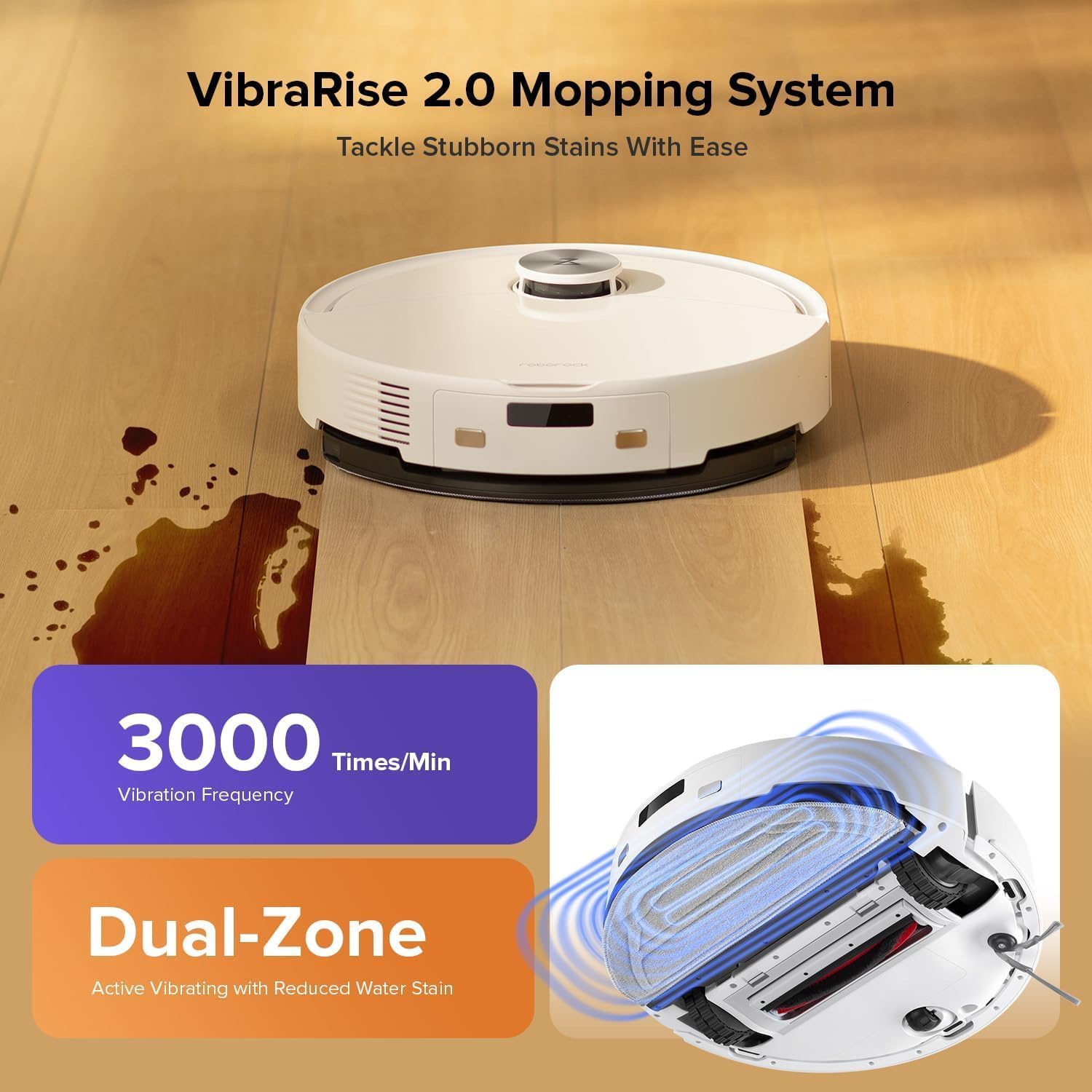
Image: The Roborock Q10 VF robot vacuum actively mopping a hard floor, illustrating the VibraRise 2.0 high-frequency scrubbing action.
5.4 Cleaning Filters and Sensors
Tap the filter to remove dust. The filter can be rinsed with water; ensure it is completely dry before reinstalling. Wipe all sensors (LiDAR, cliff sensors, wall sensors) with a soft, dry cloth to maintain optimal navigation and obstacle detection.
6. Troubleshooting
If you encounter issues with your robot, refer to the following common problems and solutions:
| Problem | Possible Cause | Solution |
|---|---|---|
| Robot does not turn on | Low battery; Power button not pressed correctly | Charge the robot; Press and hold the power button for 3 seconds |
| Cannot connect to Wi-Fi | Incorrect Wi-Fi password; Not 2.4GHz network; Router issues | Verify password; Ensure 2.4GHz network; Restart router and robot |
| Poor cleaning performance | Full dustbin; Clogged brushes/filter; Dirty sensors | Empty dustbin; Clean brushes and filter; Wipe sensors |
| Robot gets stuck frequently | Obstacles on floor; Dirty cliff sensors | Clear floor of small objects; Clean cliff sensors |
| Mop not lifting on carpet | Carpet detection sensor dirty or blocked | Clean the carpet detection sensors on the underside of the robot |
7. Specifications
| Feature | Detail |
|---|---|
| Brand | Roborock |
| Model Number | Q10VF02-00 |
| Color | White |
| Product Dimensions | 39.2 x 46.8 x 14 cm |
| Item Weight | 15.2 Kilograms |
| Voltage | 220.0 V |
| Noise Level | 65 dB |
| Max Runtime | 250 minutes (4 hours 10 minutes) |
| Special Features | LiDAR Navigation, ReactiveTech Obstacle Avoidance, Auto-Lifting Mop |
| Surface Recommendation | Carpet, Hardwood Floor |
| Controller Type | App Control |
| Included Components | Battery |
| Filter Type | Cloth and Foam |
| Dustbin Capacity | 500 ml |
| Water Tank Capacity | 200 ml |
| Maximum Vacuuming Area | 1,937 sqft |
8. Warranty and Support
Your Roborock Q10 VF Robot Vacuum and Mop comes with a standard manufacturer's warranty. For detailed warranty information, please refer to the warranty card included in your product packaging or visit the official Roborock website. For technical support, troubleshooting assistance, or to purchase replacement parts, please contact Roborock customer service through their official channels.
You can visit the official Roborock store on Amazon for more information and support: Roborock Amazon Store


