
Introduction
This manual provides detailed instructions for the setup, operation, and maintenance of your Redragon K738 Wireless Mechanical Keyboard. Please read this manual thoroughly to ensure proper use and to maximize your keyboard's performance.
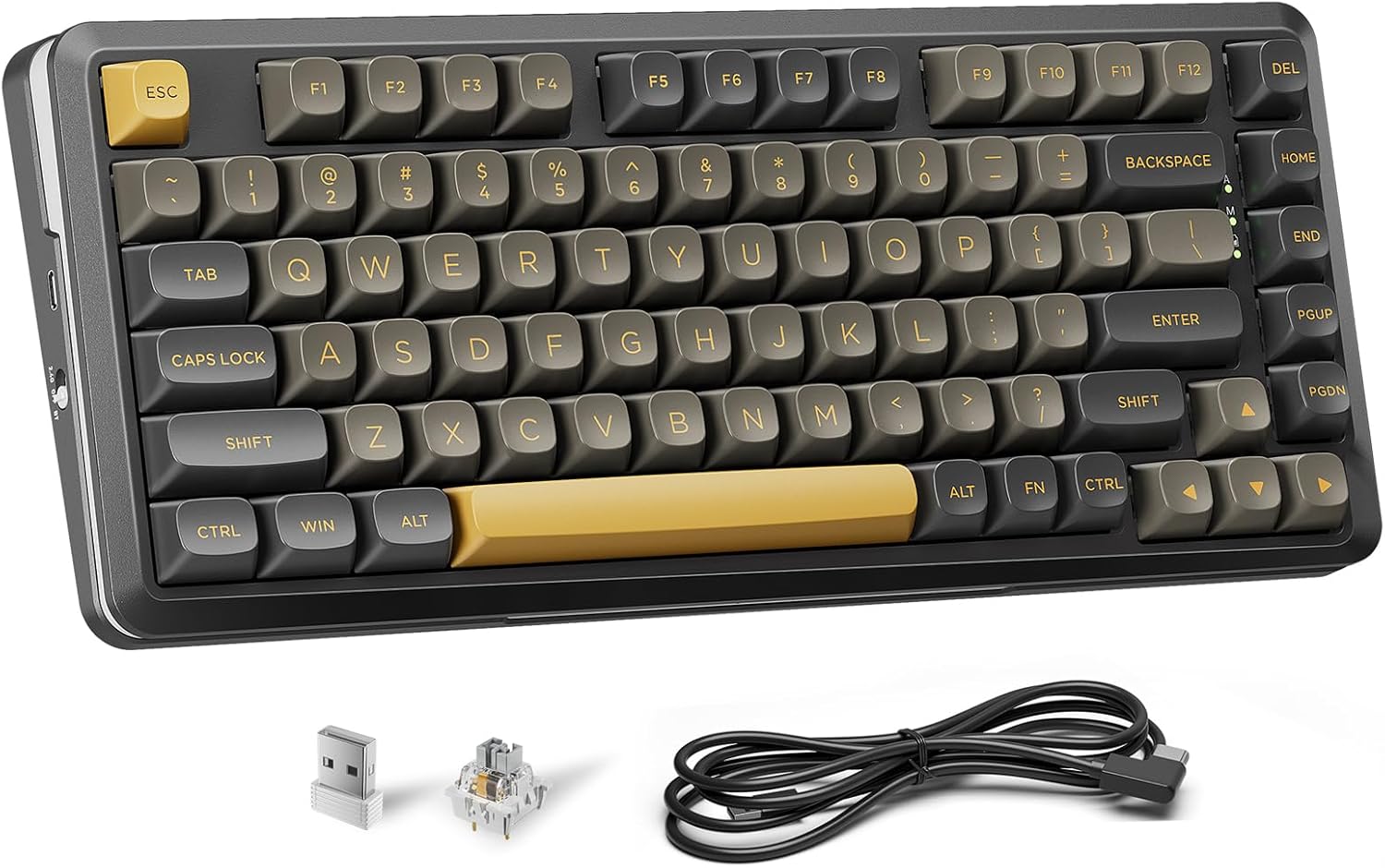
Image: The Redragon K738 Wireless Mechanical Keyboard, showcasing its compact 75% layout, along with its accessories: a 2.4GHz wireless receiver, a spare mechanical switch, and a USB-C charging/data cable.
Product Features
- Gasket Structure & PCB Single Key Slotting: Designed for enhanced resilience, stability, and reduced percussive noise, contributing to a more comfortable typing experience.
- Pre-Lubed Linear Switches: Ensures smoother key presses, faster triggers, and reduced noise for an optimized typing and gaming feel.
- Hot-Swappable Design: Supports 3-pin and 5-pin mechanical switches, allowing for personalized customization and easy switch replacement without soldering.
- Tri-Mode Connectivity: Offers versatile connection options including Bluetooth (3.0+5.0), 2.4GHz wireless, and USB-C wired, for seamless switching between up to five devices.
- Long-Lasting Battery: Equipped with a high-capacity 4000 mAh battery for extended wireless usage, reducing the need for frequent recharging.
- 75% Layout (82 Keys): A compact design that saves desktop space while retaining essential keys, enhancing mouse control range and gaming efficiency.
- Customizable RGB Backlighting: Features 16.8 million color RGB backlighting with multiple preset modes, adjustable brightness, and speed, supporting software customization for a personalized visual experience.
- Professional Software Support: Allows for comprehensive customization including key reprogramming, RGB adjustment, and macro creation via dedicated software.

Image: An exploded diagram illustrating the internal gasket structure of the Redragon K738 keyboard, highlighting layers such as the keyboard top cover, keycaps, customized linear switches, PC slotted positioning plate, silent foam, slotted PCB, sponge, mezzanine, and keyboard chassis, all contributing to reduced fatigue and a creamy sound profile.

Image: A detailed view of the pre-lubed linear switch used in the Redragon K738, showing its internal components and key specifications such as 3.6mm total travel, 2.0 ± 0.6mm pre-travel, 40 ± 10GF actuation force, and a 50 million click lifespan. A force-travel graph is also included.
Package Contents
The Redragon K738 keyboard package typically includes:
- Redragon K738 Wireless Mechanical Keyboard
- USB-C to USB-A Cable
- 2.4GHz Wireless Receiver
- Keycap Puller
- Switch Puller
- User Manual
Setup
1. Wired Connection
Connect the provided USB-C cable to the keyboard's USB-C port and the other end to an available USB-A port on your computer. The keyboard will automatically be recognized and powered.
2. 2.4GHz Wireless Connection
Insert the 2.4GHz wireless receiver into an available USB-A port on your computer. Turn on the keyboard. The keyboard should automatically connect to the receiver. If not, press Fn + 4 to activate 2.4GHz mode.
3. Bluetooth Connection
The keyboard supports Bluetooth 3.0 and 5.0. It can connect to up to three Bluetooth devices.
- Turn on the keyboard.
- Press Fn + 1, Fn + 2, or Fn + 3 to select a Bluetooth channel. The indicator light for the selected channel will flash.
- On your device (PC, Mac, etc.), search for Bluetooth devices and select "Redragon K738".
- Once paired, the indicator light will stop flashing.
- To switch between paired Bluetooth devices, press Fn + 1, Fn + 2, or Fn + 3.

Image: The Redragon K738 keyboard connected to a desktop monitor and a laptop, illustrating its tri-mode connectivity (2.4G, Bluetooth, USB) and ability to connect to up to five devices, powered by a 4000 mAh battery.
Operating Instructions
Key Functions
The Redragon K738 features an 82-key layout. Some keys have secondary functions accessible via the Fn key.
- Fn + F1-F12: Multimedia and system control functions (e.g., volume, media playback). Refer to the keycaps for specific icons.
- Fn + ESC: Reset to default settings (hold for 3 seconds).
- Fn + WIN: Lock/Unlock Windows key.
- Fn + Backspace: Delete.
- Fn + Right Shift: Right Shift.
- Fn + Right Ctrl: Right Control.
- Fn + Right Alt: Right Alt.
- Fn + PGDN: Page Down.
- Fn + PGUP: Page Up.
- Fn + HOME: Home.
- Fn + END: End.
RGB Lighting Control
The keyboard offers various RGB lighting effects and customization options.
- Fn + \|: Cycle through preset RGB lighting modes.
- Fn + Z/X/C: Adjust lighting speed.
- Fn + A/S: Adjust lighting brightness.
- Fn + Left/Right Arrow: Change lighting direction or color.
- Fn + Up/Down Arrow: Adjust lighting brightness.
For advanced RGB customization, download the Redragon software from the official website.

Image: The Redragon K738 keyboard illuminated with vibrant RGB backlighting, demonstrating its customizable lighting effects. The image suggests support for software customization of up to 16.8 million RGB backlight modes.
Battery Management
The keyboard is equipped with a 4000 mAh rechargeable battery.
- Charging: Connect the keyboard via the USB-C cable to a power source. The indicator light will show charging status.
- Checking Battery Level: Press Fn + Alt to check the battery level. The number keys (1-0) will light up in green (power above 30%) or red (power below 30%) to indicate the approximate charge level. Each lit number key represents approximately 10% power. Release the keys to restore the light effect.
- Low Battery Indicator: The keyboard's indicator light may flash or change color to signal low battery.

Image: The Redragon K738 keyboard demonstrating its battery level check feature. When Fn + Alt are pressed, the number keys illuminate in green or red to indicate the charge level, with green signifying above 30% and red below 30% power.
Software Customization
Download the dedicated Redragon software from the official Redragon website to unlock full customization options, including:
- Macro recording and assignment.
- Individual key remapping.
- Advanced RGB lighting effects and color customization.
- Profile management.

Image: The Redragon K738 keyboard positioned in front of a monitor displaying the keyboard's professional customization software interface. The software allows users to adjust light effects, brightness, speed, and color, and is compatible with Windows and Mac systems.
Maintenance
Cleaning
- Disconnect the keyboard from your computer before cleaning.
- Use a soft, dry cloth to wipe the surface of the keyboard.
- For stubborn dirt, slightly dampen the cloth with water or a mild cleaning solution. Avoid excessive moisture.
- To clean between keycaps, use compressed air to remove dust and debris.
- Keycaps can be removed using the provided keycap puller for deeper cleaning.
Storage
Store the keyboard in a cool, dry place away from direct sunlight and extreme temperatures.

Image: The Redragon K738 keyboard with several keycaps and switches removed, illustrating its hot-swappable design which supports both 3-pin and 5-pin switches, allowing users to customize their keyboard freely.
Troubleshooting
Keyboard Not Responding
- Ensure the keyboard is properly connected via USB-C, 2.4GHz receiver, or Bluetooth.
- Check the battery level. Recharge if necessary.
- If using wireless, ensure the receiver is securely plugged in and the keyboard is in the correct mode (2.4GHz or Bluetooth).
- Try connecting the keyboard to a different USB port or computer to rule out port or system issues.
- Perform a factory reset by holding Fn + ESC for 3 seconds.
RGB Lighting Not Working or Incorrect
- Ensure the keyboard is powered on.
- Adjust brightness using Fn + A/S or Fn + Up/Down Arrow.
- Cycle through lighting modes using Fn + \|.
- If using customization software, ensure it is running and settings are applied correctly.
- Perform a factory reset.
Wireless Connection Issues
- 2.4GHz: Ensure the receiver is close to the keyboard and there are no major obstructions. Re-pair by pressing Fn + 4.
- Bluetooth: Ensure the keyboard is in Bluetooth mode (Fn + 1/2/3) and your device's Bluetooth is enabled. Forget the device on your computer and re-pair.
- Avoid interference from other wireless devices.
Keys Not Registering or Double-Typing
- This could indicate a faulty switch. Utilize the hot-swappable feature to replace the switch if you have spares.
- Clean under the keycap to ensure no debris is obstructing the switch.
Specifications
| Feature | Detail |
|---|---|
| Brand | Redragon |
| Model Name | K738 |
| Layout | 75% (82 Keys) |
| Keyboard Description | Mechanical |
| Switch Type | Linear (Pre-lubed) |
| Connectivity Technology | 2.4G Wireless, Bluetooth (3.0+5.0), USB-C Wired |
| Compatible Devices | PC, Mac |
| Special Feature | RGB Backlit, Hot-Swappable |
| Battery Capacity | 4000 mAh |
| Item Weight | 2.2 pounds |
| Package Dimensions | 14.57 x 7.44 x 2.52 inches |
Warranty and Support
Redragon products typically come with a manufacturer's warranty. Please refer to the warranty card included with your product or visit the official Redragon website for detailed warranty information and terms.
For technical support, troubleshooting assistance, or to download the latest software and drivers, please visit the official Redragon support page or contact their customer service.
Official Redragon Website: www.redragonzone.com


