
Introduction
This manual provides detailed instructions for the Redragon K732 Wireless Mechanical Keyboard. Please read this manual thoroughly before using the product to ensure proper operation and longevity.
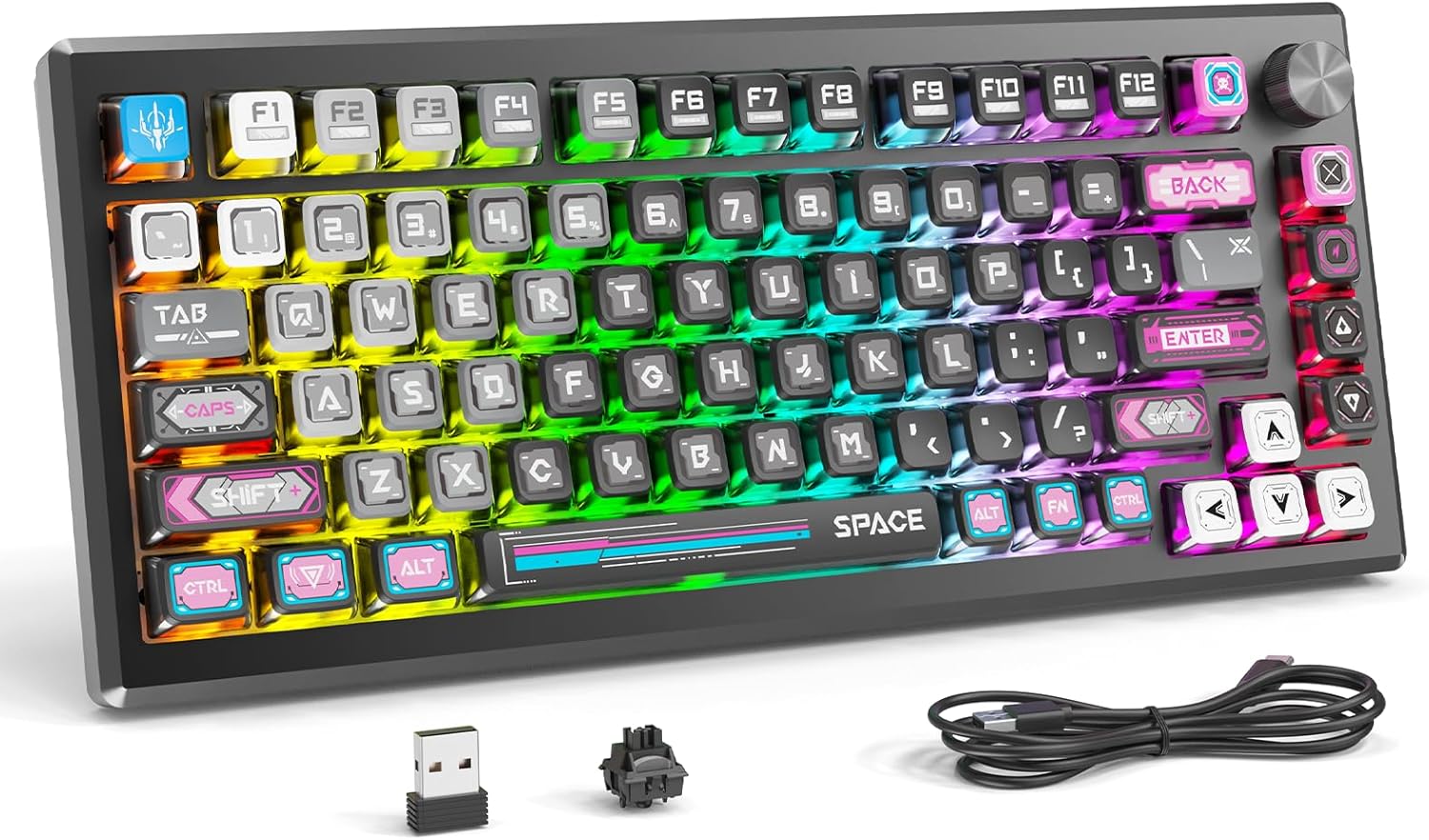
Key Features
- Anodized All-Aluminum Alloy Design: The keyboard features an anodized all-aluminum alloy chassis, enhancing durability and resistance to corrosion and fingerprints.
- Cyber Mecha Style: Designed with a distinctive cyber mecha aesthetic.
- Tri-Mode Connection: Supports USB wired, 2.4GHz wireless, and Bluetooth (3.0+5.0) connectivity for versatile use across multiple devices.
- 4000 mAh Battery: Equipped with a high-capacity battery for extended wireless usage.
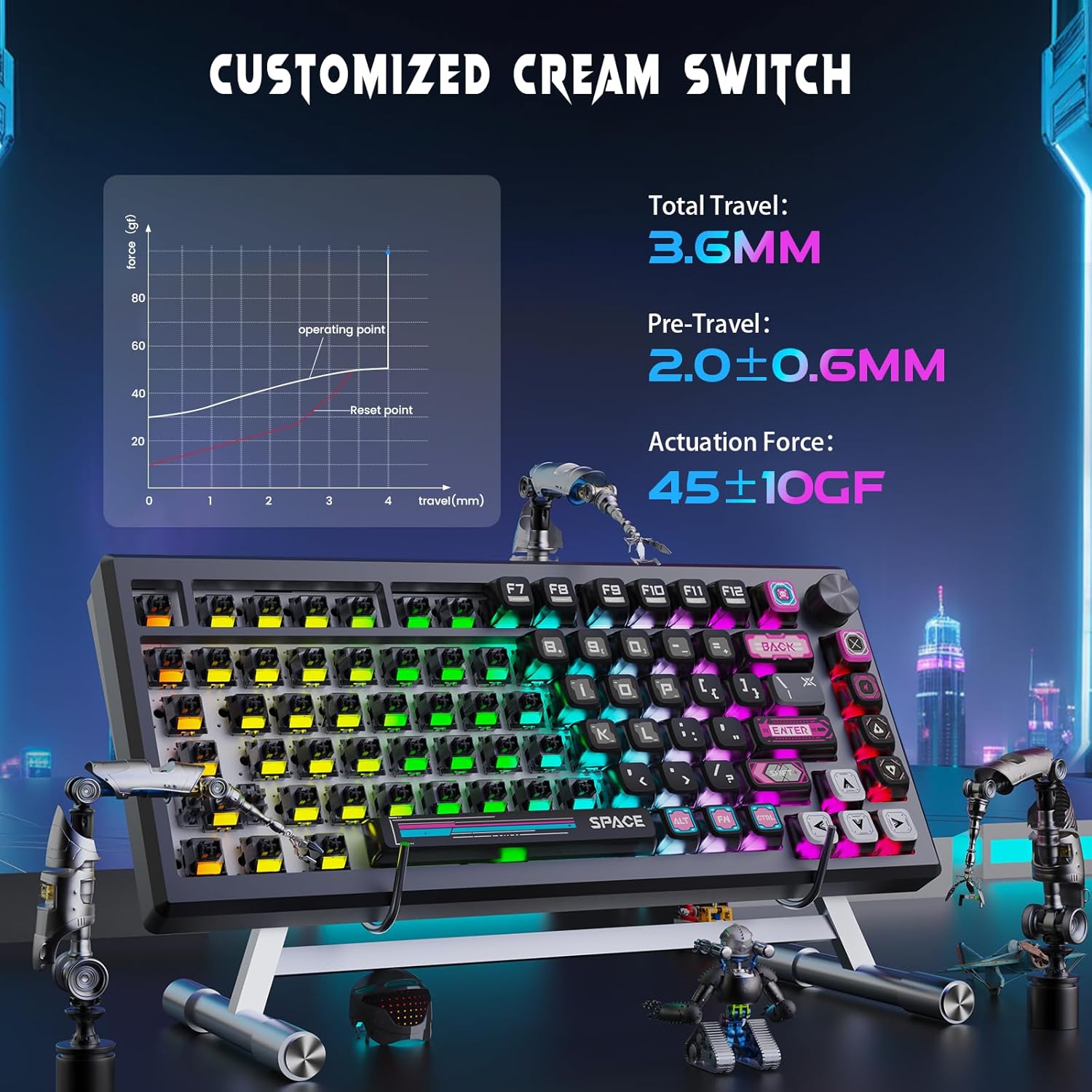
- Hot-Swappable WuKong Switches: Features pre-lubricated, customized WuKong linear switches, compatible with most 3-pin/5-pin switches for personalization.
- Gasket Structure & PCBA Single Key Slotting: Incorporates a gasket structure with PCB single-key slotting, Poron, and silicone padding for improved typing feel, stability, and reduced noise.
- Multi-Function Knob: A dedicated knob for controlling volume, backlight modes, and brightness.
- PC+PBT Keycaps: Keycaps are made from a combination of PC and PBT materials, offering durability and light transmission for backlighting.
- Fully Programmable: Software allows for customization of RGB lighting, key functions, and macros.


Setup and Connectivity
Package Contents
The Redragon K732 keyboard package typically includes:
- Redragon K732 Mechanical Keyboard
- USB-C to USB-A Cable
- 2.4GHz USB Receiver
- Keycap/Switch Puller Tool
Charging the Keyboard
Connect the provided USB-C cable to the keyboard's port and to a powered USB port on your computer or a wall adapter. The keyboard's indicator light will show the charging status. A full charge provides extended wireless operation.

Connection Modes
The K732 keyboard offers three connection options:
- USB Wired Mode: Connect the keyboard directly to your computer using the USB-C cable. This mode also charges the keyboard.
- 2.4GHz Wireless Mode: Insert the 2.4GHz USB receiver into an available USB port on your computer. Switch the keyboard to 2.4GHz mode using the selector switch located on the left side of the keyboard.
- Bluetooth Mode: Switch the keyboard to Bluetooth mode using the selector switch. On your device (computer, tablet, or smartphone), search for 'Redragon K732' in the Bluetooth settings and pair. The keyboard supports Bluetooth 3.0 and 5.0.
System Compatibility
The keyboard defaults to Windows system mode. To switch to Mac system, press and hold FN + A. To switch back to Windows system, press and hold FN + W.
Software Installation
For advanced customization of RGB lighting, key functions, and macros, download the official software from the Redragon website: redragon.com. The software is compatible with Windows, Android, and Mac systems.

Operating Instructions
Multi-Function Knob
The multi-function knob, located on the top right of the keyboard, provides quick control over several features:
- Volume Control: Rotate the knob to adjust the system volume.
- Mute/Unmute: Press the knob to mute or unmute audio.
- Backlight Mode/Brightness: Press and hold the knob to cycle through backlight control modes (e.g., adjust brightness, change lighting effect). Rotate to adjust the selected setting.

Backlight Customization
The K732 keyboard features dynamic RGB backlighting with over 16 million colors. You can customize the lighting effects using the multi-function knob or the dedicated software. The software allows for granular control over individual key lighting, patterns, brightness, and speed.
Key Customization and Macros
Utilize the programmable software to remap keys, create complex macros, and personalize key functions according to your preferences. This allows for optimized workflows and gaming performance.
Hot-Swappable Switches
The K732 keyboard is equipped with hot-swappable sockets, allowing you to easily change mechanical switches without soldering. It is compatible with most 3-pin and 5-pin mechanical switches. To replace a switch:
- Use the included switch puller to carefully grip and remove the existing switch.
- Align the pins of the new switch with the holes on the PCB.
- Gently press the new switch into place until it clicks securely.
Maintenance
Cleaning
Regularly clean the keyboard to maintain its appearance and functionality:
- Use a soft, dry cloth to wipe down the keycaps and chassis.
- For deeper cleaning, use the provided keycap puller to remove keycaps. Use compressed air to clear dust and debris from beneath the keycaps.
- Avoid using harsh chemicals or abrasive materials, as these can damage the finish or keycap legends.
Switch and Keycap Care
The WuKong switches are pre-lubricated for optimal performance. If you choose to replace switches, ensure proper alignment to avoid bending pins. The PC+PBT keycaps are durable, but excessive force during removal or installation can cause damage.
Troubleshooting
Keyboard Not Responding
- Ensure the keyboard is adequately charged.
- Verify the connection mode switch (wired, 2.4GHz, Bluetooth) is set correctly.
- For 2.4GHz mode, ensure the USB receiver is securely plugged into a working USB port.
- For Bluetooth mode, re-pair the keyboard with your device.
- Try connecting the keyboard via USB wired mode to rule out wireless issues.
RGB Lighting Not Working or Dim
- Check the brightness settings using the multi-function knob or the Redragon software.
- Ensure the keyboard is not in a low-power or sleep mode.
- Verify that the lighting effects are enabled in the software.
Keys Not Registering or Double-Typing
- Remove the affected keycap and switch using the puller. Inspect the switch for any visible damage or debris.
- Reinsert the switch firmly. If the issue persists, try replacing the switch with a spare one.
- Ensure the keyboard firmware is up to date via the Redragon software.
Specifications
| Feature | Detail |
|---|---|
| Brand | Redragon |
| Model | K732 |
| Connectivity Technology | Bluetooth (3.0+5.0), 2.4GHz Wireless, USB Wired |
| Keyboard Description | Mechanical |
| Switch Type | Linear (Custom WuKong) |
| Keycap Material | PC+PBT |
| Special Feature | Backlit (RGB), Hot-Swappable, Multi-Function Knob |
| Battery Capacity | 4000 mAh |
| Compatible Devices | PC (Windows, Mac) |
| Recommended Uses | Gaming |
| Item Weight | 4.97 pounds |
| Package Dimensions | 20.47 x 8.19 x 3.03 inches |
| Date First Available | February 11, 2025 |
Warranty and Support
For warranty information, technical support, or further assistance with your Redragon K732 keyboard, please visit the official Redragon website at redragon.com or contact their customer service directly. Please retain your proof of purchase for warranty claims.


