
1. Introduction
This manual provides essential information for the safe and effective use of your Magcubic HY300pro+ Mini Projector. Please read it thoroughly before operating the device and retain it for future reference.
The Magcubic HY300pro+ is a portable mini projector featuring 4K support, Android 11.0 operating system, WiFi6, and Bluetooth 5.4 connectivity. It is designed for versatile use in various environments, offering a flexible 180-degree rotation and an integrated 5W speaker.

Image 1.1: Magcubic HY300pro+ Mini Projector and Remote Control.
2. What's in the Box
Verify that all the following items are included in your package:
- Magcubic HY300pro+ Mini Projector
- Power Adapter
- Remote Control
- User Manual
3. Product Overview and Features
The HY300pro+ projector is designed for ease of use and portability, offering a range of features for an enhanced viewing experience.
Key Features:
- Enhanced Clarity and Brightness: 8000 lumens and an 8000:1 contrast ratio for clear visuals.
- Integrated Audio: 5W SoundBase speaker for rich audio without external speakers.
- Versatile and Portable Design: Lightweight (0.4 kg) with 180-degree rotation for flexible placement.
- Intuitive Control: Advanced Air Mouse remote control with voice command support.
- Display Resolution: Native 720p resolution with 4K support.
- Operating System: Android 11.0 (or later, as indicated by Android 14 in some visuals) for direct app access.
- Connectivity: WiFi6 and Bluetooth 5.4 for seamless wireless connections.

Image 3.1: Key features of the HY300pro+ Projector.

Image 3.2: The compact and portable design of the projector.
4. Setup
4.1 Placement
The projector offers flexible placement options due to its 180-degree rotation capability. It can be used for ceiling mounting, tabletop projection, or tripod installation.
- Tabletop Use: Place the projector on a stable, flat surface.
- Tripod Mount: Secure the projector to a compatible tripod for adjustable height and angle.
- Ceiling Mount: Install the projector upside down on a ceiling mount (sold separately) for overhead projection.
For an optimal viewing experience, a projection distance of 1.6 meters is recommended for an 80-inch screen. Adjust the distance to achieve your desired screen size.

Image 4.1: Projector placement options and recommended distances.

Image 4.2: 180-degree rotation for flexible projection on walls or ceilings.
4.2 Power Connection
- Connect the power adapter to the projector's power input port.
- Plug the power adapter into a suitable electrical outlet.
- Press the power button on the projector or remote control to turn on the device.
5. Operation
5.1 Initial Power On and Android System
Upon first power-on, the projector will boot into its integrated Android operating system (Android 11.0 or later). You can navigate the interface using the provided remote control.

Image 5.1: Android 14 Integrated System Interface.
5.2 Using the Air Mouse Remote Control
The projector comes with an advanced Air Mouse remote control for precise navigation and control.
- Pairing: Press and hold the two designated buttons on the remote (refer to remote diagram) to enter pairing mode.
- Bluetooth Settings: Open the Bluetooth settings on the projector's interface.
- Connect: Select the remote control icon or the remote's name from the list of available devices to pair.
- Air Mouse Function: Once paired, move your wrist to control the on-screen cursor.
The remote also supports voice commands for hands-free adjustments and content search.
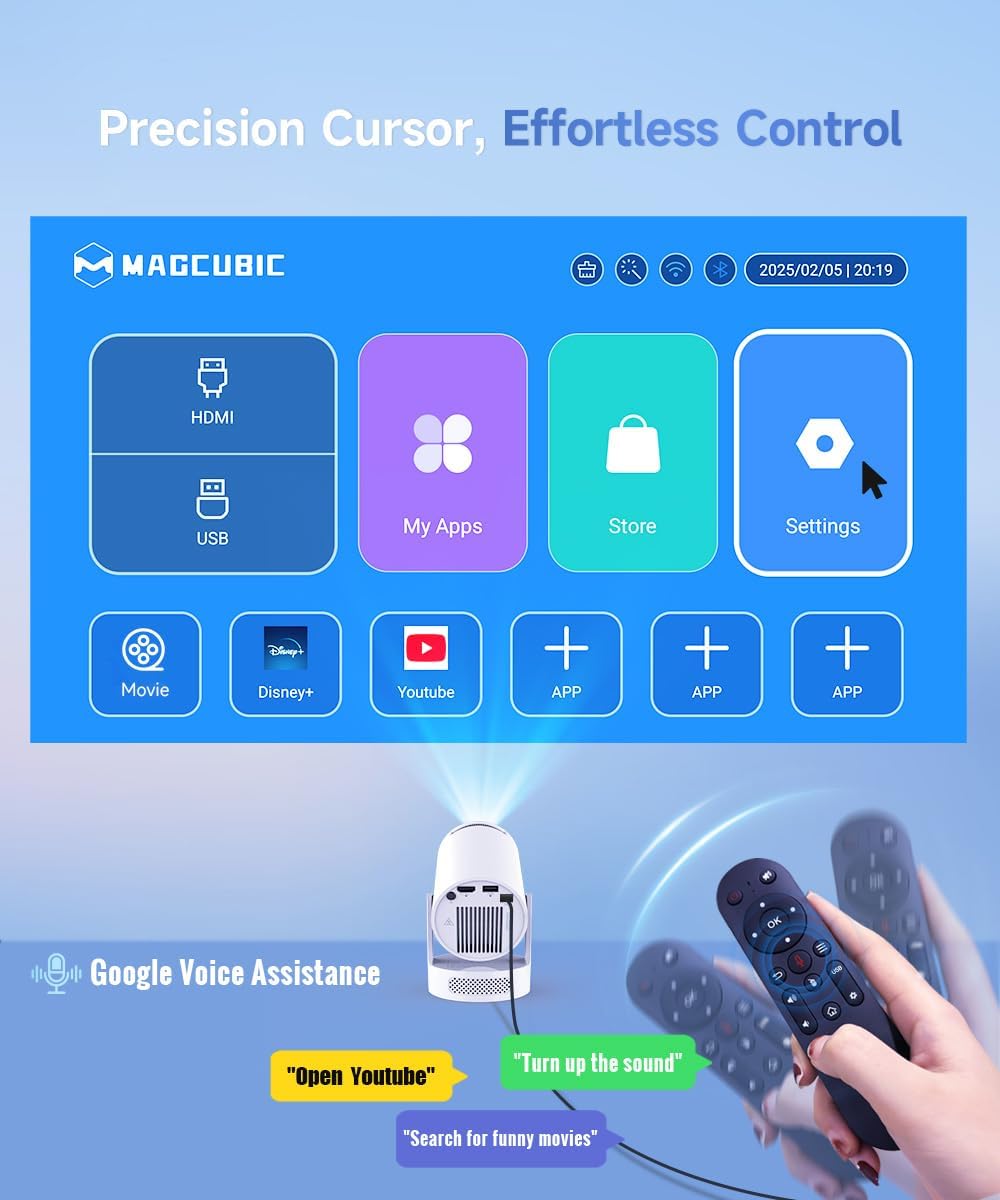
Image 5.2: Precision control with the Air Mouse remote and voice assistance.

Image 5.3: Instructions for using the Air Mouse remote control.
6. Connectivity
6.1 Wireless Connectivity (WiFi6 & Bluetooth 5.4)
The projector supports both WiFi6 and Bluetooth 5.4 for high-speed and stable wireless connections.
- WiFi6: Connect to your home network for internet access and streaming.
- Bluetooth 5.4: Pair with external Bluetooth speakers or headphones for enhanced audio, or connect other Bluetooth devices.

Image 6.1: Wireless casting and WiFi6 performance.

Image 6.2: Wireless casting and wired connection options.
6.2 Wired Connections
The projector includes ports for wired connections to various devices.
- HDMI: Connect gaming consoles, laptops, TV sticks, or other HDMI-enabled devices.
- USB: Connect USB drives for media playback or other compatible USB accessories.

Image 6.3: Versatile compatibility and easy connection ports.
7. Image Adjustment
Achieve a clear and perfectly aligned image using the following adjustment features:
- Manual Focus: Adjust the focus ring on the projector lens until the image is sharp.
- Auto Vertical Correction: The projector automatically corrects vertical keystone distortion.
- Manual 4P Keystone: For more precise adjustments, manually correct the four corners of the image.
- Zoom (80-100%): Adjust the image size without moving the projector.

Image 7.1: Easy tuning and perfect alignment features.

Image 7.2: Simple manual focus for a clear view.
8. Audio
The Magcubic HY300pro+ features an integrated 5W SoundBase speaker, providing clear and rich audio directly from the projector.

Image 8.1: Crisp, clear, powerful 5W speaker.

Image 8.2: Integrated 5W speaker for immersive sound.
For an enhanced audio experience, you can connect external Bluetooth speakers or a sound system via the Bluetooth 5.4 connection.
9. Maintenance
Proper maintenance ensures the longevity and optimal performance of your projector.
- Cleaning the Lens: Use a soft, lint-free cloth specifically designed for optical lenses. Do not use abrasive cleaners or solvents.
- Cleaning the Exterior: Wipe the projector's exterior with a soft, dry cloth. For stubborn dirt, a slightly damp cloth can be used, followed by a dry one.
- Ventilation: Ensure the projector's ventilation openings are clear and unobstructed to prevent overheating.
- Storage: When not in use for extended periods, store the projector in a cool, dry place, away from direct sunlight and extreme temperatures.
10. Troubleshooting
If you encounter issues with your projector, refer to the following common problems and solutions:
| Problem | Possible Cause | Solution |
|---|---|---|
| No image or blurry image | Incorrect focus, wrong input source, projection distance too far/close. | Adjust manual focus. Verify input source. Adjust projection distance (1.6m for 80-inch screen). |
| No sound | Volume too low, external speaker not connected, audio output settings. | Increase volume. Check Bluetooth connection to external speakers. Verify audio output settings in Android. |
| Remote control not working | Low battery, not paired, obstruction. | Replace batteries. Re-pair the remote control (see Section 5.2). Ensure no obstructions between remote and projector. |
| Wi-Fi connection issues | Incorrect password, out of range, router issues. | Verify Wi-Fi password. Move projector closer to router. Restart router. |
| Projector overheating | Blocked ventilation, prolonged use in hot environment. | Ensure ventilation ports are clear. Operate in a well-ventilated area. Allow projector to cool down. |
For optimal performance, ensure your projector's firmware is up to date. Check the settings menu for software updates.
11. Specifications
| Feature | Detail |
|---|---|
| Brand | Magcubic |
| Model | HY300Pro+ Android |
| Color | White |
| Product Type | Portable Projector |
| Display Technology | LED LCD |
| Native Resolution | 1280 x 720 Pixels |
| Max Display Resolution | 3840 x 2160 Pixels (4K Support) |
| Brightness | 8000 Lumens |
| Contrast Ratio | 8000:1 |
| Connectivity Technology | Wi-Fi (WiFi6), Bluetooth (BT5.4), HDMI, USB |
| Special Features | Integrated Speaker, Lightweight, Portable, Built-in Wi-Fi, 180° Rotation |
| Integrated Speaker | 5W |
| Compatible Devices | Smartphone, Game Console, Laptop/Tablet, TV Stick, USB Drive |
| Installation Type | Tripod Mount, Tabletop, Ceiling Mount |
| Package Dimensions | 24.4 x 18.2 x 13.2 cm |
| Item Weight | 400 grams |
12. Warranty and Support
Your Magcubic HY300pro+ Mini Projector comes with a manufacturer's warranty of 1 year.
Magcubic is committed to providing comprehensive customer support:
- 24/7 Professional Service: Assistance available around the clock.
- 30-Day Return or Exchange: Policy for product satisfaction.
- Lifetime Technical Support: Ongoing support for the lifespan of your product.
For support inquiries, please refer to the contact information provided in your product packaging or visit the official Magcubic website.

Image 12.1: Magcubic Customer Service Commitment.


