1. Introduction
The AIMIBO Wireless HDMI Transmitter (Model 9687581011) provides a solution for wirelessly streaming 1080P HD video and audio from any HDMI output device to compatible iOS and Android touchscreen devices. This system allows you to transform your mobile devices into secondary screens, facilitating enhanced collaboration and engagement in various environments such as meetings, classrooms, or personal use.
2. Package Contents
Please verify that your package contains the following items:
- AIMIBO Wireless HDMI Transmitter Unit
- USB Type-C Power Cable
- HDMI Cable (may vary by package)
- User Manual (this document)
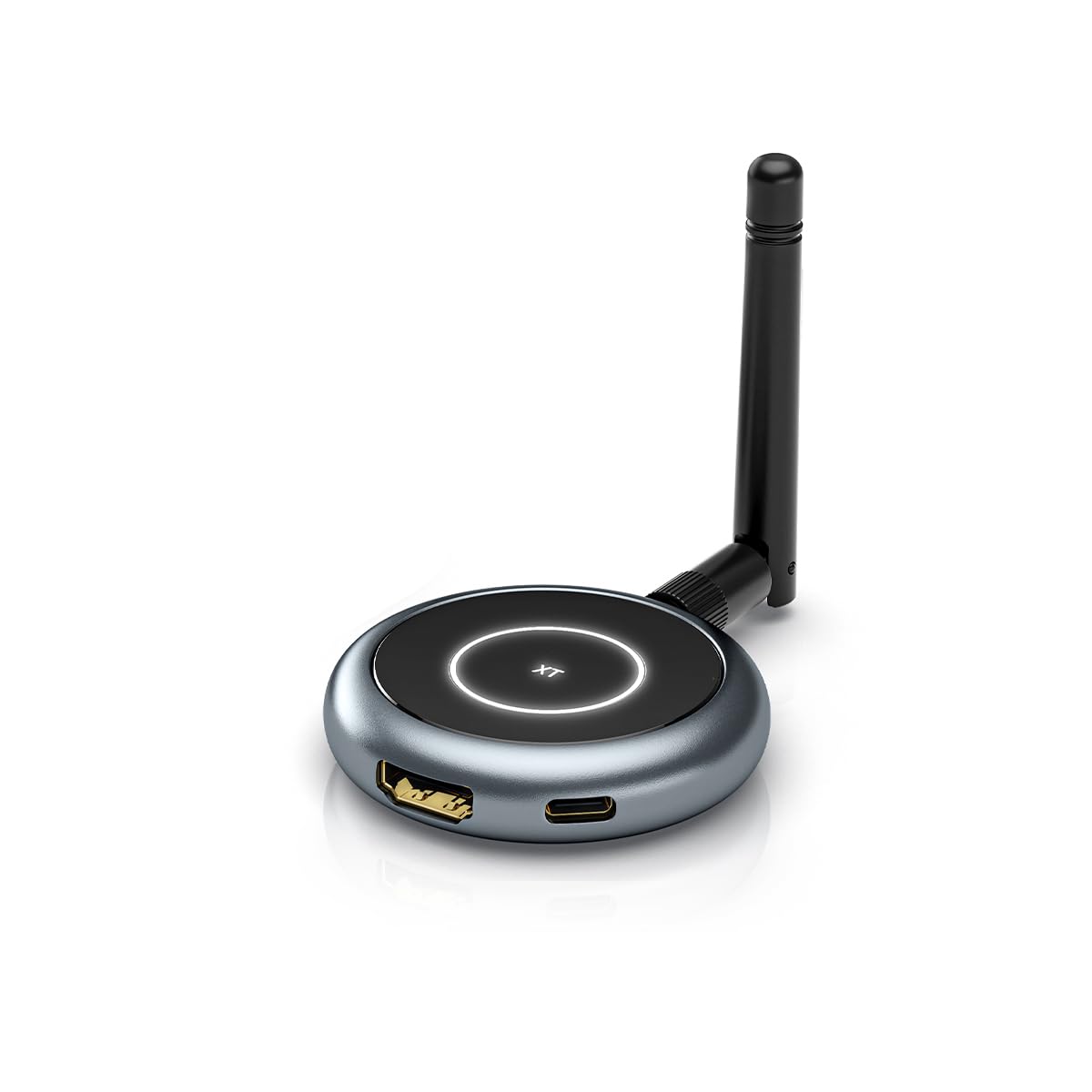
Image: The AIMIBO Wireless HDMI Transmitter unit, featuring its compact design and external antennas.
3. Product Overview
The AIMIBO Wireless HDMI Transmitter is designed for ease of use. It features an HDMI input port for connecting to your source device and a USB Type-C port for power. An indicator light provides status information.

Image: A view of the transmitter and receiver units, highlighting their compact form factor.
4. Setup Instructions
Follow these steps to set up your AIMIBO Wireless HDMI Transmitter:
- Connect the Transmitter: Plug the HDMI end of the transmitter into the HDMI output port of your source device (e.g., laptop, PC, gaming console).
- Power the Transmitter: Connect the USB Type-C power cable to the transmitter and then to a suitable power source (e.g., USB wall adapter, computer USB port). The transmitter will power on automatically.
- Download the TutuLink App: On your iOS or Android mobile device (iPad, iPhone, Android phone/tablet), download and install the "TutuLink" app from your device's app store.
- Connect to Wi-Fi: Open the TutuLink app. The app will guide you to your device's Wi-Fi settings. Select the Wi-Fi network named "Tutulink-xxx" (where xxx is a unique identifier for your transmitter).
- Enter Password: When prompted, enter the default password "12345678" to connect to the transmitter's Wi-Fi network.
- Establish Connection: Return to the TutuLink app. Wait approximately 10 seconds for the app to establish a connection with the transmitter. Once connected, streaming will begin automatically.

Image: Setup diagram illustrating the connection from a laptop via the transmitter to mobile devices using the TutuLink app.
5. Operating Instructions
Once the setup is complete, the AIMIBO Wireless HDMI Transmitter operates by automatically streaming content from your HDMI source to your connected mobile devices.
- Streaming Content: Any video or audio content displayed on your HDMI source device will be wirelessly transmitted and displayed on your mobile device(s) through the TutuLink app.
- Multiple Device Support: The transmitter supports streaming to up to four mobile devices simultaneously. Each connected mobile device will display the same content from the HDMI source.
- Display Functionality: Mobile devices function solely as displays. They cannot perform operations or control the content on the source device through the app.

Image: The transmitter enabling a laptop to stream content to multiple display screens simultaneously.
6. Maintenance
To ensure the longevity and optimal performance of your AIMIBO Wireless HDMI Transmitter, follow these maintenance guidelines:
- Cleaning: Use a soft, dry cloth to clean the device. Avoid using liquid cleaners or aerosols, as they may damage the components.
- Storage: When not in use, store the device in a cool, dry place away from direct sunlight and extreme temperatures.
- Handling: Handle the device with care to prevent physical damage. Avoid dropping or subjecting it to strong impacts.
7. Troubleshooting
If you encounter issues with your AIMIBO Wireless HDMI Transmitter, refer to the following troubleshooting tips:
- No Signal on Mobile Device:
- Ensure the transmitter is properly connected to the HDMI source and receiving power.
- Verify that your mobile device is connected to the "Tutulink-xxx" Wi-Fi network.
- Confirm that the correct Wi-Fi password ("12345678") was entered.
- Restart the TutuLink app on your mobile device.
- Try restarting both the HDMI source device and the transmitter.
- Poor Video/Audio Quality:
- Ensure there are no significant obstructions between the transmitter and your mobile device(s).
- Minimize interference from other 5 GHz Wi-Fi devices in the vicinity.
- Ensure your mobile device has sufficient processing power and battery life.
- App Not Connecting:
- Check if the TutuLink app is updated to the latest version.
- Ensure your mobile device's operating system is compatible with the app.
- Clear the app's cache or reinstall the app if issues persist.
8. Specifications
| Model Number | 9687581011 |
| Resolution | 1080P HD |
| Maximum Supported Devices | Up to 4 mobile devices |
| Companion App | TutuLink (available for iOS and Android) |
| Wi-Fi Connectivity | 5 GHz |
| Compatible HDMI Sources | Laptops, PCs, Cable Boxes, Mini PCs, Gaming Consoles, Cameras |
| Compatible Mobile Devices | iPads, iPhones, Android Cell Phones, and Tablets |
| Product Dimensions | 3 x 2 x 1 inches (7.62 x 5.08 x 2.54 cm) |
| Item Weight | 2.82 ounces (80 grams) |
| Connector Type | USB Type-C (for power) |
| Audio Output Mode | Stereo |
| Surround Sound Channel Configuration | 5.1 |
| Video Encoding | H.264, H.265/HEVC |
| Color | Silver |
9. Warranty Information
Warranty details for the AIMIBO Wireless HDMI Transmitter are typically provided with the product packaging or can be found on the official AIMIBO website. Please refer to these resources for specific terms and conditions regarding your product's warranty.
10. Support
For further assistance, technical support, or inquiries regarding your AIMIBO Wireless HDMI Transmitter, please visit the official AIMIBO website or contact their customer service department using the contact information provided with your product or on their website.