
1. Introduction
The AIRROBO P20 Robot Vacuum Cleaner is designed to provide efficient and convenient floor cleaning. Featuring intelligent navigation, powerful suction, and multiple cleaning modes, it is suitable for various floor types including hard floors and low-pile carpets. This manual provides essential information for setting up, operating, maintaining, and troubleshooting your device.

Figure 1: AIRROBO P20 Robot Vacuum Cleaner with remote control and smartphone app interface.
2. Safety Information
Please read all safety instructions before using the appliance. Keep this manual for future reference.
- Ensure the power switch is in the 'ON' position before charging or operating.
- Keep loose cables, curtains, and other objects that could entangle the robot clear from the cleaning path.
- The robot is equipped with anti-collision and anti-drop sensors to prevent damage and falls. However, always ensure stairs and elevated areas are properly secured.
- Do not use the robot to clean liquids or wet surfaces.
- Regularly clean the dustbin and filters to maintain optimal performance.
3. Package Contents
Verify that all components are present in the package:
- AIRROBO P20 Robot Vacuum Cleaner
- Remote Control
- Charging Base
- AC Power Adapter
- Cleaning Tool
- Side Brushes (4 pieces)
- User Guide
4. Product Overview
The AIRROBO P20 features a compact design with advanced sensors for efficient cleaning.

Figure 2: Overview of AIRROBO P20 features including 3.1-inch slim design, self-charging, anti-falling, and anti-collision sensors.
Main Components:
- Robot Main Unit: Houses the motor, dustbin, battery, and sensors.
- Charging Base: Provides power to recharge the robot.
- Side Brushes: Sweep debris into the suction path.
- Dustbin: Collects dirt and debris.
- Remote Control: Allows manual control and mode selection.
5. Setup
5.1 Installing Side Brushes
- Turn the robot vacuum upside down.
- Align the side brushes with the corresponding posts on the bottom of the robot.
- Press down firmly until they click into place.
5.2 Placing the Charging Base
- Place the charging base against a wall in an open, uncluttered area.
- Ensure there is at least 1 meter (3 feet) of clear space on either side of the base and 2 meters (6 feet) in front.
- Plug the AC power adapter into the charging base and then into a wall outlet.
5.3 Initial Charging
- Place the robot onto the charging base, ensuring the charging contacts align.
- The indicator light on the robot will show charging status. Allow the robot to fully charge before first use (approximately 4-5 hours).
5.4 App Download and Connection
Control your AIRROBO P20 using the dedicated smartphone app. The app allows for scheduling, mode switching, and monitoring.

Figure 3: Control options for AIRROBO P20 via smartphone app, remote control, or voice assistants like Alexa and Google Assistant.
- Download the 'AIRROBO' app from your smartphone's app store.
- Follow the in-app instructions to register an account and add your P20 device.
- Ensure your phone is connected to a 2.4GHz Wi-Fi network during the setup process.
Video 1: Instructions on how to connect your AIRROBO P20 to the mobile application for smart control.
6. Operating Instructions
The AIRROBO P20 offers various cleaning modes and control options.
6.1 Powering On/Off
- Power On: Press and hold the power button on the robot or use the app/remote.
- Power Off: Press and hold the power button on the robot or use the app/remote.
Video 2: Demonstrates how to start the robot vacuum cleaner using the remote control or the physical button on the unit.
6.2 Cleaning Modes

Figure 4: The AIRROBO P20 supports four distinct cleaning modes for comprehensive coverage.
- Auto Clean: The robot automatically cleans in a zigzag pattern, covering the entire area.
- Spot Clean: Focuses on a specific dirty area, cleaning in a spiral pattern.
- Edge Clean: Cleans along walls and furniture edges.
- Turbo Clean: Provides maximum suction for heavily soiled areas.
6.3 Suction Levels
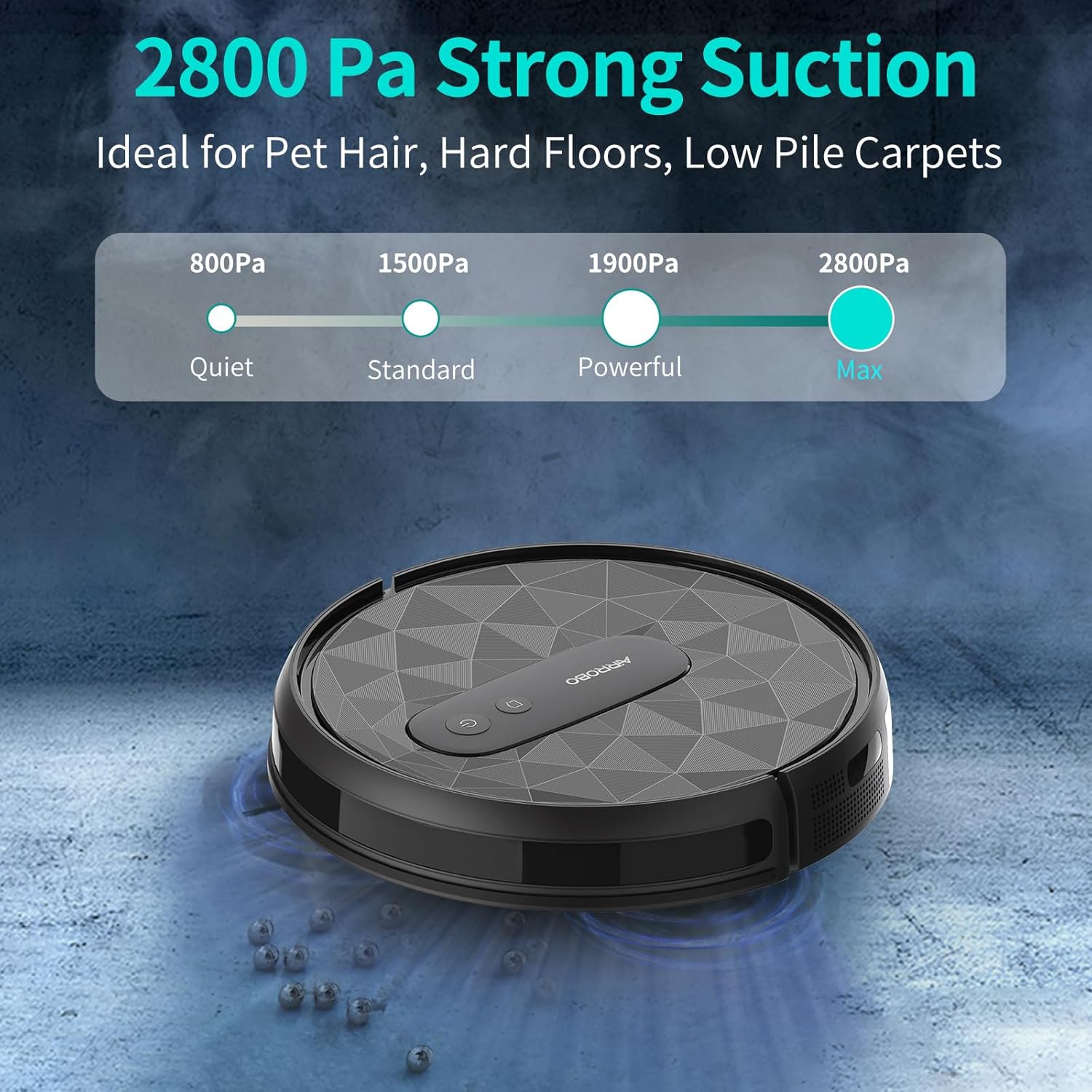
Figure 5: Adjustable suction power up to 2800Pa, ideal for pet hair, hard floors, and low-pile carpets.
Adjust suction power via the app or remote control to suit different cleaning needs:
- Quiet (800Pa)
- Standard (1500Pa)
- Powerful (1900Pa)
- Max (2800Pa)
6.4 Auto-Recharge
When the battery is low, the robot will automatically return to its charging base. It will also return to the base after completing a cleaning cycle.
7. Maintenance
Regular maintenance ensures optimal performance and extends the lifespan of your AIRROBO P20.
7.1 Emptying the Dustbin
- Open the top cover of the robot.
- Press the release button to remove the dustbin.
- Open the dustbin lid and empty its contents into a trash bin.
7.2 Cleaning Filters
- Remove the filters from the dustbin.
- Tap the HEPA filter gently to remove dust. Do not wash the HEPA filter.
- Rinse the primary filter and sponge filter with water. Allow them to air dry completely before reinserting.
7.3 Cleaning Side Brushes
Periodically check and clean the side brushes. Remove any tangled hair or debris using the provided cleaning tool or scissors.
8. Troubleshooting
If you encounter issues with your AIRROBO P20, refer to the following common solutions:
- Robot not turning on: Ensure the power switch is on and the battery is charged.
- Robot getting stuck frequently: Clear obstacles from the cleaning path. The anti-collision sensors help, but some items may still cause issues.
- Poor cleaning performance: Empty the dustbin and clean all filters and brushes.
- Robot not returning to charging base: Ensure the charging base is properly plugged in and placed in an open area. Clean the charging contacts on both the robot and the base.
9. Specifications
| Feature | Specification |
|---|---|
| Brand | AIRROBO |
| Model Name | P20 |
| Special Feature | Anti-Collision, Anti-Fall |
| Color | Gray |
| Product Dimensions | 13.5"L x 13.5"W x 3.5"H |
| Filter Type | Hepa |
| Battery Life | 180 minutes |
| Cleaning Path Width | 11 Inches |
| Voltage | 14.4 Volts |
| Capacity (Dustbin) | 0.5 Liters |
| Power Source | Battery Powered |
| Control Method | App |
| Compatible Devices | Smartphones |
| Form Factor | Robotic |
| Item Weight | 8 pounds |
| Surface Recommendation | Carpet, Hard Floor |
10. Warranty & Support
For warranty information or technical support, please contact AIRROBO customer service.
- Customer Support: +1 8599558668
- Working Hours: 9AM to 5PM (American Time, Monday to Friday)


