
Introduction
This manual provides detailed instructions for setting up, operating, and maintaining your Incase Bluetooth Mouse, designed by Microsoft. Please read this guide thoroughly to ensure optimal performance and longevity of your device.
Product Overview
Key Features
- Compact and modern design for comfortable use by both right and left-handed users.
- Smooth and precise tracking with a 4-way scroll wheel.
- Wireless Bluetooth 5.0 LE connectivity for Windows 11/10 and Mac.
- Up to 12 months of battery life.
- Four functional buttons: left click, right click, scroll wheel, and power.
Components
- Incase Bluetooth Mouse
- 1 AA Battery (pre-installed)

Setup
Battery Installation
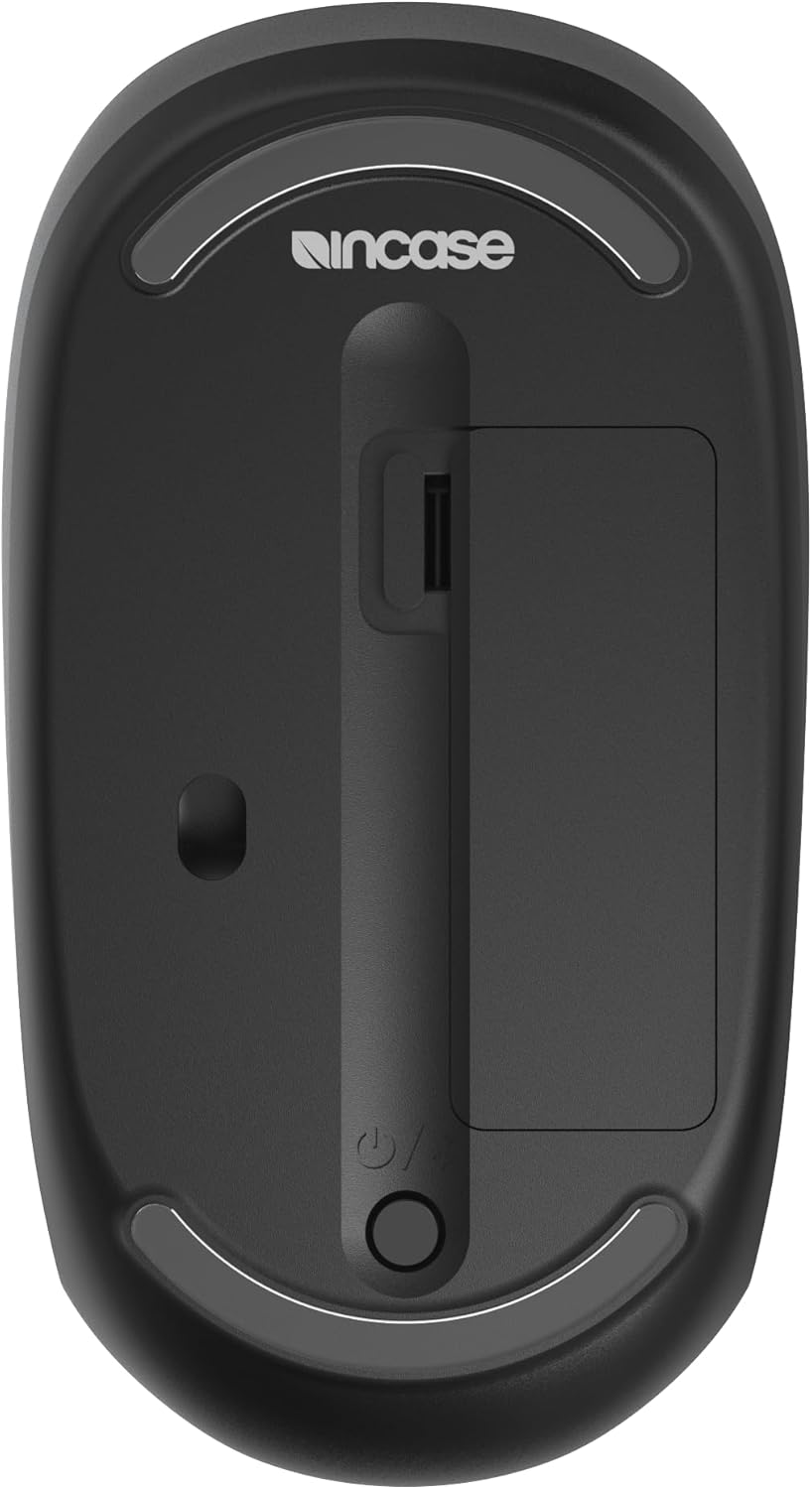
- Locate the battery compartment on the underside of the mouse.
- Remove the protective pull tab if present.
- Ensure the included AA battery is correctly inserted with the positive (+) and negative (-) terminals aligned.
- Close the battery compartment cover.
Bluetooth Pairing
- Turn on the mouse using the power switch located on the bottom.
- Press and hold the Bluetooth pairing button (often integrated with the power button or a separate small button) until the LED indicator starts blinking, indicating pairing mode.
- On your computer (Windows 11/10 or Mac), navigate to Bluetooth settings.
- Select "Add a device" or "Bluetooth & other devices."
- Choose "Bluetooth" and select "Incase Bluetooth Mouse" from the list of available devices.
- Follow any on-screen prompts to complete the pairing process. The LED indicator on the mouse will turn solid when successfully paired.
Operating Instructions
Basic Functions
- Left Click: Press the left button for primary actions.
- Right Click: Press the right button for secondary actions or context menus.
- Scroll Wheel: Roll the wheel up or down to scroll vertically.
- 4-Way Scrolling: The scroll wheel also supports horizontal scrolling. Tilt the scroll wheel left or right to scroll horizontally in compatible applications.
Comfort and Ergonomics
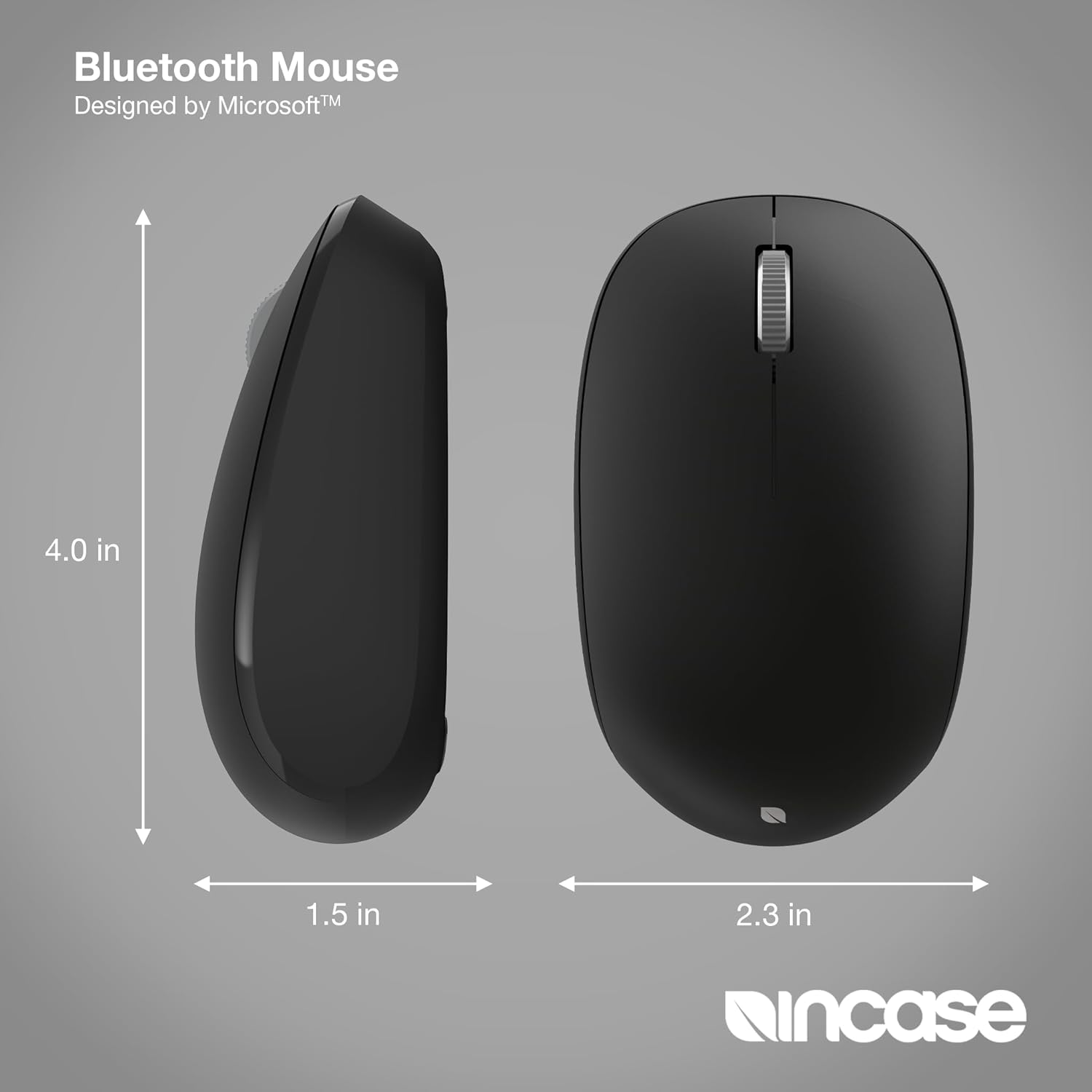
The mouse is designed for comfortable use by both right-handed and left-handed users due to its symmetrical and compact form factor.
Maintenance
Cleaning
- Use a soft, lint-free cloth lightly dampened with water or a mild cleaning solution to clean the mouse surface.
- Avoid using abrasive cleaners or solvents.
- Ensure no liquid enters the mouse.
Battery Replacement
- When the mouse performance degrades or the battery indicator (if present) signals low power, replace the AA battery.
- Open the battery compartment on the underside of the mouse.
- Remove the old battery and insert a new AA battery, observing the correct polarity (+/-).
- Close the compartment securely.
Troubleshooting
Mouse Not Connecting/Pairing
- Ensure the mouse is turned on and the battery has sufficient charge.
- Verify Bluetooth is enabled on your computer.
- Place the mouse in pairing mode by pressing and holding the pairing button.
- Remove the mouse from your computer's Bluetooth device list and attempt to pair again.
- Restart your computer and the mouse.
Erratic Cursor Movement
- Clean the optical sensor on the bottom of the mouse with a soft, dry cloth.
- Ensure you are using the mouse on a suitable surface. Avoid highly reflective or transparent surfaces.
- Check battery level and replace if low.
Specifications
| Product Dimensions | 4.1 x 2.3 x 0.04 inches |
| Item Weight | 4.8 ounces |
| Item Model Number | KTF-00013 |
| Batteries | 1 AA battery (included) |
| Connectivity Technology | Bluetooth 5.0 LE |
| Movement Detection Technology | Optical |
| Special Features | 4-Way Scrolling, Fast Tracking Sensor, Lightweight, Portable, Wireless |
| Manufacturer | Incase |
Warranty and Support
The Incase Bluetooth Mouse comes with a 1-year limited warranty. For warranty claims or technical support, please refer to the contact information provided with your purchase or visit the official Incase support website.


