
1. Product Overview
The TECKNET TK-HS016 is a versatile wireless headset designed for clear communication and comfortable wear. It features Bluetooth 5.3 connectivity, AI Environmental Noise Cancellation (ENC) for the microphone, and dual charging options. This headset is ideal for professionals in call centers, remote work, and trucking.
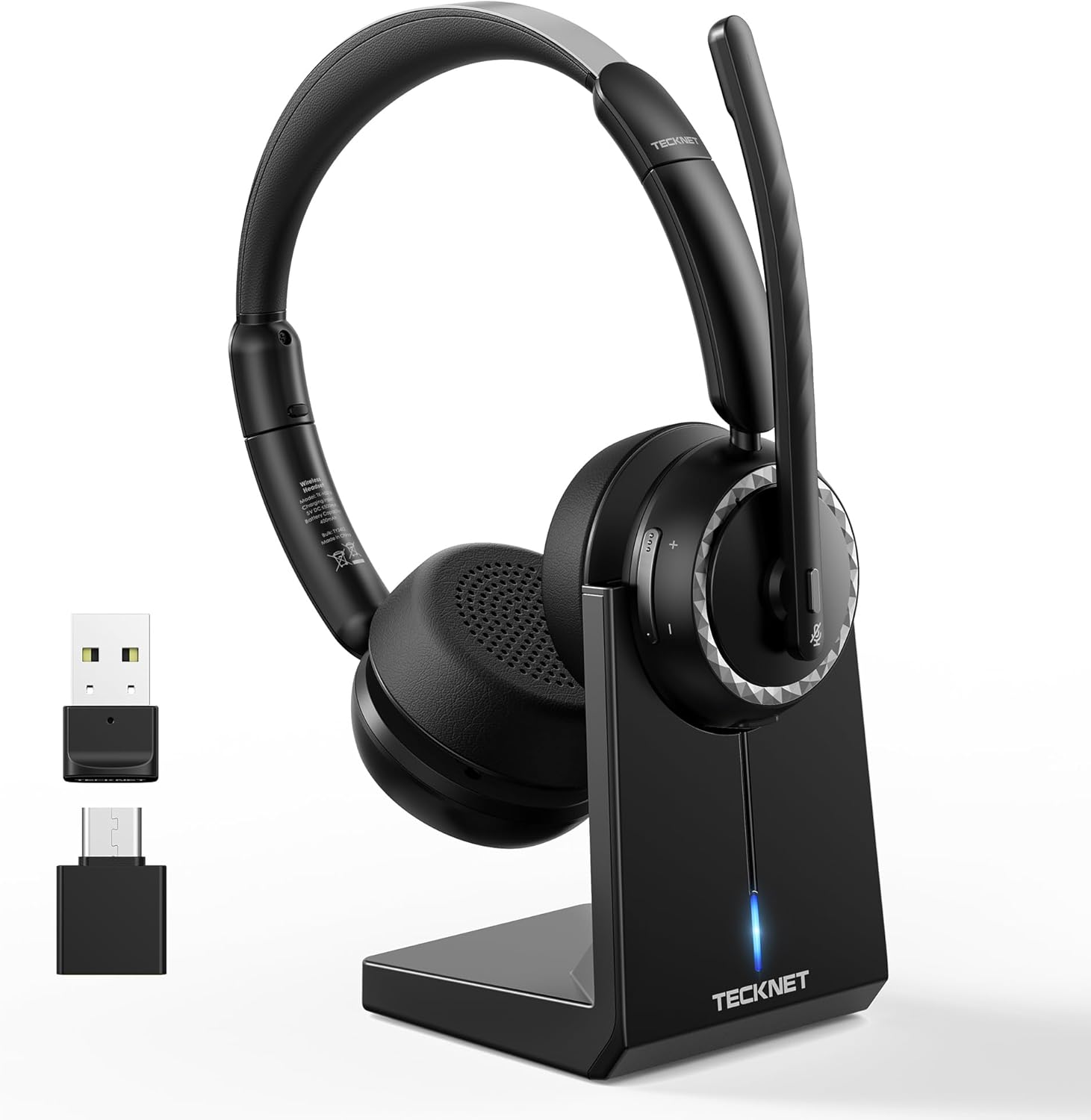
Image 1.1: TECKNET TK-HS016 Wireless Headset with charging base and USB dongles.
Package Contents:
- TECKNET TK-HS016 Wireless Headset
- Charging Base
- USB-A Dongle
- USB-C Adapter
- USB Type-C Charging Cable
- User Manual (this document)
2. Setup and Assembly
2.1 Headset Adjustment and Microphone Orientation
The headset features an adjustable headband and a 270° rotatable microphone for optimal positioning. Adjust the headband to fit comfortably on your head. The microphone can be rotated to be used on either the left or right side, or positioned upwards when not in use.

Image 2.1: The microphone can rotate 270 degrees for flexible positioning.
2.2 Charging the Headset
Before first use, fully charge the headset. There are two methods for charging:
- Using the Charging Base: Connect the USB Type-C charging cable to the charging base and a power source. Place the headset onto the charging base, ensuring the charging contacts align. The headset will begin charging automatically.
- Direct Type-C Cable Charging: Connect the USB Type-C charging cable directly to the Type-C port on the headset and a power source.
A full charge takes approximately 2 hours, providing up to 55 hours of music time or 30 hours of talk time.
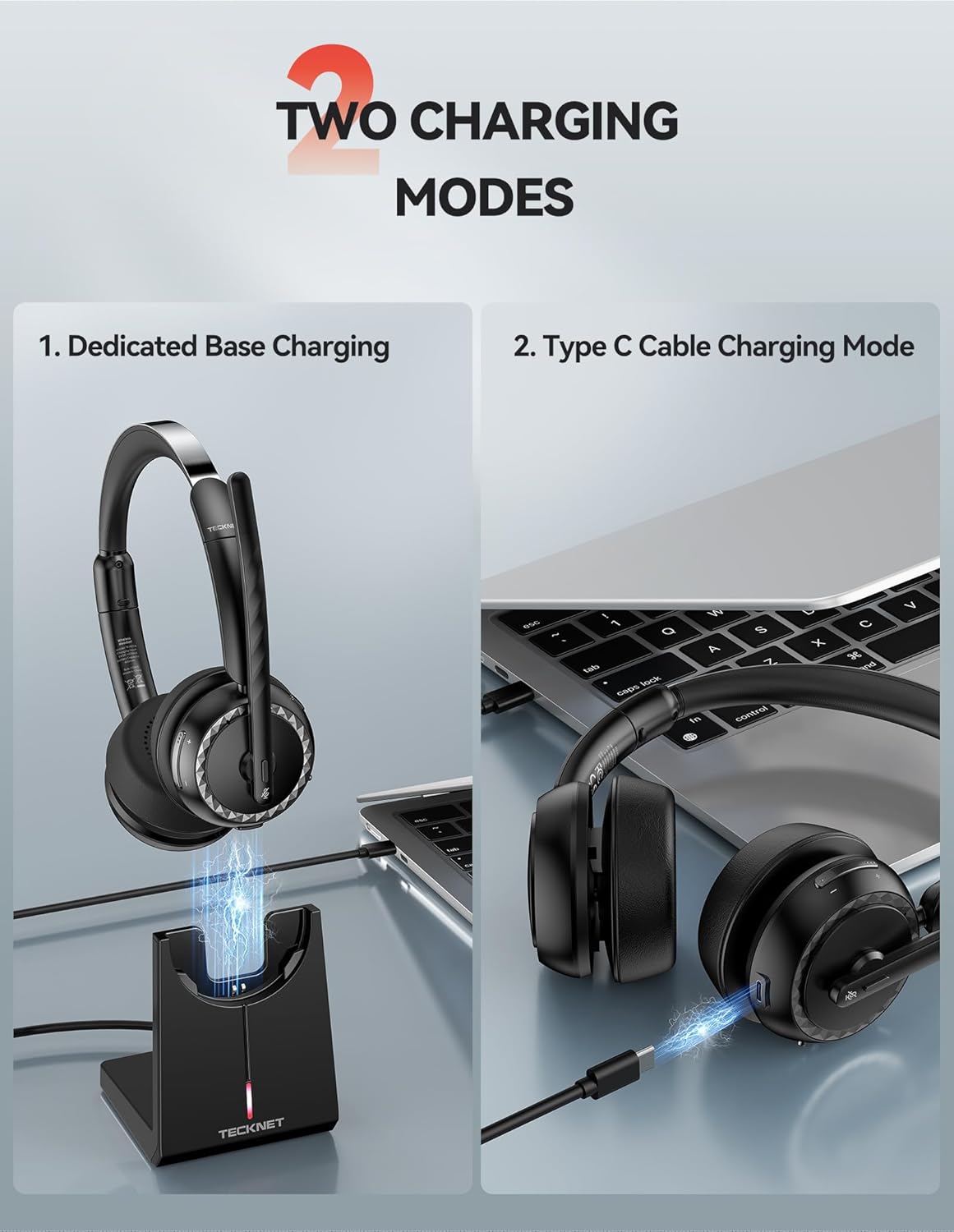
Image 2.2: Two charging methods: via dedicated base or direct Type-C cable.
3. Operating Instructions
3.1 Power On/Off
- To Power On: Slide the ON/OFF switch to the "ON" position. You will hear an audible prompt.
- To Power Off: Slide the ON/OFF switch to the "OFF" position. You will hear an audible prompt.
3.2 Bluetooth Pairing
To pair the headset with your device:
- Ensure the headset is powered off.
- Slide the ON/OFF switch to the "ON" position. The headset will enter pairing mode, indicated by alternating red and blue flashing lights.
- On your device (smartphone, laptop, tablet), enable Bluetooth and search for available devices.
- Select "TK-HS016" from the list of found devices.
- Once connected, a voice prompt will confirm "Connected", and the indicator light will turn solid blue.
The headset supports dual connectivity, allowing it to be paired with two devices simultaneously. This enables seamless switching between a laptop for work calls and a phone for mobile communication.
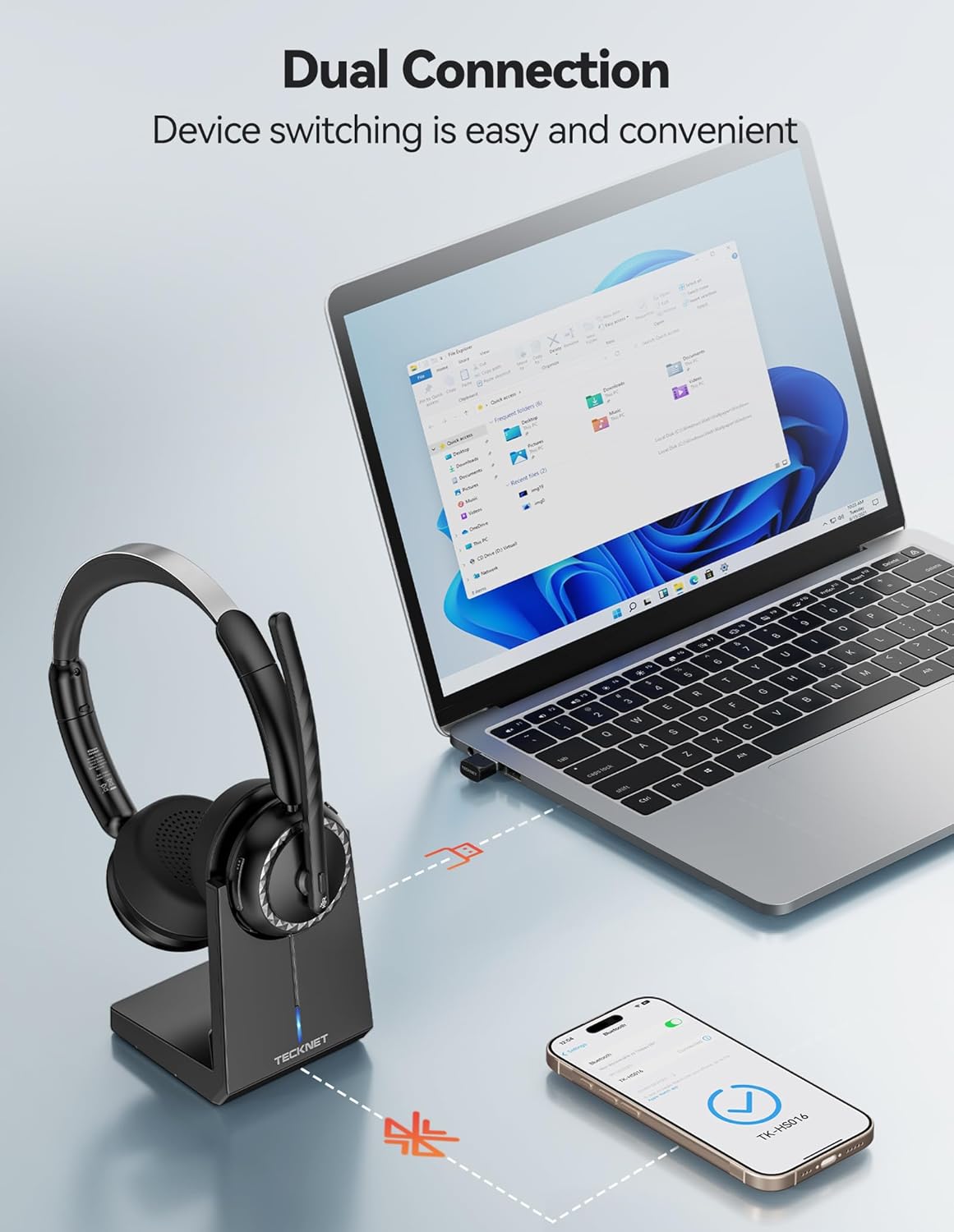
Image 3.1: The headset supports dual connection for seamless device switching.
3.3 USB Dongle Connectivity (for Windows-compatible devices)
For devices without Bluetooth or for a more stable connection, use the provided USB dongle:
- Plug the USB-A dongle (or USB-C adapter with USB-A dongle) into an available USB port on your computer.
- Power on the headset. It will automatically connect to the USB dongle.
- Ensure the headset is selected as the audio input and output device in your computer's sound settings.
3.4 Controls and Functions
- MFB Button (Multi-Function Button): Located on the earcup, this button handles various functions such as answering/ending calls, playing/pausing music, and activating voice assistant. Refer to the detailed user manual for specific press durations and functions.
- Volume Buttons (+/-): Adjust the listening volume.
- Mute Button: Mutes or unmutes the microphone during a call.
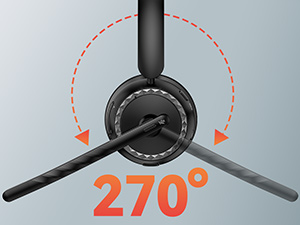
Image 3.2: Headset controls and microphone.
3.5 Intelligent Voice Assistant
Activate your phone's voice assistant (e.g., Siri, Google Assistant) by pressing the MFB button when not on a call. This feature allows for hands-free control of your device.

Image 3.3: Activating voice assistant for hands-free operation.
3.6 Dual Modes (Single-Ear/Dual-Ear)
The headset offers flexibility to switch between single-ear and dual-ear modes. The removable ear muff allows you to convert the headset for situational awareness during calls or for immersive stereo sound. This is particularly useful for professional drivers who need to remain aware of their surroundings.

Image 3.4: Headset design allows for flexible configuration.
4. Maintenance
4.1 Cleaning
To maintain the headset's performance and hygiene:
- Wipe the ear cushions and headband with a soft, damp cloth.
- Avoid using harsh chemicals or abrasive materials.
- Ensure all ports are dry before charging.
4.2 Storage
Store the headset in a cool, dry place away from extreme temperatures and direct sunlight. When not in use, placing it on the charging base can help keep it charged and organized.
5. Troubleshooting
If you encounter issues with your TECKNET TK-HS016 headset, refer to the following common solutions:
- No Power: Ensure the headset is fully charged. Connect it to the charging base or directly via the Type-C cable.
- Cannot Pair: Make sure the headset is in pairing mode (alternating red and blue lights). Turn off and on your device's Bluetooth, then try searching again. Ensure the headset is not already connected to another device.
- No Sound/Poor Sound Quality: Check the volume levels on both the headset and your connected device. Ensure the headset is selected as the default audio device in your computer's sound settings. Move closer to your connected device to avoid interference.
- Microphone Not Working: Ensure the microphone is positioned correctly and not muted. Check microphone settings on your connected device.
- Intermittent Connection: Reduce the distance between the headset and your device. Avoid environments with strong Wi-Fi or other wireless interference.
If problems persist, try resetting the headset (refer to the full user manual for specific reset instructions) or contact customer support.
6. Specifications
| Feature | Specification |
|---|---|
| Model Name | TK-HS016 |
| Connectivity Technology | Wireless (Bluetooth) |
| Wireless Communication Technology | Bluetooth 5.3 |
| Earpiece Shape | On Ear |
| Noise Control | Environmental Noise Cancellation (ENC) |
| Battery Life (Music) | Up to 55 hours |
| Battery Life (Talk Time) | Up to 30 hours (at 70% volume) |
| Charging Time | Approx. 2 hours |
| Standby Time | Up to 500 hours |
| Wireless Range | Up to 33ft/10m |
| Material | Plastic, Silicone/Fabric |
| Compatible Devices | Cellphones, Laptops, Tablets |
7. Warranty and Support
TECKNET provides a 36-Month Warranty for registered customers. This warranty covers any issues encountered during normal use of the product.
For technical assistance, warranty claims, or any product-related inquiries, please contact TECKNET Customer Service. Refer to the contact information provided on the product packaging or the official TECKNET website.


