
KTC H24V27
KTC 24-inch FHD 100Hz Computer Monitor User Manual
Model: H24V27
1. Introduction
Thank you for choosing the KTC 24-inch FHD 100Hz Computer Monitor. This manual provides essential information for setting up, operating, and maintaining your monitor to ensure optimal performance and longevity. Please read this manual thoroughly before using the product.

Figure 1.1: Front view of the KTC 24-inch FHD 100Hz Computer Monitor.
2. Setup
2.1 Package Contents
Verify that all items are present in the package:
- Monitor Screen x 1
- Stand x 1
- HDMI Cable (1.5m) x 1
- Power Adaptor x 1
- QSGI (Quick Start Guide) x 1

Figure 2.1: Monitor dimensions, tilt range, and included accessories.
2.2 Assembling the Stand
- Carefully remove the monitor and stand components from the packaging.
- Attach the stand base to the stand neck, securing it with the provided screw.
- Attach the assembled stand to the back of the monitor until it clicks into place or is securely fastened with screws, depending on the design.
2.3 Connecting the Monitor
The monitor supports various connectivity options:
- HDMI 1.4: Connect to your computer or game console for high-definition video and audio. Supports up to 100Hz refresh rate.
- VGA: Connect to older systems or devices. Supports up to 75Hz refresh rate.
- Earphone Jack: Connect external headphones or speakers for audio output.
Ensure the power adapter is connected to the monitor and a power outlet after all video connections are made.

Figure 2.2: Available connectivity ports on the KTC monitor.
2.4 VESA Mounting
The monitor is compatible with 100mm x 100mm VESA mounts, allowing for alternative mounting solutions such as wall mounts or monitor arms (sold separately).
3. Operating the Monitor
3.1 Power On/Off
Press the power button, usually located on the back or bottom of the monitor, to turn it on or off. The power indicator light will illuminate when the monitor is active.
3.2 On-Screen Display (OSD) Menu
Use the OSD joystick or buttons (location varies by model) to navigate and adjust monitor settings. Common settings include:
- Brightness/Contrast: Adjust image luminance and color depth.
- Color Settings: Fine-tune color temperature, gamma, and color space.
- Input Source: Manually select between HDMI and VGA inputs.
- Picture Mode: Select predefined modes for different content types (e.g., Standard, Game, Movie).
3.3 Key Features
This monitor is equipped with several features to enhance your viewing experience:
- Full HD (1920x1080) Resolution: Provides clear and sharp images for various applications.
- 100Hz Refresh Rate: Offers smoother motion and reduced input lag, especially beneficial for fast-paced content and gaming.

Figure 3.1: Visual representation of the smooth motion provided by the 100Hz refresh rate.
- VA Panel with 4000:1 Contrast Ratio: Delivers deep blacks and vibrant colors with a wide 178° viewing angle.
- HDR Support: Enhances image details in both bright and dark areas for a more dynamic visual experience.

Figure 3.2: Features contributing to realistic color reproduction and enhanced visual detail.
- FreeSync/G-Sync Compatible: Reduces screen tearing and stuttering for a fluid gaming experience when paired with compatible graphics cards.
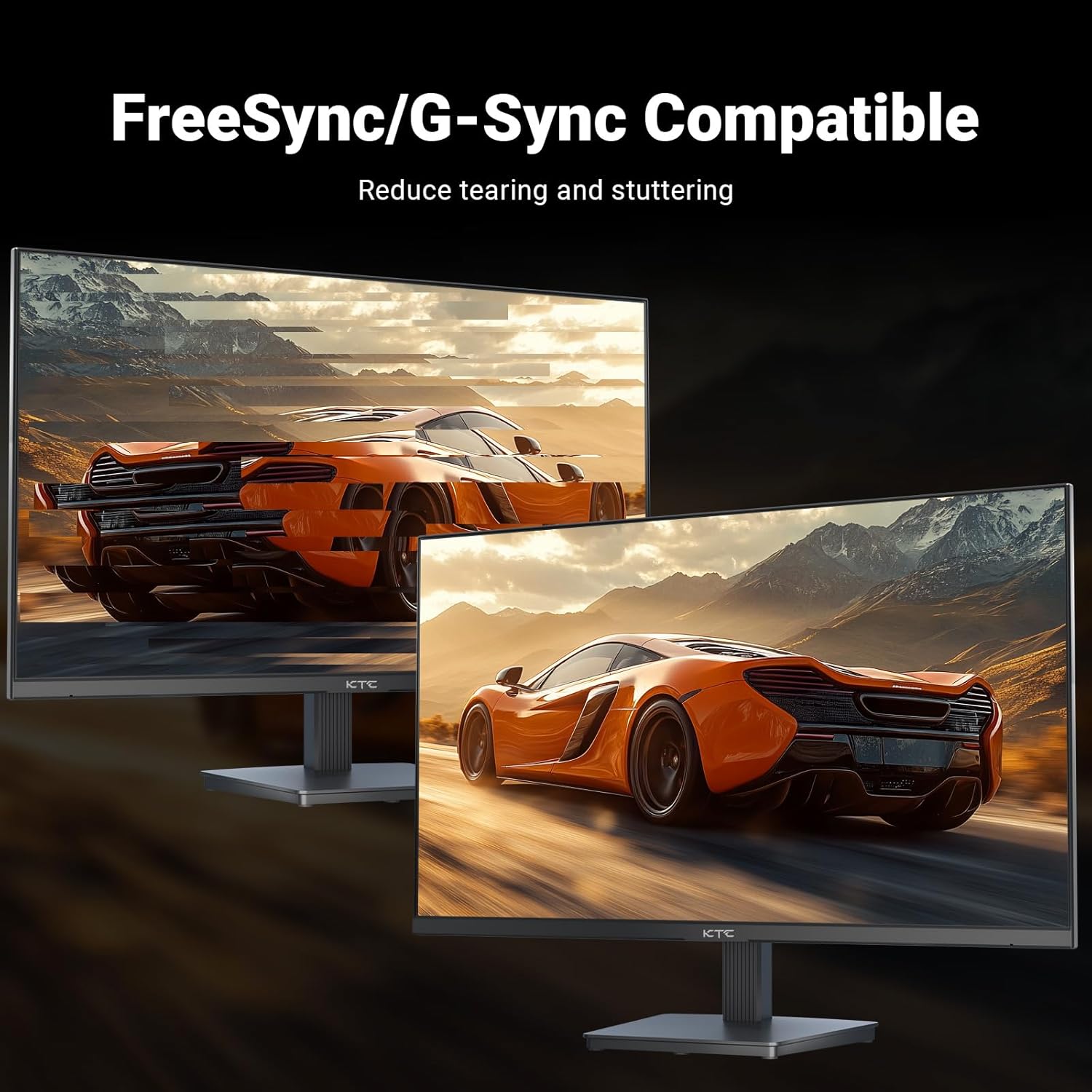
Figure 3.3: Demonstration of screen tearing reduction with FreeSync/G-Sync compatibility.
- Eye Care Technology: Features Flicker-free technology and Low Blue Light mode to reduce eye strain during prolonged use.
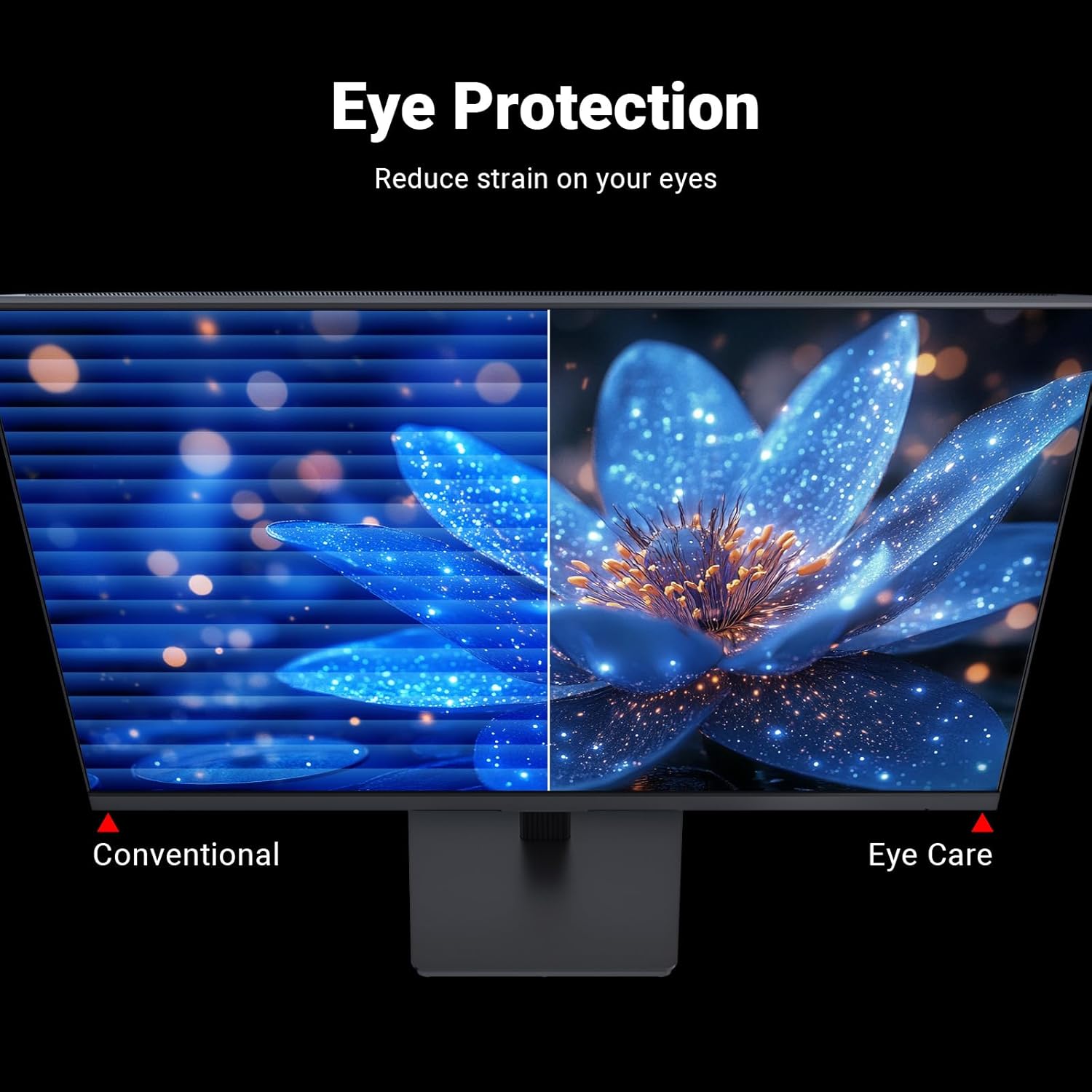
Figure 3.4: Visual comparison highlighting the benefits of eye protection features.
- Ergonomic Tilt: Allows for tilt adjustment from -5° to 15° to find a comfortable viewing angle.
- 3-Sided Frameless Design: Maximizes screen space and is ideal for multi-monitor setups.

Figure 3.5: The 3-sided frameless design enhances multi-monitor viewing.
4. Maintenance
4.1 Cleaning the Monitor
To clean the monitor screen, gently wipe it with a soft, lint-free cloth. For stubborn marks, dampen the cloth with a small amount of non-ammonia, non-alcohol based glass cleaner. Do not spray cleaner directly onto the screen.
For the monitor casing, use a soft, dry cloth. Avoid using abrasive cleaners or solvents that may damage the surface.
4.2 General Care
- Avoid placing heavy objects on the monitor or its cables.
- Do not expose the monitor to direct sunlight, excessive heat, or extreme cold.
- Keep the monitor away from liquids and excessive humidity.
- Ensure proper ventilation around the monitor to prevent overheating.
5. Troubleshooting
If you encounter issues with your monitor, please refer to the following common solutions before contacting customer support:
| Problem | Possible Cause | Solution |
|---|---|---|
| No image on screen | Power cable disconnected; Video cable disconnected; Incorrect input source selected. | Check power and video cable connections; Select the correct input source via the OSD menu. |
| Image is blurry or distorted | Incorrect resolution; Loose video cable. | Set the display resolution to 1920x1080; Ensure video cable is securely connected. |
| No audio | Audio cable not connected; Volume too low; Incorrect audio output selected on PC. | Ensure headphones/speakers are connected to the earphone jack; Adjust volume; Check PC audio settings. |
| Screen flickering | Refresh rate mismatch; Faulty cable. | Ensure refresh rate is set to 100Hz (or 75Hz for VGA); Try a different video cable. |
6. Specifications
| Feature | Detail |
|---|---|
| Model Number | H24V27 |
| Screen Size | 23.8 inches (24-inch class) |
| Panel Type | VA |
| Resolution | 1920 x 1080 (FHD 1080p) |
| Refresh Rate | 100Hz (HDMI), 75Hz (VGA) |
| Aspect Ratio | 16:9 |
| Contrast Ratio | 4000:1 |
| Viewing Angle | 178° (Horizontal/Vertical) |
| HDR Support | Yes |
| Color Gamut | 103% sRGB coverage |
| Connectivity | 1x HDMI 1.4, 1x VGA, 1x Earphone Jack |
| VESA Compatibility | 100mm x 100mm |
| Tilt Adjustment | -5° to 15° |
| Product Dimensions (L x W x H) | 4 x 24 x 18 inches |
| Item Weight | 9.38 pounds |
| Screen Surface | Matte |
7. Warranty and Support
KTC is committed to providing quality products and excellent customer service. Your monitor comes with a 3-year quality guarantee and lifetime technical support.
If you have any questions, require technical assistance, or need to claim warranty service, please do not hesitate to contact KTC customer support. We aim to provide solutions within 24 hours.
For the most up-to-date contact information, please visit the official KTC website or refer to the contact details provided with your purchase documentation.
Related documentsH24V27


Ask a question about this manual
Ask about setup, troubleshooting, compatibility, parts, safety, or missing instructions. Manuals+ will review the question and use this page’s manual context to help answer it.