
1. Product Overview
The Roborock QV 35A is an advanced robot vacuum and mop designed to provide comprehensive floor cleaning. It features powerful suction, intelligent navigation, and a multi-functional docking station for automated maintenance.

Image 1.1: The Roborock QV 35A robot vacuum, its multi-functional docking station, and companion app interfaces on a smartphone and smartwatch.
Key Features:
- HyperForce 8000 Pa Suction: Delivers powerful vacuuming for deep cleaning carpets and hard floors.
- Multi-functional Docking Station: Automates dust emptying, water refilling, mop washing, and mop drying.
- Dual Rotating Mops: Two high-speed rotating mops (200 RPM) with 30 adjustable water levels for effective stain removal.
- 10mm Mop Lifting: Automatically lifts mops when detecting carpets to prevent wetting.
- Anti-Tangle Brush System: Features an asymmetric side brush and an all-rubber main brush to prevent hair entanglement.
- Reactive Tech Obstacle Avoidance: Intelligently detects and avoids obstacles, and suggests no-go zones.
- PreciSense LiDAR Navigation: Rapid 360° scanning for precise mapping and efficient cleaning paths, supporting multi-floor mapping (up to 4 levels).
- Roborock App Control: Offers customized cleaning routes, scheduling, map management, and compatibility with voice assistants.
2. Setup Guide
2.1 Unboxing and Component Check
Carefully unpack all components and verify against the packing list:
- Robot Vacuum * 1
- Dock (with pre-installed disposable dust bag) * 1
- Dock Base * 1
- Mop Module * 1
- Power Cord * 1
- User Manual * 1

Image 2.1: A visual representation of the Roborock QV 35A package contents, including the robot, dock, and accessories, along with their dimensions.
2.2 Docking Station Placement
Place the multi-functional docking station on a hard, level surface against a wall. Ensure there is adequate clear space around the dock (at least 0.5 meters on both sides and 1.5 meters in front) for the robot to maneuver easily. Connect the power cord to the dock and plug it into a power outlet.
2.3 Initial Charging
Place the robot onto the docking station. Ensure the charging contacts align. The robot will begin charging automatically. For first-time use, it is recommended to fully charge the robot before operation.
2.4 App Installation and Connection
- Download the Roborock app from your smartphone's app store.
- Open the app and follow the on-screen instructions to create an account and add your Roborock QV 35A device.
- The app will guide you through connecting the robot to your home Wi-Fi network.
2.5 Initial Mapping
Once connected, initiate a mapping run through the app. The robot will use its PreciSense LiDAR navigation system to scan your home and create a detailed map. This map is crucial for efficient cleaning and allows for advanced features like zone cleaning and virtual walls.
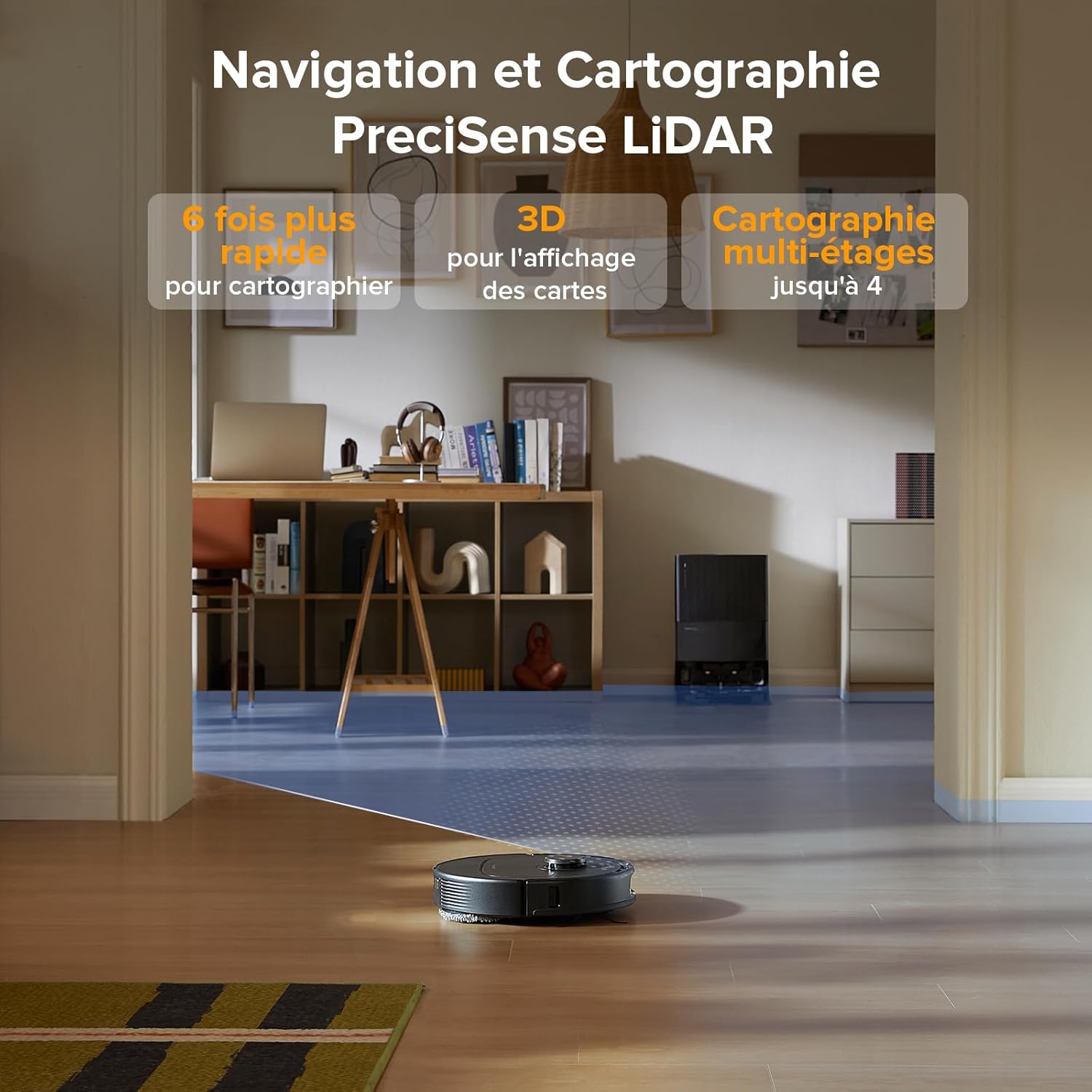
Image 2.2: The Roborock QV 35A utilizing its LiDAR sensor to rapidly map a room, displaying the 3D mapping capability.
3. Operating Instructions
3.1 Starting a Cleaning Cycle
You can start a cleaning cycle in several ways:
- Via Roborock App: Tap 'Clean' on the main screen. You can select full house cleaning, specific rooms, or custom zones.
- On the Robot: Press the power button on the robot once to start a full cleaning cycle.
- Voice Control: Use compatible voice assistants (Alexa, Google Home) with commands like "Start cleaning."

Image 3.1: Various control methods for the Roborock QV 35A, including third-party voice commands, launch widgets, and the Apple Watch application.
3.2 Cleaning Modes and Customization
The Roborock app offers extensive customization:
- Suction Power: Adjust suction levels (e.g., Quiet, Balanced, Turbo, Max, Max+).
- Water Flow: Control the water output for mopping (30 levels available).
- Roborock SmartPlan: Define room types and floor materials in the app for the robot to automatically adapt water flow and suction power.
- Carpet Boost: Automatically increases suction power when a carpet is detected.
- Mop Lifting: The robot automatically lifts its mops by 10mm when transitioning from hard floors to carpets.

Image 3.2: The Roborock SmartPlan feature, showing how the robot adapts cleaning settings based on room type and floor material defined in the app.
3.3 Scheduling and Routines
Set up cleaning schedules and personalized routines via the Roborock app:
- Daily Cleaning: Program the robot to clean at specific times and days.
- Custom Routines: Create shortcuts for frequently used cleaning tasks (e.g., 'After Meals' for kitchen cleaning).
- Temporary Cleaning: Add or temporarily ignore zones as needed, then resume the original cleaning task.

Image 3.3: The Roborock app interface demonstrating how to program daily cleaning schedules and save frequently used operations as shortcuts.
3.4 Obstacle Avoidance and No-Go Zones
The Reactive Tech system enables the robot to detect and avoid common household obstacles. You can also define specific areas:
- Virtual Walls: Create invisible barriers the robot will not cross.
- No-Go Zones: Designate specific areas the robot should avoid entirely.
- Intelligent Suggestions: The robot can suggest areas where it might get stuck as potential no-go zones.

Image 3.4: The Reactive Tech system in action, showing the Roborock QV 35A detecting and navigating around common household items like a teddy bear and slippers.
4. Maintenance
Regular maintenance ensures optimal performance and extends the lifespan of your Roborock QV 35A.
4.1 Docking Station Maintenance
- Auto Dust Emptying: The dock automatically empties the robot's dustbin into a 2.7L sealed bag, requiring manual emptying approximately every 7 weeks.
- Auto Water Refill: The dock refills the robot's water tank from its 4L reservoir, covering up to 330 m² on a single fill.
- Mop Washing and Drying: The dock washes the robot's mops and then air-dries them to prevent odors and mildew.
- Detachable Dock Base: The base of the dock is fully removable for easy cleaning to prevent clogging.

Image 4.1: An overview of the Roborock QV 35A's multi-functional docking station, highlighting its automated maintenance capabilities.

Image 4.2: The detachable base of the docking station being cleaned under a faucet, demonstrating ease of maintenance.
4.2 Robot Components Cleaning
- Main Brush: Regularly check and clean the main brush for tangled hair or debris. The all-rubber design helps prevent entanglement.
- Side Brush: Inspect and clean the asymmetric side brush.
- Mop Pads: While the dock washes them, periodically check the mop pads for excessive wear or stubborn stains.
- HEPA Filter: Clean or replace the HEPA filter as indicated by the app or every 3-6 months, depending on usage.
- Sensors: Wipe the robot's sensors (LiDAR, cliff sensors, obstacle avoidance sensors) with a dry cloth to ensure accurate navigation.

Image 4.3: The anti-tangle brush system of the Roborock QV 35A, featuring an asymmetric side brush and an all-rubber main brush designed to prevent hair entanglement.
5. Troubleshooting
If you encounter issues with your Roborock QV 35A, refer to the following common solutions:
5.1 Robot Not Charging
- Ensure the power cord is securely plugged into both the dock and the wall outlet.
- Verify that the robot is correctly docked and its charging contacts are aligned with the dock's contacts. Clean contacts if dirty.
- Check if the power outlet is functional.
5.2 Robot Stuck or Not Moving
- Clear any obstacles (cables, small toys, clothing) from the robot's path.
- Check if the main brush, side brush, or wheels are entangled with hair or debris.
- Clean the cliff sensors and obstacle avoidance sensors.
- If the robot is stuck on a threshold, ensure it is within the 2cm climbing capacity.
5.3 Poor Cleaning Performance
- Empty the dustbin and check the dust bag in the dock.
- Clean or replace the HEPA filter.
- Clean the main brush and side brush.
- Ensure the water tank is filled and the mop pads are clean and properly attached.
- Adjust suction power and water flow settings in the app to a higher level if needed.
5.4 App Connectivity Issues
- Ensure your Wi-Fi network is stable and the robot is within range.
- Restart your Wi-Fi router and the robot.
- Verify that the Roborock app is updated to the latest version.
- If issues persist, try re-pairing the robot with the app.
6. Specifications
| Feature | Specification |
|---|---|
| Brand | roborock |
| Model Number | roborock QV 35A |
| Color | Black |
| Robot Dimensions (L x W x H) | 35L x 35W x 9.65H cm |
| Dock Dimensions (L x W x H) | 34L x 48.7W x 51.9H cm |
| Robot Weight | 11.8 Kilograms (Total product weight) |
| Water Tank Capacity | 370 Milliliters (Robot) / 4 Liters (Dock) |
| Power | 60 Watts |
| Automatic Shut-off | Yes |
| Noise Level | 64 dB (Balanced Mode) / 55 dB (Mop-only Mode) |
| Compatibility | Alexa, Amazon Echo, Google Home, Smartphone, Smartwatch |
| Special Features | Intelligent Mapping, Automatic Mop Washing, LiDAR Navigation, Advanced Personalized Cleaning, Obstacle Avoidance |
| Filter Type | HEPA |
| Power Source | Battery Powered |
| Control Method | Application |
7. Warranty and Support
For warranty information, please refer to the documentation included with your product or visit the official Roborock website. For technical support or service inquiries, please contact Roborock customer service through their official channels.
You can typically find support contact details within the Roborock app under the 'Help' or 'Support' section.


