
OMOTON B0F8QHJY33
OMOTON Wireless Keyboard for Mac Instruction Manual
Model: B0F8QHJY33
1. Introduction
Thank you for choosing the OMOTON Wireless Keyboard for Mac. This full-size keyboard is designed for seamless compatibility with Mac devices, offering versatile connectivity options (2.4G and Dual Bluetooth), adjustable backlighting, and an ergonomic design for comfortable typing. This manual provides detailed instructions for setup, operation, maintenance, and troubleshooting to ensure optimal performance.

Image 1.1: Front view of the OMOTON Wireless Keyboard for Mac, showcasing its full-size layout and illuminated keys.
2. Package Contents
- OMOTON Wireless Keyboard for Mac
- 2.4G USB Receiver (with Type-C and USB-A interfaces)
- USB-C Charging Cable
- User Manual
3. Setup
3.1 Charging the Keyboard
Before first use, fully charge the keyboard. Connect the provided USB-C charging cable to the keyboard's charging port and to a USB power source (e.g., computer USB port, wall adapter). The charging indicator light will show charging status and turn off when fully charged.

Image 3.1: The USB-C charging port located on the side of the keyboard, with a charging cable connected.
3.2 2.4G Wireless Connection
The keyboard uses a 2.4G USB receiver for wireless connection. This receiver features both Type-C and USB-A interfaces for broad compatibility.
- Locate the 2.4G USB receiver. It may be stored in a compartment on the keyboard.
- Plug the appropriate end of the receiver (USB-A or Type-C) into an available port on your Mac device. Note: If using the Type-C interface, ensure the USB-A port of the receiver is securely plugged into the Type-C adapter first.
- Turn on the keyboard.
- Press the 2.4G key on the keyboard to switch to the 2.4G channel. The keyboard will connect to your device within seconds.

Image 3.2: The 2.4G receiver with its dual Type-C and USB-A interface, demonstrating how to connect it to a Mac device.
3.3 Bluetooth Connection (BT1 & BT2)
The keyboard supports two independent Bluetooth channels (BT1 and BT2), allowing connection to two different devices simultaneously.
- Turn on the keyboard.
- Press the BT1 or BT2 key to select the desired Bluetooth channel.
- Long press the selected BT1 or BT2 key for 4-5 seconds until the indicator light flashes rapidly. This indicates the keyboard is in pairing mode.
- On your Mac device, open System Settings (or System Preferences on older macOS versions) and navigate to Bluetooth.
- Select "Bluetooth Keyboard" from the list of available devices. The indicator light on the keyboard will turn off once successfully paired.
- Repeat these steps to connect a second device using the other Bluetooth channel (BT1 or BT2).

Image 3.3: The keyboard connected to an iMac via Bluetooth 1 and a MacBook via Bluetooth 2, illustrating multi-device connectivity.

Image 3.4: A visual guide detailing the steps for both 2.4G and Bluetooth connections, highlighting the respective keys and indicator lights.
4. Operating Instructions
4.1 Switching Between Connected Devices
To switch between devices connected via 2.4G, BT1, or BT2, simply press the corresponding key (2.4G, BT1, or BT2). The keyboard will automatically connect to the selected device.
4.2 Backlight Control
The keyboard features 7 color backlights and 3 adjustable brightness levels.
- Press the Light Bulb key (usually F5 or a dedicated key) to cycle through brightness levels (0-1-2-3).
- Press the Color Cycle key (usually F6 or a dedicated key) to change the backlight color.
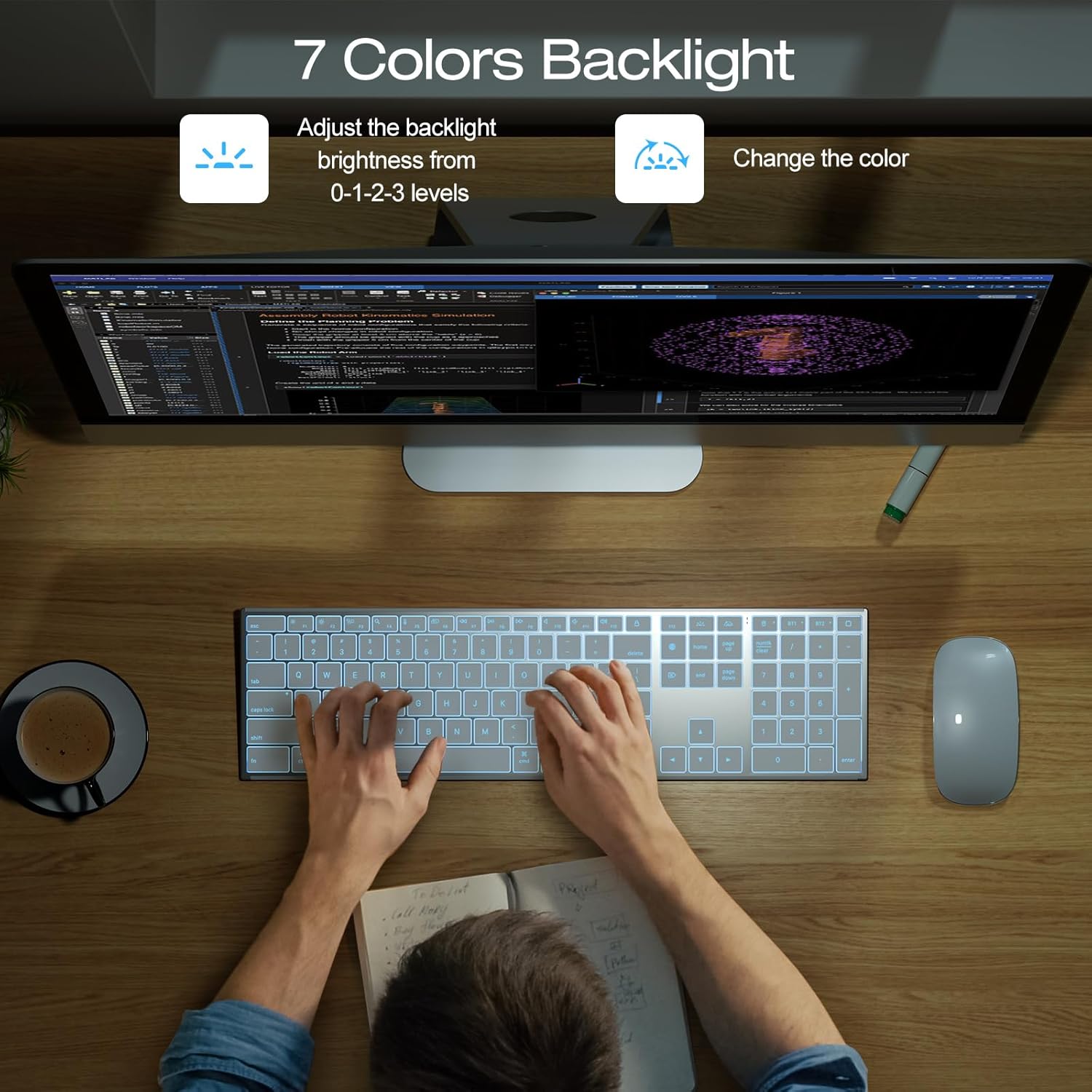
Image 4.1: The keyboard displaying its adjustable 7-color backlight feature, enhancing visibility in various lighting conditions.
4.3 Function Keys for Mac
The keyboard is equipped with Mac-specific function keys for enhanced productivity.

Image 4.2: A detailed layout of the keyboard's function keys, indicating their specific actions for Mac operating systems.
- Esc: Escape
- F1: Brightness Down
- F2: Brightness Up
- F3: Mission Control
- F4: Search
- F5: Dictation
- F6: Screenshot
- F7: Previous Track
- F8: Play/Pause
- F9: Next Track
- F10: Mute
- F11: Volume Down
- F12: Volume Up
- Lock Screen: Locks the screen.
- Switch Input Language: Changes input language.
4.4 Adjustable Typing Angle
The keyboard features an ergonomic design with an adjustable typing angle to reduce strain. Simply extend the foldable stand at the back of the keyboard to switch between a normal 6° angle and an 8° angle.

Image 4.3: Illustration of the keyboard's ergonomic design, showing the two available typing angles (6 and 8 degrees) with the foldable stand.
5. Maintenance
5.1 Cleaning
To clean the keyboard, power it off first. Use a soft, lint-free cloth slightly dampened with water or a mild cleaning solution. Avoid excessive moisture and harsh chemicals. For dust between keys, use compressed air.
5.2 Battery Care
- Avoid fully discharging the battery frequently.
- Store the keyboard in a cool, dry place when not in use for extended periods.
- Charge the keyboard regularly to maintain battery health.
6. Troubleshooting
- Keyboard not connecting:
Ensure the keyboard is powered on and sufficiently charged. For 2.4G, verify the receiver is properly inserted and the 2.4G key is pressed. For Bluetooth, ensure the correct BT channel is selected, the keyboard is in pairing mode (flashing indicator), and Bluetooth is enabled on your Mac device. Try restarting both the keyboard and your Mac. - Keys not responding:
Check battery level and recharge if necessary. Ensure the keyboard is connected to the correct device/channel. Clean any debris from under the keys. - Backlight not working or dim:
Press the brightness control key (F5) to adjust brightness levels. Ensure the keyboard is charged. - Lag or delayed input:
Ensure the keyboard is within range of your device. Reduce interference from other wireless devices. For 2.4G, try a different USB port. For Bluetooth, ensure no other devices are heavily using the Bluetooth connection.
7. Specifications
| Feature | Detail |
|---|---|
| Model | B0F8QHJY33 |
| Connectivity | 2.4G Wireless (Type-C and USB A Receiver), Dual Bluetooth (BT1/BT2) |
| Compatibility | Mac OS 10.10 or later (MacBook, MacBook Pro, MacBook Air, Mac Pro, Mac Mini, iMac, iMac Pro) |
| Keyboard Layout | QWERTY, US Layout |
| Backlight | 7 Colors, 3 Adjustable Brightness Levels |
| Battery | 1000mHA Rechargeable Lithium Ion (included) |
| Material | Forged Metal Frame |
| Design | Ultra-thin (0.18 inches thick), Ergonomic Adjustable Angle |
| Item Weight | 1.79 pounds |
| Package Dimensions | 17.28 x 6.69 x 1.1 inches |

Image 7.1: Detailed dimensions and ultra-thin profile of the OMOTON Wireless Keyboard.
8. Warranty and Support
8.1 Warranty Information
OMOTON products are manufactured to high quality standards. For specific warranty details, please refer to the warranty card included with your product or visit the official OMOTON website. This warranty typically covers manufacturing defects under normal use.
8.2 Customer Support
If you encounter any issues or have questions regarding your OMOTON Wireless Keyboard, please contact our customer support team. Contact information can be found on the OMOTON website or on the product packaging.
Related documentsB0F8QHJY33


Ask a question about this manual
Ask about setup, troubleshooting, compatibility, parts, safety, or missing instructions. Manuals+ will review the question and use this page’s manual context to help answer it.