
Introduction
This manual provides detailed instructions for the safe and efficient operation of your Phomemo M836-B Portable Thermal Printer. The M836-B is an inkless, wireless thermal printer designed for portability and convenience, supporting various paper sizes including US Letter and A4. Please read this manual thoroughly before using the printer to ensure optimal performance and longevity.
Product Overview
Key Features
- Inkless Thermal Printing: Utilizes thermal technology, eliminating the need for ink cartridges or ribbons.
- Wireless Connectivity: Supports Bluetooth for seamless connection with iOS and Android devices.
- USB Connectivity: Compatible with Windows, macOS, ChromeOS, and Linux via USB Type-C.
- High Resolution: Offers a print resolution of 300 DPI for clear text and graphics.
- Portable Design: Compact and lightweight, ideal for travel and on-the-go printing.
- Multi-Size Paper Support: Accommodates various thermal paper sizes, including US Letter (8.5'' x 11'') and A4.
- Monochrome Output: Prints in black and white.

Image: The Phomemo M836-B printer demonstrating its inkless thermal printing capability, highlighting no mess from ink.

Image: An overview of the Phomemo M836-B's key features, including wireless connectivity, inkless operation, 2600mAh battery capacity, and 300 DPI resolution.
Package Contents
Verify that all items are present in the package:
- Phomemo M836-B Portable Thermal Printer
- Thermal Paper (as specified in the box)
- USB Type-C Cable
- User Manual (this document)
Setup Guide
1. Charging the Printer
- Connect the provided USB Type-C cable to the printer's charging port.
- Connect the other end of the USB cable to a compatible USB power adapter (not included) or a computer's USB port.
- The indicator light will show charging status. Charge the printer fully before first use.
2. Loading Paper
The Phomemo M836-B supports both thermal paper rolls and sheet-fed thermal paper.
- Open the paper compartment cover.
- For roll paper: Insert the thermal paper roll into the designated slot, ensuring the printing side faces upwards. Gently pull a small length of paper out.
- For sheet-fed paper: Insert the thermal paper sheet into the input slot, ensuring it is straight and aligned.
- Close the paper compartment cover securely.

Image: Illustration of how to load different types of thermal paper (roll and sheet) into the Phomemo M836-B printer, showing the paper selection mechanism.
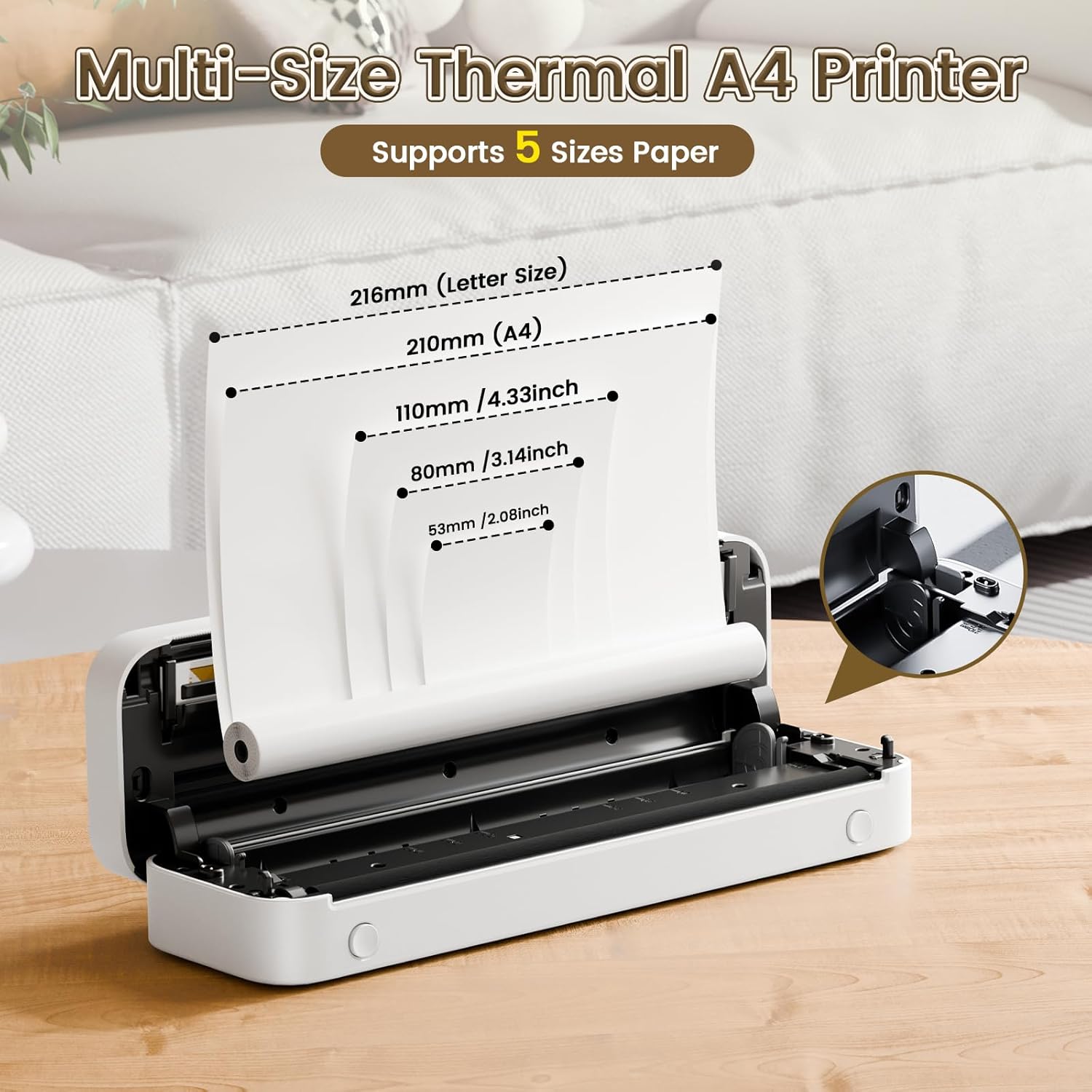
Image: The Phomemo M836-B printer demonstrating support for multiple paper sizes, including US Letter (216mm) and A4 (210mm).
3. Connecting to Devices
The printer supports both Bluetooth and USB connections.
Bluetooth Connection (for iOS/Android)
- Download the official Phomemo app from your device's app store.
- Turn on the printer by pressing and holding the power button.
- Enable Bluetooth on your mobile device.
- Open the Phomemo app, search for the printer (M836-B), and pair with it.
- Follow any on-screen prompts to complete the pairing process.
USB Connection (for Windows/macOS/ChromeOS/Linux)
- Ensure the printer is turned on.
- Connect the printer to your computer using the provided USB Type-C cable.
- Visit the official Phomemo website (www.phomemo.com) to download and install the appropriate drivers for your operating system.
- Once drivers are installed, the printer should be recognized by your computer.

Image: Diagram illustrating the two types of connections supported by the Phomemo M836-B: Bluetooth for Android, iOS, and iPad, and USB for Windows, macOS, ChromeOS, and Linux.
Operating Instructions
Printing from Mobile Devices
- Ensure your printer is charged, loaded with paper, and connected via Bluetooth to your mobile device.
- Open the Phomemo app.
- Select the document or image you wish to print from within the app.
- Adjust print settings (e.g., paper size, density) as needed.
- Tap the print button to initiate printing.
Printing from Computers
- Ensure your printer is charged, loaded with paper, and connected via USB to your computer with drivers installed.
- Open the document or file you wish to print on your computer.
- Go to "File" > "Print" (or use the shortcut Ctrl+P/Cmd+P).
- Select the Phomemo M836-B from the list of available printers.
- Adjust print preferences (e.g., paper size, orientation) as required.
- Click "Print".
Paper Handling Tips
- Always use high-quality thermal paper for best results.
- Ensure the paper is loaded correctly with the printable side facing the print head.
- Avoid exposing thermal paper to direct sunlight or high temperatures, as this can degrade print quality over time.
- Manually tear off printed documents carefully after printing, as the printer does not have an automatic cutter.
Maintenance
Cleaning the Printer
- Turn off the printer and disconnect it from the power source.
- Use a soft, lint-free cloth slightly dampened with isopropyl alcohol to gently wipe the print head. Allow it to dry completely before use.
- Clean the exterior of the printer with a soft, dry cloth. Do not use abrasive cleaners or solvents.
Storage
- Store the printer in a cool, dry place away from direct sunlight and extreme temperatures.
- If storing for an extended period, ensure the printer is fully charged to maintain battery health.
- Keep thermal paper in its original packaging in a dark, cool place to prevent premature fading.
Troubleshooting
If you encounter issues with your Phomemo M836-B printer, refer to the following common problems and solutions:
Printer Not Turning On
- Check Battery: Ensure the printer is sufficiently charged. Connect it to a power source and try again.
- Power Button: Press and hold the power button for a few seconds to ensure it's properly activated.
Connectivity Issues (Bluetooth/USB)
- Bluetooth:
- Ensure Bluetooth is enabled on your device and the printer is within range.
- Unpair and re-pair the printer in your device's Bluetooth settings.
- Restart both the printer and your mobile device.
- USB:
- Verify the USB cable is securely connected to both the printer and the computer.
- Ensure the correct printer drivers are installed on your computer. Reinstall if necessary.
- Try a different USB port or cable.
Poor Print Quality (Blurry, Faded, Streaks)
- Clean Print Head: Follow the cleaning instructions in the Maintenance section.
- Paper Quality/Type: Ensure you are using high-quality thermal paper and that it is loaded correctly.
- Print Density: Adjust print density settings in the Phomemo app or printer driver.
- Paper Storage: Thermal paper exposed to heat or light can degrade. Try a fresh roll of paper.
Paper Jams
- Turn Off Printer: Immediately turn off the printer.
- Remove Paper: Gently pull out any jammed paper. Do not force it, as this can damage the printer.
- Reload: Ensure paper is loaded correctly and not wrinkled or bent before restarting.
Technical Specifications
| Feature | Specification |
|---|---|
| Brand | Phomemo |
| Model Name | M836-B |
| Connectivity Technology | Bluetooth, USB Type C |
| Printing Technology | Thermal |
| Printer Output | Monochrome |
| Max Print Resolution | 300 DPI |
| Max Print Speed (Monochrome) | 1.5 pages per minute |
| Compatible Devices | Android Devices, Mac, Windows, iPhone, iPad |
| Maximum Media Size | 8.5 x 11 inch (US Letter) |
| Paper Size Support | US Letter, A4 |
| Printing Media Type | Thermal Paper |
| Item Weight | 1.53 Pounds (approx. 694g) |
| Product Dimensions (D x W x H) | 7.8D x 26.4W x 4.5H Centimeters |
| Control Method | App |
| Country of Origin | China |
Warranty and Support
Specific warranty details for the Phomemo M836-B Portable Thermal Printer are not provided within this document. For information regarding warranty coverage, technical support, or service, please refer to the warranty card included with your product or contact Phomemo customer service directly through their official website or the contact information provided in your product packaging.
Official Phomemo Website: www.phomemo.com


