1. Introduction
This manual provides detailed instructions for the installation, operation, and maintenance of your Transcend DrivePro DP550B Dash Cam. The DrivePro DP550B is a dual-lens dash camera designed to record both the road ahead and the vehicle's interior, offering comprehensive protection and advanced safety features for your journeys.

Front view of the Transcend DrivePro DP550B Dash Cam, showing the main lens and display.
2. Package Contents
Verify that all items listed below are included in your package:
- Transcend DrivePro DP550B Dash Cam
- microSD memory card (128GB)
- Car Mount (suction cup or adhesive)
- Car lighter adapter
- Quick Guide
3. Product Overview and Key Features
The DrivePro DP550B offers a range of features to enhance your driving safety and recording capabilities:
- Dual Lens Design: Equipped with a 2K QHD 1440P front camera and a 1080P Full HD rear camera, providing a 140° wide-angle view for the front and a 180° rotatable rear lens for interior recording.
- Advanced ADAS Safety Features: Includes Lane Departure Warning System (LDWS), Forward Collision Warning System (FCWS), speed alerts, headlight reminder, and driver fatigue alert.
- Parking Surveillance: Records when motion is detected while the vehicle is parked. Requires external power supply after the car engine is switched off.
- Impact Emergency Lock: G-sensor automatically locks emergency files during an impact to prevent overwriting.
- Time-Lapse Recording: Helps highlight key events and conserve storage space. Requires external power supply after the car engine is switched off.
- Snapshot Button: Allows capturing photos during video recording or documenting accident scenes.
- WDR (Wide Dynamic Range): Balances light and dark areas for clear, detailed video in various lighting conditions.
- Night Vision: Enhanced night vision capabilities for clear footage in low-light environments.
- Wi-Fi Connectivity: For real-time footage playback and download via the DrivePro App.
- GPS/GLONASS Receiver: For geotagging videos and images, allowing route viewing on a map display.
- Built-in Battery: Provides temporary power to safely store files during a power outage.

The dual-lens design captures both exterior and interior views for comprehensive recording.

The dash cam provides clear vision in the dark, capturing high-resolution images even in low light.
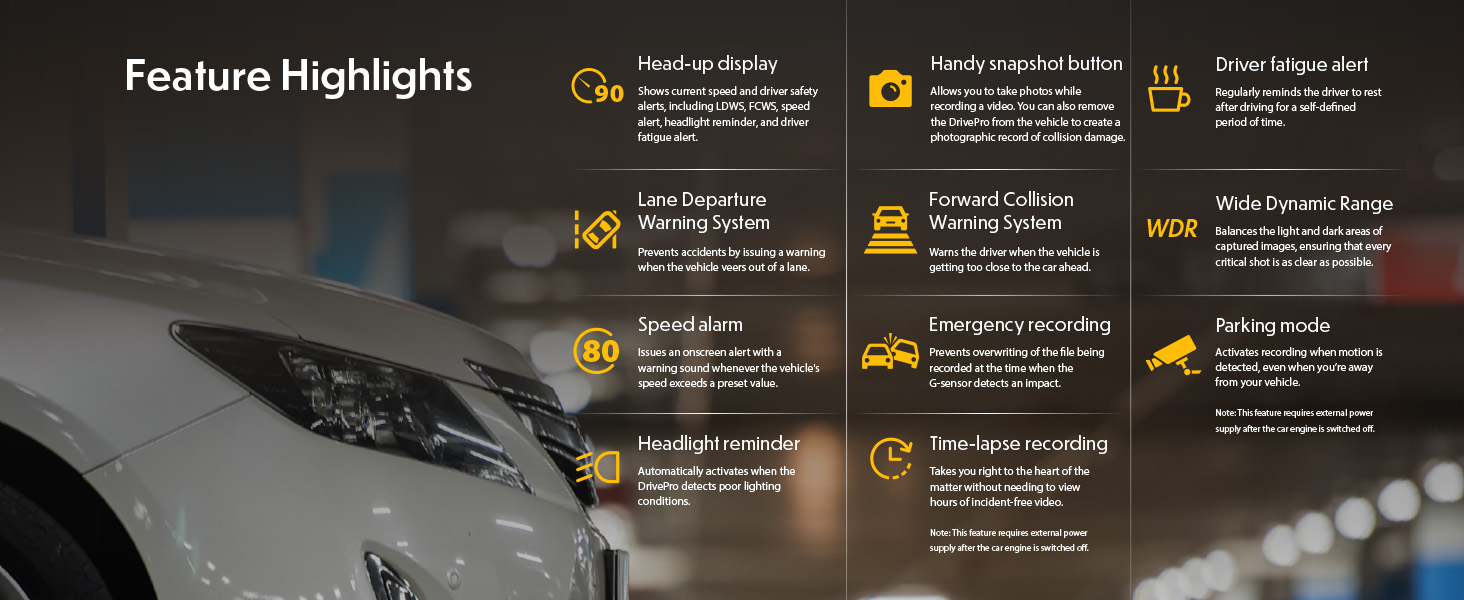
Overview of key features including Head-up display, Lane Departure Warning System, Forward Collision Warning System, Speed alarm, Headlight reminder, Driver fatigue alert, Parking mode, Wide Dynamic Range, and Time-lapse recording.
This video provides a comprehensive overview of the Transcend DrivePro DP550B Dash Cam's features and capabilities.
4. Setup
4.1 Installing the microSD Card
- Locate the microSD card slot on the side of the DrivePro DP550B.
- Insert the provided microSD card into the slot until it clicks into place. Ensure the card is inserted with the correct orientation.
- To remove, gently push the card inward until it springs out.
4.2 Mounting the Dash Cam
- Clean the windshield area where you intend to mount the dash cam.
- Attach the car mount (suction cup or adhesive) to the windshield, ensuring it does not obstruct your view.
- Securely attach the DrivePro DP550B to the mount.
- Adjust the camera angle to ensure a clear view of the road ahead and the vehicle interior.
4.3 Connecting to Power
- Connect the car lighter adapter to your vehicle's 12V power outlet.
- Connect the other end of the adapter cable to the power input port on the DrivePro DP550B.
- The dash cam will typically power on automatically when the vehicle engine starts.
5. Operating Instructions
5.1 Power On/Off
- Automatic: The dash cam powers on and begins recording automatically when connected to power and the vehicle engine starts. It powers off automatically when the engine is turned off.
- Manual: Press and hold the Power button to manually turn the device on or off.
5.2 Recording Modes
- Continuous Recording: The dash cam continuously records video in a loop. Older files are overwritten when the memory card is full, except for locked emergency files.
- Emergency Recording: Activated by the G-sensor upon impact or by manually pressing the emergency button. These files are protected from being overwritten.
5.3 Adjusting Settings
Settings can be adjusted directly on the device using the physical buttons or more conveniently via the DrivePro App (see Section 7).
6. Advanced Features
6.1 ADAS (Advanced Driver-Assistance Systems)
The DrivePro DP550B includes several ADAS features to assist drivers:
- Lane Departure Warning System (LDWS): Alerts the driver if the vehicle drifts out of its lane.
- Forward Collision Warning System (FCWS): Warns the driver when the vehicle is approaching the car ahead too closely.
- Speed Alert: Notifies the driver when a preset speed limit is exceeded.
- Headlight Reminder: Activates when the DrivePro detects poor lighting conditions.
- Driver Fatigue Alert: Reminds the driver to rest after a defined period of driving.
6.2 Parking Mode
When enabled, Parking Mode automatically records video when motion is detected around your parked vehicle. This feature requires a continuous power supply to the dash cam after the engine is off, typically through a hardwire kit (sold separately) or a dedicated power bank.
6.3 Time-Lapse Recording
Time-Lapse Recording condenses long periods of footage into shorter videos, making it easier to review events. This mode is particularly useful for monitoring parking or long journeys. Similar to Parking Mode, it requires continuous power after the engine is off.
7. Wi-Fi Connectivity and DrivePro App
The DrivePro DP550B features built-in Wi-Fi, allowing you to connect to your smartphone or tablet via the Transcend DrivePro App. This app provides convenient access to recorded footage, live view, and device settings.
- Download the App: Search for "DrivePro" on the App Store (iOS) or Google Play (Android) and install it.
- Enable Wi-Fi on Dash Cam: Turn on the DrivePro DP550B and activate its Wi-Fi function through the device menu.
- Connect to Wi-Fi: On your mobile device, go to Wi-Fi settings and select the DrivePro's network (SSID typically starts with "DP"). Enter the default password (usually 12345678).
- Open DrivePro App: Once connected, open the DrivePro App. You can now use features like Live View to watch real-time video, Browser to manage and download recorded files, and adjust device settings.

Wi-Fi connectivity allows real-time footage playback and download to your mobile device.
This video demonstrates how to connect your DrivePro Dash Cam to the DrivePro App via Wi-Fi and utilize its features.
8. GPS/GLONASS Functionality
The integrated GPS/GLONASS receiver records driving coordinates, date, and time information with your video footage. This data can be viewed during playback using the DrivePro App or Transcend's DrivePro Toolbox software on a computer, allowing you to track your route and pinpoint the exact location of events.
9. Maintenance
9.1 Cleaning the Device
- Use a soft, dry cloth to clean the dash cam body.
- For the lens, use a specialized lens cleaning cloth and solution to avoid scratches.
- Do not use abrasive cleaners or solvents.
9.2 Memory Card Care
- Regularly format the microSD card (e.g., once a month) to maintain optimal performance and prevent data corruption. This can usually be done through the dash cam's settings or the DrivePro App.
- Use only high-endurance microSD cards designed for continuous recording in dash cams.
10. Troubleshooting
| Problem | Possible Cause | Solution |
|---|---|---|
| Dash cam does not power on. | No power supply; faulty cable/adapter. | Check power connection; try a different power outlet or cable. |
| Recording stops unexpectedly. | Memory card full or corrupted; low power. | Format the microSD card; ensure continuous power supply. |
| Video quality is poor. | Dirty lens; incorrect resolution settings. | Clean the lens; check video resolution settings in the menu or app. |
| Wi-Fi connection fails. | Incorrect password; Wi-Fi not enabled. | Verify Wi-Fi is enabled on the dash cam; re-enter password; restart both devices. |
| ADAS features not working. | Features disabled; improper calibration. | Enable ADAS features in settings; ensure proper dash cam alignment. |
11. Specifications
| Feature | Detail |
|---|---|
| Product Dimensions | 1.59 x 3.76 x 2.59 inches |
| Item Weight | 13 ounces |
| Model Name | TS-DP550B-128G |
| Batteries | 1 Lithium Polymer battery (included) |
| Vehicle Service Type | Bus, Car, Truck |
| Connectivity Technology | Wi-Fi |
| Video Capture Resolution | 1080p, 2K |
| Mounting Type | Dashboard Mount |
| Field Of View | 140 Degrees |
12. Warranty and Support
For warranty information and technical support, please refer to the official Transcend website or contact their customer service. Keep your purchase receipt as proof of purchase for warranty claims.


