
1. Introduction
This manual provides detailed instructions for the CRKD NEO S Controller Purple Wave, Model 24-NS-FC. This versatile controller is designed for an immersive gaming experience across multiple platforms, including PC, iPhone, iPad, Android, Nintendo Switch/Switch 2, and Smart TV. It features a detachable 5-fret attachment, Hall Effect thumbsticks, and customizable controls via the CRKD Companion app.
What's Included:
- CRKD NEO S Purple Wave Edition Controller
- 5-Fret Guitar Grip Attachment
- Microfiber String Bag
- Velcro Wrist Strap
- USB-C to USB-A Charging Cable
2. Safety Information
Please read all safety instructions before using the CRKD NEO S Controller. Failure to follow these instructions may result in injury or damage to the device.
- Do not expose the controller to extreme temperatures, direct sunlight, or high humidity.
- Avoid dropping or subjecting the controller to strong impacts.
- Do not attempt to disassemble or modify the controller. This will void the warranty.
- Keep the controller and its accessories out of reach of small children.
- Use only the provided USB-C to USB-A cable for charging.
- If the controller becomes hot, emits smoke, or shows any signs of malfunction, discontinue use immediately and contact support.
3. Product Overview
Familiarize yourself with the components and features of your CRKD NEO S Controller.

Figure 3.1: Front view of the CRKD NEO S Controller Purple Wave, showing the D-pad, action buttons, Hall Effect thumbsticks, and central function buttons.
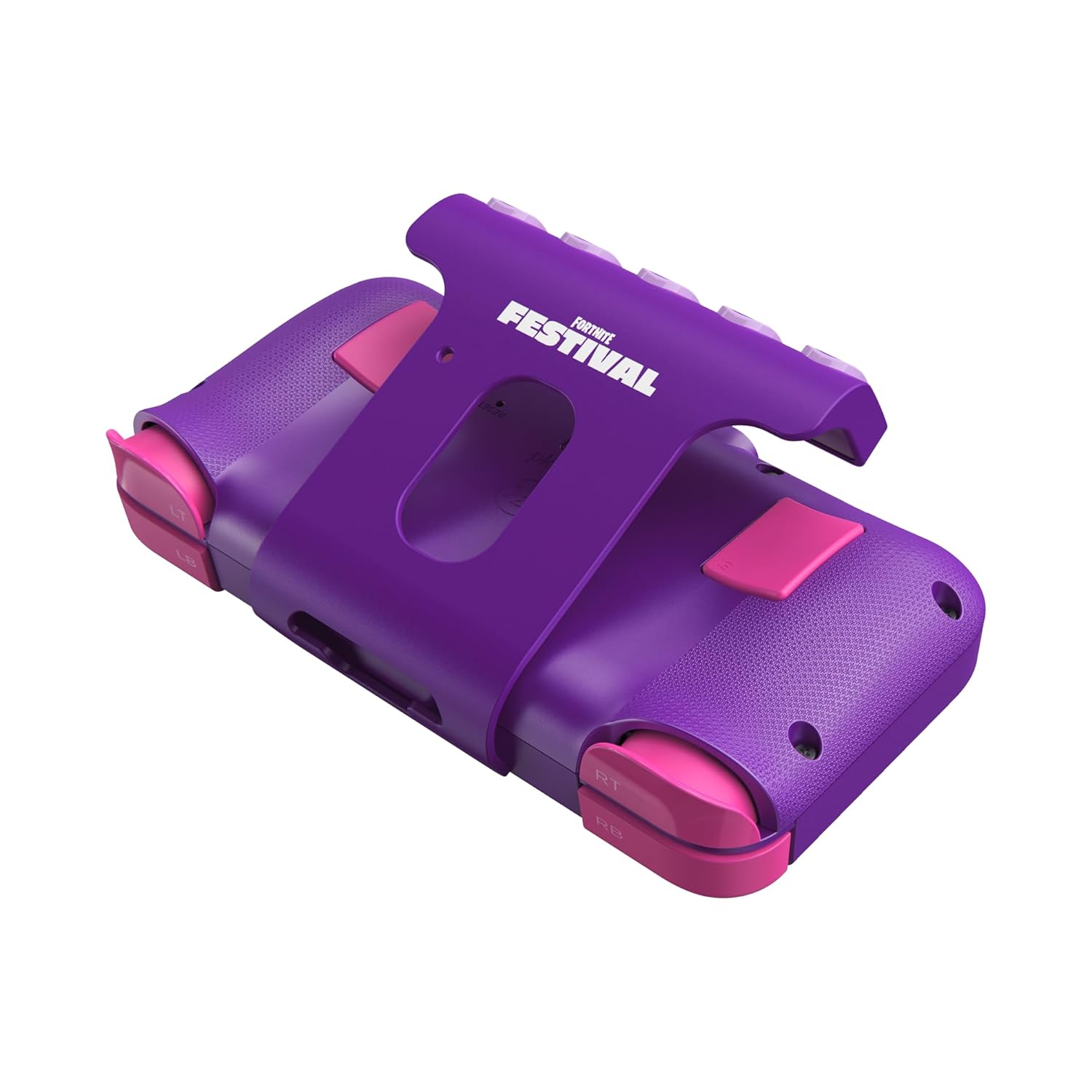
Figure 3.2: Rear view of the CRKD NEO S Controller with the 5-fret guitar grip attachment installed, highlighting the shoulder buttons and back paddles.

Figure 3.3: The CRKD NEO S Controller being held, demonstrating its ergonomic design and compact size.
Key Features:
- Hall Effect Thumbsticks: Provides zero stick drift and precise control.
- Ergonomic Design: Comfortable for extended gaming sessions.
- Wireless Bluetooth Connectivity: Seamless pairing with various devices.
- Wired Connection: Optional USB-C wired mode for low-latency gaming.
- No Deadzone Mode: Enhances thumbstick responsiveness.
- Swappable Stick Tops: Customize the feel of your thumbsticks.
- Adjustable Trigger Actuation Points: Fine-tune trigger sensitivity.
- Adjustable Vibration: Customize haptic feedback.
- Re-mappable Back Buttons: Assign single inputs or sequences for added versatility.
- Motion Controls: Supported for Nintendo Switch only.
- Rumble Support: Provides immersive feedback.
- Turbo Function: Enables rapid input for specific buttons.
- CRKD Companion App: Connects to the app for advanced customization and firmware updates.
4. Setup
4.1 Initial Charging
Before first use, fully charge your CRKD NEO S Controller. Connect the provided USB-C to USB-A charging cable to the controller's USB-C port and the other end to a compatible USB-A power source (e.g., computer, wall adapter).
4.2 Attaching the 5-Fret Guitar Grip
The 5-fret attachment is designed for rhythm games like Fortnite Festival. To attach:
- Align the attachment with the bottom edge of the controller.
- Gently slide the attachment onto the controller until it clicks securely into place.
To detach, press the release buttons (if present) or gently slide the attachment off.

Figure 4.2.1: The 5-fret attachment connected to the CRKD NEO S Controller.
4.3 Wireless Pairing
The CRKD NEO S Controller supports Bluetooth wireless connectivity. Follow these steps to pair with your device:
- Nintendo Switch: Go to 'Controllers' > 'Change Grip/Order' on your Switch. Press and hold the Home button on the NEO S Controller for several seconds until the indicator lights flash, then release. The controller will appear on the Switch screen.
- PC (Windows), Android, Steam Deck, Legion Go, Rog Ally: Ensure Bluetooth is enabled on your device. On the NEO S Controller, press and hold the Home button and the Up directional button simultaneously for several seconds until the indicator lights flash rapidly. This puts the controller into Xbox/PC pairing mode. Select 'CRKD NEO S' from your device's Bluetooth settings.
- iPhone/iPad: Ensure Bluetooth is enabled on your iOS device. Press and hold the Home button on the NEO S Controller for several seconds until the indicator lights flash. Select 'CRKD NEO S' from your device's Bluetooth settings.
- Smart TV: Refer to your Smart TV's manual for Bluetooth pairing instructions. Generally, enable Bluetooth on the TV and put the controller into the appropriate pairing mode (Home button for general Bluetooth, Home + Up for Xbox/PC mode if supported).

Figure 4.3.1: Illustration of the wireless connection capability of the CRKD NEO S Controller.
5. Operating Instructions
5.1 Basic Controls
The CRKD NEO S Controller features standard gaming controls:
- D-Pad: Directional input.
- Action Buttons (A, B, X, Y): Primary game actions.
- Thumbsticks: Analog input for movement and camera control.
- Shoulder Buttons (LB, RB) & Triggers (LT, RT): Secondary actions and analog input.
- Back Buttons: Programmable for custom inputs.
5.2 Using the 5-Fret Attachment
When the 5-fret attachment is connected, it functions as dedicated input for rhythm games. The five frets correspond to specific notes or actions within compatible games. Ensure the attachment is securely connected for optimal performance.

Figure 5.2.1: A close-up view of the 5-fret attachment, showing the individual fret buttons.
5.3 CRKD Companion App
The CRKD Companion app (available for mobile devices) allows for advanced customization and management of your controller. Features include:
- Button Remapping: Customize the function of any button, including the back buttons.
- Trigger Sensitivity Adjustment: Fine-tune the actuation points of the LT/RT triggers.
- Thumbstick Deadzone Adjustment: Optimize thumbstick responsiveness.
- Vibration Intensity: Adjust rumble feedback.
- Firmware Updates: Keep your controller's software up-to-date.
- Product Registration: Register your controller and view its unique product number and rarity ranking.

Figure 5.3.1: The CRKD CTRL Dashboard within the companion app, showing various customization options.

Figure 5.3.2: The 'Configure Attachment' screen in the CRKD Companion app, allowing customization of the 5-fret attachment buttons.

Figure 5.3.3: Adjusting trigger sensitivity within the CRKD Companion app.

Figure 5.3.4: The 'Deadzone Adjustment' interface for thumbsticks in the CRKD Companion app.
6. Maintenance
6.1 Cleaning
To clean your controller, use a soft, dry cloth. For stubborn dirt, slightly dampen the cloth with water. Do not use harsh chemicals, solvents, or abrasive cleaners, as these can damage the controller's finish or internal components.
6.2 Storage
Store the controller in a cool, dry place away from direct sunlight and extreme temperatures. Use the provided microfiber string bag for protection when not in use or during transport.
7. Troubleshooting
If you encounter issues with your CRKD NEO S Controller, refer to the following common solutions:
| Problem | Possible Solution |
|---|---|
| Controller does not power on. | Ensure the controller is fully charged. Connect it to a power source using the USB-C cable. |
| Unable to pair via Bluetooth. |
|
| Buttons or thumbsticks are unresponsive. |
|
| 5-Fret attachment not working correctly. | Ensure the attachment is securely connected. Check the CRKD Companion app for specific settings related to the attachment. |
| Controller disconnects frequently. |
|
8. Specifications
| Feature | Detail |
|---|---|
| Model Number | 24-NS-FC |
| Connectivity | Bluetooth Wireless, USB-C Wired |
| Compatibility | PC, iPhone, iPad, Android, Nintendo Switch/Switch 2, Smart TV |
| Thumbsticks | Hall Effect Sensors |
| Battery | 1 LR44 battery (included) |
| Dimensions | 8.86 x 5.63 x 2.24 inches (approximate) |
| Weight | 1.04 Pounds (approximate) |
| Manufacturer | CRKD |
9. Warranty and Support
For warranty information, technical support, or further assistance, please visit the official CRKD website or contact their customer service. Keep your proof of purchase for warranty claims.
CRKD Official Website: Visit the CRKD Store on Amazon


