
1. Product Overview
The Blackview BV7300 is a rugged smartphone designed for durability and performance in challenging environments. It features dual super-bright camping lights, a large capacity battery, advanced camera systems including night vision, and robust protection against water, dust, and shocks.

Figure 1.1: Front and rear view of the Blackview BV7300 Rugged Smartphone, showcasing its robust design and dual camping lights.
Key Features:
- Rugged Design: IP68, IP69K, and MIL-STD-810H certified for water, dust, and shock resistance.
- Dual Super-Bright Camping Lights: Integrated 800 LM lights with up to 5.8 hours of continuous illumination.
- Advanced Camera System: 50MP ISOCELL JN1 main camera, 20MP night vision camera, and 32MP front camera. Supports underwater photography and 1080p video recording.
- Massive Battery: 15000mAh battery with 45W super fast charging and 7W reverse charging capabilities.
- Immersive Display: 6.67-inch HD+ IPS display with 90Hz dynamic refresh rate and Corning Gorilla Glass 5 protection.
- Powerful Performance: Octa-core MediaTek Helio G81 processor, ARM Mali-G52 GPU, up to 18GB RAM (6GB + 12GB expansion), and 256GB ROM with up to 2TB TF card expansion.
- Connectivity: Wi-Fi, Bluetooth 5.3, GSM/3G/4G LTE, GPS+GLONASS+Beidou+Galileo, NFC, OTG, USB Type-C.
- Additional Features: Glove Mode 2.0, Face Unlock, Fingerprint Unlock, operates in extreme temperatures (-20°C to +60°C).
2. Setup Guide
2.1 Package Contents
Before you begin, please ensure all items are present in your package:
- Blackview BV7300 Rugged Smartphone x1
- Separate Protective Film x1
- Power Adapter x1
- USB Cable x1
2.2 SIM Card and TF Card Installation
The Blackview BV7300 supports either two SIM cards or one SIM card and one TF (microSD) card for expanded storage.
- Locate the SIM card tray on the side of the device.
- Use the provided SIM ejector tool to open the tray.
- Carefully place your Nano-SIM card(s) and/or TF card into the designated slots on the tray. Ensure the gold contacts are facing down.
- Gently push the tray back into the device until it is flush with the body.
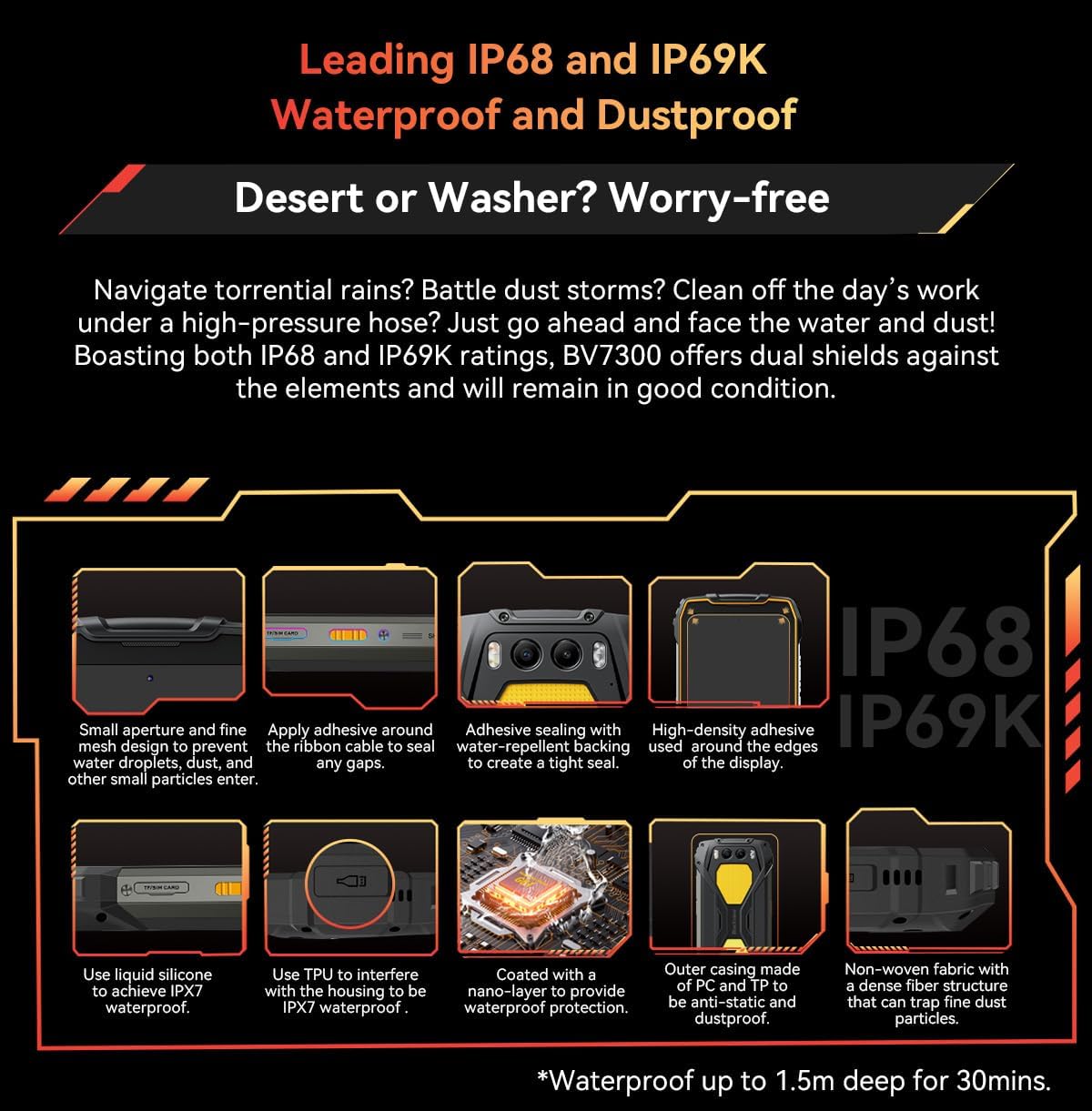
Figure 2.1: Illustration of the SIM/TF card slot and various waterproof sealing points on the Blackview BV7300.
2.3 Initial Charging
Before first use, it is recommended to fully charge your Blackview BV7300.
- Connect the USB cable to the power adapter.
- Plug the USB Type-C end of the cable into the charging port at the bottom of the phone.
- Plug the power adapter into a wall outlet.
- The charging indicator will appear on the screen. The device supports 45W super fast charging.
2.4 Powering On/Off
- To Power On: Press and hold the Power button (located on the right side) until the Blackview logo appears.
- To Power Off: Press and hold the Power button until the power options menu appears, then select 'Power off'.
- To Restart: Press and hold the Power button until the power options menu appears, then select 'Restart'.
3. Operating Instructions
3.1 Basic Phone Functions
- Making Calls: Open the Phone app, enter the number, and tap the call icon.
- Sending Messages: Open the Messages app, tap 'Start chat', enter recipient and message, then send.
- Internet Access: Connect to Wi-Fi via Settings > Network & internet > Wi-Fi, or enable mobile data via Settings > Network & internet > Mobile network.
3.2 Camera Usage
The BV7300 features a versatile camera system for various scenarios.
- Standard Photography: Open the Camera app. Use the 50MP main camera for high-resolution photos. Tap to focus, pinch to zoom.
- Night Vision Camera: Switch to the 20MP Night Vision mode within the Camera app to capture clear images in low-light or total darkness.

Figure 3.1: The 50MP Samsung ISOCELL JN1 main camera, featuring 4-in-1 Pixel Binning and Inter-scene HDR for enhanced image quality.

Figure 3.2: Examples of images captured with the 20MP Night Vision Camera, demonstrating its capability in dark environments for wildlife observation, terrain features, and campsite safety checks.
- Underwater Camera: The BV7300 supports underwater photography. Ensure all ports are securely sealed before submerging the device. Use the volume buttons to control the camera functions underwater.
- Video Recording: Select video mode in the Camera app. The phone supports super clear 1080p video recording.
3.3 Dual Camping Lights
The BV7300 is equipped with two powerful 800 LM camping lights.
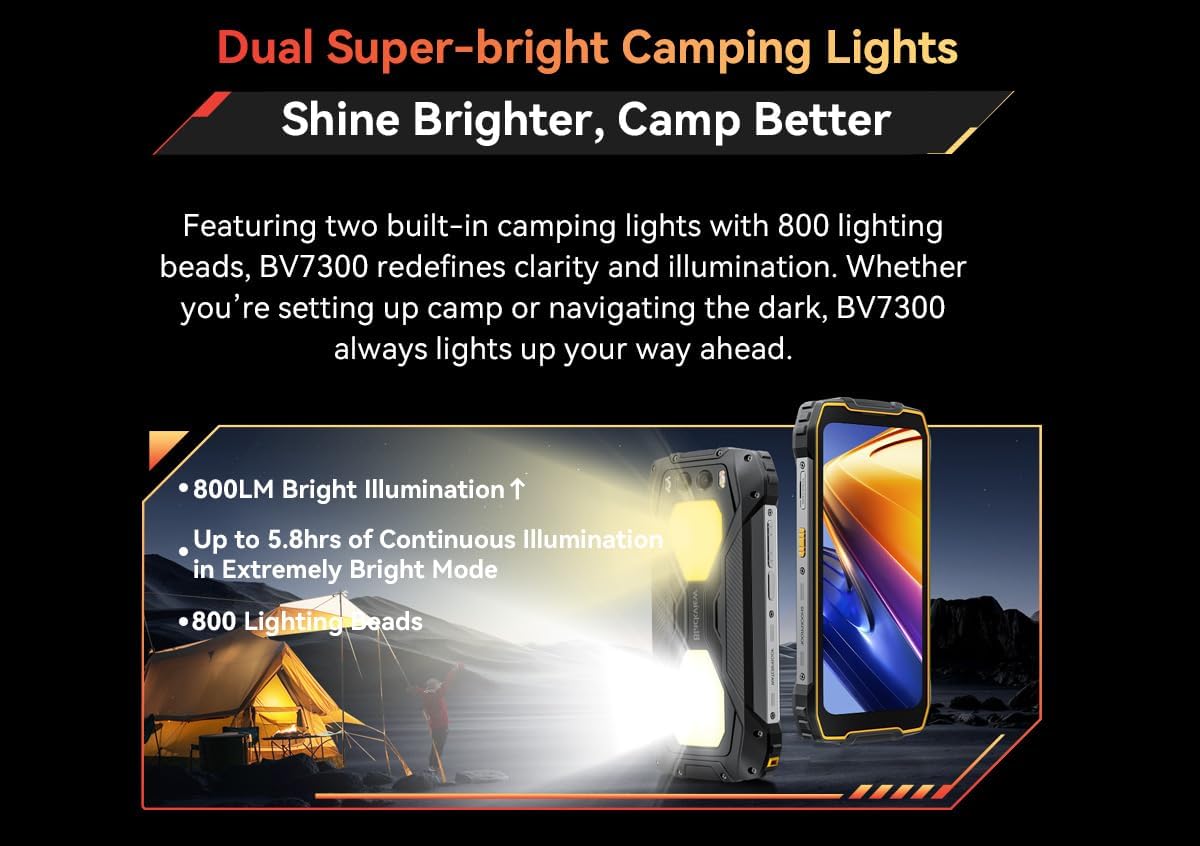
Figure 3.3: The Blackview BV7300 demonstrating its dual super-bright camping lights, providing powerful illumination for outdoor activities.
- Activating Lights: The camping lights can typically be activated via a dedicated button or a quick setting toggle in the notification panel. Refer to your phone's specific software interface for exact controls.
- Usage: Ideal for illuminating campsites, navigating in darkness, or as an emergency light source.
3.4 NFC Functionality
NFC (Near Field Communication) allows for quick data exchange and mobile payments.
- Enable NFC: Go to Settings > Connected devices > Connection preferences > NFC and toggle it on.
- Usage: Tap your phone to compatible NFC tags or payment terminals to initiate actions or make payments.
3.5 Security Features
- Fingerprint Unlock: Register your fingerprints in Settings > Security & privacy > Device unlock > Fingerprint.
- Face Unlock: Set up face recognition in Settings > Security & privacy > Device unlock > Face unlock.
3.6 Glove Mode 2.0
This feature enhances touch sensitivity, allowing you to operate the screen even while wearing gloves.
- Activating Glove Mode: Look for 'Glove Mode' or 'Touch sensitivity' in your phone's display or accessibility settings.
4. Maintenance
4.1 Durability and Cleaning
The BV7300 is built to be rugged, but proper care ensures its longevity.
- Water and Dust Resistance: The device is IP68, IP69K, and MIL-STD-810G certified. This means it can withstand immersion in water up to 1.5 meters for 30 minutes, high-pressure water jets, and dust ingress.
- Post-Exposure Care: After exposure to water, especially saltwater, rinse the phone with clean fresh water and ensure all ports are dry before charging or using accessories. Do not use high-pressure air to dry the ports.
- Cleaning: Use a soft, damp cloth to clean the device. Avoid harsh chemicals or abrasive materials.
4.2 Battery Care
The 15000mAh battery is designed for extended use.

Figure 4.1: The 15000mAh mega battery of the Blackview BV7300, illustrating its long-lasting power for various activities like gaming, video playback, web browsing, calls, music, and standby.
- Charging: Use the original 45W fast charger for optimal charging speed and battery health. Avoid using non-certified chargers.
- Reverse Charging: The 7W reverse charging feature allows you to use your BV7300 as a power bank for other devices. Connect the devices using an OTG cable.
- Temperature: Avoid exposing the phone to extreme temperatures for prolonged periods, as this can affect battery life. The phone is designed to operate between -20°C and +60°C.
4.3 Software Updates
Regular software updates provide new features, security patches, and performance improvements.
- Check for Updates: Go to Settings > System > System update to check for and install available updates. Ensure you have a stable internet connection and sufficient battery life before updating.
5. Troubleshooting
This section addresses common issues you might encounter with your Blackview BV7300.
5.1 Common Issues and Solutions
- Phone Not Turning On:
- Ensure the battery is charged. Connect to the charger for at least 10 minutes.
- Press and hold the Power button for 10-15 seconds to force a restart.
- Charging Issues:
- Check if the charging cable and adapter are securely connected and undamaged.
- Try a different power outlet.
- Ensure the charging port is clean and free of debris.
- Network Connectivity Problems (No Signal/Wi-Fi):
- Toggle Airplane Mode on and off.
- Restart the phone.
- For mobile network, ensure your SIM card is correctly inserted and active.
- For Wi-Fi, forget the network and reconnect, or restart your Wi-Fi router.
- Apps Crashing/Freezing:
- Close the app and reopen it.
- Clear the app's cache and data in Settings > Apps > [App Name] > Storage & cache.
- Ensure the app is updated to the latest version.
5.2 Factory Reset
If persistent issues occur, a factory reset can resolve them. Warning: This will erase all data on your phone. Back up important data before proceeding.
- Go to Settings > System > Reset options.
- Select 'Erase all data (factory reset)'.
- Confirm your decision and enter your PIN/pattern/password if prompted.
- The phone will restart and begin the reset process.
6. Specifications
Detailed technical specifications for the Blackview BV7300 Rugged Smartphone.
| Category | Specification |
|---|---|
| Model Name | BV7300 |
| Operating System | Android 14 |
| Dimensions | 186.2 x 85 x 23.5 mm |
| Weight | 528 g |
| Display | 6.67 inches HD+ IPS, 720 x 1604 resolution |
| Refresh Rate | 90 Hz Dynamic |
| Display Protection | Corning Gorilla Glass 5 |
| Processor | Octa-Core MediaTek Helio G81, up to 2.0 GHz |
| GPU | ARM Mali-G52 |
| RAM | 6GB RAM + 12GB Virtual RAM (up to 18GB total) |
| Internal Storage (ROM) | 256GB |
| Expandable Storage | Supports up to 2TB TF card |
| Rear Camera | 50MP (ISOCELL JN1) Main Camera |
| Night Vision Camera | 20MP |
| Front Camera | 32MP |
| Video Recording | 1080p Super Clear |
| Battery Capacity | 15000 mAh |
| Charging | 45W Super Fast Charge |
| Reverse Charging | 7W |
| Standby Time | Up to 1368 hours |
| Wi-Fi | 802.11 a/b/g/n/ac |
| Bluetooth | BT 5.3 |
| Cellular Networks | GSM/3G/4G LTE (Dual 4G Support) |
| Navigation | GPS + GLONASS + Beidou + Galileo |
| USB Port | TYPE-C |
| NFC | Yes |
| OTG | Yes |
| Durability Ratings | IP68, IP69K, MIL-STD-810G |
| Operating Temperature | -20°C to +60°C |
7. Warranty and Support
7.1 Warranty Information
Please refer to the warranty card included with your product or contact your point of purchase for specific warranty terms and conditions. General warranty information is typically provided by the manufacturer or seller at the time of purchase.
7.2 Customer Support
For technical assistance, troubleshooting beyond this manual, or service inquiries, please contact Blackview customer support through their official website or the retailer from whom you purchased the device.
You can visit the official Blackview store on Amazon for more information: Blackview Amazon Store