Important Safety Information
Please read all safety instructions carefully before using this product. Failure to follow these instructions may result in electric shock, fire, or damage to the device.
- Do not expose the device to water or excessive humidity.
- Do not attempt to disassemble or repair the device yourself. Refer all servicing to qualified personnel.
- Use only the power adapters and cables specified by the manufacturer.
- Keep the device away from heat sources and direct sunlight.
- Ensure proper ventilation around the device during operation.
Package Contents
Verify that all items are present in your package:
- 1 x AIMIBO Wireless USB C Transmitter (TX)
- 1 x AIMIBO Wireless HDMI Receiver (RX)
- 1 x USB Power Cable for Receiver
- 1 x User Manual
Product Overview
The AIMIBO Wireless HDMI+USB C Transmitter and Receiver Kit allows for wireless transmission of 4K video and audio from a USB-C enabled device to an HDMI display.
Key Features:
- USB C Transmitter & HDMI Receiver: Directly connects to USB-C devices for video output and HDMI displays for input.
- Plug & Play: No drivers, apps, or Wi-Fi required. Pre-paired for immediate use.
- 4K@30Hz / 1080P@60Hz Output: Supports high-definition video and audio.
- 2.4G/5G Transmission: Utilizes dual-band frequency for stable and smooth streaming.
- 165FT/50M Range: Provides extended wireless transmission distance in open areas.
- Wide Compatibility: Supports various USB-C devices (laptops, tablets, smartphones) and HDMI displays (TVs, monitors, projectors).

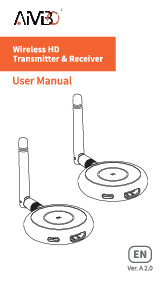
Image: The AIMIBO Wireless HDMI+USB C Transmitter and Receiver Kit, showing the compact design of both units.
Setup Instructions
Follow these steps to set up your AIMIBO Wireless HDMI+USB C Transmitter and Receiver Kit:
1. Connecting the Receiver (RX)
- Plug the HDMI end of the Receiver (RX) into an available HDMI input port on your TV, monitor, or projector.
- Connect the USB power cable to the Receiver (RX) and then plug the other end into a USB power source (e.g., TV's USB port, USB wall adapter). The receiver will power on automatically.
2. Connecting the Transmitter (TX)
- Plug the USB-C end of the Transmitter (TX) into the USB-C port of your source device (e.g., laptop, tablet, smartphone). Ensure your USB-C device supports video output (USB Type-C DP Alt mode and Thunderbolt 3 & 4).
- The transmitter will draw power from your source device and power on.
3. Auto Sync and Display
- Once both the Transmitter and Receiver are powered on, they will automatically pair within approximately 3-5 seconds.
- The content from your source device will then be mirrored or extended to your display.
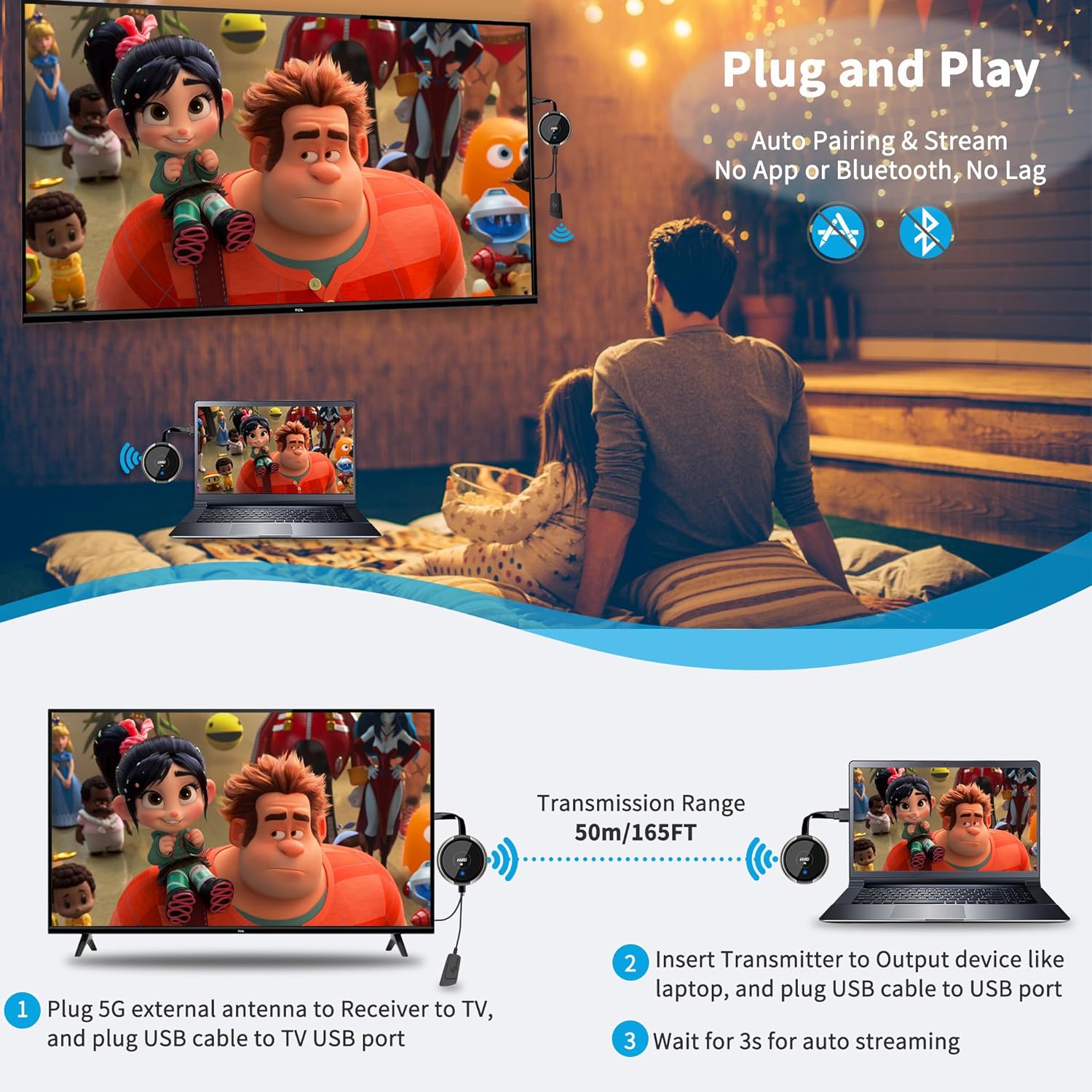
Image: Step-by-step guide for connecting the AIMIBO wireless extender to a laptop and TV, illustrating the plug-and-play process.

Image: Comparison showing a clean, wireless setup using the USB C Transmitter and HDMI Receiver versus a cluttered, wired setup.
Operating Instructions
Screen Mirroring and Extension
The kit supports both screen mirroring and extending your display, depending on your source device's operating system settings. Adjust these settings on your laptop or tablet as needed.
Multiple Transmitters (Optional)
The system supports pairing one receiver with up to 8 transmitters. This feature is useful for presentations where multiple users need to share their screens. To switch between transmitters, simply activate the desired transmitter, and the receiver will automatically switch to its signal.
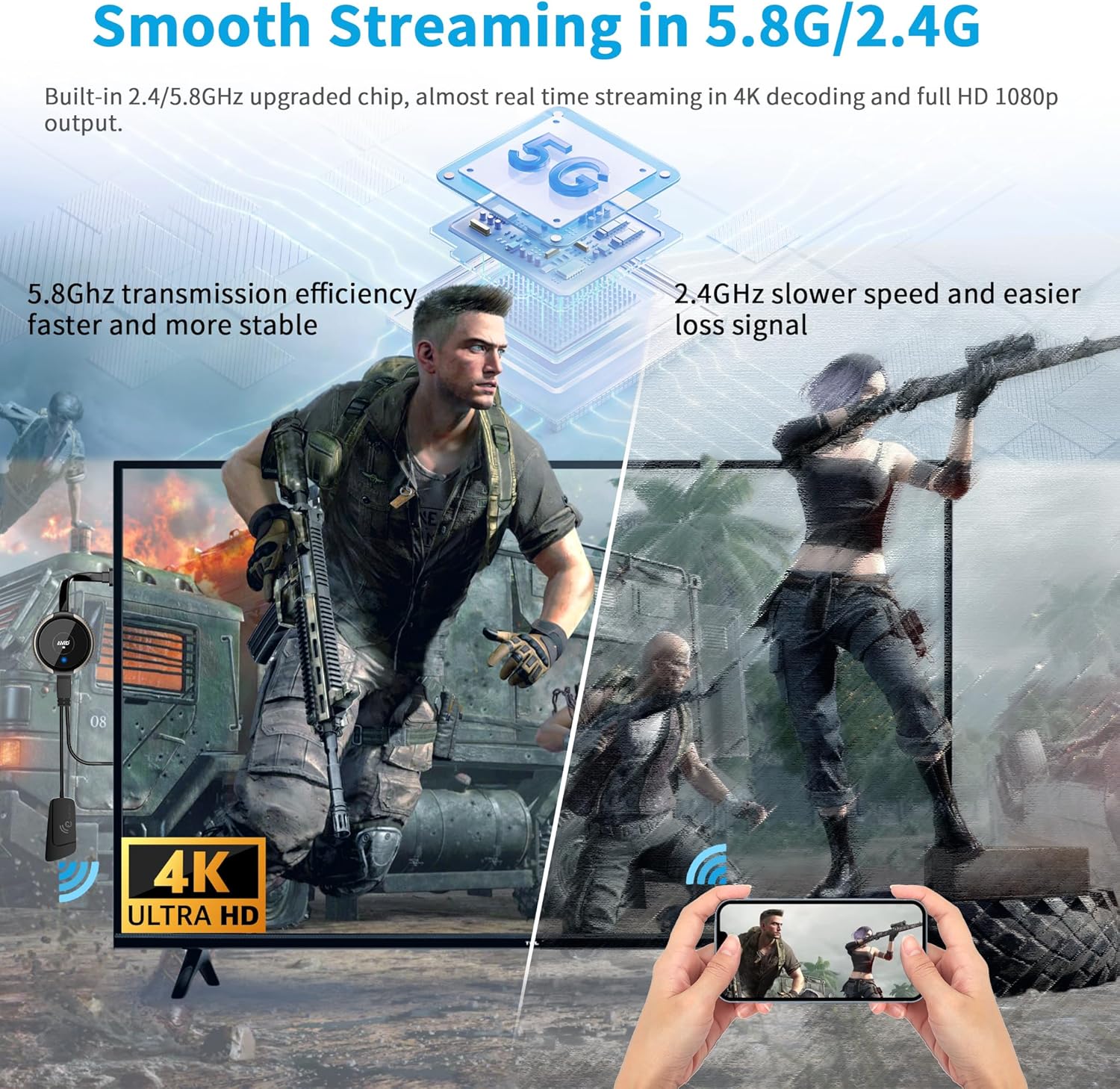
Image: Visual representation of smooth streaming using 5.8G/2.4G frequencies, showcasing 4K decoding and 1080P output.

Image: A family enjoying 4K content on a TV, demonstrating the visual impact of the wireless extender for home entertainment.

Image: Illustration comparing 2.4GHz and 5GHz adjustable Wi-Fi channels for optimized streaming performance.

Image: Comprehensive compatibility diagram for the AIMIBO wireless extender, listing various USB-C input devices and HDMI output displays.
Troubleshooting
If you encounter issues, refer to the following common problems and solutions:
- No Signal on Display:
- Ensure both Transmitter (TX) and Receiver (RX) are properly powered and connected.
- Verify that your USB-C source device supports video output (DP Alt mode or Thunderbolt 3/4).
- Check if the display is set to the correct HDMI input source.
- Try restarting both the source device and the wireless extender units.
- Flickering or Unstable Picture:
- Reduce the distance between the Transmitter and Receiver.
- Ensure there are no significant obstructions (e.g., thick walls, metal objects) between the units.
- Minimize interference from other 2.4GHz or 5GHz wireless devices.
- Ensure the receiver is receiving adequate power from its USB source.
- No Audio:
- Check the audio settings on your source device and display.
- Ensure the volume is not muted on either device.
- Transmission Range Issues:
- The stated 165FT/50M range is for open areas. Walls and other obstacles will reduce this range significantly.
- Avoid placing units behind large metal objects or in enclosed cabinets.
Specifications
| Feature | Specification |
|---|---|
| Model | B0DMJXQC5L |
| Transmission Frequency | 2.4GHz / 5GHz |
| Transmission Distance | Up to 165FT / 50M (in open area) |
| Video Resolution | 4K@30Hz, 1080P@60Hz |
| Input (Transmitter) | USB-C (DP Alt Mode / Thunderbolt 3 & 4 compatible) |
| Output (Receiver) | HDMI |
| HDCP Compliance | Yes |
| Power Supply | Transmitter: USB-C powered from source device Receiver: USB powered (5V/1A recommended) |
Maintenance
To ensure the longevity and optimal performance of your AIMIBO Wireless HDMI+USB C Transmitter and Receiver Kit, follow these maintenance guidelines:
- Cleaning: Use a soft, dry cloth to clean the devices. Do not use liquid cleaners or aerosols.
- Storage: When not in use for extended periods, store the devices in a cool, dry place away from direct sunlight and extreme temperatures.
- Cable Care: Avoid bending or crimping the cables excessively. Always grasp the plug, not the cable, when disconnecting.
Warranty and Support
AIMIBO products come with a standard manufacturer's warranty. For specific warranty details, please refer to the warranty card included in your package or visit the official AIMIBO website.
For technical support, troubleshooting assistance, or any product-related inquiries, please contact AIMIBO customer service through the contact information provided on the official website or your purchase platform.