
Introduction
Welcome to the Maxell Wireless Soundbar and Voice Amplifier user manual. This guide provides essential information for setting up, operating, and maintaining your device. Designed for versatility and clarity, this system enhances audio projection in various environments, from classrooms to meetings.

The Maxell Wireless Soundbar in use within a classroom, demonstrating its application in educational settings.
Package Contents
Please verify that all items listed below are included in your package:
- Maxell Wireless Soundbar (Model 197337)
- 2.4GHz Wireless Microphone Transmitter
- 2.4GHz Wireless Microphone Receiver
- USB-C Charging Cable
- Carrying Case
- User Manual
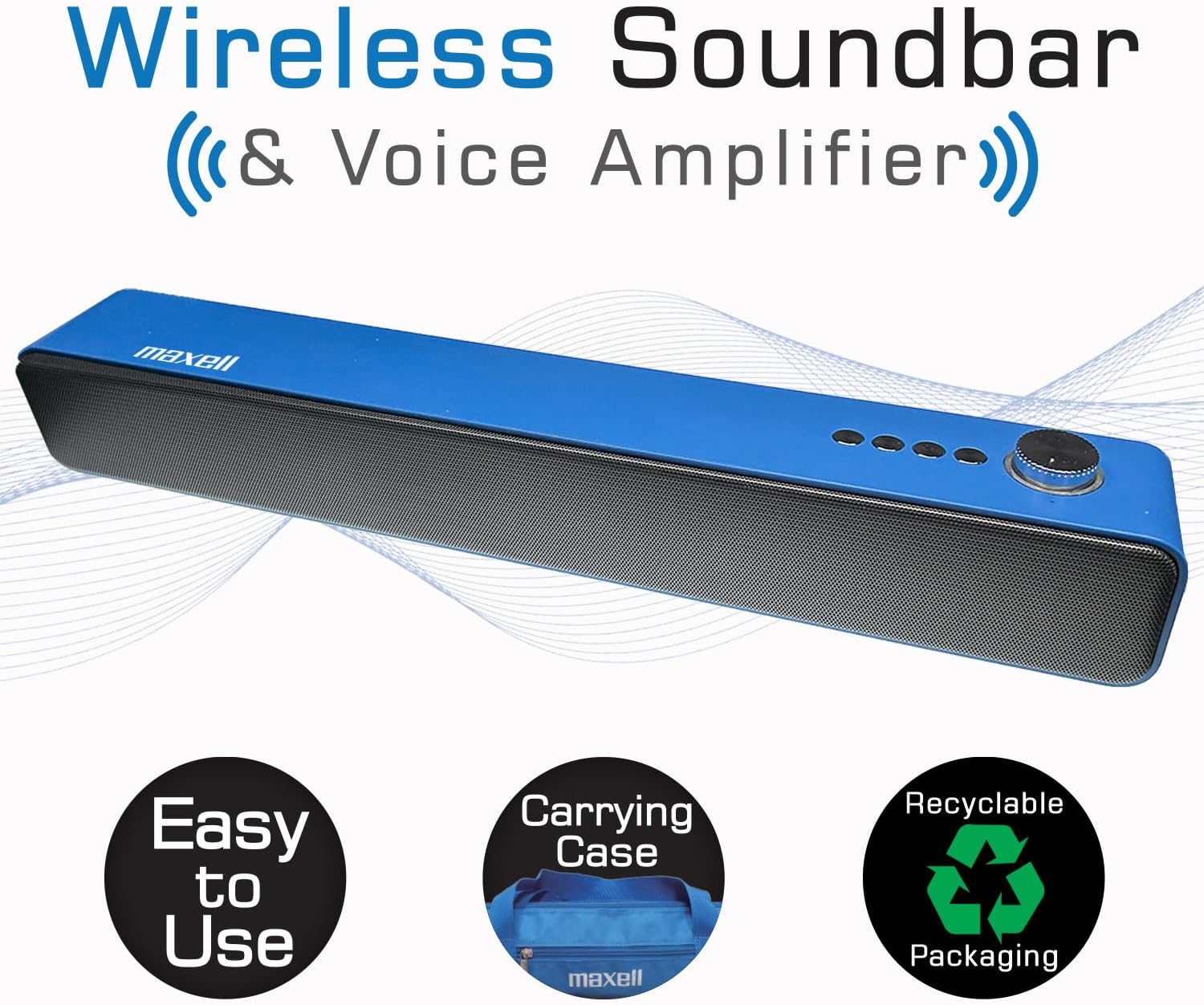
The Maxell Wireless Soundbar alongside its vibrant blue carrying case, emphasizing its portability.
Product Overview
Familiarize yourself with the components and controls of your Maxell Wireless Soundbar and 2.4GHz Microphone system.
Soundbar Controls and Ports
- Power Button/Volume Knob: Press and hold to power on/off. Rotate to adjust volume.
- Mode Button: Cycle through Bluetooth, MicroSD, AUX, and USB modes.
- Play/Pause Button: Control audio playback.
- Previous/Next Track Buttons: Navigate audio tracks.
- USB Port: For USB drive audio playback.
- MicroSD Card Slot: For MicroSD card audio playback.
- AUX Input (3.5mm): For wired audio connection.
- Microphone Input (3.5mm): For 2.4GHz microphone receiver.
- USB-C Charging Port: For charging the soundbar.
2.4GHz Microphone Components
- Microphone Transmitter: Clips onto clothing to capture voice.
- Microphone Receiver: Plugs into the soundbar to receive audio from the transmitter.
- Power Button: On/Off for transmitter and receiver.
- USB-C Charging Port: For charging microphone components.
- Clip: For attaching the transmitter to clothing.
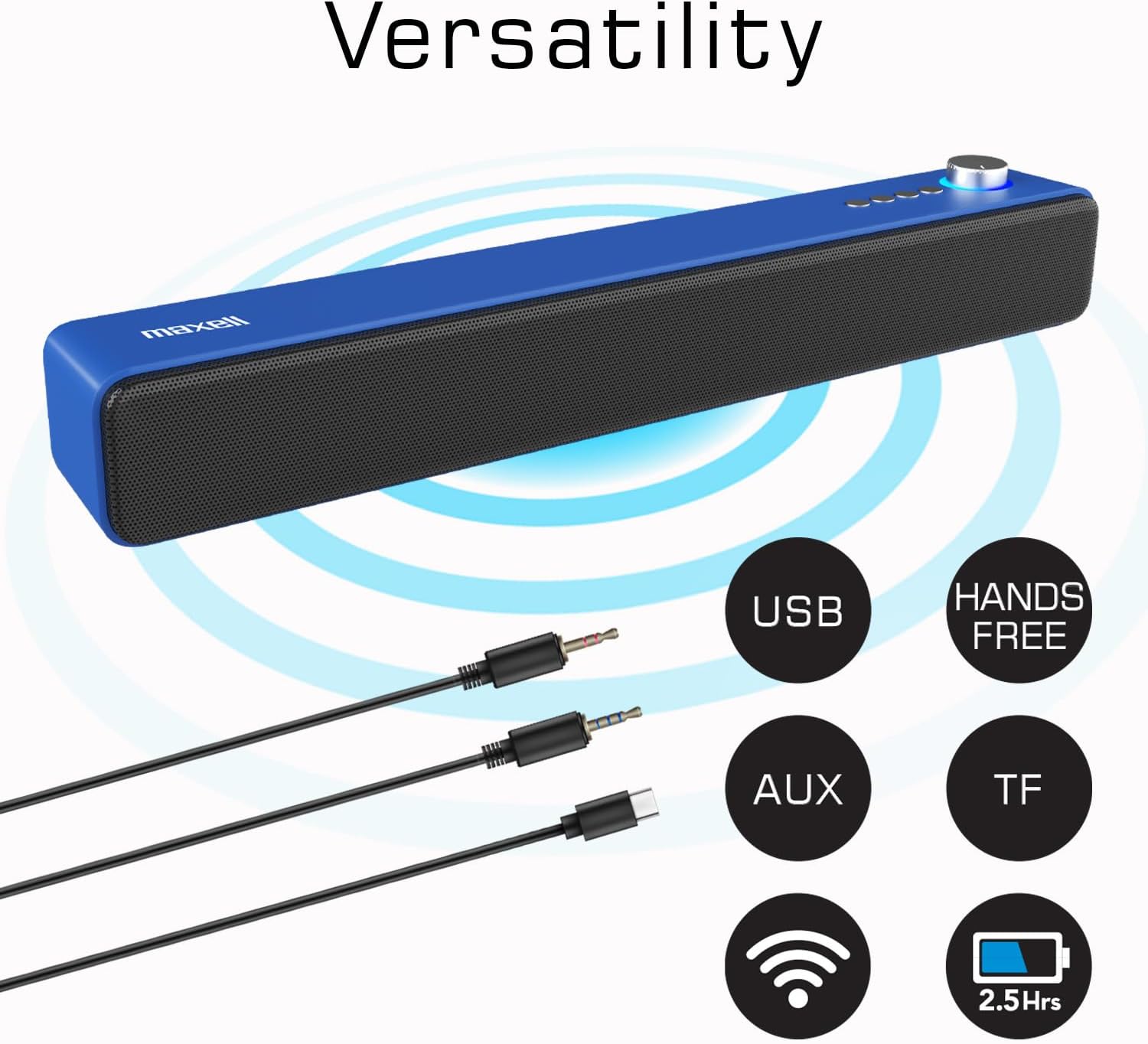
The Maxell Wireless Soundbar displaying its multiple input options, including USB, AUX, and TF (MicroSD), along with its wireless capabilities.
Setup
Initial Charging
Before first use, fully charge both the soundbar and the wireless microphone components to ensure optimal performance.
- Connect the USB-C charging cable to the soundbar's USB-C port and a compatible power source (e.g., USB wall adapter, computer USB port).
- Connect the USB-C charging cable to the microphone transmitter and receiver, respectively, and a power source.
- Charging indicators will illuminate (e.g., red for charging) and typically turn off or change color (e.g., blue) when fully charged.
Powering On/Off
To power on or off the devices:
- Soundbar: Press and hold the Power button/Volume knob for approximately 3 seconds.
- Microphone Transmitter: Press and hold its Power button for approximately 3 seconds.
- Microphone Receiver: Press and hold its Power button for approximately 3 seconds.
Operating Instructions
Wireless Soundbar Mode (Bluetooth)
To use the soundbar for music or audio playback via Bluetooth:
- Ensure the soundbar is powered on and in Bluetooth mode (indicated by a flashing blue light or a voice prompt). If not, press the Mode button to switch to Bluetooth.
- On your audio device (smartphone, tablet, laptop), enable Bluetooth and search for available devices.
- Select "Maxell Soundbar" from the list to pair. A confirmation sound will indicate successful pairing.
Voice Amplifier Mode (2.4GHz Microphone)
For voice amplification in classrooms, lectures, or meetings:
- Plug the 2.4GHz microphone receiver into the 3.5mm microphone input port on the soundbar.
- Power on the 2.4GHz microphone transmitter. The transmitter and receiver should automatically pair.
- Clip the microphone transmitter to your shirt or clothing, ensuring it is close to your mouth for optimal sound capture.
- Your voice will now be amplified through the soundbar. Adjust the soundbar's volume as needed.

A teacher demonstrating the use of the Maxell 2.4GHz wireless microphone transmitter, clipped to their shirt, with the soundbar amplifying their voice in a classroom setting.
MicroSD Card Playback
To play audio files directly from a MicroSD card:
- Insert a MicroSD card (containing MP3 or other compatible audio files) into the MicroSD slot on the soundbar.
- The soundbar will automatically detect the card, switch to MicroSD mode, and begin playing the audio files.
- Use the soundbar's Play/Pause and Track navigation buttons to control playback.
Wired Use (AUX/USB)
For wired audio connections:
- AUX Mode: Connect an external audio device (e.g., MP3 player, computer) to the soundbar's 3.5mm AUX input using a 3.5mm audio cable. The soundbar will automatically switch to AUX mode or can be manually selected using the Mode button.
- USB Mode: Connect a USB flash drive containing audio files into the soundbar's USB port. The soundbar will automatically switch to USB mode and begin playing files.
Maintenance
Proper care and maintenance will extend the life of your Maxell Wireless Soundbar and Microphone system.
- Cleaning: Use a soft, dry cloth to clean the surfaces of the soundbar and microphone. Do not use liquid cleaners, aerosols, or harsh chemicals.
- Storage: When not in use, store the devices in the provided carrying case to protect them from dust, scratches, and accidental damage.
- Environment: Keep the devices dry and away from extreme temperatures, direct sunlight, and high humidity.
Troubleshooting
If you encounter any issues, refer to the table below for common problems and their solutions.
| Issue | Solution |
|---|---|
| Device does not power on | Ensure the device is fully charged. Check the USB-C charging cable and power source for proper connection. |
| No sound from soundbar | Verify that the volume levels on both the soundbar and the connected audio source are turned up. Ensure the correct input mode (Bluetooth, MicroSD, AUX, Mic) is selected on the soundbar. |
| 2.4GHz Microphone not working | Confirm both the microphone transmitter and receiver are powered on and fully charged. Ensure the receiver is correctly plugged into the soundbar's microphone input. Check for any obstructions between the transmitter and receiver. |
| Bluetooth pairing fails | Ensure the soundbar is in Bluetooth pairing mode (flashing blue light). Turn off and then on Bluetooth on your audio device. Move your audio device closer to the soundbar. Disconnect from other Bluetooth devices if necessary. |
| Audio distortion or static | Reduce the volume on both the soundbar and the audio source. Ensure the microphone is not too close to the soundbar to prevent feedback. Check for interference from other 2.4GHz devices. |
Specifications
Detailed technical specifications for the Maxell Wireless Soundbar and 2.4GHz Microphone system.

An image displaying a table of technical specifications for both the Maxell Soundbar and the 2.4GHz Microphone, including playtime, charging ports, output power, and model numbers.
| Feature | Detail |
|---|---|
| Brand | Maxell |
| Model Name | Wireless Soundbar & Voice Amplifier |
| Model Number | 197337 |
| Speaker Maximum Output Power | 3 Watts |
| Frequency Response | 20 KHz |
| Connectivity Technology | Bluetooth, 2.4GHz Wireless |
| Audio Output Mode | Stereo |
| Additional Features | Lightweight, Portable |
| Maximum Range (2.4GHz Mic) | 100 Meters |
| Control Method | Touch |
| Speaker Size | 2.25 Inches |
| Soundbar Battery Life | Up to 4 hours (wireless mode) |
| Microphone Battery Life | 5-6 Hours |
| Item Dimensions (D x W x H) | 16.5"D x 2.25"W x 2.25"H |
| Power Source | Battery Powered |
| MicroSD Card Compatibility | Yes |
| Charging | USB-C Fast Charge |
Warranty and Support
This Maxell product comes with a Limited Warranty. For detailed warranty information, technical assistance, or any questions regarding your device, please contact Maxell customer support.
Contact Information: Refer to the official Maxell website or the contact details provided on the product packaging for the most up-to-date support information.
Online Resources: Visit the Maxell Store on Amazon for additional product information and resources.