
FOXWELL T2000 Pro Bag
FOXWELL T2000 Pro TPMS Programming Tool User Manual
Model: T2000 Pro Bag
Introduction
The FOXWELL T2000 Pro is a professional-grade Tire Pressure Monitoring System (TPMS) programming tool designed for comprehensive TPMS management and OBD2 diagnostics. This device allows users to activate, relearn, and program TPMS sensors, as well as perform full OBD2 scanner functions for vehicle health monitoring. It supports both 315MHz and 433MHz sensors, making it a versatile tool for automotive professionals and enthusiasts.
Safety Information
- Always read and understand all instructions and safety warnings before using the tool.
- Wear appropriate personal protective equipment, such as safety glasses, when working on vehicles.
- Ensure the vehicle is parked on a level surface with the parking brake engaged before performing any diagnostic or service procedures.
- Do not operate the tool in wet conditions or in the presence of flammable liquids or gases.
- Keep the tool away from children and unauthorized personnel.
- Only use the tool for its intended purpose as described in this manual.
Package Contents
Upon opening the package, please verify that all items listed below are present and in good condition:

Image: Contents of the FOXWELL T2000 Pro package, including the main unit, carrying bag, OBDII cable, USB cable, user's manual, and quick start guide.
- FOXWELL T2000 Pro Main Unit
- Carrying Bag
- OBDII Cable
- USB Cable
- User's Manual (this document)
- Quick Start Guide
Product Overview
The FOXWELL T2000 Pro is an advanced diagnostic and programming tool for TPMS and OBD2 systems. Its intuitive interface and robust features make it suitable for various automotive service tasks.

Image: The FOXWELL T2000 Pro device, showcasing its display, keypad, and the included carrying case, OBDII cable, and tire graphic indicating its TPMS and OBDII diagnostic capabilities.
Key Features:
- TPMS Sensor Activation: Triggers 315MHz and 433MHz TPMS sensors to read sensor ID, pressure, temperature, battery status, frequency, and position.
- TPMS Sensor Programming: Programs FOXWELL T10 sensors only.
- TPMS Sensor Relearn: Supports OBD Relearn, Stationary Relearn, Copy Relearn (for FOXWELL T10 sensors), and Auto Relearn methods.
- Full OBD2 Functions: Reads and clears Diagnostic Trouble Codes (DTCs), views live data, freeze frames, I/M readiness, and vehicle information.
- Key Fob Testing: Checks the frequency and battery electricity of key fobs.
- Tire Type/Pressure Selection: Allows setting correct tire type and pressure values.
- Lifetime Free Updates: Ensures the tool stays current with the latest vehicle models and features via Wi-Fi or USB.
Setup
To begin using your FOXWELL T2000 Pro, follow these simple steps:
- Charge the Device: Ensure the internal Lithium-Ion battery is sufficiently charged using the provided USB cable and a compatible power adapter (not included).
- Power On: Press the power button to turn on the device.
- Connect to Vehicle: Locate the vehicle's OBDII port, typically under the dashboard on the driver's side. Connect the provided OBDII cable from the T2000 Pro to the vehicle's OBDII port.
- Initial Setup: Follow the on-screen prompts to select your preferred language and region settings.
Operation
Video: This comprehensive video demonstrates various operational aspects of the FOXWELL T2000 Pro, including connecting the device, navigating menus, performing TPMS diagnostics, activating sensors, relearning sensors, and testing key fobs.
TPMS System Diagnose
The T2000 Pro offers comprehensive TPMS diagnostic capabilities to identify and resolve issues related to your vehicle's tire pressure monitoring system. (Refer to the video above for a visual demonstration of menu navigation for diagnosis, starting around 0:14).

Image: A dashboard view with the FOXWELL T2000 Pro displaying various TPMS diagnostic functions, including reading/erasing DTCs, viewing live data, checking sensor ID matching, and turning off the TPMS warning light.
To diagnose the TPMS system:
- From the main menu, select TPMS.
- Choose Diagnosis.
- The tool will display options such as Sensor ID, ECU Information, Read Codes, Clear Codes, Live Data, OBD Relearn, and Service Function. Select the desired option to proceed with diagnosis.
Sensor Activation
The T2000 Pro can activate most OEM and FOXWELL T10 sensors (315/433MHz) to retrieve sensor data. (Refer to the video above for a visual demonstration of sensor activation, starting around 0:21).
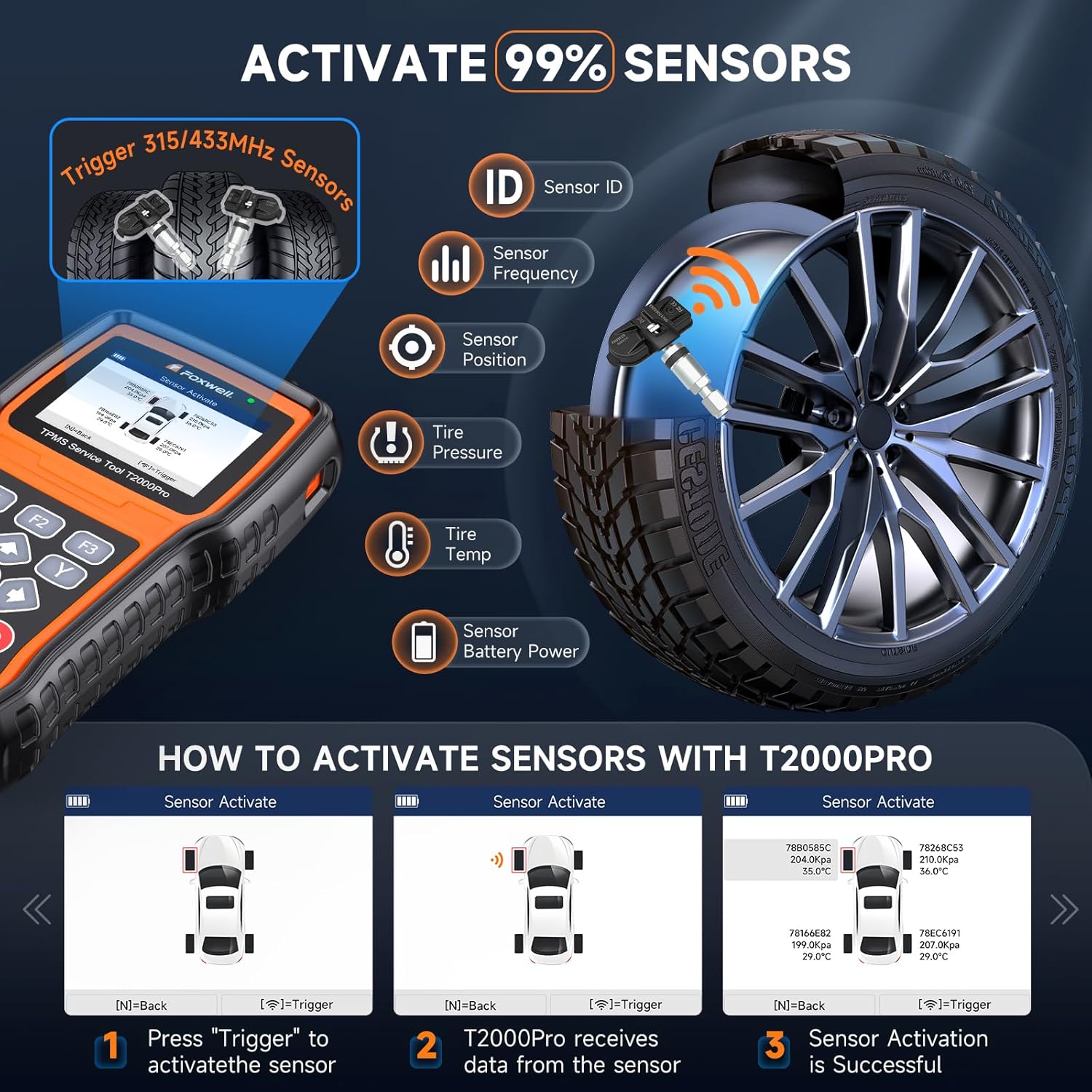
Image: Diagram showing how the FOXWELL T2000 Pro activates TPMS sensors to read data such as Sensor ID, Frequency, Position, Tire Pressure, and Battery Power. Includes steps for activation.
To activate a sensor:
- Navigate to the TPMS menu and select Activate Sensor.
- Hold the T2000 Pro near the tire valve stem (within one inch).
- Press the Trigger button on the device.
- The tool will display the sensor data (ID, pressure, temperature, etc.) upon successful activation. Repeat for all tires.
Sensor Relearn
After replacing a TPMS sensor or rotating tires, the vehicle's ECU needs to recognize the new sensor IDs. The T2000 Pro supports multiple relearn methods. (Refer to the video above for a visual demonstration of relearn methods, starting around 0:26).

Image: Visual representation of the four sensor relearn methods: Stationary Relearn, OBD Relearn, Automatic Relearn, and Clone Sensor. It notes that relearning methods vary by vehicle.
- OBD Relearn: Connect the tool to the vehicle's OBDII port to write sensor IDs directly to the ECU.
- Stationary Relearn: Requires the vehicle to be in "TPMS Learn Mode" and sensors to be activated in a specific order.
- Copy Relearn: (For FOXWELL T10 sensors only) Copies the ID from the original sensor to a new T10 sensor.
- Auto Relearn: Some vehicles can automatically relearn new sensor IDs after driving for a certain period (e.g., 20+ minutes).
Consult your vehicle's service manual or the T2000 Pro's on-screen instructions for the specific relearn procedure applicable to your vehicle.
Key Fob Testing
The T2000 Pro can also test the signal strength and battery status of your vehicle's key fob. (Refer to the video above for a visual demonstration of key fob testing, starting around 0:29).

Image: A graphic illustrating the key fob check function, showing the T2000 Pro detecting the 315/433 MHz signal from a key fob and displaying its strength.
To test a key fob:
- From the main menu, select RKE & RF.
- Hold the key fob near the T2000 Pro and press a button on the fob.
- The device will display the signal frequency and strength, indicating if the fob needs battery replacement or repair.
Full OBD2 Functions
Beyond TPMS, the T2000 Pro includes full OBD2 diagnostic capabilities for engine-related issues.

Image: An illustration highlighting the full OBDII service functions of the FOXWELL T2000 Pro, including System Status, Clear Codes, Read Codes, Live Data, O2 Sensor Test, I/M Readiness, On-board Monitor Test, Component Test, Modules Present, Code Lookup, and Vehicle Information.
- Read/Clear DTCs: Retrieve and erase engine diagnostic trouble codes.
- Live Data: View real-time sensor data from the engine.
- Freeze Frame Data: Capture a snapshot of vehicle conditions when a fault code is set.
- I/M Readiness: Check the status of emission-related monitors.
- Vehicle Information: Retrieve VIN, Cal ID, and CVN.
Tire Type/Pressure Selection
This function allows you to correctly set the tire type and pressure values in the vehicle's system, especially useful if the TPMS warning light remains on after clearing faults and inflating tires.
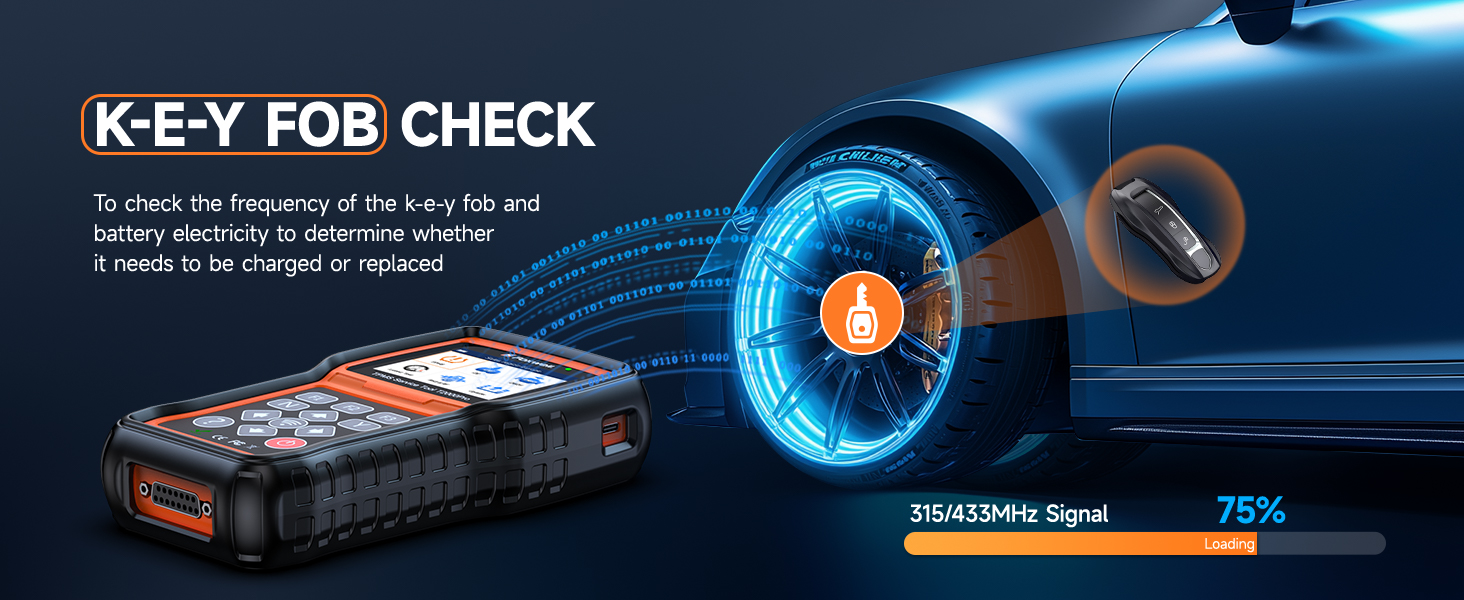
Image: A screen capture from the FOXWELL T2000 Pro showing options for tire type and pressure selection, including reading and writing tire type/pressure values for front and rear tires based on placard specifications.
To use this function, navigate to the appropriate menu option and follow the on-screen instructions to select or input the correct tire specifications for your vehicle.
Maintenance
Software Updates
The FOXWELL T2000 Pro offers lifetime free software updates to ensure compatibility with new vehicle models and to introduce new features. Updates can be performed via Wi-Fi or USB connection.
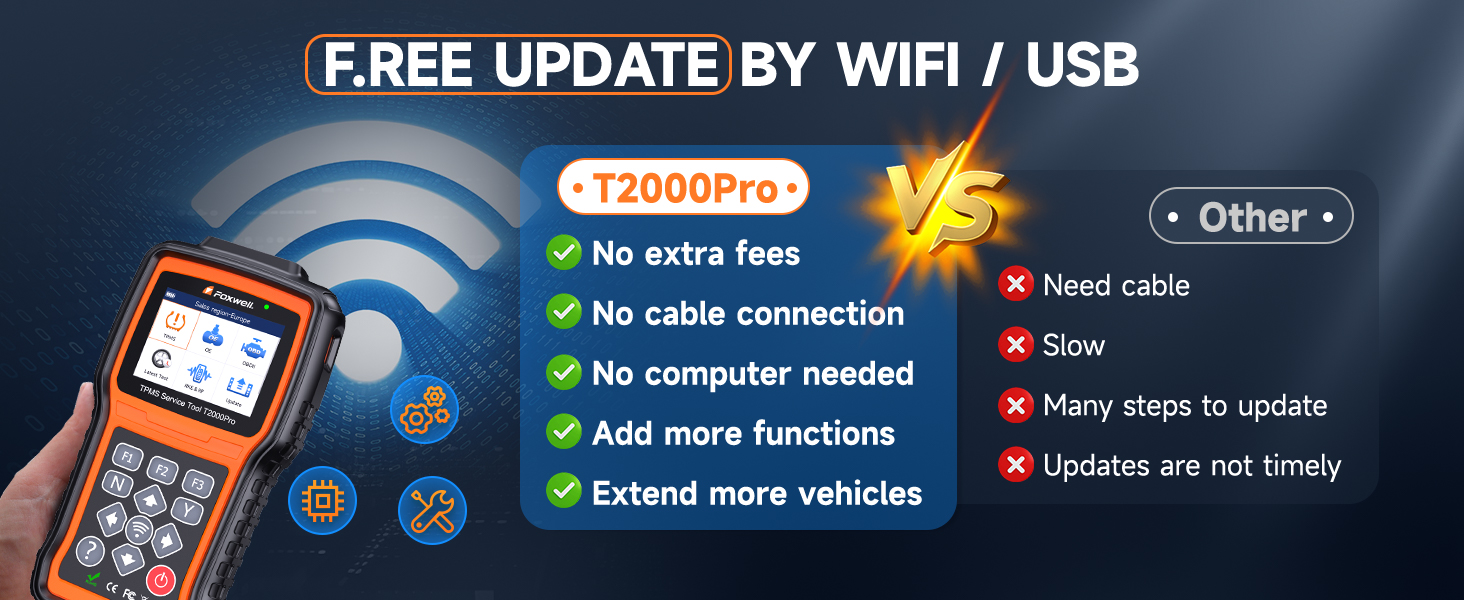
Image: A comparison graphic highlighting the benefits of the T2000 Pro's free Wi-Fi/USB updates (no extra fees, no cable needed for Wi-Fi, no computer needed, adds functions, extends vehicle coverage) versus other tools.
To update the software:
- Ensure the device is connected to the internet via Wi-Fi or to a computer via USB.
- Navigate to the Update menu on the device.
- Follow the on-screen instructions to download and install the latest software version.
Troubleshooting
This section addresses common issues and their potential solutions.

Image: A Frequently Asked Questions (FAQ) section with common troubleshooting queries for the FOXWELL T2000 Pro, such as issues with programming sensors, relearning, reading TPMS sensors, and compatibility.
| Problem | Possible Cause / Solution |
|---|---|
| Cannot program sensors. | The T2000 Pro only programs FOXWELL T10 sensors. Ensure your sensors are pre-programmed or are FOXWELL T10 sensors. |
| Cannot relearn my car. | Activate the sensor first, then go to the diagnosis menu to operate TPMS relearn. Hold the device close to the valve during activation. After activation, the device will provide a sound prompt, and tire pressure for the activated tire position will be displayed. |
| Could not figure out how to use. | Refer to this user manual. Connect to the internet and go to 'Update' to upgrade the T2000 Pro to the newest version before using. |
| Couldn't read TPMS sensor. | The T2000 Pro can read 99% of sensors. If you cannot read a sensor, check if your sensor is a correct OEM sensor and ensure it's 315/433MHz. |
| My sensor is OEM and pre-programmed. Why T2000 Pro cannot work? | The new sensor must have the same part number as the original vehicle's sensor. For instance, for Ford 2015, if yours is 2020 OEM sensors but not the same part number, it will not work. Please get the right OE sensors. |
Specifications
| Feature | Detail |
|---|---|
| Display | 2.8TFT LCD, 240*320 TFT color display |
| Working Temperature | 0 to 55°C (32 to 140°F) |
| Storage Temperature | -20 to 70°C (-4 to 158°F) |
| Power Supply | 3000MAH Li-polymer battery (included) |
| Radio Reception | 315 MHz and 433 MHz |
| Dimensions (L*W*H) | 200*100*38mm |
| Gross Weight | 1.3kg (2.87 lbs) |
| Item Model Number | T2000 Pro Bag |
Warranty and Support
FOXWELL products are designed for reliability and performance. For warranty information, technical support, or service inquiries, please refer to the warranty card included in your package or visit the official FOXWELL website. Customer support is available to assist with any product usage problems or issues with damaged/used products.
Contact Support: For immediate assistance, it is recommended to consult FOXWELL's official support channels as detailed in your product documentation or on their website.
Related documentsT2000 Pro Bag


Ask a question about this manual
Ask about setup, troubleshooting, compatibility, parts, safety, or missing instructions. Manuals+ will review the question and use this page’s manual context to help answer it.