
1. Introduction
Welcome to the user manual for your Blackview BV4800 Pro 4G Rugged Smartphone. This guide provides essential information to help you set up, operate, maintain, and troubleshoot your device. Please read this manual carefully to ensure optimal performance and longevity of your smartphone.

The Blackview BV4800 Pro smartphone, showcasing its robust design and key features on the display.
2. Product Overview
The Blackview BV4800 Pro is a rugged smartphone designed for durability and performance. It features a powerful processor, ample memory, a high-capacity battery, and advanced camera capabilities, all within a robust, protective casing.
Key Features:
- Performance: Experience enhanced speed and performance with the T606 chipset. The Blackview BV4800 Pro Android phone features 4GB fixed RAM and 128GB ROM. Through RAM expansion technology, an additional 8GB of virtual RAM can be accessed via settings, totaling up to 12GB of RAM.
- Durability: The BV4800 Pro outdoor smartphone offers 360° total protection and IP68 waterproofing, inspired by a sophisticated space capsule structure. Its 27 integrated construction upgrades enhance resistance to water immersion, drops, and shocks. This military-grade mobile phone withstands extreme temperatures from -22°F (-30°C) to 122°F (50°C).
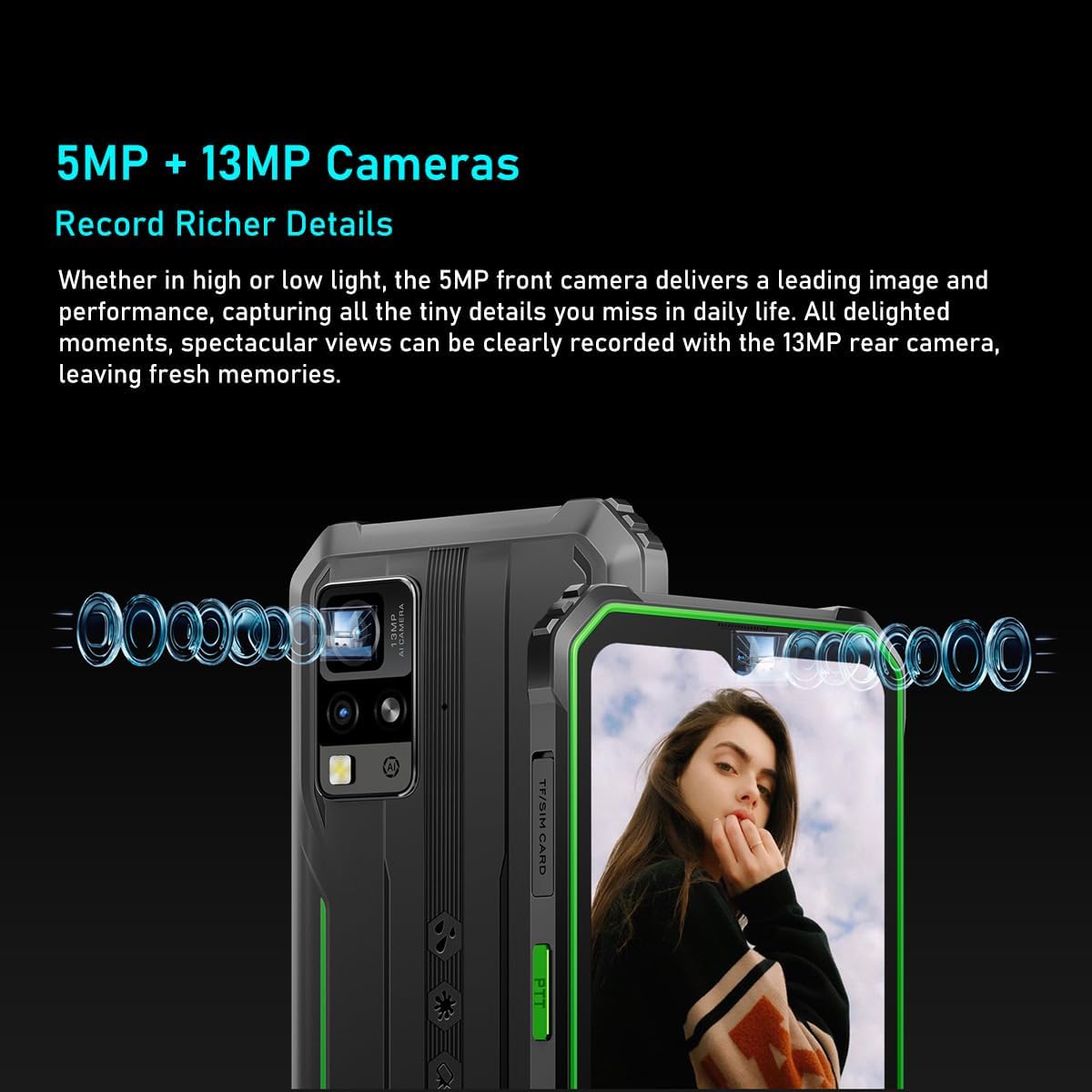
- Camera System: The Blackview BV4800 Pro features a 16MP rear camera for capturing moments and an 8MP front camera for quick face unlock and selfies. Utilize the latest facial recognition features for faster and more secure phone unlocking.
- Battery Life: The BV4800 Pro rugged outdoor mobile phone boasts a 5180mAh long-lasting battery, providing extended usage for work or study without frequent recharging.
- Connectivity: The Blackview BV4800 Pro unlocked mobile phone supports dual 4G global networks and is compatible with most GSM, WCDMA, and LTE carriers. It includes GPS, NFC, and comes with a 24-month warranty.

The BV4800 Pro features 4GB of physical RAM, expandable with an additional 8GB of virtual RAM, providing a total of 12GB for smooth multitasking and faster application performance.

Equipped with a 16MP rear camera and an 8MP front camera, the BV4800 Pro allows for clear photo capture and video calls.
3. Setup
3.1. SIM Card and TF Card Installation
- Locate the SIM/TF card slot on the side of your Blackview BV4800 Pro.
- Carefully open the protective cover of the SIM tray.
- Insert your Nano-SIM card(s) and/or TF (microSD) card into the designated slots on the tray. Ensure the cards are correctly oriented.
- Gently push the tray back into the slot until it is fully seated and close the protective cover securely to maintain water and dust resistance.

The rear view of the BV4800 Pro, indicating the location of the SIM/TF card slot for installation.
3.2. Initial Power On
- Press and hold the Power button (usually on the right side of the device) until the Blackview logo appears.
- Follow the on-screen prompts to complete the initial setup, including language selection, Wi-Fi connection, and Google account setup.
4. Operating Instructions
4.1. Basic Navigation
Your Blackview BV4800 Pro runs on Android 14. Navigate using gestures or the traditional three-button navigation bar (configurable in Settings).
- Home Screen: Swipe left or right to access different home screens.
- App Drawer: Swipe up from the bottom of the screen to view all installed applications.
- Notifications & Quick Settings: Swipe down from the top of the screen to access notifications and quick settings toggles.
4.2. Camera Usage
To open the camera, tap the Camera icon on your home screen or app drawer. The BV4800 Pro features a 16MP rear camera and an 8MP front camera.
- Switch Cameras: Tap the camera switch icon to toggle between the front and rear cameras.
- Capture Photo: Tap the Shutter button to take a picture.
- Record Video: Switch to video mode and tap the Record button to start/stop recording.
- Face Unlock: Configure face unlock in Security settings for quick and secure access.
4.3. Display Features
The 6.56-inch HD+ IPS display offers clear visuals.
- Brightness: Adjust screen brightness in Quick Settings or Display settings.
- Refresh Rate: The display operates at a 60Hz refresh rate for smooth visuals.
- Touch Sampling Rate: A 120Hz touch sampling rate ensures responsive touch input.

The device features a 6.56-inch HD+ IPS display protected by Corning Gorilla Glass 5, offering a 60Hz refresh rate and a responsive 120Hz touch sampling rate for clear visuals and smooth interaction.
4.4. Battery Management
The 5180mAh battery provides extended usage. To optimize battery life:
- Reduce screen brightness.
- Close unused apps running in the background.
- Enable Battery Saver mode when needed.
- Avoid extreme temperatures.

The BV4800 Pro's 5180mAh battery provides extended usage, offering up to 7.5 hours of gaming, 8 hours of video playback, 11 hours of web browsing, 28.5 hours of calls, 30 hours of music, and 924 hours of standby time.
4.5. Special Features
- NFC: Use Near Field Communication for contactless payments and quick data transfer. Enable NFC in Settings > Connected devices.
- GPS: The integrated GPS provides accurate location services for navigation and location-based apps.
- OTG: USB On-The-Go allows you to connect USB devices like flash drives or keyboards directly to your phone.
- FM Radio: Enjoy FM radio broadcasts using wired headphones as an antenna.
- Smart-K BOX Speaker: Experience enhanced audio quality from the device's speaker.
The Smart-K BOX speaker system on the BV4800 Pro delivers powerful audio, enhancing your listening experience.
5. Maintenance
5.1. Durability and Protection
The Blackview BV4800 Pro is built to be rugged, featuring IP68 water and dust resistance and MIL-STD-810H military standard compliance for shock protection.
- Water Resistance: Ensure all port covers (USB-C, SIM tray) are securely closed to maintain water resistance. Avoid prolonged submersion or exposure to high-pressure water.
- Temperature Resistance: The device is designed to operate in extreme temperatures from -22°F (-30°C) to 122°F (50°C).
- Drop Protection: While rugged, avoid unnecessary drops. The device is tested to survive drops from up to 1.5 meters.

The BV4800 Pro is designed to withstand harsh conditions, including water immersion, dirt exposure, and impacts, as illustrated by these durability tests.

Built to MIL-STD-810H military standards, the BV4800 Pro is engineered for extreme environments, capable of surviving drops from up to 1.5 meters.
5.2. Cleaning
To clean your device, use a soft, damp cloth. Avoid harsh chemicals or abrasive materials that could damage the screen or casing.
6. Troubleshooting
If you encounter issues with your Blackview BV4800 Pro, try the following steps:
- Device Not Responding: Press and hold the Power button for about 10-15 seconds to force a restart.
- Battery Draining Quickly: Check for background apps, reduce screen brightness, and ensure Wi-Fi/Bluetooth are off when not in use.
- Network Issues: Ensure your SIM card is correctly inserted. Try restarting the device or toggling Airplane Mode on/off.
- Apps Crashing: Clear the cache of the problematic app (Settings > Apps > [App Name] > Storage > Clear cache). If the issue persists, try reinstalling the app.
- Slow Performance: Close unnecessary background apps, clear cache, or consider a factory reset as a last resort (back up your data first).
For more complex issues, please contact Blackview customer support.
7. Specifications
| Feature | Specification |
|---|---|
| Brand | Blackview |
| Model Name | Blackview BV4800 PRO |
| Color | Black |
| Product Type | Bar Phone |
| Operating System | Android 14 |
| Screen Size | 6.56 Inches |
| Display Resolution | 1080 x 2340 |
| Refresh Rate | 60 Hz |
| Processor | T606 Chipset |
| Installed RAM Size | 12 GB (4GB physical + 8GB virtual) |
| Memory Storage Capacity | 128 GB (Expandable up to 1TB via TF card) |
| Rear Camera Resolution | 16 MP |
| Front Camera Resolution | 8 MP |
| Battery Capacity | 5180 mAh |
| Battery Composition | Lithium-ion |
| Connections | Bluetooth |
| Charging Port | USB Type C |
| Special Features | Rugged Body, Dual SIM, Expandable Memory, Water Resistant, USB OTG Support, NFC, GPS, FM |
| Wireless Carrier | Unlocked |
| Date First Available | October 23, 2024 |
8. Warranty and Support
8.1. Manufacturer Warranty
The Blackview BV4800 Pro comes with a 2-year manufacturer warranty. Please retain your proof of purchase for warranty claims.
8.2. Customer Support
For technical assistance, warranty inquiries, or any other questions regarding your Blackview BV4800 Pro, please visit the official Blackview website or contact their customer support directly.
Spare parts availability and guaranteed software updates information are currently unavailable.


