
VIOFO A329 2CH 4K 60FPS
VIOFO A329 4K 60FPS Dash Cam User Manual
Model: VIOFO A329 2CH 4K 60FPS
1. Introduction
This user manual provides detailed instructions for the installation, operation, and maintenance of your VIOFO A329 4K 60FPS Dash Cam. Please read this manual thoroughly before using the product to ensure proper functionality and safety.
The VIOFO A329 is a high-performance dual dash camera system featuring 4K 60FPS front recording and 2K rear recording, equipped with dual STARVIS 2 sensors and Wi-Fi 6 technology for superior video quality and fast data transfer.
2. What's in the Box
Verify that all items listed below are present in your package:
- 1x Front Camera
- 1x Rear Camera
- 1x Car Charger (4m)
- 1x Rear Camera Cable (6m)
- 1x Type-C Data Cable
- 1x Front Camera CPL (Circular Polarizing Lens)
- 1x Trim Removal Tool
- 3x Windshield Static Stickers
- 1x User Manual
- Spare Mount Sticky Pads (2x 3M Sticker for front, 1x 3M Sticker for rear)
- 1x GPS Module with sticker

Image: Contents of the VIOFO A329 package, including front and rear cameras, cables, charger, CPL, and mounting accessories.
3. Product Features
- 4K 60FPS Front + 2K Rear Recording: Experience ultra-smooth, crisp 4K visuals at 60 frames per second for the front camera and 2K resolution for the rear camera. Captures license plates and details with exceptional clarity day and night. Supports 4K 30fps with HDR.
- Dual STARVIS 2 Sensors: The front camera features the STARVIS 2 IMX678 8MP sensor, and the rear camera uses the STARVIS 2 IMX675 5MP sensor, providing enhanced clarity, reduced noise in low light, and minimized motion blur.
- Wi-Fi 6 Technology: The A329 is the first dash camera to utilize Wi-Fi 6, tripling operation speeds on the 5GHz band and achieving download speeds up to 30MB/s, allowing a 1-minute 4K video to be downloaded in under 10 seconds.
- Extensive Storage Support: Supports external SSDs up to 4TB and microSD cards up to 512GB, significantly extending recording duration. Note: SD card or SSD storage is not included.
- HDR Technology for Clear License Plates: The combination of STARVIS 2 and HDR balances bright and dark areas, ensuring accurate capture of license plates even during fast movement and in low-light conditions.
- Enhanced USB 3.0 Port: Enables ultra-fast video downloads directly to your smartphone (up to 55MB/s on iPhone 15 Pro Max), simplifying firmware updates and data transfer.
- Multiple Parking Modes: Offers Auto Event Detection, Low Bitrate, and Time Lapse parking modes, activatable with the VIOFO HK4 Hardwire Kit.
- Easy Installation with Slim Coaxial Cable: Features a 2.8mm super slim coaxial rear cable and miniature connectors for discreet installation, minimizing electromagnetic interference.
- Smart Voice Control & Notification: Control recording, take photos, and toggle Wi-Fi with simple voice commands. Provides clear notifications for settings changes and memory card errors.
- Built-in GPS Module: Supports GPS, BeiDou, Galileo, and GLONASS for detailed location, speed, and time data playback via the VIOFO App or PC player.
- Anti-Glare CPL Included: A Circular Polarizing Lens (CPL) is included to reduce reflections and glare from glass and road surfaces, enhancing image quality.
4. Setup and Installation
4.1 Preparing the MicroSD Card
Before first use, format the microSD card in the dash cam. Use a high-quality U3 (V30 or higher) microSD card from a reputable brand for optimal performance. VIOFO recommends their industrial-grade microSD cards.

Image: The VIOFO A329 dash cam showing the microSD card slot. Ensure the card is inserted correctly.
4.2 Mounting the Front Camera
- Clean the windshield area where the camera will be mounted.
- Apply a static sticker to the windshield first, then attach the camera mount to the static sticker using the 3M adhesive. This allows for easier removal without residue.
- Ensure the camera is positioned to have a clear view of the road and does not obstruct the driver's vision.
- Connect the car charger to the camera's power input (USB-C port on the GPS module) and route the cable neatly along the windshield trim to the vehicle's 12V power outlet.

Image: The VIOFO A329 front dash cam mounted on the upper center of a car's windshield, providing a clear view of the road ahead.
4.3 Mounting the Rear Camera
- Identify a suitable location on the rear windshield, typically at the top center, ensuring a clear view and avoiding defrosting lines.
- Clean the area thoroughly.
- Attach the rear camera using the provided 3M adhesive.
- Connect the rear camera to the front camera using the 6-meter rear camera cable. Route the cable discreetly along the vehicle's headliner and pillars.

Image: The VIOFO A329 rear dash cam mounted on the inside of a car's rear windshield, capturing the view behind the vehicle.
4.4 Connecting Power
Plug the car charger into your vehicle's 12V power outlet. The dash cam will automatically power on and begin recording when the vehicle starts.
For parking mode functionality, the VIOFO HK4 Hardwire Kit (sold separately) is required. Refer to the hardwire kit's manual for installation instructions.
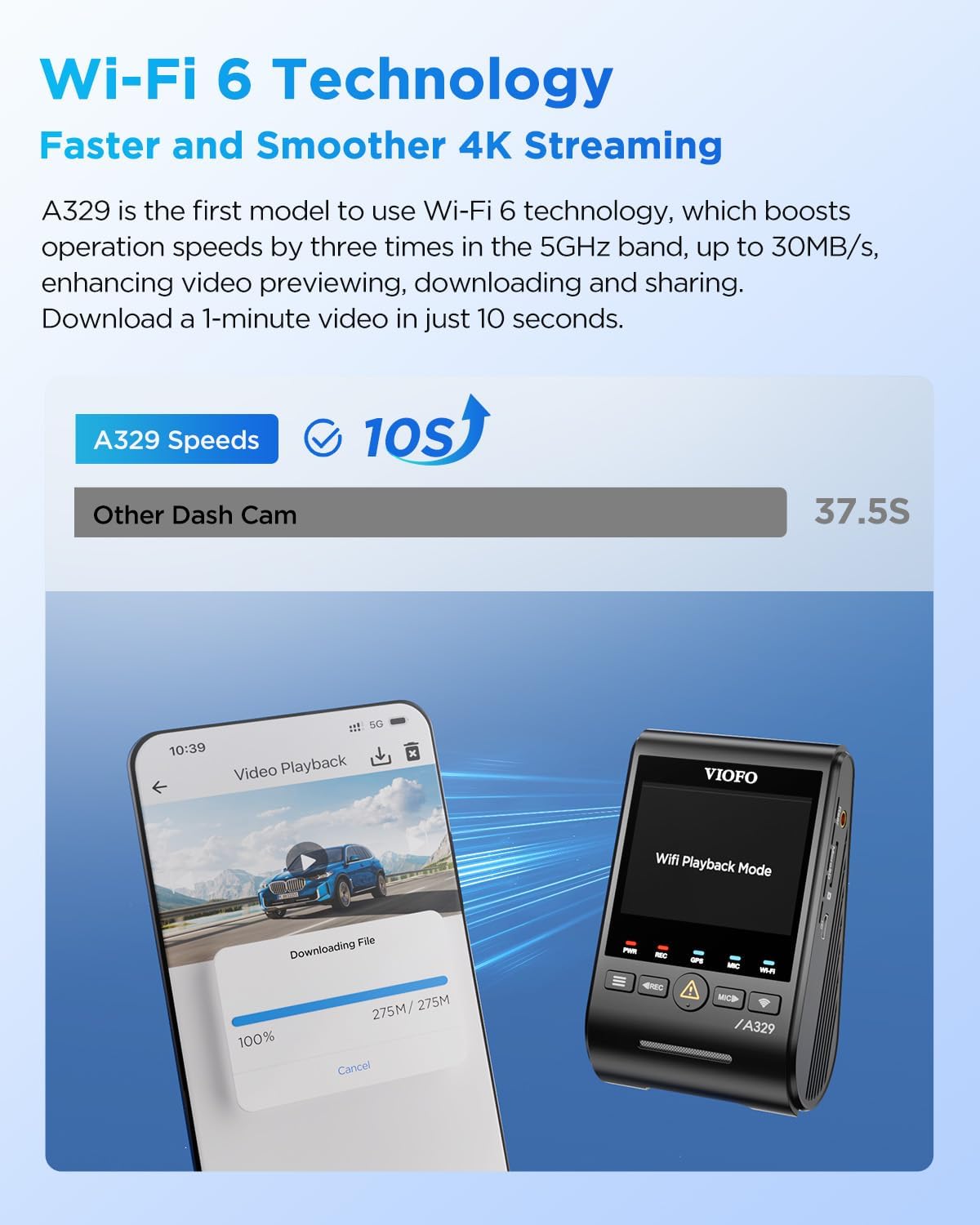
Image: The VIOFO A329 dash cam receiving power from the car's 12V outlet via the included car charger, with cables routed for a clean installation.
5. Operation
5.1 Basic Operation
- Power On/Off: The camera powers on automatically with vehicle ignition and powers off when the ignition is turned off.
- Recording: Recording starts automatically upon power-on. A red indicator light or on-screen icon typically indicates active recording.
- Emergency Lock: Press the dedicated emergency button (often marked with an exclamation mark or 'REC' button during recording) to manually lock the current video segment, preventing it from being overwritten by loop recording.
5.2 Wi-Fi and App Control
The VIOFO A329 features Wi-Fi 6 for fast connection to your smartphone via the VIOFO App.
- Download the VIOFO App from your smartphone's app store.
- On the dash cam, press the Wi-Fi button to enable Wi-Fi.
- On your smartphone, connect to the dash cam's Wi-Fi network (SSID and password are typically displayed on the camera screen or in the manual).
- Open the VIOFO App to view live footage, browse recorded videos, download files, and adjust settings.

Image: The VIOFO A329 dash cam displaying its Wi-Fi status, with a smartphone screen showing the VIOFO app's live view interface, demonstrating wireless connectivity.
Video: A329 4K 60FPS User Guide
This official user guide video from VIOFO LTD provides detailed instructions on operating the A329 dash cam, including menu navigation and feature usage.
5.3 Voice Control
The A329 supports smart voice control for hands-free operation. Common commands include:
- "Record video" / "Stop recording"
- "Take photo"
- "Turn on Wi-Fi" / "Turn off Wi-Fi"
- "Lock the video"
5.4 GPS Functionality
The built-in GPS module records location, speed, and time data. This information can be viewed during video playback using the VIOFO App or the VIOFO PC Player.

Image: The VIOFO A329 dash cam screen showing GPS coordinates, speed, and time, indicating active GPS tracking.
6. Maintenance
6.1 Formatting the MicroSD Card
It is recommended to format the microSD card regularly (e.g., once a month) to maintain optimal recording performance and prevent data corruption. This can be done through the camera's menu settings or via the VIOFO App.
6.2 Cleaning the Camera Lenses
Gently wipe the front and rear camera lenses with a soft, lint-free cloth to ensure clear video quality. Avoid using abrasive cleaners that could scratch the lens.
6.3 Firmware Updates
Periodically check the VIOFO official website for firmware updates. Keeping your dash cam's firmware up-to-date ensures access to the latest features, bug fixes, and performance improvements. Firmware can be updated via the VIOFO App using the USB 3.0 connection.
7. Troubleshooting
| Problem | Possible Solution |
|---|---|
| Camera does not power on. | Check power connection to the car's 12V outlet. Ensure the car charger is properly inserted. Verify the vehicle's ignition is on. If using a hardwire kit, check its connection and fuse. |
| Camera stops recording or shows "Card Error". | Format the microSD card. Ensure you are using a high-quality, high-endurance microSD card (U3/V30 or higher). Replace the microSD card if the issue persists. |
| Wi-Fi connection issues. | Ensure Wi-Fi is enabled on the camera. Restart both the camera and your smartphone. Try forgetting the Wi-Fi network on your phone and reconnecting. Turn off VPN on your phone if active. |
| Video footage is blurry or unclear. | Clean the camera lenses. Ensure the protective film has been removed from the lenses. Check if the CPL is properly installed and adjusted. |
| GPS not acquiring signal. | Ensure the GPS module is properly connected and has a clear view of the sky. Move the vehicle to an open area away from tall buildings or tunnels. |
8. Specifications
| Feature | Detail |
|---|---|
| Model | A329 2CH 4K 60FPS |
| Front Camera Sensor | STARVIS 2 IMX678 8MP |
| Rear Camera Sensor | STARVIS 2 IMX675 5MP |
| Video Resolution (Front) | 4K (3840x2160) @ 60FPS / 4K (3840x2160) @ 30FPS (HDR) |
| Video Resolution (Rear) | 2K (2560x1440) @ 30FPS |
| Wi-Fi | Built-in Wi-Fi 6 (5GHz band) |
| GPS | Built-in (GPS, BeiDou, Galileo, GLONASS support) |
| Storage Support | Up to 4TB SSD (external), Up to 512GB microSD card |
| USB Port | USB 3.0 (Type-C) |
| Dimensions (Front Camera) | 1.69 x 2.28 x 3.9 inches |
| Item Weight | 1.72 pounds |
9. Warranty and Support
VIOFO products typically come with a manufacturer's warranty. For specific warranty details and duration, please refer to the warranty card included with your product or visit the official VIOFO website.
For technical support, firmware updates, or frequently asked questions, please visit the VIOFO support page or contact their customer service directly.
Official VIOFO Website: www.viofo.com
Related documentsA329 2CH 4K 60FPS


Ask a question about this manual
Ask about setup, troubleshooting, compatibility, parts, safety, or missing instructions. Manuals+ will review the question and use this page’s manual context to help answer it.