
1. Introduction
This manual provides detailed instructions for the setup, operation, maintenance, and troubleshooting of your THOMSON Google TV Streaming Box Plus 270. Please read this manual thoroughly before using the device to ensure proper functionality and to maximize your viewing experience.
Package Contents
- THOMSON Google TV Streaming Box Plus 270
- Remote Control
- Power Adapter
- HDMI Cable
- User Manual (this document)

Figure 1: The THOMSON Streaming Box Plus 270, its remote control, and packaging. This image illustrates the main components included in the product package.
2. Product Features
The THOMSON Google TV Streaming Box Plus 270 offers a range of advanced features designed to enhance your home entertainment experience:
- 4K Ultra HD Resolution: Experience stunning visuals with vibrant colors and rich contrast.
- Google TV Platform: Access over 400,000 movies and series from popular streaming services like Netflix, Prime Video, YouTube, Disney+, and more.
- Hands-Free Voice Control: Integrated microphones and speakers allow for voice commands from across the room using Google Assistant.
- Remote Control Finder: A dedicated function to locate your remote control by emitting a sound.
- Immersive Audio and Visuals: Supports Dolby Vision for vivid colors and rich contrast, and Dolby Atmos for dynamic, three-dimensional sound (compatible devices required).
- High Performance: Equipped with 3GB RAM, 32GB storage, and a quad-core processor for fast and smooth operation.
- Google Cast Built-in: Seamlessly stream content from your smart devices to your TV.

Figure 2: A television screen displaying the Google TV interface with various streaming applications such as YouTube, Canal+, Disney+, Apple TV, Netflix, Prime Video, and Spotify. This illustrates the wide range of entertainment options available.
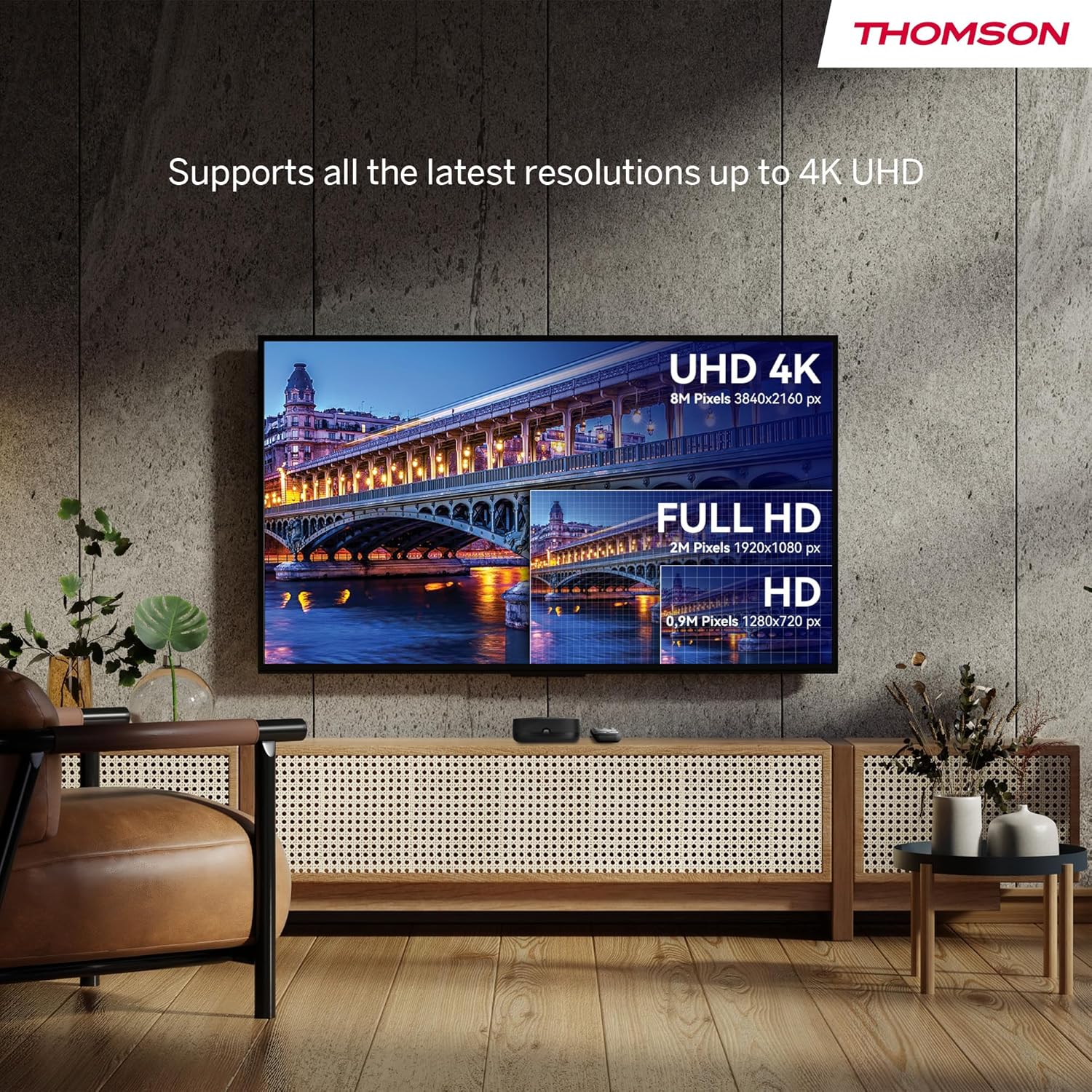
Figure 3: A visual comparison demonstrating the difference in clarity and detail between HD (1280x720 px), Full HD (1920x1080 px), and 4K UHD (3840x2160 px) resolutions on a television screen. The Streaming Box Plus 270 supports up to 4K UHD.
3. Setup Guide
Follow these steps to set up your THOMSON Google TV Streaming Box Plus 270:
- Connect to TV: Use the provided HDMI cable to connect the Streaming Box to an available HDMI port on your television.
- Power Connection: Connect the power adapter to the DC IN port on the Streaming Box and then plug it into a power outlet.
- Internet Connection:
- Wi-Fi: During initial setup, you will be prompted to connect to your Wi-Fi network.
- Ethernet (Optional): For a wired connection, connect an Ethernet cable from your router to the LAN port on the Streaming Box.
- Initial Setup:
- Turn on your TV and select the correct HDMI input source.
- Follow the on-screen instructions to complete the Google TV setup, including signing in with your Google account.
- Pair the remote control as instructed.

Figure 4: Detailed view of the THOMSON Streaming Box Plus 270, highlighting its ports and buttons. These include DC IN for power, HDMI for TV connection, LAN for wired internet, USB 3.0 for external storage, a Reset button, a Microphone ON/OFF switch, and a "Find My Remote" button.
4. Operating Instructions
Using the Remote Control
The included remote control provides intuitive navigation and quick access to key features.

Figure 5: An illustration of the remote control for the Streaming Box Plus 270, detailing its functions. Key features include the Google Assistant button for voice commands, a Profile Switch button to manage user profiles, Favorite App buttons for quick access, and direct access buttons for popular streaming services like YouTube, Netflix, Prime Video, and Disney+.
- Power Button: Turns the device on or off.
- Google Assistant Button: Press to activate voice commands.
- Navigation Pad: Use the directional buttons to navigate menus and the center button to select.
- Back Button: Returns to the previous screen.
- Home Button: Returns to the Google TV home screen.
- Volume Buttons: Adjusts the volume.
- Channel Buttons: For navigating live TV channels if applicable.
- Direct Access Buttons: Quick launch buttons for YouTube, Netflix, Prime Video, and Disney+.
- Favorite App Button: Assign an app of your choice for quick access.
- Profile Switch: Create and switch between different user profiles.
Voice Control (Google Assistant)
The Streaming Box Plus 270 features hands-free voice control via Google Assistant.
- Ensure the Microphone ON/OFF switch on the device is in the ON position.
- Simply say "Hey Google" followed by your command or question.
- Examples: "Hey Google, what's the weather today?", "Hey Google, find sci-fi movies", "Hey Google, open YouTube".

Figure 6: A person interacting with the Streaming Box Plus 270 using voice commands. Speech bubbles show example commands like "Hey Google, what's the weather today?", "Hey Google, find sci-fi movies", and "Hey Google, open YouTube". The device features 2 microphones and a 3W speaker for voice interaction.
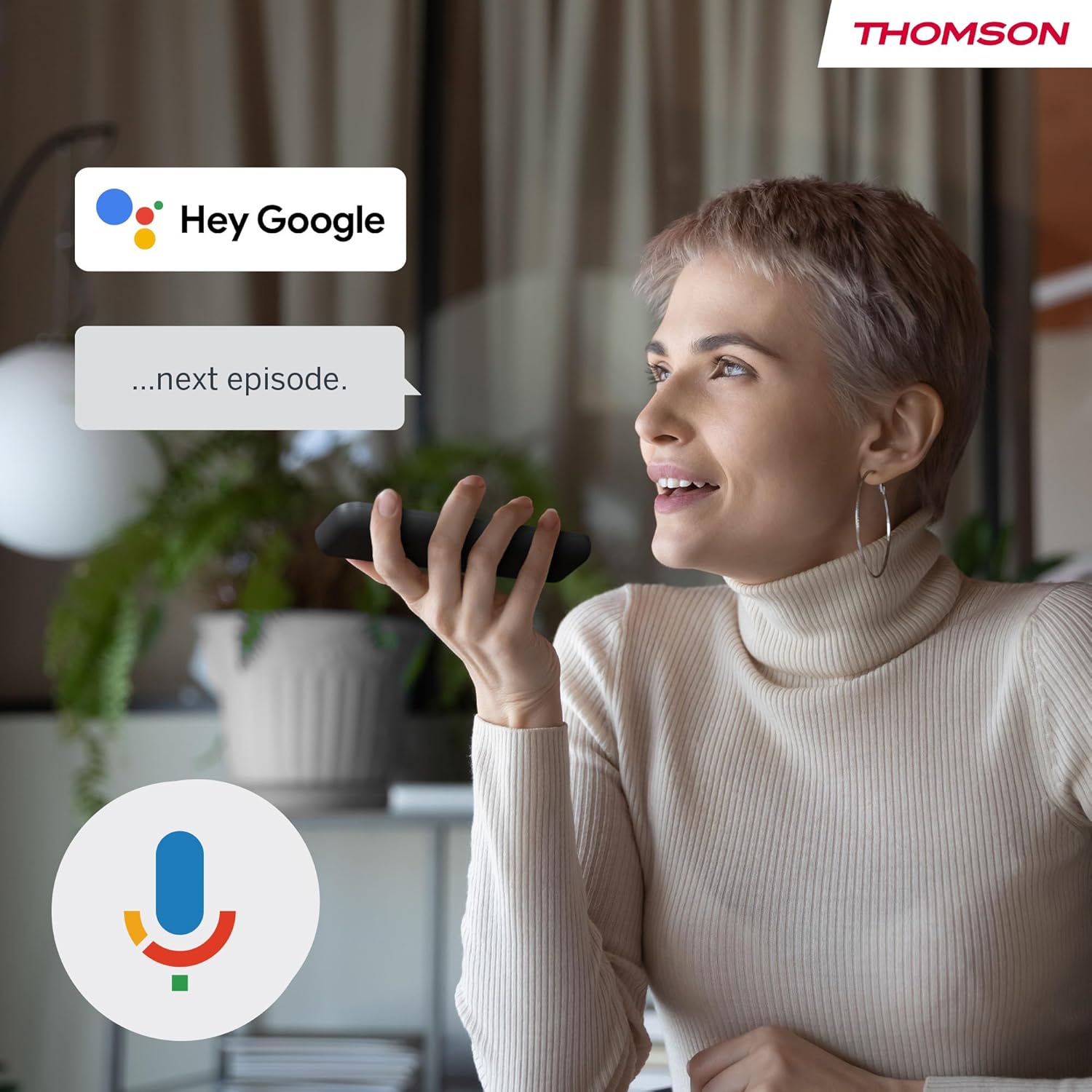
Figure 7: A user speaking into the remote control, demonstrating the voice command feature. A "Hey Google" speech bubble indicates active listening, followed by a command like "...next episode."
Find My Remote Feature
If you misplace your remote control, you can easily locate it using the "Find My Remote" button on the Streaming Box.
- Press the "Find My Remote" button located on the side of the Streaming Box (refer to Figure 4).
- The remote control will emit a buzzer sound, guiding you to its location.

Figure 8: A hand pressing the "Find My Remote" button on the Streaming Box. An inset shows a close-up of the button. The remote control is depicted with sound waves emanating from it, indicating it is emitting a sound to be found.
5. Maintenance
To ensure the longevity and optimal performance of your Streaming Box Plus 270, follow these maintenance guidelines:
- Cleaning: Use a soft, dry cloth to clean the device. Do not use liquid cleaners or abrasive materials.
- Ventilation: Ensure the device is placed in a well-ventilated area to prevent overheating. Do not block any ventilation openings.
- Storage: When not in use for extended periods, store the device in a cool, dry place away from direct sunlight and extreme temperatures.
- Software Updates: The device may receive automatic software updates. Ensure it is connected to the internet to receive these updates, which can improve performance and add new features.
6. Troubleshooting
If you encounter issues with your Streaming Box Plus 270, refer to the following common problems and solutions:
| Problem | Possible Cause | Solution |
|---|---|---|
| No power | Power adapter not connected or faulty outlet. | Ensure the power adapter is securely connected to the device and a working power outlet. Try a different outlet. |
| No picture on TV | Incorrect HDMI input selected or loose HDMI cable. | Verify the TV is on the correct HDMI input. Check that the HDMI cable is securely connected to both the Streaming Box and the TV. Try a different HDMI port or cable. |
| No internet connection | Wi-Fi issues or Ethernet cable disconnected. | Check your router and modem. For Wi-Fi, re-enter the password in settings. For Ethernet, ensure the cable is connected. Restart your router/modem and the Streaming Box. |
| Remote control not responding | Low batteries or remote not paired. | Replace the batteries. If the issue persists, try re-pairing the remote control according to the on-screen instructions during initial setup or in the device settings. Use the "Find My Remote" button to confirm it's powered. |
| Voice control not working | Microphone switch off or software issue. | Ensure the Microphone ON/OFF switch on the device is in the ON position. Check Google Assistant settings. Restart the device. |
| Device is slow or freezing | Too many apps running or insufficient memory. | Close unused applications. Restart the device. If problems persist, consider a factory reset (note: this will erase all data and settings). |
7. Specifications
Detailed technical specifications for the THOMSON Google TV Streaming Box Plus 270:
| Feature | Detail |
|---|---|
| Model Name | Streaming Box Plus 270 |
| Brand | Thomson |
| Color | Black |
| Product Type | TV Set-top Box / Streaming Media Player |
| Resolution | 4K UHD (3840x2160) |
| Operating System | Google TV (Android TV) |
| RAM | 3 GB |
| Storage | 32 GB |
| Processor | Quad-core |
| Connectivity Technology | Bluetooth, Ethernet, HDMI, USB, Wi-Fi |
| Ports | HDMI, USB 3.0, LAN (Ethernet), DC IN |
| Special Features | Chromecast, Parental Control, DLNA, USB Recording (DVR), Browser, Hands-Free Voice Control (Google Assistant), Remote Finder |
| Supported Internet Services | Disney+, Google TV, Netflix, Prime Video, YouTube |
| Controller Type | Voice Control, Remote Control |
| Compatible Devices | Television, Projector, Smartphone, Personal Computer, Tablet, Laptop |
| Dimensions (Box) | Approximately 12 cm x 12 cm x 4 cm (refer to Figure 9) |
| Dimensions (Remote) | Approximately 14 cm x 4 cm (refer to Figure 9) |
| Country of Origin | China |

Figure 9: Technical drawing showing the approximate dimensions of the THOMSON Streaming Box Plus 270 (12 cm x 12 cm x 4 cm) and its remote control (14 cm x 4 cm).
8. Warranty and Support
The THOMSON Google TV Streaming Box Plus 270 comes with a manufacturer's warranty.
- Manufacturer Warranty: 3 years (as per product specifications).
- Spare Parts Availability: Information unavailable.
- Software Updates Guaranteed Until: Information unavailable.
For technical support or warranty claims, please refer to the contact information provided with your purchase documentation or visit the official THOMSON website.


