1. Introduction
This manual provides detailed instructions for the installation, operation, and maintenance of your Ctronics 4G LTE Dual Lens Solar Security Camera (Model 800C). This wireless security camera is designed for surveillance in locations without Wi-Fi access, utilizing 4G LTE cellular connectivity. It features advanced dual-lens technology, solar power, and a robust battery for continuous operation. Please read this manual thoroughly before using the product to ensure proper setup and functionality.

Image 1.1: Ctronics 4G LTE Dual Lens Solar Security Camera. This image displays the complete camera unit with its integrated solar panel, showcasing its design and primary components.
2. Product Overview
The Ctronics 800C camera is a fully wireless, solar-powered security solution. Key features include:
- 4G LTE Connectivity: Operates independently of Wi-Fi, ideal for remote areas. Includes a pre-installed SIM card with 300MB test data.
- Dual Lens System: Features a fixed 90° upper lens and a rotatable lower lens (355° pan, 90° tilt) for comprehensive coverage and reduced blind spots.
- Solar Power & Battery: Equipped with an 8W solar panel and a 15600mAh rechargeable battery for continuous, eco-friendly power.
- Color Night Vision: Provides clear, full-color night vision up to 30 meters, delivering FHD images day and night.
- Dual PIR Human Detection: Accurately detects human motion within a 10-meter radius, triggering instant alerts and alarms.
- Two-Way Audio: Enables real-time communication through the camera.
- Flexible Storage: Supports cloud storage and local storage via a TF card up to 128GB.
- Multi-Platform Compatibility: Accessible via "HIP2P" and "Ctronics Pro" apps on iOS, Android, Mac, and Windows devices.

Image 2.1: Autonomous Power. This image illustrates the camera mounted outdoors, powered by its 8W solar panel and internal 15600mAh battery, highlighting its self-sufficient operation.
3. Setup
3.1 Package Contents
Verify that all components are present in the package:
- Ctronics 4G LTE Dual Lens Solar Security Camera (Model 800C)
- 8W Solar Panel (integrated or separate, depending on model variant)
- Mounting Bracket and Screws
- SIM Card (pre-installed with 300MB test data)
- User Manual (this document)
3.2 SIM Card Activation (if not pre-activated)
The camera comes with a pre-installed SIM card and 300MB of test data. If you are using your own SIM card, ensure the PIN request is deactivated before inserting it into the camera.

Image 3.1: Stable 4G Mobile Connection. This image highlights the camera's 4G LTE connectivity, showing the SIM card slot and indicating the included 300MB of test data for immediate use.
3.3 Charging the Battery
Before initial use, it is recommended to fully charge the camera's 15600mAh battery using the solar panel or a compatible USB power adapter (not included). Ensure the solar panel is positioned to receive maximum sunlight.
3.4 App Installation
Download and install one of the compatible applications on your smartphone or computer:
- "HIP2P" (for iOS, Android, Windows, Mac)
- "Ctronics Pro" (for iOS, Android, Windows, Mac)
Search for these apps in your device's app store (Apple App Store, Google Play Store) or on the Ctronics website for desktop versions.

Image 3.2: Multi-Platform Compatibility. This image displays the camera's compatibility with various operating systems (iOS, Android, Windows, Mac OS) and the recommended applications ("Ctronics Pro", "HIP2P Client") for remote access and control.
3.5 Mounting the Camera
The camera supports both wall and ceiling mounting. Choose a location that provides optimal coverage and ensures the solar panel receives sufficient sunlight.
- Select a suitable mounting surface.
- Use the provided mounting bracket as a template to mark drill holes.
- Drill the holes and insert wall plugs if necessary.
- Secure the mounting bracket to the surface with screws.
- Attach the camera to the mounting bracket.
- Adjust the camera's angle using the adjustable bracket (up to 108°) for the desired field of view.
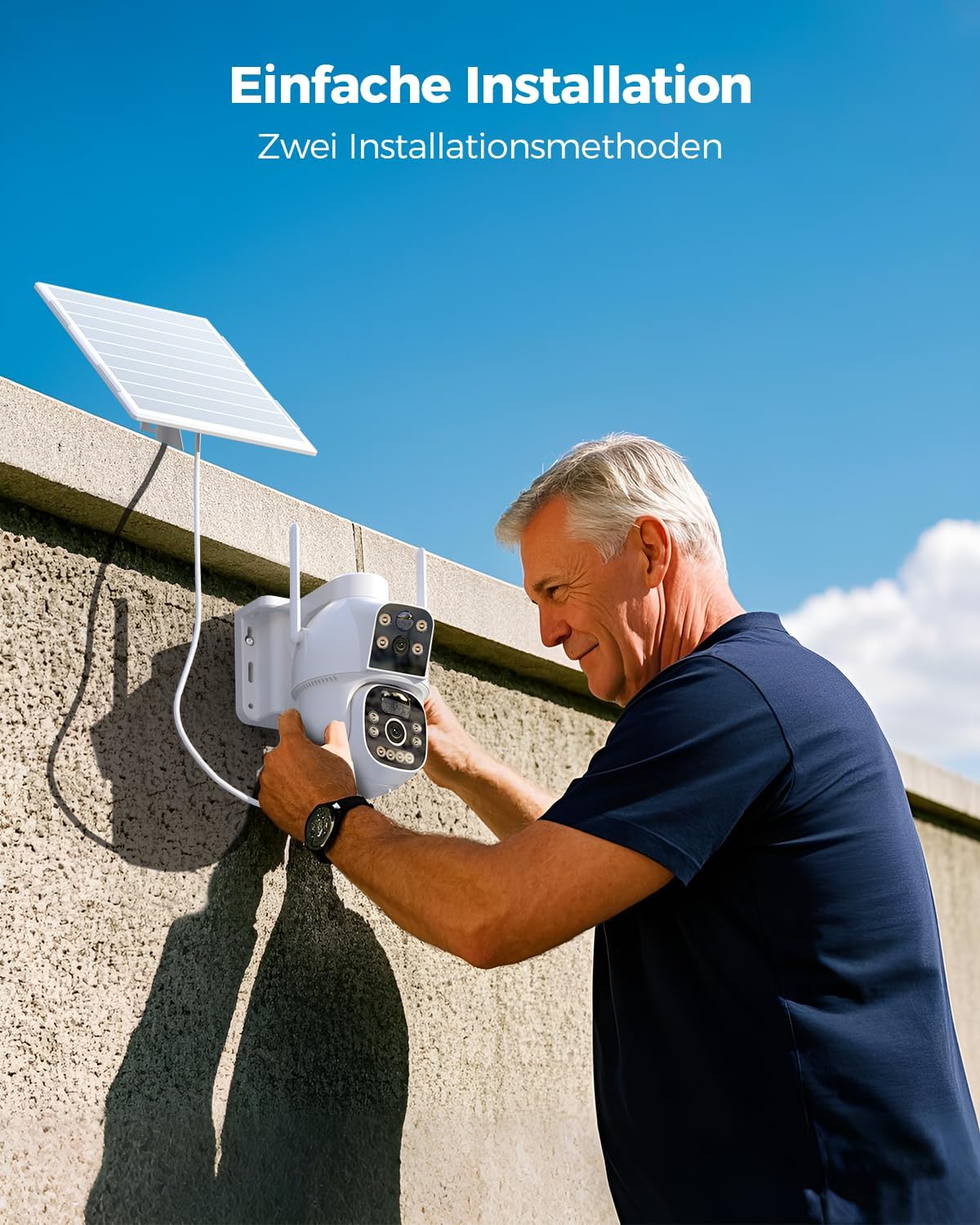
Image 3.3: Easy Installation. This image shows a person installing the Ctronics camera on an outdoor wall, demonstrating the straightforward mounting process.
4. Operating Instructions
4.1 Initial Connection
- Open the "HIP2P" or "Ctronics Pro" app on your device.
- Follow the in-app instructions to add your camera. This typically involves scanning a QR code on the camera or manually entering its ID.
- Once connected, you should see the live feed from the camera.
4.2 Dual Lens Control
The camera features two lenses:
- Upper Lens: Fixed 90° wide-angle view.
- Lower Lens: Rotatable with 355° pan and 90° tilt capabilities.
Use the app's controls to pan and tilt the lower lens to adjust its viewing angle.

Image 4.1: Dual Lens for Wider Coverage. This image illustrates the camera's dual-lens system, showing how the fixed upper lens and the rotatable lower lens combine to provide extensive surveillance coverage.
4.3 Motion Detection and Alerts
The camera uses dual PIR sensors for accurate human motion detection up to 10 meters.
- Enable/Disable: Configure motion detection settings within the app.
- Alerts: Receive instant notifications on your smartphone when motion is detected.
- Alarms: The camera can trigger an audible alarm to deter intruders.

Image 4.2: Dual-PIR Human Detection. This image demonstrates the camera's ability to detect human figures, triggering alerts as shown in the notification overlay.
4.4 Two-Way Audio
Use the two-way audio feature to communicate with individuals near the camera.
- In the live view interface of the app, tap the microphone icon to speak.
- Tap the speaker icon to listen to audio from the camera's location.

Image 4.3: Two-Way Audio. This image shows a smartphone screen displaying the camera's live feed with controls for two-way audio, allowing real-time communication.
4.5 Night Vision
The camera automatically switches to night vision mode in low-light conditions. It supports full-color night vision up to 30 meters.

Image 4.4: Color Night Vision. This image demonstrates the camera's color night vision capability, showing a clear, illuminated scene at night compared to a standard black and white view.
4.6 Recording and Storage
Recordings can be stored in two ways:
- TF Card: Insert a TF (microSD) card (up to 128GB) into the designated slot on the camera for local storage.
- Cloud Storage: Subscribe to cloud storage services through the app for remote backup of your recordings.
Access recorded footage through the "HIP2P" or "Ctronics Pro" app.
5. Maintenance
5.1 Cleaning
- Regularly clean the camera lenses and solar panel with a soft, damp cloth to ensure optimal performance.
- Avoid using harsh chemicals or abrasive materials that could damage the surfaces.
5.2 Battery Management
- Ensure the solar panel is free from obstructions (e.g., leaves, dirt) to maximize charging efficiency.
- In prolonged periods of low sunlight, the camera's battery may deplete. Monitor battery status via the app and consider temporary manual charging if needed.
5.3 Firmware Updates
Check the "HIP2P" or "Ctronics Pro" app periodically for available firmware updates. Keeping your camera's firmware up-to-date ensures optimal performance, security, and access to new features.
6. Troubleshooting
- Camera not connecting to 4G:
- Ensure the SIM card is correctly inserted and has an active data plan.
- Verify that the SIM card's PIN request has been deactivated.
- Check cellular signal strength in the camera's location via the app.
- Battery not charging:
- Ensure the solar panel is clean and exposed to direct sunlight for several hours daily.
- Check the connection between the solar panel and the camera.
- Verify the battery status in the app.
- Motion detection not working:
- Confirm that motion detection is enabled in the app settings.
- Adjust the sensitivity of the PIR sensors.
- Ensure there are no obstructions blocking the sensor's field of view.
- Poor image quality:
- Clean the camera lenses.
- Ensure adequate lighting, especially during night vision operation.
- Check your network connection speed if streaming live video.
- App issues:
- Ensure your app is updated to the latest version.
- Restart the app or your smartphone.
- If issues persist, try reinstalling the app.
7. Specifications
| Feature | Specification |
|---|---|
| Model Name | 800C |
| Brand | Ctronics |
| Video Recording Resolution | 1080p |
| Connectivity Technology | 4G LTE Cellular (No Wi-Fi) |
| Battery Capacity | 15600mAh Lithium-ion (included) |
| Solar Panel Power | 8W |
| Night Vision Range | Up to 30 meters (Color Night Vision) |
| Motion Detection | Dual PIR Sensors, 10m detection range |
| Lens Configuration | Fixed 90° upper lens, Rotatable 355° pan / 90° tilt lower lens |
| Audio | Two-way audio |
| Storage Options | TF Card (up to 128GB), Cloud Storage |
| Compatible Operating Systems | iOS, Android, Mac, Windows |
| Material | Acrylonitrile Butadiene Styrene (ABS) |
| Color | White |
| Dimensions (L x W x H) | 30 x 25 x 30 cm |
| Weight | 1 Kilogram |
| Installation Type | Screw-in (Wall/Ceiling Mount) |
| Recommended Use | Outdoor Surveillance |
8. Warranty and Support
For warranty information, please refer to the documentation provided with your purchase or visit the official Ctronics website.
For technical support, please utilize the "HIP2P" or "Ctronics Pro" applications. Note that email support is not provided for this product.


