
CARPURIDE W502PRO
CARPURIDE W502PRO Motorcycle CarPlay Android Auto GPS Navigation System User Manual
Comprehensive instructions for setting up, operating, and maintaining your CARPURIDE W502PRO 5-inch waterproof GPS navigation system with wireless CarPlay and Android Auto for motorcycles.
1. Introduction
The CARPURIDE W502PRO is a 5-inch waterproof GPS navigation system designed for motorcycles, offering wireless CarPlay and Android Auto functionality. This device enhances your riding experience by providing access to navigation, calls, music, and messaging directly from your smartphone, displayed on a dedicated motorcycle-friendly screen. It features dual Bluetooth connectivity, a light sensor for automatic brightness adjustment, a compass, and a barometer.

Image: The CARPURIDE W502PRO unit, showing its 5-inch screen interface with various app icons, mounted on a motorcycle handlebar. Below it are icons representing Android Auto, Apple CarPlay, a mounting bracket, and a motorcycle, illustrating its primary functions and application.
2. Package Contents
Please verify that all items listed below are included in your package:
- 1x 5-inch Motorcycle CarPlay Screen
- 1x USB Power Cable
- 1x U-shaped Support Rod
- 1x Square Bracket
- 1x User Manual

Image: A detailed diagram illustrating the dimensions of the 5-inch screen and all included accessories: U-shaped support rod, square bracket, power cable, USB cable, and the user manual.
3. Setup
3.1 Mounting the Device
The CARPURIDE W502PRO offers two primary mounting options: the U-shaped support rod and the square bracket. Choose the method that best suits your motorcycle's handlebar configuration.
U-shaped Support Rod Installation
- Attach the support to the handlebar using a Phillips screwdriver.
- Secure the connecting rod to the support.
- Insert the device and adjust its position as desired. Tighten the adjustment ring to fix it.
- The installation is complete.

Image: A four-step visual guide demonstrating the installation of the device using the U-shaped support rod, showing how to attach it to the handlebar, secure the connecting rod, adjust the device, and complete the setup.
Square Bracket Installation
- Use the silicone pad, which can be thinned to 12mm or 18mm. When not in use, it can be up to 22mm. Choose the installation method based on your motorcycle's handlebar.
- Align the screws and nuts of the bracket and tighten them to secure it to the motorcycle handlebar.
- Align the grooves at the connection point of the windshield bracket and insert it. Then tighten with screws.
- The installation is complete.

Image: A four-step visual guide demonstrating the installation of the device using the square bracket, showing how to use silicone pads, secure the bracket to the handlebar, align and insert the device, and complete the setup.
3.2 Power Connection
The W502PRO offers two methods for power connection:
Option 1: USB Power Cable
- Connect the W502PRO directly to your motorcycle's USB port using the provided USB power cable.
- Ensure the motorcycle's USB port provides 5V and 2.5A or more for stable operation.
- Note: If the motorcycle's USB port provides less than 5V, 2A, it is not recommended to use the USB power cable, as insufficient voltage or current may cause the screen to shut down automatically.

Image: A diagram illustrating the USB power connection method, showing the USB cable, a motorcycle USB port, and the device connected. It also highlights the waterproof and detachable nature of the cable.
Option 2: Motorcycle Battery Power Line
- Use the motorcycle's power line to provide 12V and 1A to the battery.
- Connect the red wire (positive terminal) to the motorcycle battery's positive terminal and the black wire (ground) to the negative terminal.
- The W502PRO has built-in reverse polarity protection, preventing damage even if connected incorrectly.
- Note: Ensure the output voltage and current are 12V, 1A when using the motorcycle power line.

Image: A diagram illustrating the direct battery power connection method, showing the red and black power cables connected to the motorcycle battery and the device. It also highlights the waterproof and detachable nature of the cable.
4. Operating Instructions
4.1 Wireless CarPlay and Android Auto
The W502PRO supports wireless CarPlay and Android Auto, allowing you to access your smartphone's features safely while riding.
Connection Requirements:
- For Wireless CarPlay:
- An iPhone running iOS 6 or above.
- CarPlay system and iPhone's voice system must be activated.
- Siri must be enabled.
- For Wireless Android Auto:
- A phone that supports 5GHz Wi-Fi.
- A phone running Android 11 or above.
- The Android Auto app must be installed and updated to the latest version.
Note on Compatibility: The device is not perfectly compatible with some Samsung Note and S series phones. Before purchasing, ensure your phone supports wireless CarPlay or wireless Android Auto. Incompatible Android phone models include: OnePlus Nord 2T, OnePlus Nord CE2 5G, Oppo CPH2161, Oppo A16S, Oppo Reno 2, Samsung S23, Samsung Note 20, Samsung S20, Samsung M22, Samsung S23 Ultra, Galaxy A20 (model SM-A205g), Huawei P30, Huawei P30 Pro, Huawei P40 Pro, Huawei P20 Pro, Huawei P20, Huawei P30 Lite MAR-LX1A, Huawei Mate 20, Huawei Mate 20 Pro, Huawei P Smart 2019 - POT-LX1, Huawei Nova 5T, Huawei Mate Lite 10, Honor 90, Xiaomi 11 Lite, Xiaomi 12 Pro, Redmi 9, Xiaomi 9.

Image: A detailed chart outlining the requirements for wireless CarPlay (iOS 6+, Siri enabled) and Android Auto (5GHz Wi-Fi, Android 11+, latest app version). It also lists specific Android phone models that are incompatible.
4.2 Bluetooth Connectivity (Dual Bluetooth)
The W502PRO features dual Bluetooth connectivity, allowing for flexible audio routing.
Single-Connection Mode (BT Trans)
- Ensure your Bluetooth helmet or earphone is turned on and in pairing mode to be discovered by the W502PRO screen.
- Do not connect your mobile phone directly to the Bluetooth helmet or earphone, as this may interfere with the pairing process with the W502PRO.
- In this mode, the W502PRO connects to your smartphone for CarPlay/Android Auto, and then transmits audio to a single Bluetooth helmet/earphone.
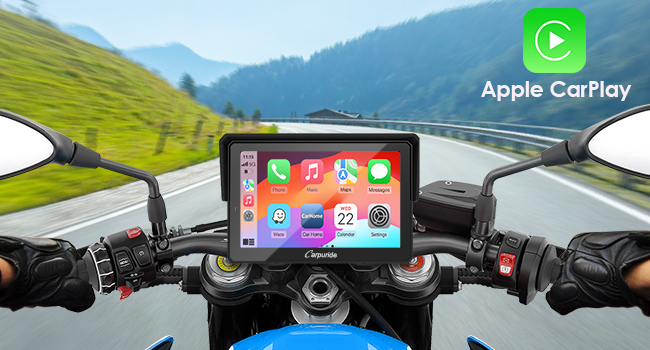
Image: A diagram illustrating the single Bluetooth connection mode. The smartphone connects to the Carpuride screen, which then connects to one Bluetooth helmet or earphone for audio output.
Dual-Connection Mode (BT Trans)
- The W502PRO's enhanced dual Bluetooth technology allows connecting two Bluetooth helmets or headsets simultaneously.
- This enables both the rider and passenger to share music and use the intercom function.
- Note: In BT-Trans mode, the W502 Pro supports both single and dual connections. However, in CarPlay or Android Auto mode, only a single connection is supported for transmitting audio data from the smartphone to a helmet or headset.
- Important: In Bluetooth Trans mode, voice assistant commands and call audio can only be transmitted to Bluetooth 1. It is recommended that the main rider uses Bluetooth 1. The effective Bluetooth range for intercom is approximately 10 meters.

Image: A diagram illustrating the dual Bluetooth connection mode. The smartphone connects to the Carpuride screen, which then connects to two separate Bluetooth helmets or earphones, enabling music sharing and intercom functionality between rider and passenger.
4.3 Key Features and Functions
Voice Control (Siri/Google Assistant)
Utilize Siri or Google Assistant through the W502PRO to access navigation, make calls, play music, and send messages without taking your hands off the handlebars.

Image: A collage of four images showing the W502PRO in use. Top left depicts voice commands for Siri/Google Assistant. Top right shows music playback. Bottom left illustrates navigation. Bottom right shows a phone call interface.
Light Sensor and EQ Effect
- The integrated light sensor automatically adjusts screen brightness based on ambient light conditions, ensuring clear visibility day or night and protecting your eyes.
- The W502PRO includes an EQ function, offering various music styles and sound effects for a personalized audio experience.
Compass and Barometer
- The built-in compass helps you maintain your direction and avoid getting lost, especially during outdoor rides.
- The barometer monitors real-time altitude changes, which is particularly useful in mountainous regions, enhancing safety and navigation.

Image: A collage of four images. Top left shows the light sensor adjusting screen brightness for day and night. Top right illustrates local media playback. Bottom left displays the compass function. Bottom right shows the barometer displaying altitude and pressure.
Local Playback (TF/SD Card)
The device supports TF/SD cards up to 64GB for local storage and playback of music and videos. This allows you to enjoy your favorite media directly from the device.
Note: The 64GB TF card does not support software updates. For software updates, use a smaller capacity memory card (32GB, 16GB, 8GB, or 4GB).
4.4 Weather Resistance
The W502PRO is designed to withstand various weather conditions, featuring an IP67 waterproof screen and an anti-glare display that operates between -4°F and 158°F (-20°C and 70°C).

Image: A collage of images showing the W502PRO mounted on a motorcycle in different weather conditions: a rainy day, a sunny day with high temperature, and a snowy day, highlighting its weather resistance and anti-glare screen.
5. Maintenance
- Cleaning: Use a soft, damp cloth to clean the screen and device body. Avoid abrasive cleaners or solvents.
- Software Updates: For software updates, use a smaller capacity memory card (32GB, 16GB, 8GB, or 4GB). The 64GB TF card is not suitable for updates.
- Storage: When not in use for extended periods, store the device in a dry, cool place away from direct sunlight.
6. Troubleshooting
- Device Shuts Down Automatically:
- Check the power connection. If using the USB power cable, ensure the motorcycle's USB port provides at least 5V, 2A. Insufficient power can cause shutdowns.
- If using the battery power line, verify it provides 12V, 1A.
- Bluetooth Pairing Issues:
- Ensure your helmet/earphone is in active pairing mode.
- Do not connect your phone directly to the helmet/earphone while trying to pair with the W502PRO.
- Android Auto Not Functioning:
- Verify your phone meets the requirements: 5GHz Wi-Fi, Android 11+, and the latest Android Auto app.
- Check if your phone model is listed as incompatible (refer to section 4.1).
- Voice Assistant/Call Audio Only to Bluetooth 1:
- This is expected behavior in Bluetooth Trans mode. Ensure the main rider uses the device connected as Bluetooth 1 for voice commands and calls.
7. Specifications
| Manufacturer | Carpuride |
|---|---|
| Model Number | W502 PRO |
| Product Dimensions | 8.89 x 13.42 x 2.75 cm |
| Item Weight | 790 grams |
| Screen Size | 5 Inches |
| Special Features | Dual Bluetooth, Waterproof, Android Auto, Apple CarPlay, Touchscreen |
| Connectivity Technology | Bluetooth, USB |
| Vehicle Service Type | Motorcycle |
| Mounting Type | On the handlebar |
| Audio Output Mode | Stereo |
| Country of Origin | China |
8. Warranty and Support
For warranty information and return policies, please refer to the retailer's terms and conditions at the time of purchase. Typically, products can be returned within 30 days of receipt if you change your mind. For defective or damaged products, consult the retailer's help page on returns and refunds. For specific information on purchases made through a marketplace, refer to their respective help pages.
For technical support or further assistance, please contact CARPURIDE customer service through their official channels or the retailer where the product was purchased.
Related documentsW502PRO


Ask a question about this manual
Ask about setup, troubleshooting, compatibility, parts, safety, or missing instructions. Manuals+ will review the question and use this page’s manual context to help answer it.