
ieGeek ZY C2
ieGeek Solar Security Camera User Manual
Model: ZY C2
1. Introduction
Thank you for choosing the ieGeek Solar Security Camera. This manual provides essential information for the proper installation, operation, and maintenance of your new security system. Please read this manual thoroughly before use and retain it for future reference.
Product Overview
The ieGeek Solar Security Camera is a 100% wire-free, battery-powered outdoor surveillance solution featuring 2K QHD resolution, 360° pan/tilt capabilities, color night vision, and smart PIR motion detection. It is designed for easy installation and reliable performance in various outdoor environments, powered by an integrated solar panel to ensure continuous operation.

Image: Two ieGeek solar security cameras, showing the main unit and the attached solar panel for each camera.
2. Safety Information
- Ensure the camera is installed securely to prevent falling.
- Do not expose the camera to extreme temperatures outside the operating range of -4°F to 140°F (-20°C to 60°C).
- Avoid placing the camera directly facing strong light sources, which may affect image quality.
- Keep the camera and its components away from children.
- Use only the provided or recommended charging cables and accessories.
- The camera is IP65 waterproof, but avoid submerging it in water.
3. Package Contents
Please check the package contents upon opening to ensure all items are present:
- 2 x PTZ Security Camera
- 2 x 1.6W Solar Panel
- 10 x Screws
- 2 x Type-C Cable
- 1 x User Manual
4. Setup Guide
4.1 Charging the Camera
Before initial use, fully charge the camera's built-in battery using the provided Type-C cable. Connect the cable to the camera and a standard USB power adapter (not included). The charging indicator will show the status.
4.2 App Installation and Account Creation
Download the "ieGeek Cam" app from the App Store (iOS) or Google Play Store (Android). Create an account and log in.

Image: Screenshots of the ieGeek Cam app interface on a smartphone, demonstrating app download and usage.
4.3 Connecting to Wi-Fi
The camera supports 2.4GHz Wi-Fi only. Ensure your router is broadcasting a 2.4GHz network. Follow the in-app instructions to add your camera. This typically involves scanning a QR code displayed on your phone with the camera lens.

Image: A three-step diagram illustrating the quick Wi-Fi connection process: Download ieGeek Cam APP, Connect to 2.4Ghz WiFi, and Start Monitoring.
4.4 Mounting the Camera
The camera can be wall-mounted or ceiling-mounted. Choose a location with good Wi-Fi signal and direct sunlight exposure for the solar panel. Use the provided screws to fix the bracket, then snap the camera into place.

Image: A three-step visual guide demonstrating camera installation: Step 1 (Fix the bracket with screws), Step 2 (Snap camera into bracket), and Step 3 (Easy to remove out the camera).

Image: Illustrations showing two mounting options for the ieGeek camera: Wall Mounting and Ceiling Mounting, both with solar panels.
A surveillance sticker is included to deter potential intruders. Place it in a visible location.
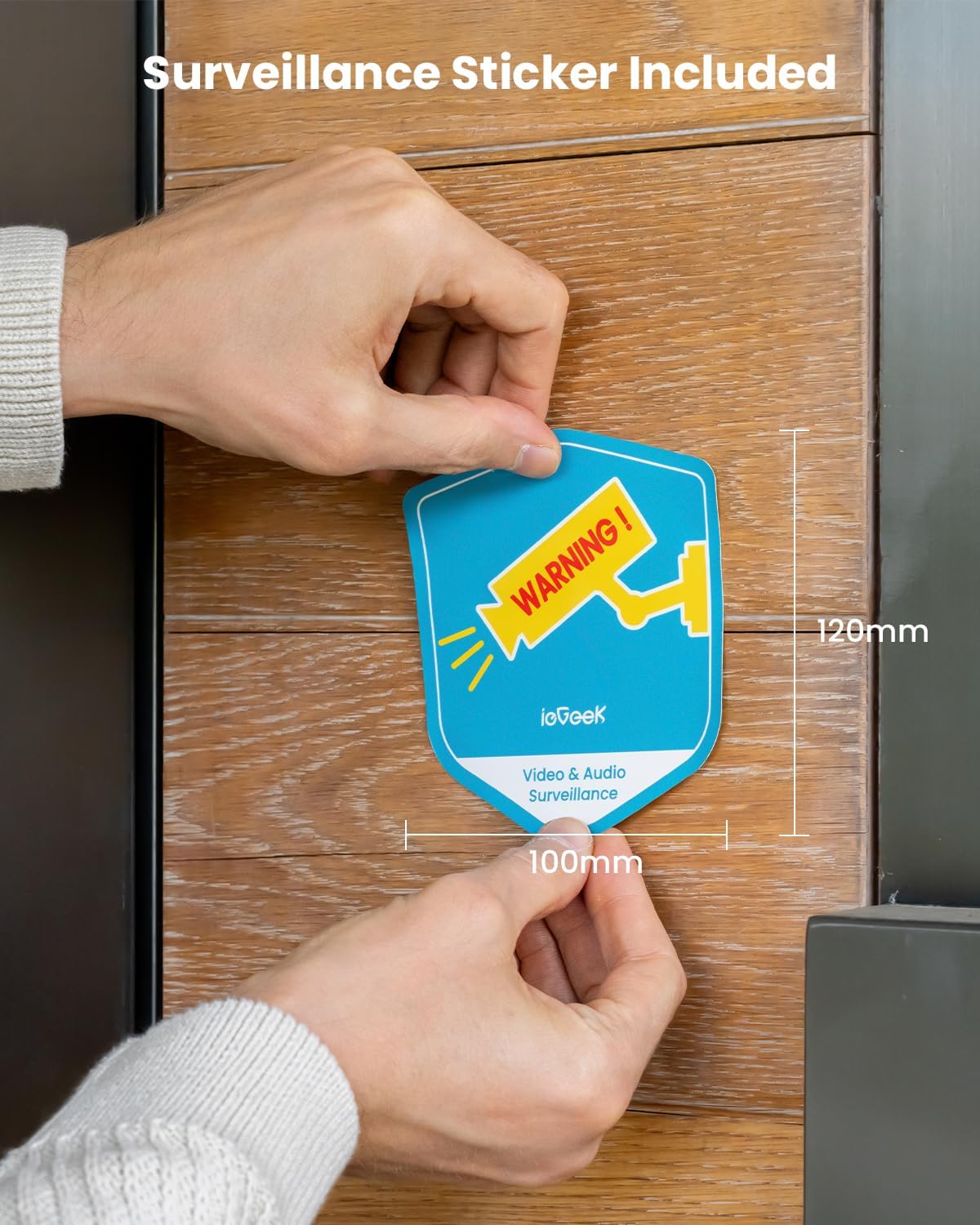
Image: A person's hands placing a blue and yellow "WARNING! ieGeek Video & Audio Surveillance" sticker on a wooden door frame.
5. Operating Instructions
5.1 Live View and Playback
Open the "ieGeek Cam" app to access live video feeds from your cameras. You can pan (355°) and tilt (120°) the camera remotely for 360° coverage. Review recorded footage from the cloud storage or an inserted Micro SD card (up to 128GB, not included).

Image: An ieGeek camera with arrows indicating 355° Pan and 120° Tilt, alongside a smartphone displaying the camera's live feed and control interface, demonstrating 360° coverage.

Image: A smartphone screen showing the ieGeek Cam app with options for Live view, History, and Cloud storage, along with various video playback thumbnails.
5.2 Motion Detection and Alerts
The camera features advanced PIR motion detection. When motion is detected, you will receive instant notifications on your phone, and the camera will record video. You can customize motion zones and schedule alert plans within the app to reduce false alarms.

Image: A person in a hoodie attempting to enter a building, with an ieGeek camera activating a spotlight and siren, and a phone displaying an "Alert Message" notification.

Image: A scene showing a person walking a dog, with the ieGeek camera's AI detection highlighting a person, pets, a package, and a vehicle, indicating its ability to differentiate objects.
5.3 Two-Way Audio
Utilize the built-in speaker and microphone for two-way communication. This allows you to speak to visitors or deter unwanted guests directly through the app.

Image: A person relaxing outdoors, using a smartphone to communicate through the ieGeek camera, with a speech bubble showing "Please put it at the door, thanks!"
5.4 Night Vision
The camera provides 2K full-color night vision thanks to its built-in IR lights and white lights, offering clear surveillance even in low-light conditions up to 50 feet.

Image: A split image demonstrating the difference between a clear 2K Color Night Vision view (left) and a standard grayscale night vision view (right) of a house and pool area.
5.5 Alexa Integration
The ieGeek camera works with Alexa. You can use voice commands to view your camera feed on compatible Alexa-enabled devices.

Image: A woman exercising indoors, using an Alexa-enabled smart display to view the camera feed, with a speech bubble indicating "Alexa, show me the front yard."
6. Maintenance
- Cleaning: Regularly wipe the camera lens and solar panel with a soft, damp cloth to ensure optimal performance. Avoid abrasive cleaners.
- Battery Life: The solar panel is designed to keep the battery charged. In prolonged periods of low sunlight, you may need to manually charge the camera using the Type-C cable.
- Firmware Updates: Check the "ieGeek Cam" app periodically for firmware updates to ensure your camera has the latest features and security enhancements.
- Storage Management: Regularly review and manage your recorded footage. Delete unnecessary files to free up space on your Micro SD card or cloud storage.
7. Troubleshooting
| Problem | Possible Cause | Solution |
|---|---|---|
| Camera not connecting to Wi-Fi | Incorrect Wi-Fi password; Camera too far from router; Only 5GHz Wi-Fi network available. | Ensure correct 2.4GHz Wi-Fi password; Move camera closer to router or use a Wi-Fi extender; Ensure your router broadcasts a 2.4GHz network. |
| Poor image quality | Dirty lens; Low light conditions; Network bandwidth issues. | Clean the lens; Ensure adequate lighting or rely on color night vision; Check Wi-Fi signal strength. |
| Battery not charging via solar panel | Insufficient sunlight; Dirty solar panel; Panel not connected properly. | Relocate solar panel to an area with more direct sunlight; Clean the solar panel; Ensure cable is securely connected. |
| Frequent false alarms | PIR sensitivity too high; Motion detection zone too wide. | Adjust PIR sensitivity in the app; Define specific motion detection zones to exclude irrelevant areas (e.g., busy street). |
| Two-way audio not working | Microphone/speaker muted in app; Network issues. | Check app settings to ensure audio is enabled; Verify network connection. |
8. Specifications
- Model: ZY C2
- Indoor/Outdoor Usage: Outdoor
- Power Source: Battery & Solar Powered
- Connectivity Protocol: Wi-Fi (2.4GHz only)
- Video Capture Resolution: 2K (3MP Effective Still Resolution)
- Pan/Tilt Range: 355° Pan, 120° Tilt
- Night Vision Range: 50 Feet (Color Night Vision)
- Water Resistance Level: IP65 Waterproof
- Operating Temperature: -4°F to 140°F (-20°C to 60°C)
- Storage: Micro SD Card (up to 128GB, not included), Free Cloud Storage (6s & 7 days loop coverage)
- Special Features: PIR Motion Detection, Two-Way Audio, Spotlight & Siren, Alexa Compatibility, Multi-User Sharing
- Dimensions: 6.3 x 5.91 x 3.54 inches
- Weight: 3.98 pounds
9. Warranty and Support
ieGeek offers a 2-year warranty for this product. If you encounter any problems using your ieGeek security cameras, please contact our customer support team. We are committed to providing satisfactory solutions.
Customer Support Email: service@iegeek.com
For more information and FAQs, please visit the official ieGeek website or refer to the "ieGeek Cam" app's help section.

Image: An illustration of the ieGeek Center, depicting customer service representatives and contact information for support.
Privacy Information
Your privacy is a top priority. ieGeek security cameras utilize Advanced Encryption Standard (AES128) technology, a commercial and government data encryption standard, to protect your data. This ensures that your video footage and personal information remain secure and private.

Image: A diagram emphasizing "Your Privacy Is Our Top Priority," explaining ieGeek's use of AES128 encryption for data security.
Related documentsZY C2


Ask a question about this manual
Ask about setup, troubleshooting, compatibility, parts, safety, or missing instructions. Manuals+ will review the question and use this page’s manual context to help answer it.