
1. Product Overview
This manual provides instructions for the LAMTTO 6.86-inch Wireless CarPlay Android Auto Integrated Car Audio Navigation System, model RC09. This device offers seamless smartphone integration, navigation, media playback, and parking assistance features for an enhanced driving experience.
Key Features:
- Wireless Apple CarPlay and Android Auto compatibility.
- Wireless Apple Airplay and Android Cast for screen mirroring.
- Bluetooth 5.0 for stable connections, hands-free calling, and music streaming.
- Voice control support via Google Assistant or Siri.
- Integrated 1080P parking assist rear camera with 170° wide-angle and super night vision.
- Multiple audio output options: built-in speaker, FM transmitter, AUX cable, and Bluetooth.
- Easy installation with various mounting options suitable for 90% of car models.
2. Setup and Installation
2.1 Package Contents
Before installation, ensure all components are present:
- LAMTTO 6.86-inch Display Audio Unit
- Parking Assist Rear Camera
- AUX Cable
- Cigarette Adapter (with built-in FM antenna)
- Dashboard Mount Bracket (3M holder)
- Suction Cup Mount Bracket
- User Manual (Japanese version included, this is the English version)
2.2 Choosing a Mounting Location
Select a location on your dashboard or windshield that does not obstruct your view of the road or interfere with airbags. The device operates on 12-24V power, making it compatible with most passenger vehicles, trucks, and RVs.

Figure 2.2: Available Mounting Options
2.3 Installing the Main Unit
- Clean the chosen mounting surface thoroughly to ensure proper adhesion.
- Attach the preferred mounting bracket (3M adhesive or suction cup) to the main unit.
- Secure the main unit to the dashboard or windshield. Adjust the angle for optimal viewing.
- Connect the cigarette adapter to the unit and plug it into your vehicle's cigarette lighter socket.
2.4 Installing the Rear Camera
The 1080P rear camera is IP67 waterproof and offers a 170° wide-angle view. It is intended for parking assistance only and does not support recording.
- Mount the rear camera at the back of your vehicle, ensuring a clear view.
- Route the camera cable to the main unit, ensuring it does not interfere with vehicle operations.
- Connect the camera cable to the designated input port on the main unit.

Figure 2.4: Rear Camera Parking Assist View
3. Operation Guide
3.1 Powering On/Off
The unit powers on automatically when connected to the vehicle's power supply via the cigarette adapter. To power off, disconnect the power adapter.
3.2 Connecting to Apple CarPlay / Android Auto
This device supports wireless Apple CarPlay and Android Auto. Ensure your smartphone's Wi-Fi and Bluetooth are enabled.
- On the unit, select the CarPlay or Android Auto icon.
- On your smartphone, search for the device's Bluetooth name and pair.
- Follow the on-screen prompts on both the unit and your phone to establish the connection.
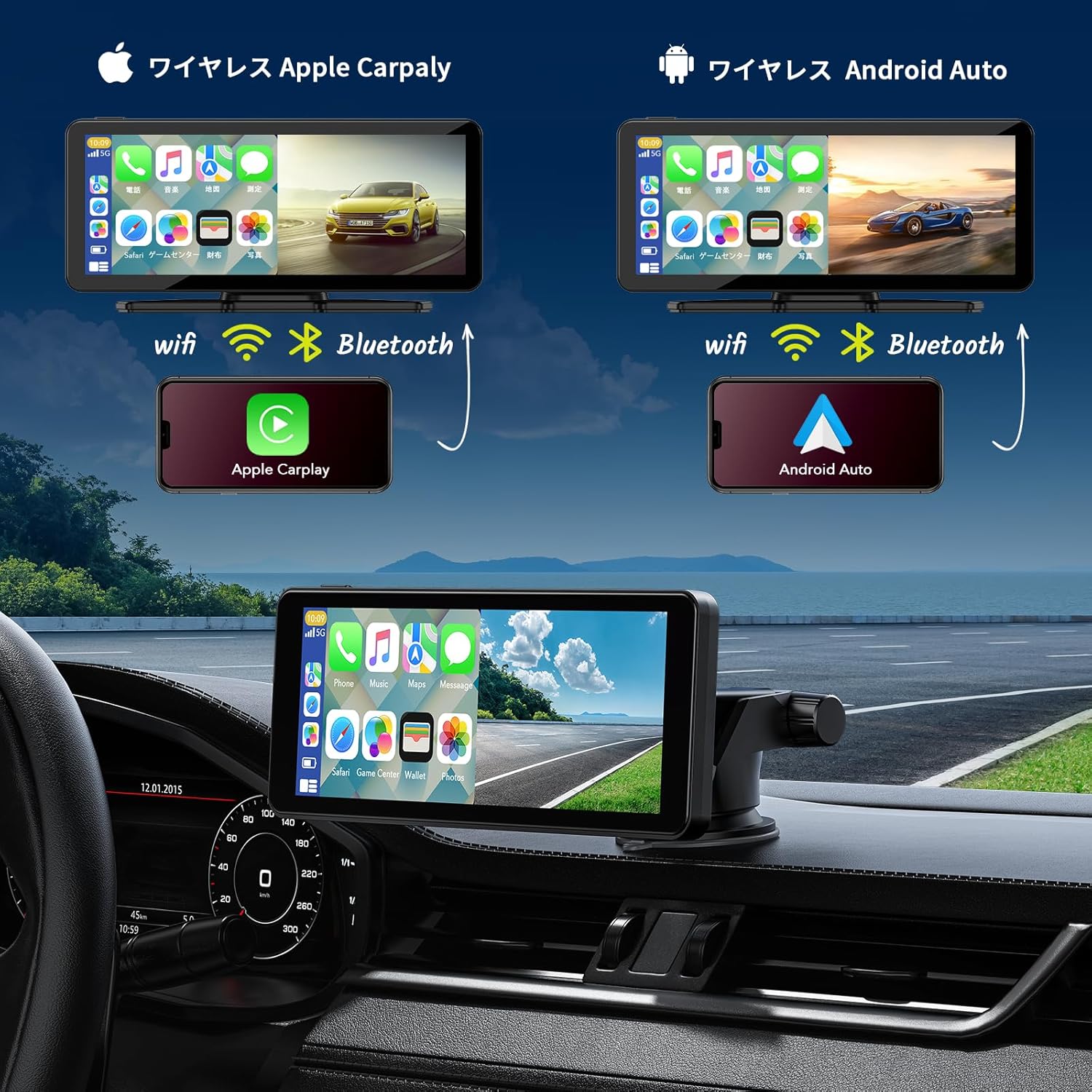
Figure 3.2: Wireless CarPlay and Android Auto Connection
3.3 Using Apple Airplay / Android Cast (Mirroring)
For iPhone users, Airplay allows screen mirroring. For Android users, Android Cast provides mirroring functionality. This feature is ideal for displaying videos or other content from your phone on the unit's screen.
- Select the Airplay or Android Cast option on the unit.
- On your smartphone, enable screen mirroring and select the device.
- Ensure both devices are connected via Wi-Fi for optimal performance.
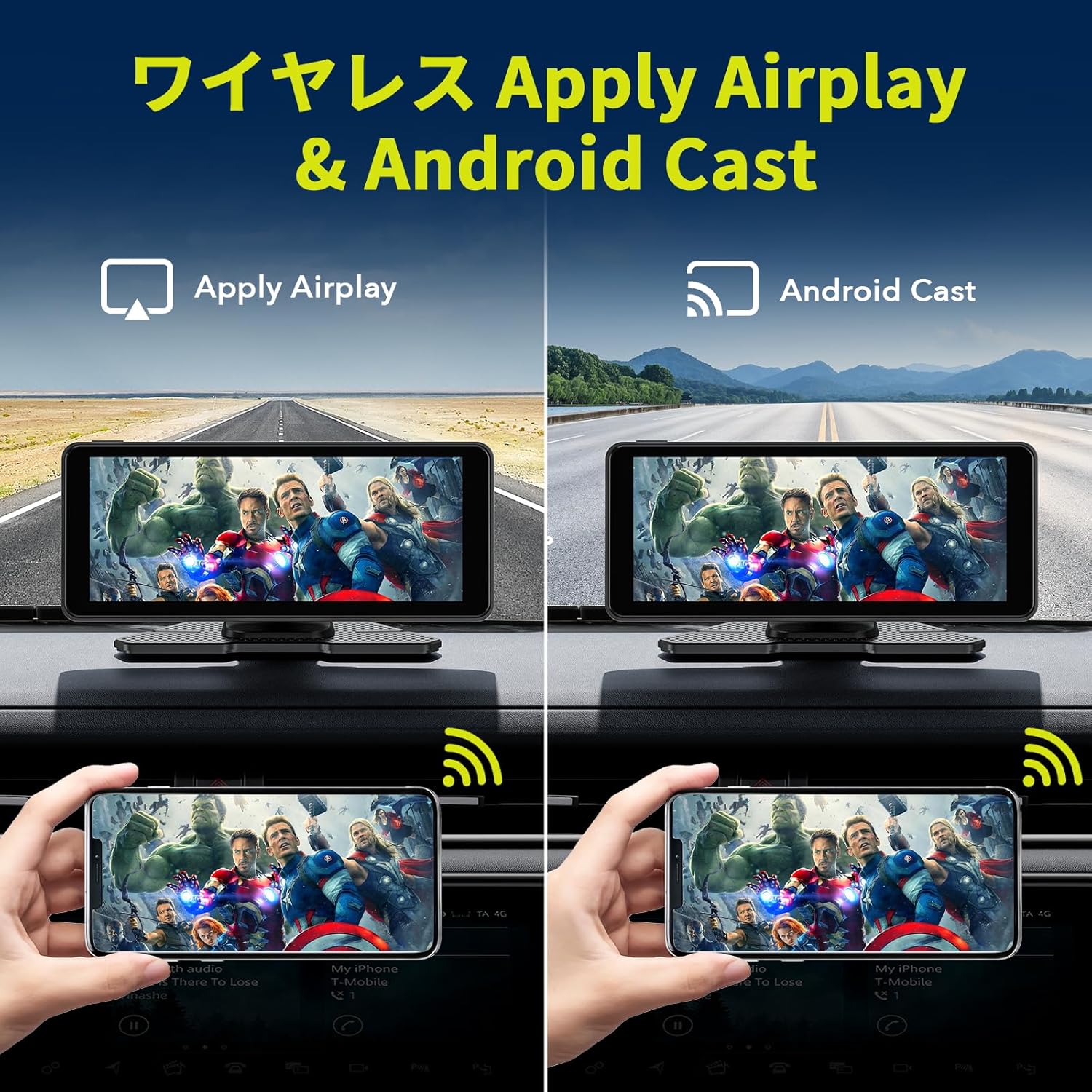
Figure 3.3: Wireless Airplay and Android Cast
3.4 Voice Control (Siri / Google Assistant)
Utilize your smartphone's voice assistant (Siri for Apple, Google Assistant for Android) for hands-free operation. This allows you to make calls, send messages, get directions, and control music without taking your hands off the wheel.
- Ensure your phone is connected via CarPlay or Android Auto.
- Activate the voice assistant using the designated button on the unit (if available) or by saying the wake word ("Hey Siri" or "Hey Google").
- Speak your command clearly into the unit's built-in microphone.
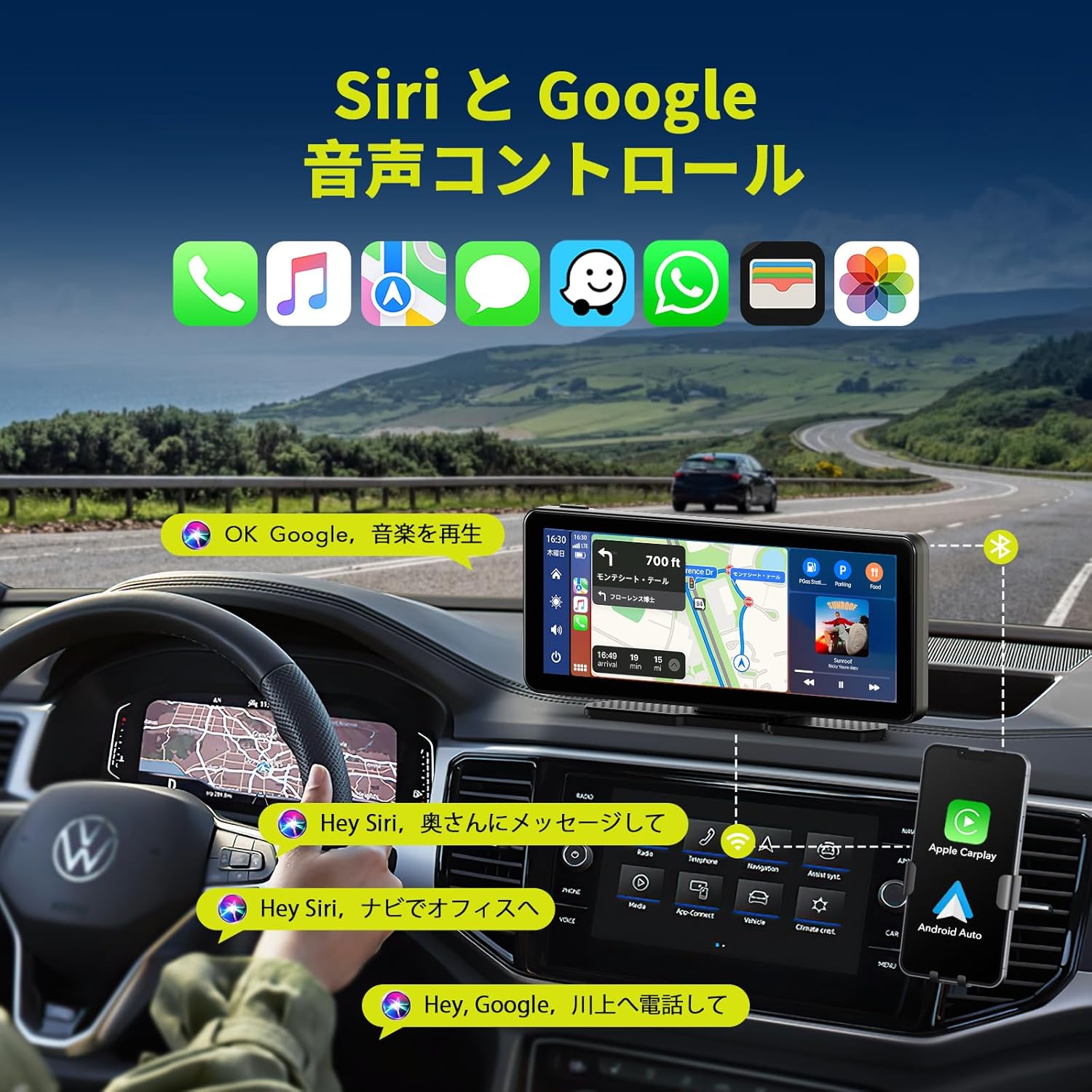
Figure 3.4: Voice Control with Siri and Google Assistant
3.5 Audio Output Options
The unit offers several ways to output audio to your car's sound system:
- Built-in Speaker: The unit has its own speaker for direct audio output.
- FM Transmitter: Broadcast audio to your car's FM radio by tuning both devices to the same frequency.
- AUX Cable: Connect the provided AUX cable from the unit to your car's AUX input for a wired audio connection.
- Bluetooth: Stream audio wirelessly to your car's Bluetooth-enabled audio system (if available).

Figure 3.5: Audio Output Methods
3.6 Split Screen Functionality
The unit supports split-screen display, allowing you to view two applications simultaneously, such as navigation and music playback, or the desktop and the rear camera feed.

Figure 3.6: Split Screen Display Options
4. Maintenance
- Cleaning: Use a soft, dry cloth to clean the screen and exterior of the unit. Avoid abrasive cleaners or solvents.
- Temperature: Do not expose the unit to extreme temperatures (hot or cold) for extended periods.
- Cable Connections: Periodically check all cable connections to ensure they are secure.
- Rear Camera: Keep the rear camera lens clean for clear visibility, especially in adverse weather conditions.
5. Troubleshooting
| Problem | Possible Cause | Solution |
|---|---|---|
| Unit does not power on. | No power supply; faulty cigarette adapter. | Ensure the cigarette adapter is securely plugged in and the vehicle's power outlet is functional. Check the adapter's fuse if applicable. |
| CarPlay/Android Auto not connecting. | Bluetooth/Wi-Fi off on phone; incorrect pairing; interference. | Ensure phone's Bluetooth and Wi-Fi are on. Re-pair the device. Move phone closer to the unit. Restart both phone and unit. |
| No audio output. | Incorrect audio output setting; low volume; loose AUX cable. | Check the unit's audio output settings (FM, AUX, Bluetooth, internal speaker). Increase volume. Ensure AUX cable is fully inserted. If using FM, verify frequency match. |
| Rear camera not displaying. | Loose camera connection; faulty camera. | Check the camera cable connection to the main unit. Ensure the camera is powered. |
| Touchscreen unresponsive. | Temporary software glitch. | Restart the unit by disconnecting and reconnecting power. |
6. Product Specifications
| Feature | Detail |
|---|---|
| Brand | LAMTTO |
| Model Number | RC09 |
| Screen Size | 6.86 inches |
| Display Type | LCD, Touchscreen |
| Connectivity | Bluetooth 5.0, Wi-Fi, USB, AUX, FM Transmitter |
| Smartphone Integration | Wireless Apple CarPlay, Wireless Android Auto, Apple Airplay, Android Cast |
| Voice Control | Siri, Google Assistant |
| Rear Camera | 1080P, IP67 Waterproof, 170° Wide-angle, Super Night Vision (Parking Assist Only) |
| Operating Voltage | 12-24 V |
| Mounting Type | Dashboard Mount (3M adhesive, Suction Cup) |
| Dimensions (Package) | 22.6 x 14.2 x 10.4 cm |
| Weight | 980 g |
7. Warranty and Support
LAMTTO products are designed for reliability and performance. For warranty information, please refer to the specific warranty card included with your product or contact LAMTTO customer support.
Customer Support:
- For technical assistance, troubleshooting, or warranty claims, please contact LAMTTO customer service through the retailer where you purchased the product or visit the official LAMTTO website.
- Please have your model number (RC09) and purchase date ready when contacting support.


