
1. Introduction
This manual provides detailed instructions for the proper use and maintenance of your ORDRO G930 5K 64MP Digital Camera. Please read this manual thoroughly before operating the camera to ensure optimal performance and to prevent damage. Keep this manual for future reference.
2. Package Contents
Verify that all items listed below are included in your camera package. If any items are missing or damaged, please contact your retailer.
- ORDRO G930 Digital Camera Body
- Lens
- 2 x Lithium-Ion Batteries
- 64GB Memory Card
- USB Cable
- Remote Control
- User Manual (this document)

Image 2.1: The ORDRO G930 Digital Camera shown with its standard accessories, including two batteries, a 64GB memory card, and a remote control.
3. Product Overview
3.1 Camera Components and Controls
Familiarize yourself with the various parts and controls of your ORDRO G930 camera.

Image 3.1: Labeled diagram illustrating the rear and top controls of the ORDRO G930 camera, including the Menu button, Function key, Self-timer/UP button, Lock Exposure/Left button, AFL/Right button, Exposure/Down button, Playback button, Delete key, Manual Focus Wheel, Zoom Wheel Key, Photo Key, Mode Key, Rotating Function Dial, Hot Shoe Interface, Display Mode button, Recording key, and Power button.

Image 3.2: Labeled diagram showing the side ports of the ORDRO G930 camera, including the Shoulder Strap Loop, MIC Connector, Type-C USB connector, and HD connector. Also depicted is the 270-degree 3.2-inch flip LCD screen in various positions.
4. Setup
4.1 Battery Installation
- Open the battery compartment cover located at the bottom of the camera.
- Insert a fully charged Lithium-Ion battery, ensuring the correct orientation as indicated inside the compartment.
- Close the battery compartment cover securely.
4.2 Memory Card Insertion
- Locate the memory card slot, typically near the battery compartment or on the side.
- Insert the provided 64GB memory card with the metal contacts facing the correct direction until it clicks into place.
- To remove, press the card gently inward until it springs out.
4.3 Initial Power On
- Press and hold the Power button until the LCD screen illuminates.
- Follow any on-screen prompts to set the date, time, and language.
5. Operating Instructions
5.1 Basic Operation
- Power On/Off: Press the Power button.
- Shutter Button: Half-press to focus, fully press to capture a photo or start/stop video recording.
- Mode Key: Use to cycle through different camera modes.
- Menu Button: Access camera settings and options.
5.2 Shooting Modes
The ORDRO G930 offers various shooting modes to suit different scenarios:
- Program Auto: Camera automatically sets exposure.
- Shutter Priority: You set the shutter speed, camera adjusts aperture.
- Scenery Mode: Optimized for landscape shots.
- Macro Mode: For close-up photography.
- Scene Modes: Includes options like Portrait, Sport, Night Portrait, Night Scenery, Food, Sunset, Backlight, and High Sensitivity for specific conditions.

Image 5.1: Visual representation of the diverse shooting modes available on the ORDRO G930 camera, including Intelligent Auto, Program Auto, Shutter Priority, Video, Scene Selection, and Macro mode.
5.3 Focus Modes
Select the appropriate focus mode for your subject:
- Autofocus (AF): The camera automatically focuses on the subject.
- Manual Focus (MF): Allows for precise manual adjustment of focus using the focus wheel.
- AF+MF: Combines autofocus speed with manual fine-tuning.
- AF+MF2: An enhanced AF+MF mode that includes focus magnification for greater precision.
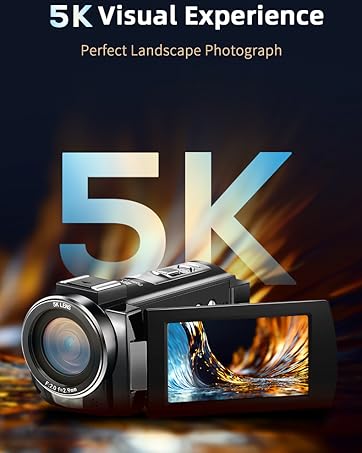
Image 5.2: Illustrations demonstrating the four flexible focus modes: Autofocus (AF) for fast and precise focusing, Manual Focus (MF) for precision control, AF+MF for combined speed and manual adjustment, and AF+MF2 which adds focus magnification.
5.4 Video Recording
To record video, switch to video mode using the Mode key, then press the Shutter button to start and stop recording. The camera supports 5K video resolution.
5.5 Webcam Functionality
The ORDRO G930 can function as a webcam for live streaming and video calls.
- Connect the camera to your computer using the provided USB cable.
- Select "Webcam" mode on the camera when prompted.
- Your computer should recognize the camera as a webcam, allowing its use with compatible applications.
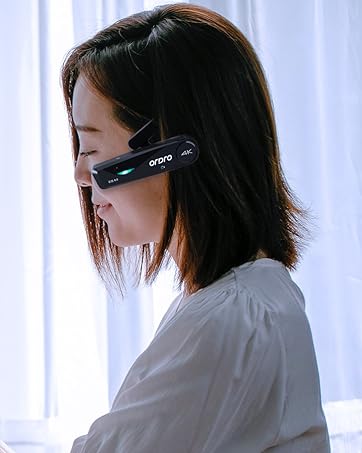
Image 5.3: The ORDRO G930 camera demonstrating its use as a webcam for live streaming and its HDMI output capability for connecting to a TV.
5.6 Wi-Fi Connection
Utilize the camera's Wi-Fi feature for instant photo and video sharing.
- Enable Wi-Fi in the camera's menu.
- Connect your smartphone or tablet to the camera's Wi-Fi network.
- Use the dedicated ORDRO app (if available) or a compatible file transfer app to browse and transfer media.

Image 5.4: The ORDRO G930 camera wirelessly connected to a smartphone, illustrating the instant photo and video sharing capability via Wi-Fi.
5.7 Creative Features
Enhance your photos and videos with built-in creative tools:
- Filters: Apply various artistic filters to your images.
- Color Temperature Adjustment: Manually adjust the color temperature (K value) from 3000K to 9000K to achieve desired color tones.
- White Balance Adjustment: Correct color casts to ensure accurate colors under different lighting conditions.
- Exposure Compensation: Adjust exposure levels from -3.0 to +3.0 to brighten or darken your images.

Image 5.5: Visual guide showing 15 types of filters, a color temperature adjustment scale from 3000K to 9000K, and instructions for white balance adjustment to customize color parameters.
6. Maintenance
Proper care and maintenance will prolong the life of your camera.
- Cleaning: Use a soft, lint-free cloth to clean the camera body. For the lens, use a specialized lens cleaning cloth and solution. Avoid harsh chemicals.
- Storage: Store the camera in a cool, dry place away from direct sunlight and extreme temperatures. Remove batteries if storing for extended periods.
- Battery Care: Charge batteries fully before use. Avoid overcharging. Dispose of old batteries responsibly.
- Memory Card: Format the memory card regularly to maintain optimal performance. Back up important data before formatting.
7. Troubleshooting
If you encounter issues with your ORDRO G930 camera, refer to the following common problems and solutions:
| Problem | Possible Cause | Solution |
|---|---|---|
| Camera does not power on | Battery is depleted or incorrectly inserted. | Ensure battery is charged and inserted correctly. Try a different charged battery. |
| Cannot take photos/videos | Memory card is full, locked, or not inserted. | Check memory card status. Ensure it is unlocked and has sufficient space. Reinsert or replace card. |
| Images are blurry | Incorrect focus, camera shake, or dirty lens. | Verify focus mode and ensure proper focus. Use a tripod or faster shutter speed. Clean the lens. |
| Wi-Fi connection fails | Wi-Fi is disabled or incorrect password. | Ensure Wi-Fi is enabled on camera and device. Re-enter Wi-Fi password. |
If the problem persists after trying these solutions, please contact customer support.
8. Specifications
Key technical specifications for the ORDRO G930 Digital Camera:
| Feature | Specification |
|---|---|
| Model Name | ORDRO G930 |
| Photo Sensor Resolution | 64 MP |
| Video Resolution | 5K (4320p) |
| Optical Zoom | 5x |
| Screen Size | 3.2 Inches (Articulating LCD) |
| Image Stabilization | Digital |
| Focus Type | Autofocus (Contrast Detection) |
| Connectivity | Wi-Fi, HDMI, USB Type-C, 3.5mm Audio Jack |
| Supported File Formats | JPEG (Stills), MP4 (Video) |
| Battery Type | Lithium Ion (2 included) |
| Memory Card Support | 64GB (included) |
| Special Features | Webcam Function, Time-lapse, Slow Motion, Remote Control |
9. Warranty and Support
The ORDRO G930 Digital Camera comes with a one-year manufacturer's warranty. For warranty claims or technical support, please refer to the contact information provided with your purchase or visit the official ORDRO brand store.
ORDRO Brand Store: Visit the ORDRO Store on Amazon


