
1. Introduction
This manual provides comprehensive instructions for the MUNBYN ITPP130B Bluetooth Thermal Label Printer. It covers setup, operation, maintenance, and troubleshooting to ensure you get the most out of your device. This printer is designed for efficient and high-quality label printing in various environments, including home and office settings.

Image 1.1: The MUNBYN ITPP130B Bluetooth Thermal Label Printer with a printed label and a smartphone showing the companion app.
2. Safety Information
Please read and follow these safety guidelines to prevent damage to the printer or injury to yourself:
- Do not expose the printer to water or excessive moisture.
- Avoid placing the printer in direct sunlight or near heat sources.
- Use only the provided power adapter and cables.
- Keep the printer away from children and pets.
- Do not attempt to disassemble or repair the printer yourself. Contact support if issues arise.
- Ensure proper ventilation around the printer during operation.
3. Package Contents
Verify that all items are present in the package:
- MUNBYN ITPP130B Label Printer Unit
- Power Adapter
- Power Cable
- USB Cable
- Test Labels
- User Manual (this document)
4. Setup
4.1 Physical Setup and Label Loading
- Place the printer on a stable, flat surface.
- Connect the power adapter to the printer and then to a power outlet.
- Open the printer cover.
- Insert the thermal labels into the printer, ensuring the print side is facing up. Adjust the paper guides to fit the label width snugly.
- Close the printer cover. The printer will automatically calibrate the label size.

Image 4.1: Illustration of loading labels into the printer and adjusting the paper guides.
4.2 Connectivity Options
The MUNBYN ITPP130B offers both Bluetooth and USB connectivity.

Image 4.2: Overview of Bluetooth connectivity for smartphones/tablets and USB connectivity for PCs (Windows, macOS, ChromeOS, Linux).
4.2.1 Bluetooth Connection (iOS, Android, Windows)
- Ensure the printer is powered on.
- Download the "MUNBYN Print" app from your device's app store (App Store for iOS, Google Play Store for Android).
- Enable Bluetooth on your mobile device or Windows PC.
- Open the "MUNBYN Print" app and search for available devices.
- Select "P130B" from the list to pair.
4.2.2 USB Connection (Windows, macOS, ChromeOS, Linux)
- Connect the printer to your computer using the provided USB cable.
- For Windows and macOS, install the necessary drivers. Drivers can typically be found on the included USB drive or downloaded from the official MUNBYN website.
- Follow the on-screen instructions to complete the driver installation.
- Note: Mac and desktop PCs primarily support USB connection. Windows PCs can use both USB and Bluetooth.
5. Operating Instructions
5.1 General Printing via MUNBYN Print App
The "MUNBYN Print" app allows for quick and easy label printing from your mobile device.
- Ensure your printer is connected via Bluetooth to your mobile device.
- Open the "MUNBYN Print" app.
- Select the file you wish to print (e.g., image, PDF, TXT). The app supports various file types.
- Adjust print settings such as label size, orientation, and density within the app.
- Tap the print button to send the job to the printer.
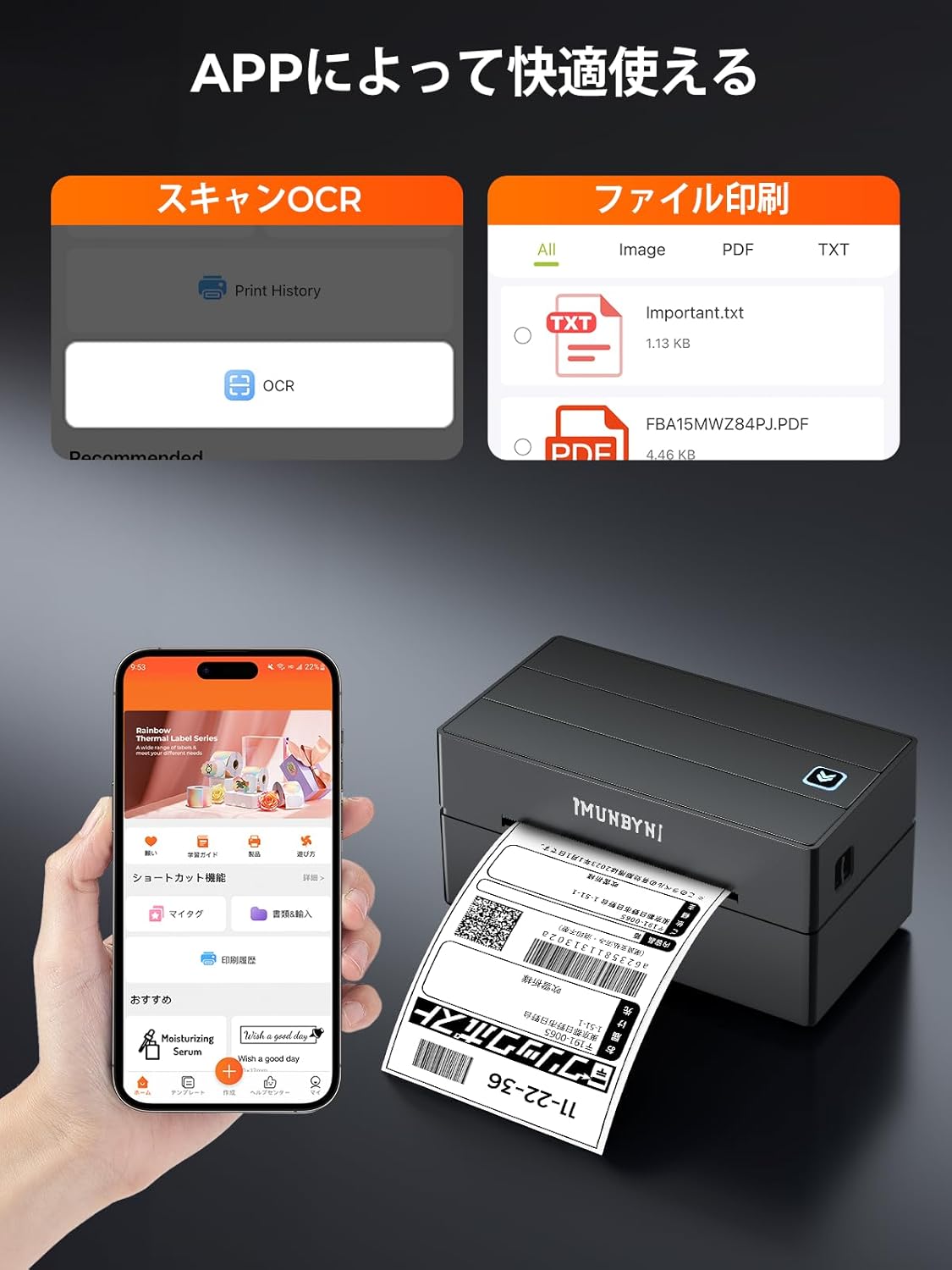
Image 5.1: Screenshot of the MUNBYN Print app showing options for scanning and file printing.
5.2 Printing Japan Post (Click Post) Labels
Click Post generates A4 size PDF files. To print these on A6 labels, a conversion is necessary. You can use third-party plugins for this purpose:
- Paid Plugin: "Click Post Batch Registration/Payment/Printing v3"
- Free Plugin: "Click Post Extension Function by GoQSystem (Click Post Batch Payment & Import)"
Disclaimer: These plugins are not products of MUNBYN. We provide this information for guidance only and are not responsible for their use or functionality. Please refer to the plugin provider's documentation for detailed instructions.

Image 5.2: Comparison showing a standard label (left) and a MUNBYN-optimized label (right) for clarity and proper formatting.
5.3 Printing from PC (Windows/macOS)
After installing the drivers and connecting via USB (or Bluetooth for Windows), you can print from any application that supports printing.
- Open the document or label design you wish to print.
- Go to File > Print.
- Select the MUNBYN ITPP130B printer from the list of available printers.
- Access printer preferences or properties to adjust settings such as label size (e.g., 4x6 inch), orientation, and print quality. Ensure these settings match your loaded labels.
- Click Print.

Image 5.3: The printer supports various label sizes from 40mm to 110mm wide, including common sizes like 4x6 inches, 3x2 inches, and circular labels.
6. Maintenance
6.1 Cleaning the Print Head
Regularly cleaning the print head ensures optimal print quality and extends the printer's lifespan.
- Turn off the printer and unplug the power cord.
- Open the printer cover.
- Gently wipe the print head with a cotton swab lightly dampened with isopropyl alcohol.
- Allow the print head to dry completely before closing the cover and powering on the printer.
6.2 Label Handling
- Use only high-quality thermal labels compatible with your printer.
- Store labels in a cool, dry place away from direct sunlight.
- Avoid touching the thermal printing surface of the labels with bare hands to prevent oil transfer.
7. Troubleshooting
If you encounter issues with your MUNBYN ITPP130B printer, refer to the following common problems and solutions:
7.1 Printer Not Responding
- Ensure the power cable is securely connected and the printer is turned on.
- Check the USB or Bluetooth connection. Reconnect if necessary.
- Restart the printer and your connected device.
7.2 Poor Print Quality
- Clean the print head as described in Section 6.1.
- Ensure you are using high-quality thermal labels.
- Adjust print density settings in your printer preferences or the MUNBYN Print app.
- Verify that the labels are loaded correctly and the print side is facing the print head.
7.3 Labels Not Feeding Correctly
- Ensure the labels are loaded straight and the paper guides are adjusted to the correct width.
- Check for any obstructions in the label path.
- Perform a label calibration: With the printer on and cover closed, press and hold the feed button until the printer emits a beep or feeds a few blank labels, then release.
8. Specifications
| Feature | Specification |
|---|---|
| Brand | MUNBYN |
| Model Number | ITPP130B |
| Printing Technology | Thermal |
| Max Print Speed (Monochrome) | 180 mm/s (equivalent to 117 pages/minute) |
| Max Print Resolution | 203 dpi |
| Max Media (Paper) Size | 108 mm (max width) |
| Supported Label Width | 40mm to 110mm |
| Connectivity | Bluetooth (iOS, Android, Windows), USB (Windows, macOS, ChromeOS, Linux) |
| Product Dimensions (L x W x H) | 20.5 x 17.5 x 12 cm |
| Product Weight | 1.4 kg |
| Color | Black |
| Duplex Printing | No |
9. Warranty and Support
MUNBYN products come with a standard warranty. For specific warranty details, please refer to the warranty card included with your product or visit the official MUNBYN website. If you require technical assistance or have questions not covered in this manual, please contact MUNBYN customer support through their official channels.
For more information, visit the MUNBYN Brand Store on Amazon.


