
TECWARE Spectre 75
TECWARE Spectre 75 Mechanical Gaming Keyboard User Manual
Model: Spectre 75
Introduction
This manual provides detailed instructions for the setup, operation, and maintenance of your TECWARE Spectre 75% RGB Mechanical Gaming Keyboard. Designed for performance and customization, the Spectre 75 features a compact layout, customizable LCD screen, multi-function knob, gasket mount design, and hot-swappable switches. Please read this manual thoroughly to ensure proper use and to maximize your keyboard's potential.

Image: The TECWARE Spectre 75 mechanical gaming keyboard, showcasing its compact 75% layout and vibrant RGB backlighting.
Setup
Package Contents
- TECWARE Spectre 75 Mechanical Gaming Keyboard
- USB-C to USB-A Cable
- 2.4GHz Wireless Dongle
- Keycap/Switch Puller Tool
- User Manual (this document)
Connectivity Options
The TECWARE Spectre 75 keyboard offers three modes of connectivity:
- 2.4GHz Wireless: For a stable, low-latency wireless connection.
- Bluetooth 5.0: For wireless connection to multiple devices.
- USB-C Wired: For a direct, reliable connection and charging.

Image: The keyboard's connectivity options, including the 2.4GHz wireless dongle, USB-C port, and Bluetooth indicator.
Initial Connection
- Wired Connection: Connect the provided USB-C cable to the keyboard's USB-C port and the other end to an available USB port on your computer. The keyboard will be recognized automatically.
- 2.4GHz Wireless Connection:
- Locate the 2.4GHz wireless dongle.
- Plug the dongle into an available USB port on your computer.
- Ensure the keyboard's mode switch (usually on the back or side) is set to 2.4G.
- The keyboard should connect automatically.
- Bluetooth Connection:
- Ensure the keyboard's mode switch is set to BT.
- On your computer or device, navigate to Bluetooth settings.
- Search for new devices and select "TECWARE Spectre 75" (or similar) from the list.
- Follow any on-screen prompts to complete pairing.
The keyboard is equipped with a 4000mAh battery, providing up to 400 hours of continuous usage on a single charge. Charge the keyboard using the USB-C cable.
Operation
Customizable LCD Screen
The 1.14" TFT-LCD smart screen can display various information and custom content.
- Information Display: View time, date, battery level, connection mode, and system information (e.g., CPU/GPU usage).
- Custom Content: Upload your own GIFs or static images for a personalized display. This feature is managed via the TECWARE software.

Image: Examples of content displayed on the customizable LCD screen, including animated GIFs, time and date, and system performance metrics.
Multi-Function Knob
The dedicated knob provides dual functionality for media control and LCD screen navigation.
- Switching Modes: Press and hold the FN key and rotate the knob for 3 seconds to switch between LCD Mode and Volume Mode.
- LCD Mode:
- Rotate Left/Right: Navigate through the LCD menu.
- Press Down: Confirm selection.
- Volume Mode:
- Turn: Adjust system volume.
- Press: Mute/Unmute audio.

Image: A user's hand adjusting the multi-function knob, which controls volume and LCD screen navigation.
RGB Illumination
The keyboard features 16.8 million color RGB illumination with per-key customization and an RGB LED side underglow.
- Preset Lighting Modes: Access 18 preset lighting modes directly from the keyboard or customize further using the TECWARE software.
- 3-Zone RGB Illumination: Lighting can be customized for keys, underglow, and the volume wheel.

Image: The TECWARE Spectre 75 keyboard displaying its extensive RGB lighting capabilities, including per-key customization and underglow effects.
Software Support
Download the official TECWARE software from the TECWARE website to unlock advanced customization options:
- Macro Recording: Create and assign complex macros to keys.
- Macro Assignment: Easily assign recorded macros to any key.
- Custom User Profiles: Save and switch between different key layouts and lighting configurations.
- LCD Screen Customization: Upload GIFs and images to the LCD screen.
- Advanced RGB Control: Fine-tune lighting effects and colors.

Image: The TECWARE Spectre 75 keyboard, highlighting its compatibility with software for advanced customization features like macros and user profiles.
Maintenance
Cleaning the Keyboard
- Use a soft, lint-free cloth slightly dampened with water or a mild cleaning solution to wipe down the keycaps and chassis.
- For dust and debris between keycaps, use compressed air.
- Avoid spraying liquids directly onto the keyboard.
- Do not use harsh chemicals or abrasive materials.
Hot-Swappable Switches
The TECWARE Spectre 75 features 5-pin universal hot-swappable sockets, allowing for easy replacement of switches without soldering.
- Removing Switches: Use the provided switch puller tool. Gently grip the switch from the top and bottom, then pull upwards with even pressure until the switch detaches from the PCB.
- Installing Switches: Align the pins of the new switch with the holes on the PCB. Press down firmly until the switch clicks into place. Ensure the pins are not bent before insertion.
- Compatibility: South-facing LEDs ensure compatibility with most aftermarket switches.
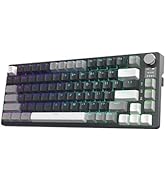
Image: The TECWARE Spectre 75 keyboard with keycaps and switches removed, showing the hot-swappable sockets and the tools required for switch replacement.
Troubleshooting
Keyboard Not Responding
- Wired: Ensure the USB-C cable is securely connected to both the keyboard and the computer. Try a different USB port or cable.
- 2.4GHz Wireless:
- Verify the dongle is properly inserted into a USB port.
- Check that the keyboard's mode switch is set to 2.4G.
- Ensure the keyboard battery is charged.
- Bluetooth:
- Confirm the keyboard's mode switch is set to BT.
- Check your device's Bluetooth settings to ensure the keyboard is paired and connected.
- Try unpairing and re-pairing the keyboard.
- Ensure the keyboard battery is charged.
RGB Lighting Issues
- If RGB lighting is not working or displaying incorrectly, check the TECWARE software for lighting settings.
- Ensure the keyboard firmware is up to date.
LCD Screen Not Displaying
- Ensure the keyboard is powered on and connected.
- Check LCD settings within the TECWARE software.
- Try resetting the keyboard (refer to software or manufacturer website for specific instructions).
Keys Not Registering or Double-Typing
- This could indicate a faulty switch. Utilize the hot-swappable feature to replace the problematic switch.
- Ensure the switch is fully seated in its socket.
Specifications
| Feature | Detail |
|---|---|
| Product Dimensions | 13.04 x 5.74 x 1.51 inches |
| Item Weight | 2.03 pounds |
| Manufacturer | Tecware |
| Batteries | 1 9V battery (included) |
| Brand | TECWARE |
| Compatible Devices | PC, Mac |
| Connectivity Technology | Bluetooth (BT 5.0), USB-C, 2.4 GHz Wireless |
| Keyboard Description | RGB Mechanical Gaming Keyboard |
| Recommended Uses | Gaming |
| Special Feature | Backlit, Customizable LCD Screen, Multi-Function Knob, Gasket Mount, Hot-Swappable Sockets |
| Color | Black, Candy Red Switch (Linear) |
| Style | Spectre 75 |
| Theme | Rainbow |
| Power Source | Battery Powered |
Switch Specifications (Candy Red Linear)
| Characteristic | Value |
|---|---|
| Actuation Force | 45 ± 5gf |
| Bottom Out Force | 48 ± 5gf |
| Total Travel Distance | 3.5 ± 0.3mm |
| Type | Linear |
Note: Specifications are subject to change without prior notice.
Warranty Information
TECWARE products typically come with a limited manufacturer's warranty. For specific warranty terms, duration, and conditions applicable to your region and product, please refer to the warranty card included with your product or visit the official TECWARE website.
Keep your proof of purchase for warranty claims.
Support
For technical assistance, driver downloads, firmware updates, or further inquiries, please visit the official TECWARE support page:
You may also contact TECWARE customer service through the contact information provided on their website.
Related documentsSpectre 75


Ask a question about this manual
Ask about setup, troubleshooting, compatibility, parts, safety, or missing instructions. Manuals+ will review the question and use this page’s manual context to help answer it.