
1. Introduction
Welcome to the Blackview Tab60WiFi user manual. This guide provides essential information for setting up, operating, and maintaining your new 10-inch Android 14 tablet. Please read this manual thoroughly to ensure proper usage and to maximize your device's potential.

The Blackview Tab60WiFi, a 10.1-inch tablet running on the latest Android 14 operating system.
2. What's in the Box
Upon opening your Blackview Tab60WiFi package, you should find the following items:
- Blackview Tab60WiFi Tablet
- 10W Power Adapter
- USB-C Cable
- User Manual

Illustration of the Blackview Tab60WiFi tablet and its included accessories.
3. Product Overview
The Blackview Tab60WiFi features a sleek and lightweight metal body, designed for portability and comfort.

The tablet is available in stylish colors and weighs approximately 520.5g.
4. Initial Setup
4.1 Charging the Tablet
Before first use, fully charge your tablet using the provided 10W power adapter and USB-C cable. Connect the USB-C cable to the tablet's Type-C port and the adapter to a power outlet.
4.2 Power On/Off
- To Power On: Press and hold the power button until the Blackview logo appears.
- To Power Off: Press and hold the power button, then select 'Power Off' from the options.
- To Restart: Press and hold the power button, then select 'Restart' from the options.
5. Operating Instructions
5.1 Android 14 Features
Your Blackview Tab60WiFi runs on Doke OS_P 4.0, based on Android 14, offering enhanced performance, privacy, and security features.

Key Android 14 features include split screen, privacy protection, parental controls, and three-finger screenshot functionality.
5.2 PC Mode 2.0
The tablet supports PC Mode 2.0, allowing for a desktop-like experience ideal for productivity tasks such as using office applications like Excel. This mode enhances multitasking and workflow efficiency.
This video demonstrates how to activate and use the PC Mode feature on a Blackview tablet, showcasing its desktop-like interface and multitasking capabilities.
5.3 Split Screen Functionality
Utilize Split View 2.0 to enhance productivity by running two applications side-by-side on a single screen. This is useful for multitasking, such as watching a video while chatting with friends or comparing documents.

The Split View 2.0 feature allows for efficient multitasking by displaying two apps simultaneously.
5.4 Workspace App
The Workspace app helps you separate your work and personal environments, ensuring business data security and maintaining clear boundaries between professional and private use.

The Workspace app provides distinct environments for personal and work-related activities.
5.5 WPS Office Suite
The tablet comes with the WPS Office suite pre-installed, allowing you to start working on documents, spreadsheets, and presentations immediately without additional setup.

WPS Office is pre-installed for immediate productivity.
5.6 Atomized Memory 2.0
Atomized Memory 2.0 intelligently allocates RAM, improving performance and freeing up 5-9% of idle memory from other processes and background applications.

Atomized Memory 2.0 optimizes RAM for smoother performance.
5.7 Privacy Features
Android 14-based Doke OS 4.0 enhances privacy settings, allowing you to manage data sharing and access permissions seamlessly. Features include automatic clipboard history deletion after a specified time to protect sensitive information.

Manage app permissions and clipboard history for enhanced privacy.
5.8 Display Modes
The tablet offers various display modes to suit your needs:
- Reading Mode: Optimizes the screen for comfortable reading.
- Eye Protection Mode (Night Mode): Reduces blue light to protect your eyes, especially in low light.
- Dark Mode: Changes the interface to a darker theme, reducing eye strain and saving battery.

Different display modes for various usage scenarios.
6. Display and Multimedia
6.1 Display Quality
The 10.1-inch Incell IPS display (1280x800 resolution) delivers vibrant colors and wide viewing angles. With Widevine L1 certification, you can enjoy 1080P high-quality streaming from services like Netflix, Amazon Prime Video, and Disney+.

The 10.1-inch Incell IPS display offers a 1280x800 HD resolution with a 16:10 aspect ratio and 300 nits brightness.

Widevine L1 certification enables high-definition streaming from popular platforms.
6.2 Audio Experience
Enjoy stereo sound quality with the dual smart box speakers. The tablet also includes a 3.5mm headphone jack for private listening.

The tablet features dual smart BOX stereo speakers for an immersive audio experience.

Dual box speakers and a 3.5mm headphone jack provide versatile audio options.
7. Camera
The Blackview Tab60WiFi is equipped with an 8MP rear camera and a 5MP front camera, allowing you to capture photos and videos of your important moments.

Capture life's beautiful moments with the 8MP rear and 5MP front cameras.

Detailed view of the tablet's 8MP rear camera with flashlight and 5MP front camera.
8. Performance and Storage
The tablet features a powerful Octa-core Allwinner A523 CPU with Mali-G57 GPU, ensuring smooth performance for videos and games. It comes with 12GB RAM (4GB physical + 8GB virtual) and 128GB internal storage, expandable up to 1TB with an SD card.
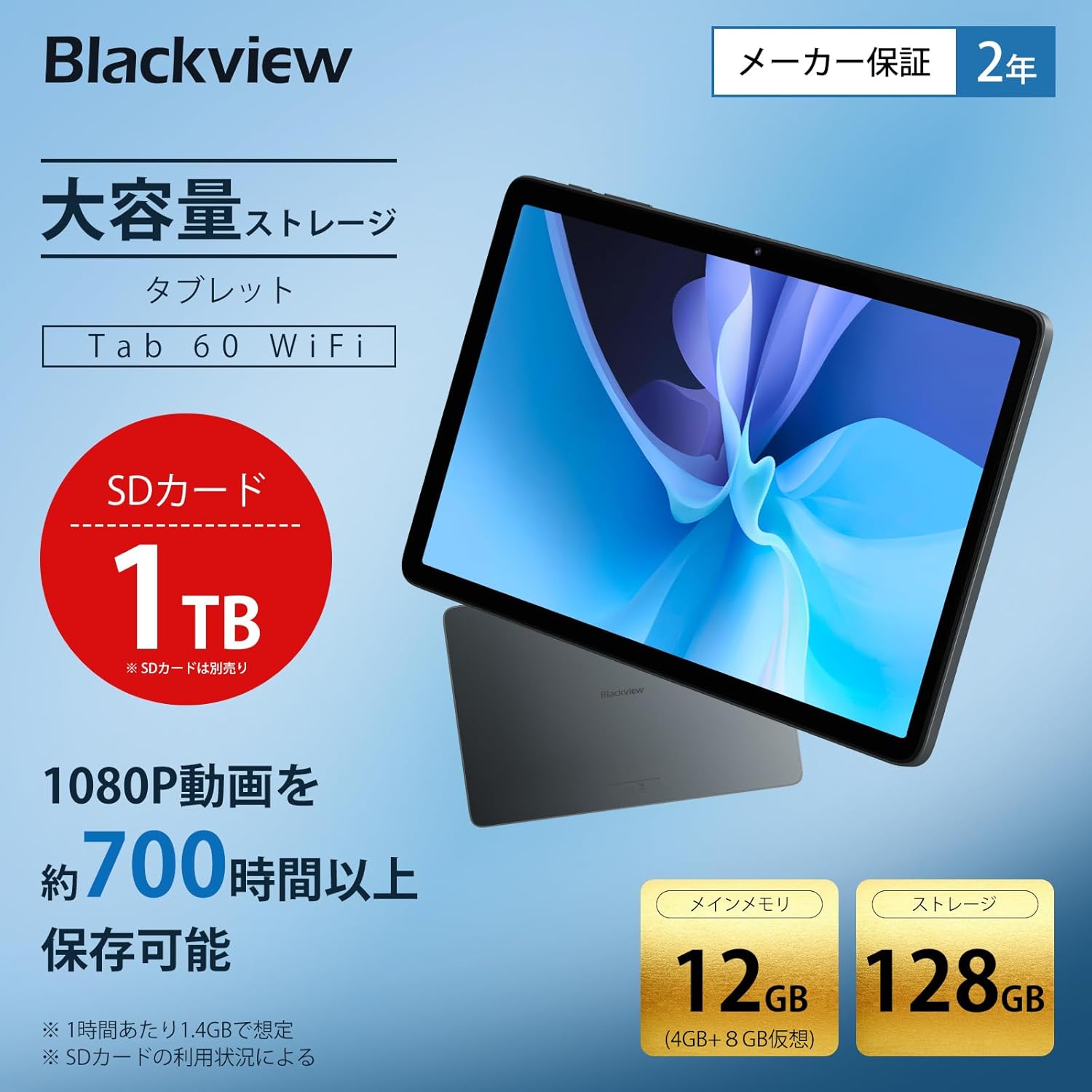
The tablet offers 12GB RAM (4GB + 8GB virtual) and 128GB storage, expandable up to 1TB with an SD card.

Generous RAM and storage capacity for all your needs.

Powered by an Octa-core Allwinner A523 processor for smooth operation.
9. Connectivity
The Tab60WiFi supports the latest Wi-Fi 6 standard for ultra-high-speed communication, along with Bluetooth 5.2 for seamless peripheral connections. It also features wireless projection for sharing your screen during meetings or classes.

Enjoy high-speed connectivity with Wi-Fi 6 and Bluetooth 5.2.

Wirelessly cast your screen to a larger display for shared viewing.
10. Battery Life
The tablet is equipped with a 5100mAh large-capacity battery, providing long hours of continuous use. It supports 10W fast charging to quickly replenish power.

The 5100mAh battery supports 10W fast charging via Type-C.

Extended battery life for gaming, video playback, web browsing, and standby.
11. Maintenance
11.1 General Care
- Avoid exposing the tablet to extreme temperatures, direct sunlight, or high humidity.
- Do not drop or subject the tablet to strong impacts.
- Keep the tablet away from water and other liquids.
11.2 Cleaning
- Use a soft, lint-free cloth to clean the screen and body of the tablet.
- Do not use harsh chemicals or abrasive cleaners.
12. Troubleshooting
12.1 Tablet Not Turning On
- Ensure the battery is charged. Connect the charger and wait a few minutes before attempting to power on.
- Press and hold the power button for at least 10-15 seconds to force a restart.
12.2 Screen Unresponsive
- Restart the tablet.
- If the issue persists, perform a factory reset (note: this will erase all data).
12.3 Wi-Fi Connection Issues
- Ensure Wi-Fi is enabled in settings.
- Restart your Wi-Fi router.
- Forget the network and reconnect.
12.4 Apps Crashing/Freezing
- Clear the app's cache and data in Settings > Apps.
- Update the app to the latest version.
- Uninstall and reinstall the app.
13. Specifications
| Feature | Specification |
|---|---|
| Brand | Blackview |
| Model Name | Tab60WiFi |
| Operating System | Doke OS_P 4.0 (Android 14 based) |
| Screen Size | 10.1 inches |
| Display Resolution | 1280x800 pixels (Incell IPS) |
| CPU Brand | Allwinner |
| CPU Speed | 2 GHz |
| GPU | Mali-G57 |
| RAM | 12GB (4GB physical + 8GB virtual) |
| Memory Storage Capacity | 128GB (expandable up to 1TB) |
| Rear Camera Resolution | 8 MP |
| Front Camera Resolution | 5 MP |
| Battery Capacity | 5100mAh |
| Connectivity | Wi-Fi 6, Bluetooth 5.2 |
| Weight | 950 g (package weight) / 520.5 g (device weight) |
| Dimensions | 32.7 x 20 x 4 cm (package dimensions) |
14. Warranty and Support
Your Blackview Tab60WiFi tablet comes with a 2-year quality guarantee. Blackview is committed to providing excellent products and customer service.
14.1 Contacting Customer Support
If you encounter any issues or have questions, please contact Blackview customer support. Our support team is available 24 hours online.
- Via Amazon: Navigate to the product page, click on the seller's name below the "Add to Cart" button, then click "Ask a Question" in the top right.
- Email: You can also contact us via email. The link is available on your Amazon account under "Order History" > "Problem with Order" > "Contact Seller".

Blackview offers a 24-month warranty and 24-hour online customer support.


